
Billing and Documents
More options
 Discuss with Marie
 Billing Information
Where to check and correct the name, company ID, VAT ID, and address of the school to which we issue invoices.
On the Billing → Billing Details page, you will find the information used for issuing invoices. You can make changes yourself. However, these changes will only apply to new invoices; already issued invoices will remain unchanged.
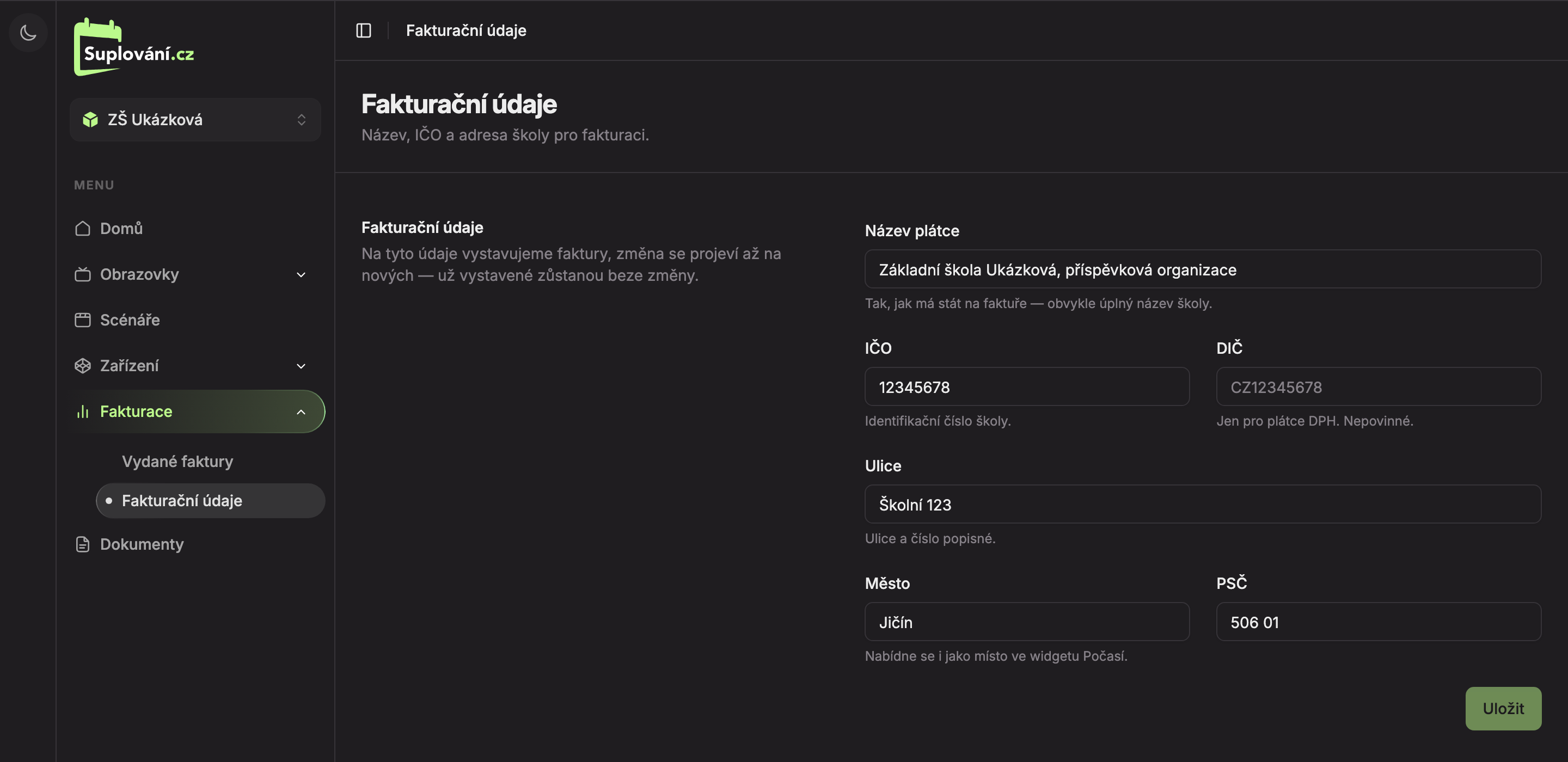
| Field | What belongs here | |
|---|---|---|
| 1 | Payer Name | The name as it should appear on the invoice, usually the full name of the school. This field is required. |
| 2 | Company ID (IČO) | The school’s identification number. |
| 3 | VAT ID (DIČ) | Only if the school is a VAT payer. Optional. |
| 4 | Street | Street name and house number. |
| 5 | City | City. Also suggested as a recommended location in the Weather widget. |
| Postal Code | Postal code. | |
| 6 | Save | Saves changes. The button is active only after you make changes. |
You can enter up to 200 characters in each field. Studio does not validate the format of the Company ID, VAT ID, or Postal Code, so please check them carefully.
Editing Data
Change the data
Click into the field and overwrite it. As soon as you make any changes, a Cancel button will appear next to the Save button.
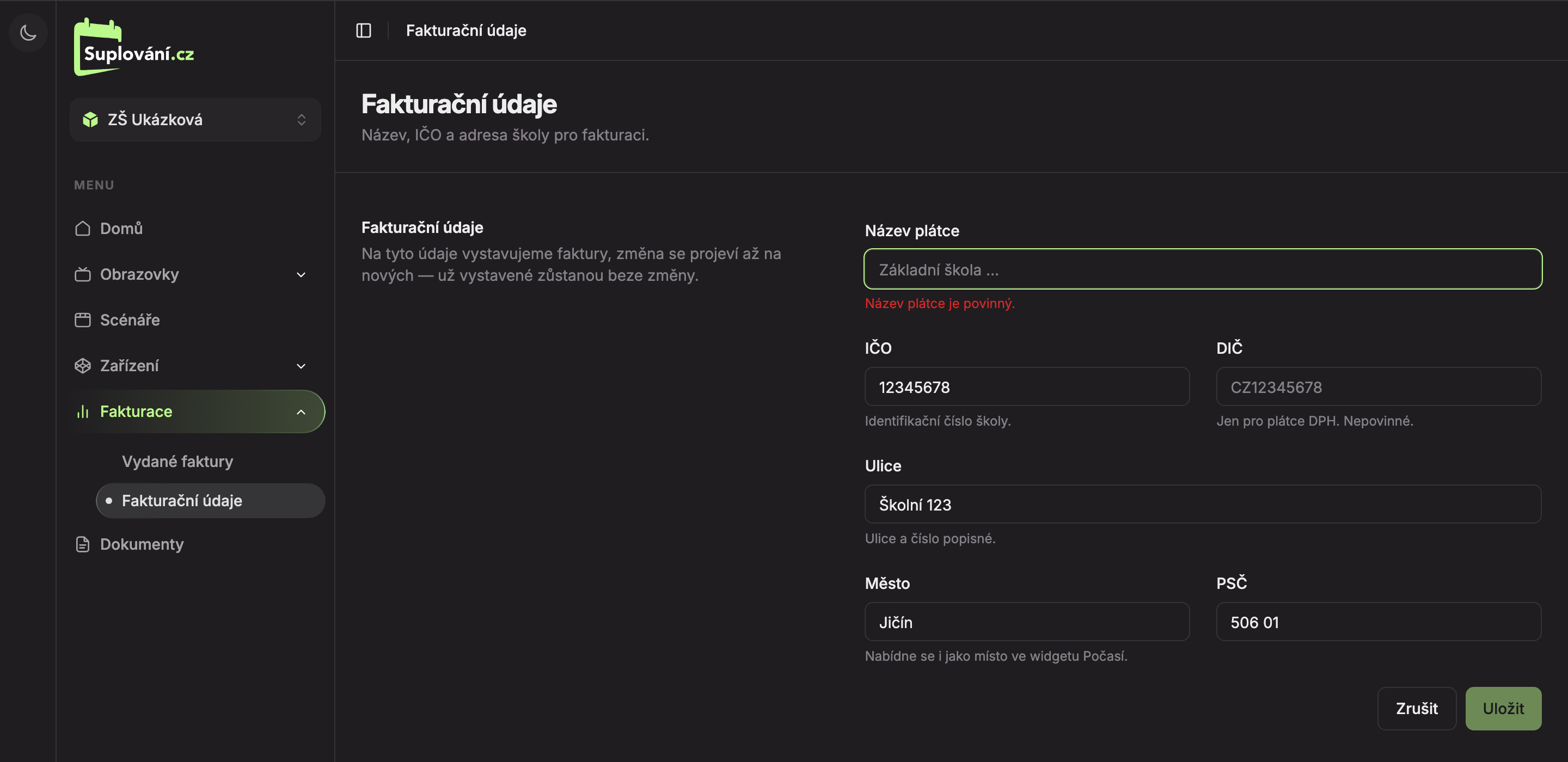
- If you leave the Payer Name empty, a red message “Payer Name is required.” will appear below the field.
- Cancel will revert all fields to their saved values.
- Save is inactive until the payer name is provided.
Save
Click Save. While saving, the button shows “Saving…” and the fields cannot be edited. After saving, the message “Billing data saved.” will appear.
Spaces at the beginning and end are automatically removed upon saving. If saving fails, a message with the reason or “Saving failed.” will appear. Your changes will remain in the form so you can try again.
Updated