
Widgets
More options
 Discuss with Marie
 Notification Widget
A widget that displays notifications for the entire school from the Home page: title, alignment, color, and text size.
The Notification widget displays the text you enter on the Home page (see Notifications for the entire school). The text is not entered directly into the widget; it is automatically propagated. When you change the notification, screens usually show the update within a few seconds.
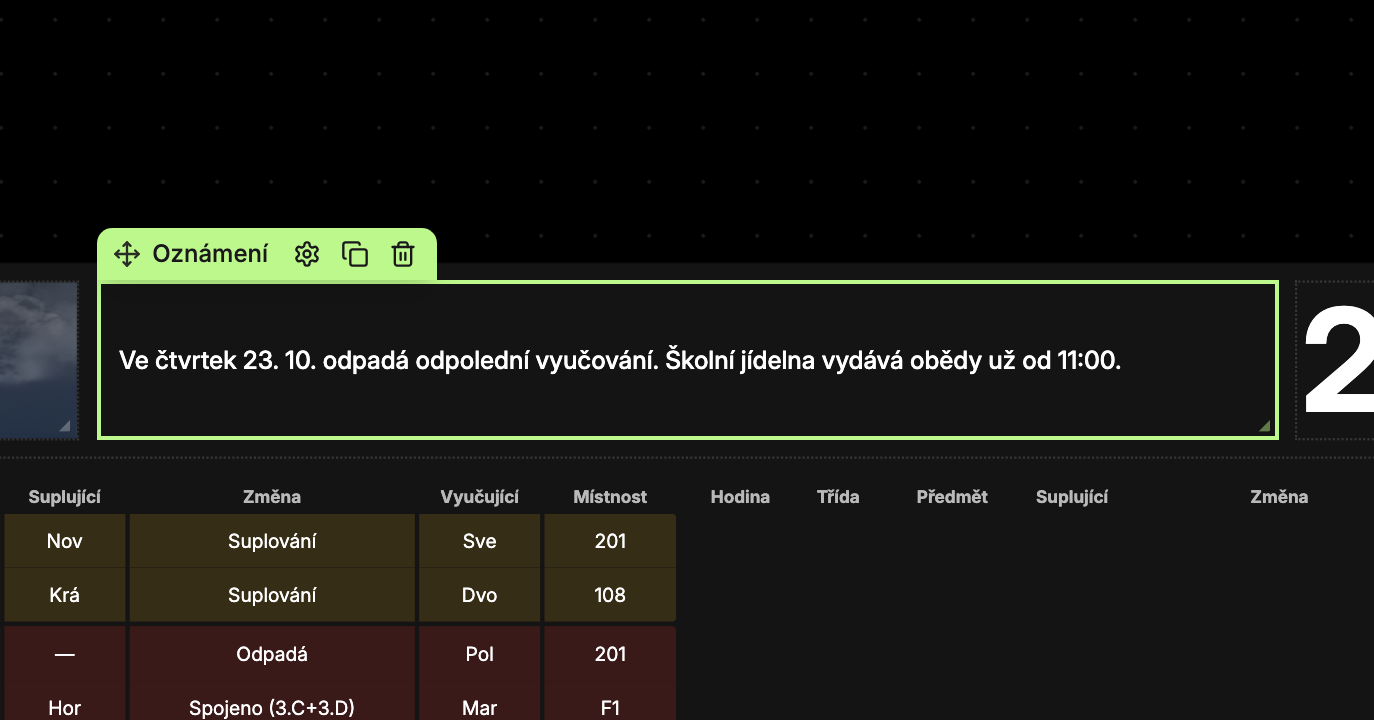
Content Tab
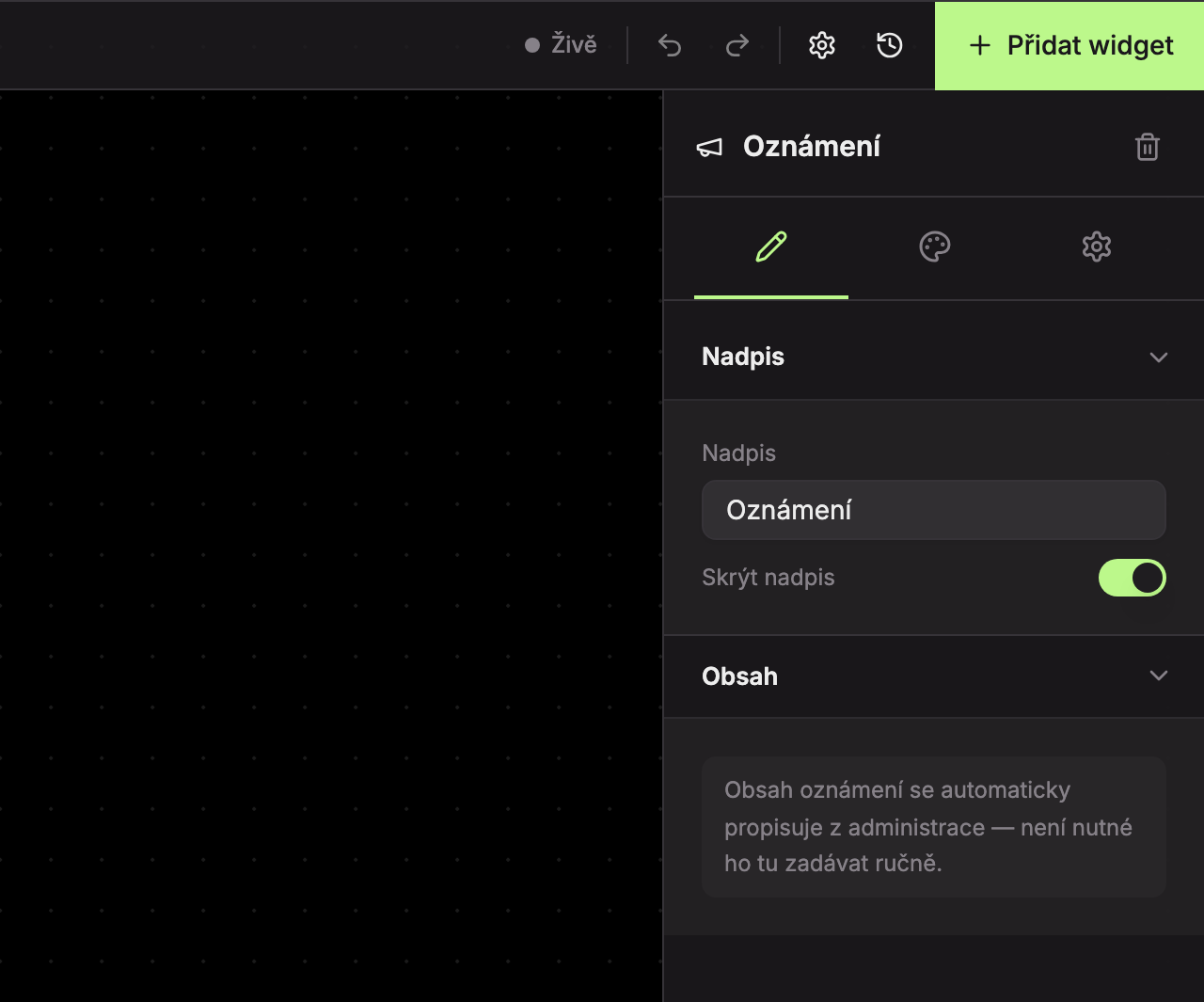
Title (1)
| Field | What it does | Default |
|---|---|---|
| Title | The title text above the notification. | Notification |
| Hide title | The title will not be displayed. | enabled (title is hidden) |
Content (2)
This section contains only the note: “Notification content is automatically propagated from the administration — no need to enter it manually here.”
Design Tab
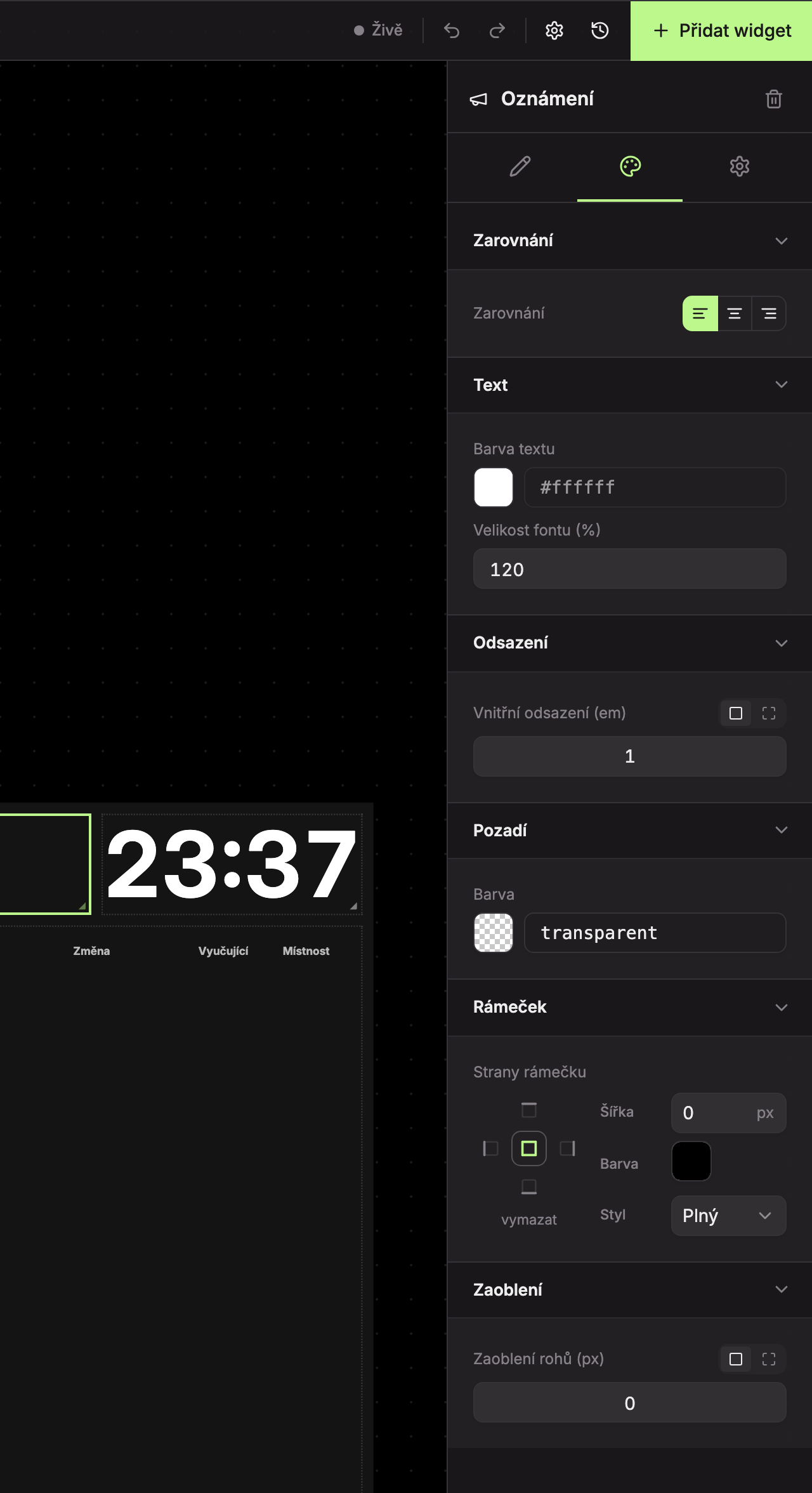
- Alignment (1) – text alignment: Left (default), Center, or Right.
- Text (2):
- Text color – default is the screen’s text color.
- Font size (%) – notification font size, 50–400%. Default is 120%.
- Padding (3), Background (4), Border (5), Rounding (6) – see common appearance settings.
What the widget shows
| Situation | Widget shows |
|---|---|
| A notification is written on the Home page | The notification text. Blank lines in the text are preserved. |
| The notification is empty | No important notifications today |
| In the editor on a screen without a school | Sample text “Sample notification for the entire school.” |
Updated