
Scenarios
More options
 Discuss with Marie
 Playing a Scenario and Simulating Time
How to play a scenario directly in the editor, switch screens, and test conditions by setting a different date and time.
Use the Play button to play the scenario directly in the editor, with real screens, durations, transitions, and conditions. Nothing changes or is saved on the device.
Starting Playback
Click Play in the editor’s top bar. Playback starts from the selected block. If no block is selected (or the selected block is not on the scenario path), playback starts from the first screen.
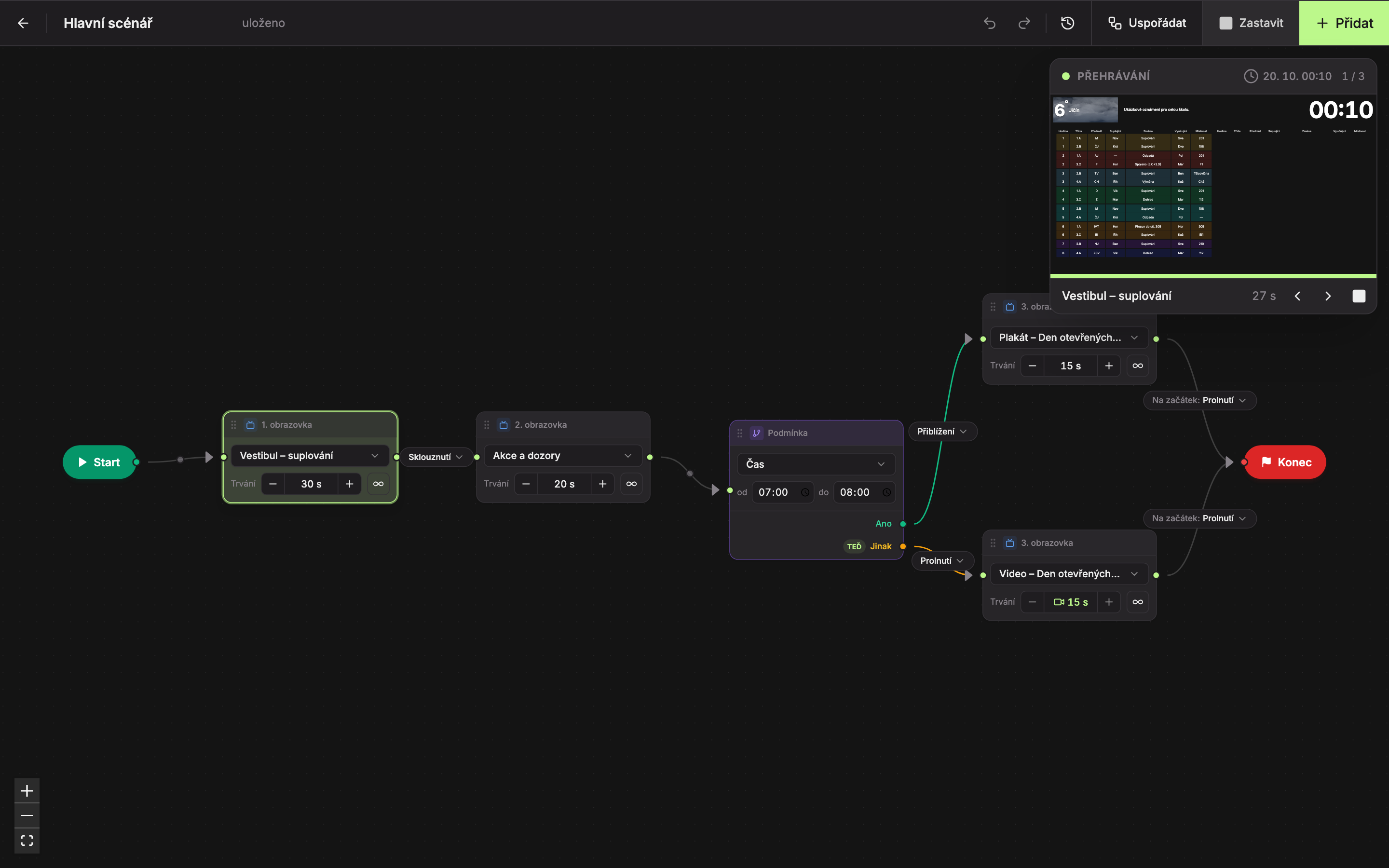
- Playback Window at the top right – preview of the currently playing screen. Below the preview is a thin progress bar, the screen name, and how many seconds remain (∞ for infinite duration). The top right of the window shows the screen order, for example, “1 / 3.”
- Clock – the date and time used to evaluate conditions. Click to set a different time (see below).
- Previous Screen – jump back one screen. From the first screen, it jumps to the last.
- Next Screen – jump to the next screen. Conditions are evaluated according to the clock time.
- Stop Playback – ends playback. The Esc key works the same (unless you are typing in a field) or the Stop button in the top bar, which appears instead of Play during playback.
- Playing Block on the canvas is highlighted and its background gradually fills as the screen time runs. Lines that playback has just passed briefly light up.
After the last screen, playback goes through the End block and continues from the first screen with the To Start transition, just like on the device. A screen with infinite duration remains until you click Next Screen.
You can continue editing the scenario during playback; duration changes take effect immediately. If you delete the block currently playing, playback restarts from the first screen. A screen set to wait for the end of a video plays as long as the video lasts. Playback also stops if you leave the editor. The Play button is disabled if the scenario has no screen connected between Start and End.
Simulating a Different Time
Conditions are evaluated based on the current date and time. To avoid waiting for morning or Christmas, you can set a different time in the preview.
Start Playback
The clock can only be set during playback. Click Play.
Click the Clock
In the Playback window, click the date and time (for example, “20. 10. 00
”). A menu opens with the text “Simulate time for conditions (only here in preview, the device uses real time).”Set Date and Time
Enter the day in the date field (1) and the hour in the time field (2), for example, 07
. The clock turns purple and conditions are immediately evaluated according to the new time: the NOW tag on the condition moves to the path valid at that time.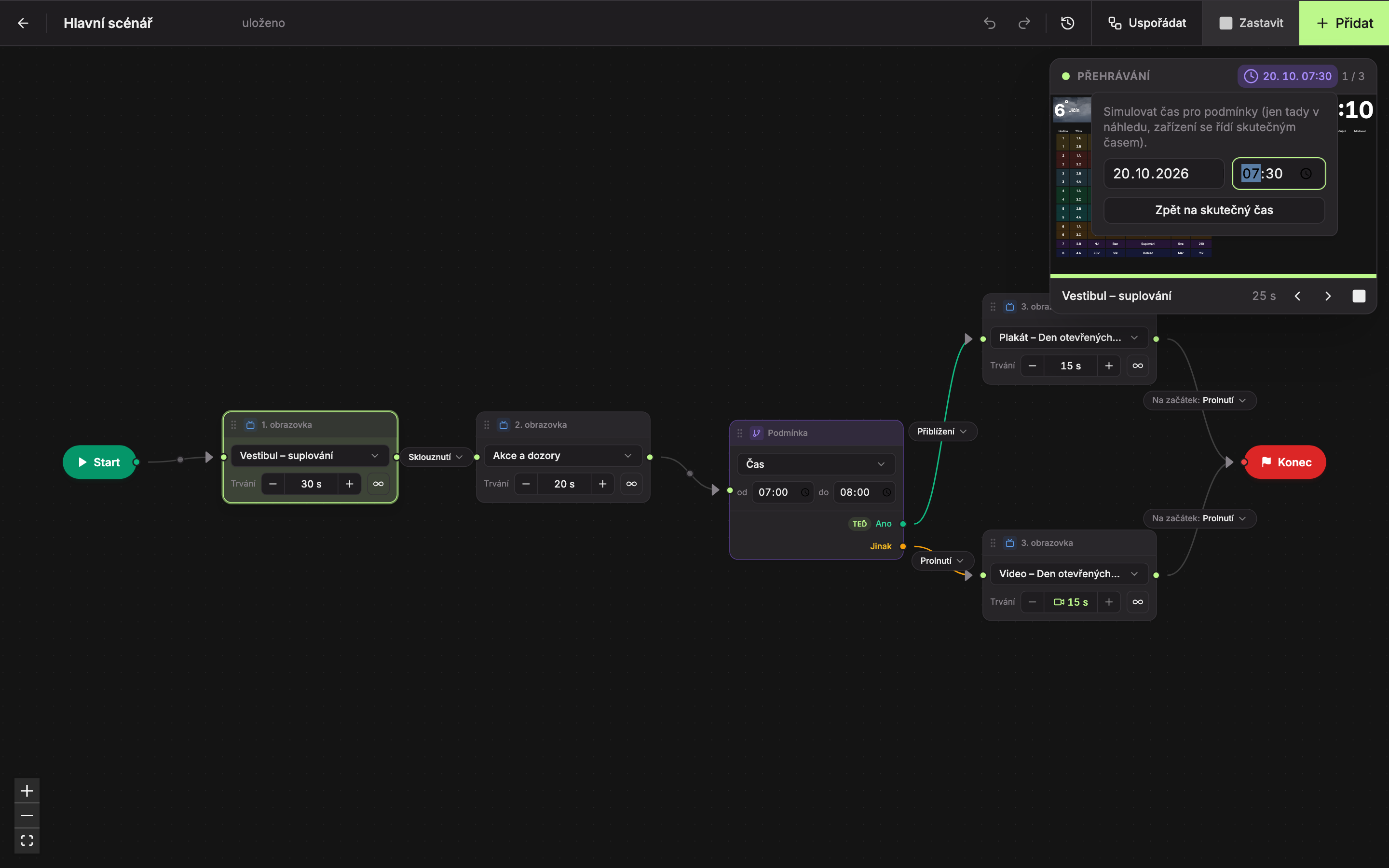
Return to Real Time
When finished, click Back to Real Time (3).
The set time continues running as if the clock were ticking: if you set 7
, in one minute it will be 7.Updated