
Media Library
More options
 Discuss with Marie
 Searching, Sorting, and File Details
How to find a file in the library, sort files, view details, rename a file, and copy its address.
When the library has many files, filtering by type, searching, and sorting help. In the file details, you can see its information and rename it.
Filter by Type
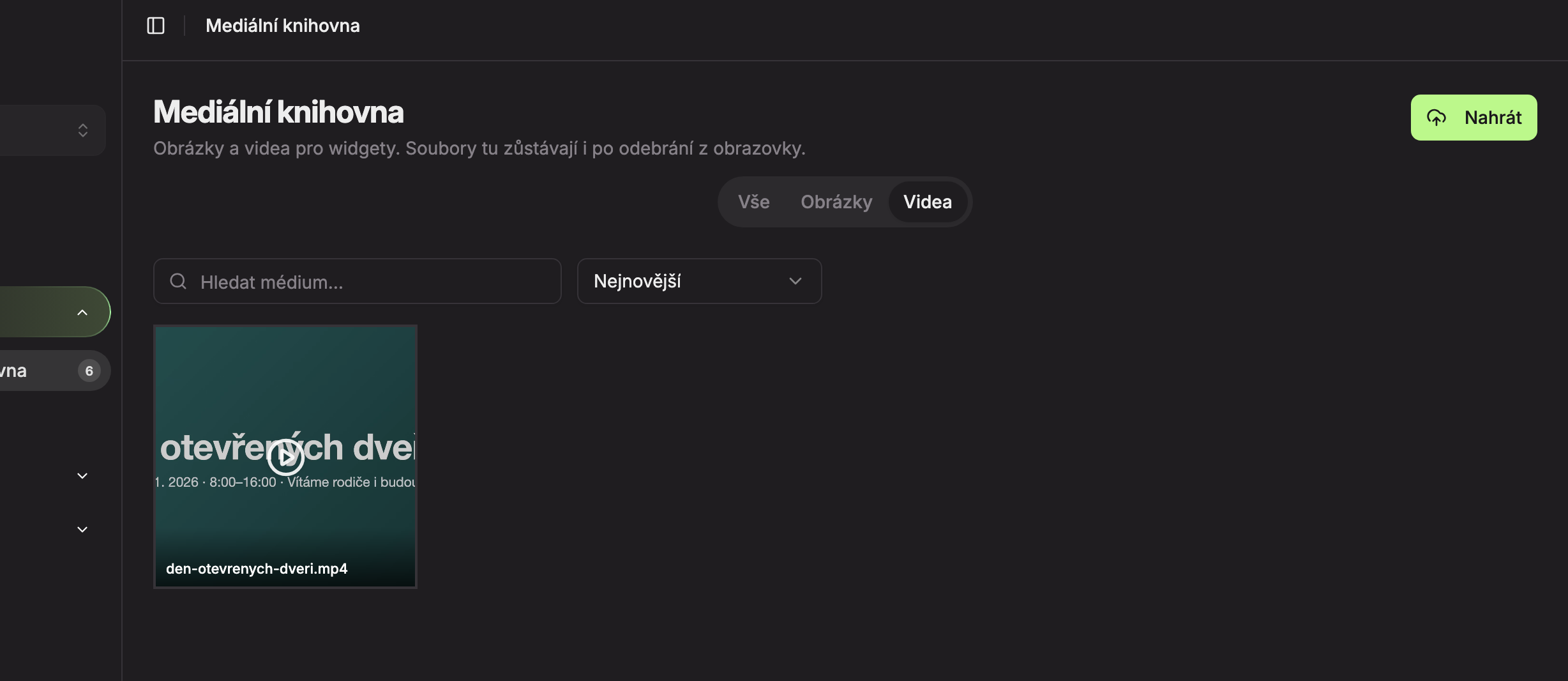
Use the toggle above the list to choose what to show: All (default), only Images, or only Videos.
Searching
In the Search media… field, type part of the name. The library will show only files containing that text in their name. Case does not matter, but diacritics do: file names are usually without accents, so search without them as well (for example, “otevrenych” instead of “otevřených”).
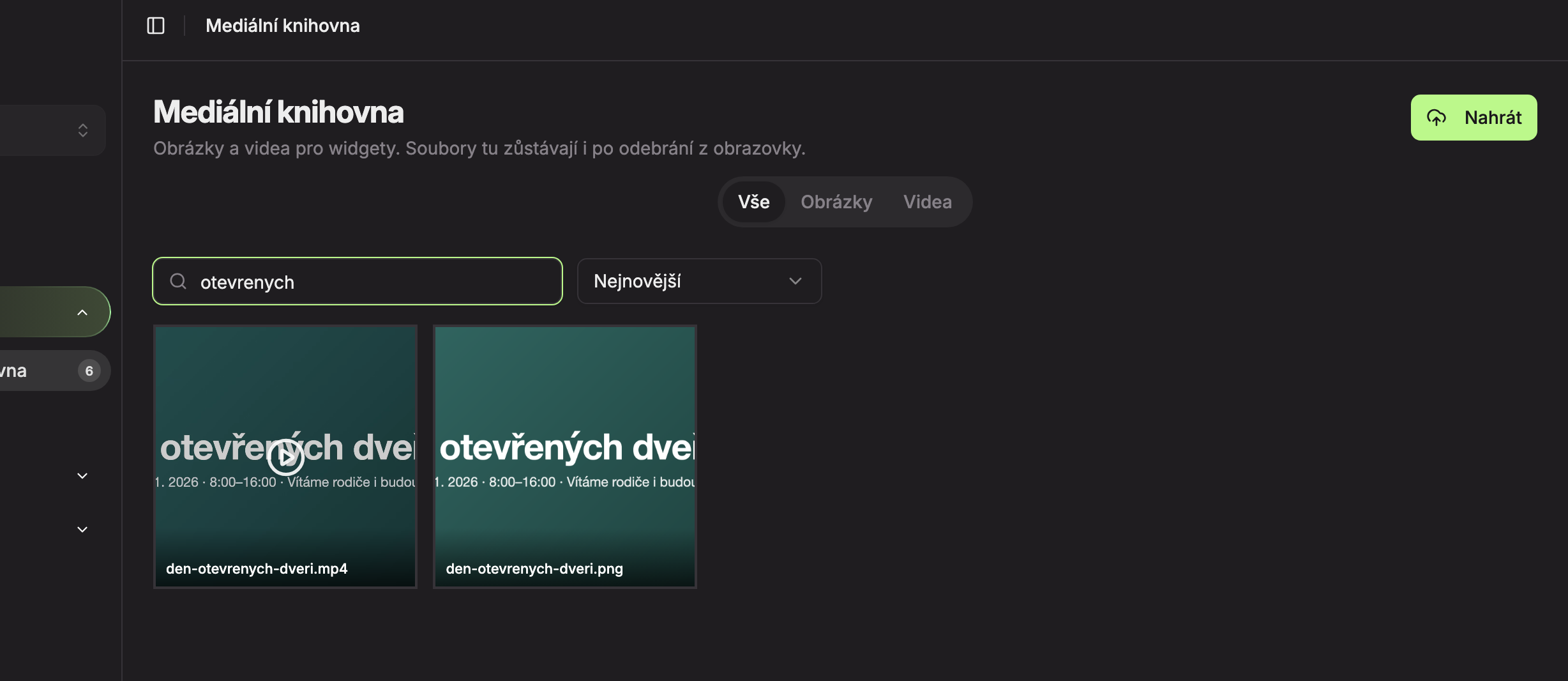
If the search finds nothing, you will see “No media yet.” Clear the text field to see all files again.
Sorting
In the menu next to the search, choose the file order:
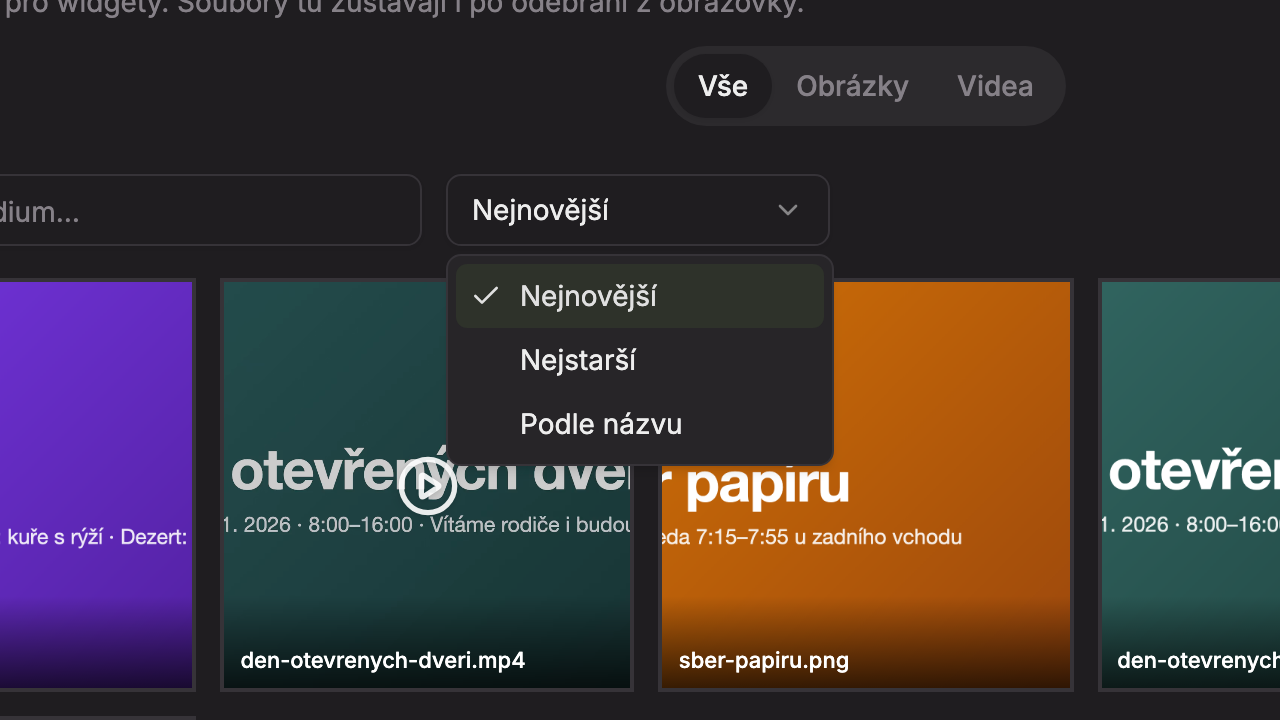
- Newest – most recently uploaded files first (default),
- Oldest – earliest uploaded files first,
- By Name – alphabetically by name.
File Details
Click the thumbnail to open the Media Details window. On the left is the file preview; you can play videos there.
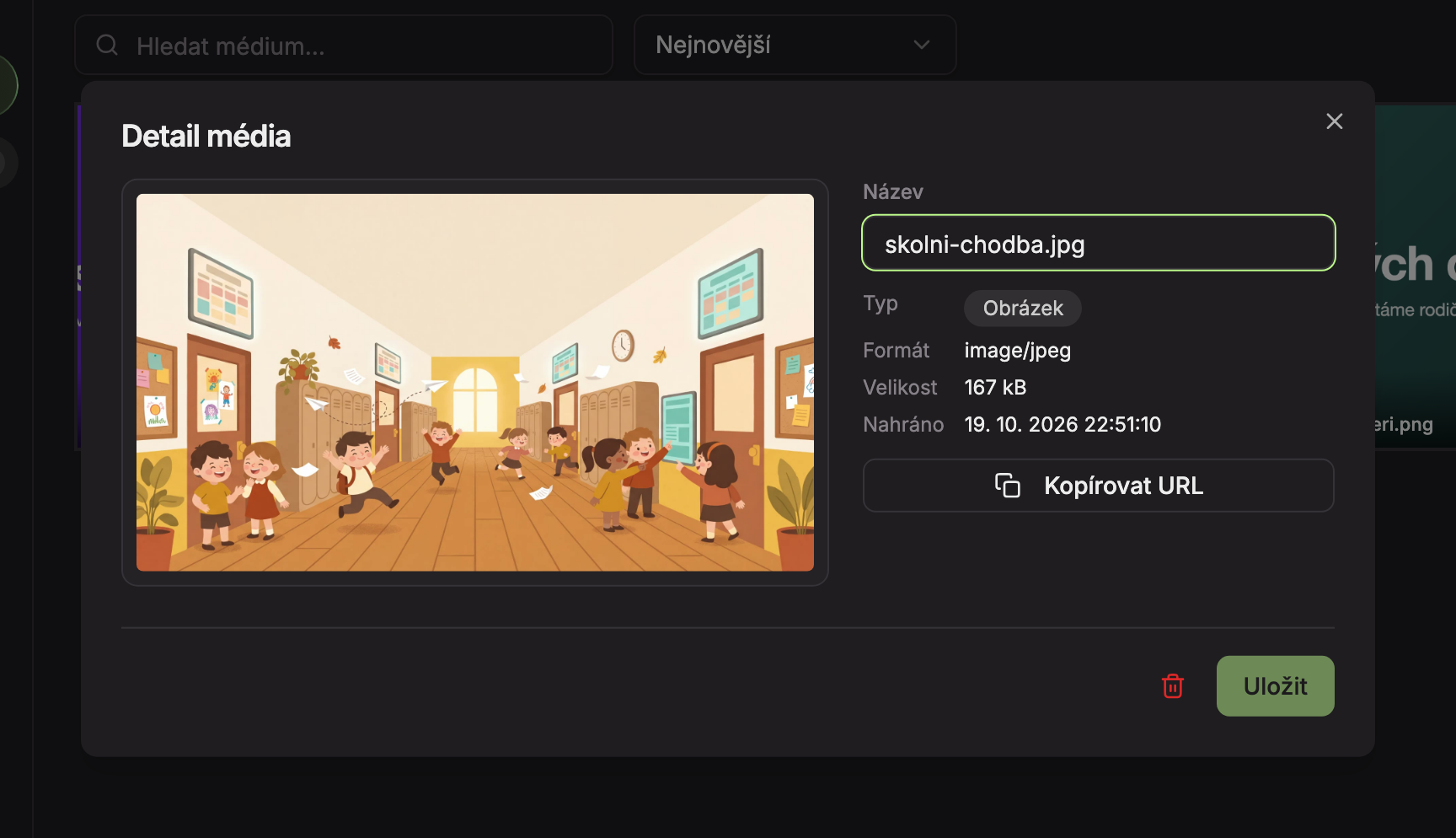
| Element | Purpose | |
|---|---|---|
| 1 | Name | The file name in the library. You can edit it. |
| 2 | File Info | Type (Image or Video), Format (e.g., image/jpeg or video/mp4), Size, and Uploaded (date and time of upload). |
| 3 | Copy URL | Copies the file’s web address to the clipboard. “URL copied” will appear. |
| 4 | Delete from Library | Deletes the file (see Deleting a File). |
| 5 | Save | Saves the new name. |
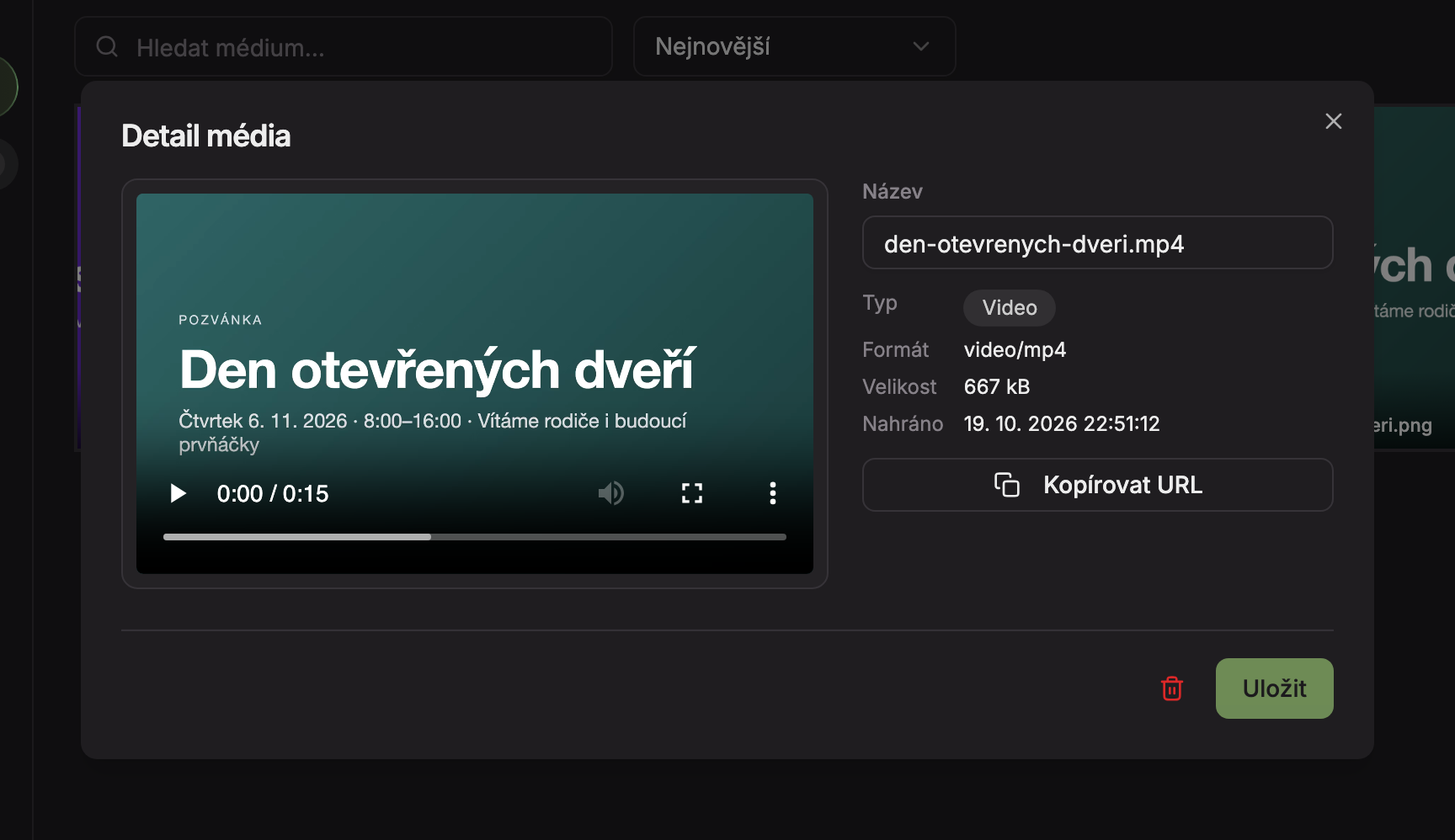 Close the window with the cross in the top right or by pressing Esc.
Renaming
Overwrite the name
In the file detail, overwrite the text in the Name field (1).
Save
Click Save (5). The button is active only when the name differs from the saved one. After saving, “Saved” will appear, and you will also see the new name in the library preview.
Renaming only affects the name in the library. Widgets where the file is used will continue to display it without changes.
Updated