
Devices
More options
 Discuss with Marie
 Turning the screen on and off
One-time turning off or on of a single device's screen or all school screens, how long the manual switch lasts, and how to return to the schedule.
Screens usually turn on and off automatically according to the schedule. When you need to turn off a screen outside the schedule, for example due to a school event, or turn it on, switch it on the Devices page.
The manual switch is temporary, lasting only until the next schedule change, up to 12 hours. After that, the screen follows the schedule again. The schedule itself does not change.
Single screen
You can switch a single device’s screen in two ways:
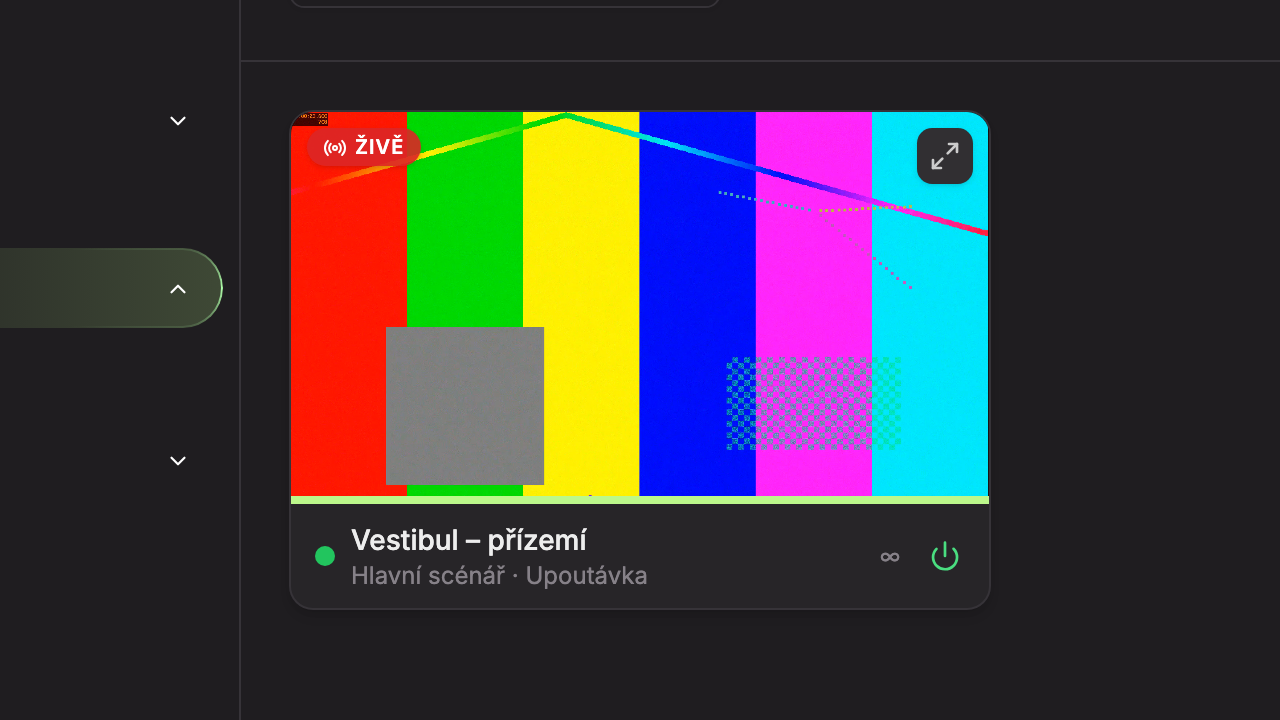
- On the device card (Grid view) using the power icon at the bottom right (5). A green icon means the screen should be on.
- In the device detail in the Screen section using the Turn off screen or Turn on screen button (5). Above the button, the current screen status is described (4).
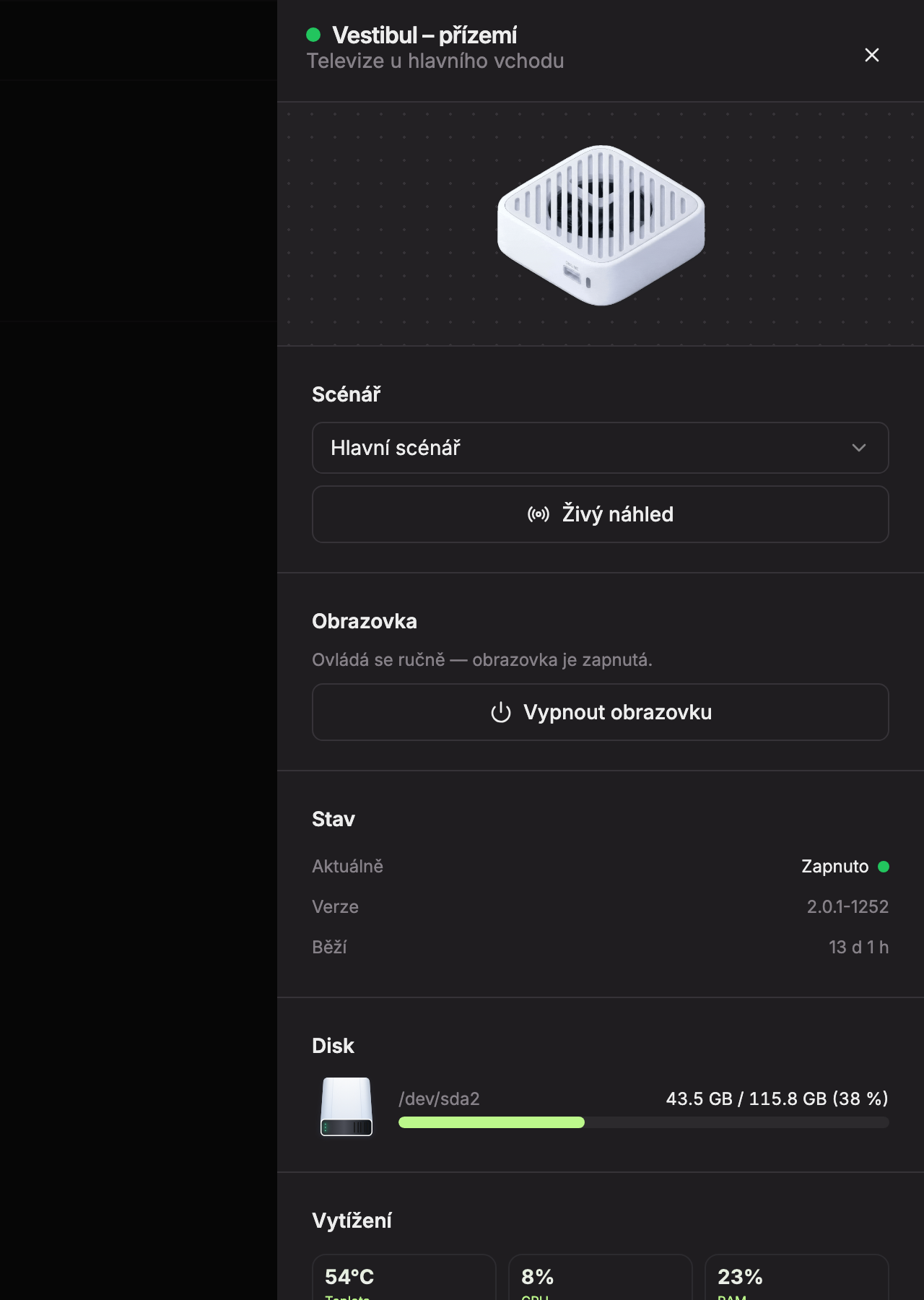
After clicking, a message appears saying “Turning off screen.” or “Turning on screen.” The button then gradually fills for 30 seconds and cannot be used because the TV switch can take up to a minute.
What the text in the Screen section means
| Text | Meaning |
|---|---|
| “According to schedule — screen should be on.” (or “… off.”) | The screen follows the schedule. |
| “Manually turned off until 16, then back to schedule.” | Someone manually switched the screen. The time indicates when it returns to the schedule. It can also say “until tomorrow 7” or “until Sat 7.” |
| “Controlled manually — screen is on.” (or “… off.”) | The device has no schedule. The screen stays in the set state until someone switches it again. |
During manual switching, next to the main button is also a According to schedule button. This cancels the manual switch and the screen immediately returns to the schedule (“Returning the screen to the schedule.”). On the device card, manual switching is shown in orange below the device name, for example “Manually turned off until 16
.”All school screens at once
The Turn off screens (or Turn on screens) button at the top right of the Devices page switches the screens of all school devices. The label Turn off screens shows when at least one screen should be on; otherwise, it shows Turn on screens.
Click Turn off screens
On the Devices page, click Turn off screens at the top right. A confirmation window opens.
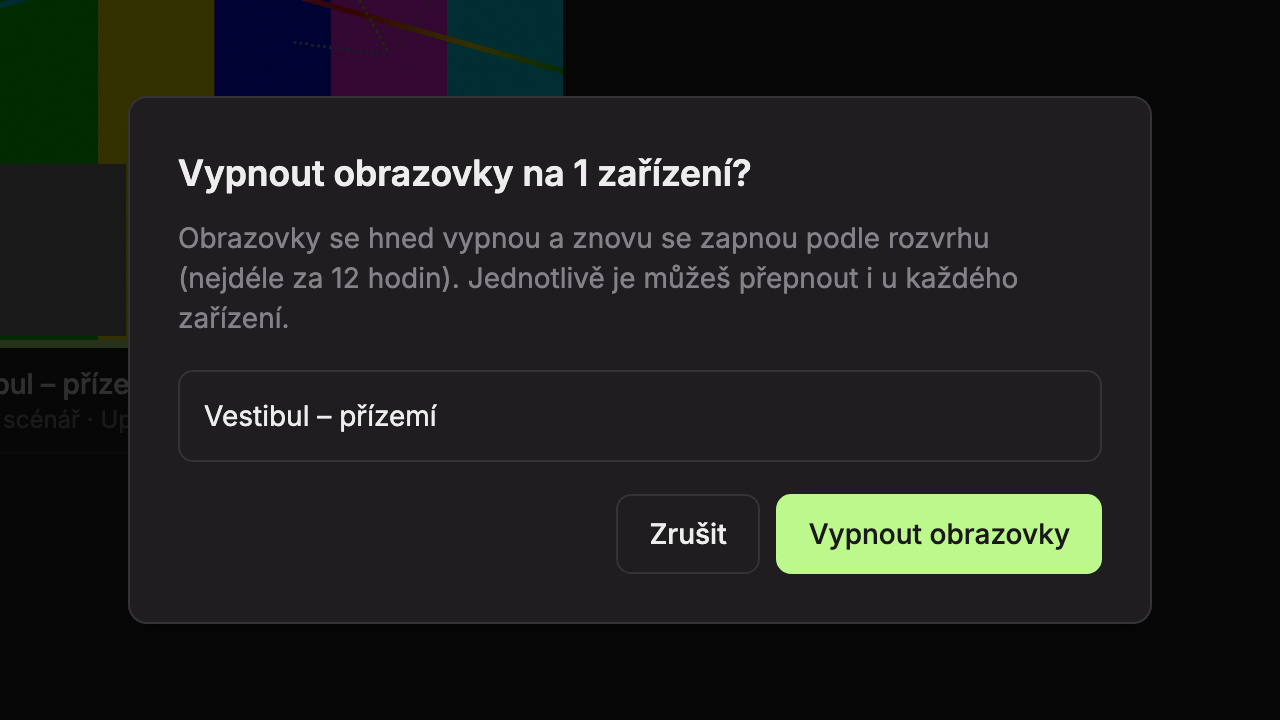
- List of devices affected by the switch. Devices that cannot be controlled are greyed out and have “cannot be controlled” next to their name. Hover to see why.
- Cancel – closes the window and does nothing.
- Turn off screens – switches the screens immediately.
Confirm
Click Turn off screens. The screens turn off immediately and will turn on again according to the schedule, at the latest within 12 hours. A message appears, for example “Turning off screens on 3 devices.”
Turning on works the same way: screens turn on immediately and stay on until the schedule turns them off, at the latest within 12 hours.
When toggling is not possible
On the device card, the toggle switch is gray and shows the reason when you hover over it. In the device details, the Screen section shows the reason as text instead of a button.
| Reason | What to do |
|---|---|
| “The device does not have screen power-on configured.” | The TV control is not set up for the device. Contact us. |
| “The screen is permanently turned off in administration.” | The screen is permanently turned off on our side. Contact us. |
| “The screen is toggling, this may take up to a minute…” | The toggle is in progress. Please wait 30 seconds. |
The bulk button is also gray when no school device can be controlled (“No school device has screen power-on configured.”).
If toggling fails, a message “Screen toggle failed.” will appear, or for bulk toggling the device name and reason. If this repeats, contact us (see Contact Support).
Updated