
Widgets
More options
 Discuss with Marie
 Substitution Widget
Substitution table for today or upcoming days: title, day, columns, sorting, layout, pagination, and lesson colors.
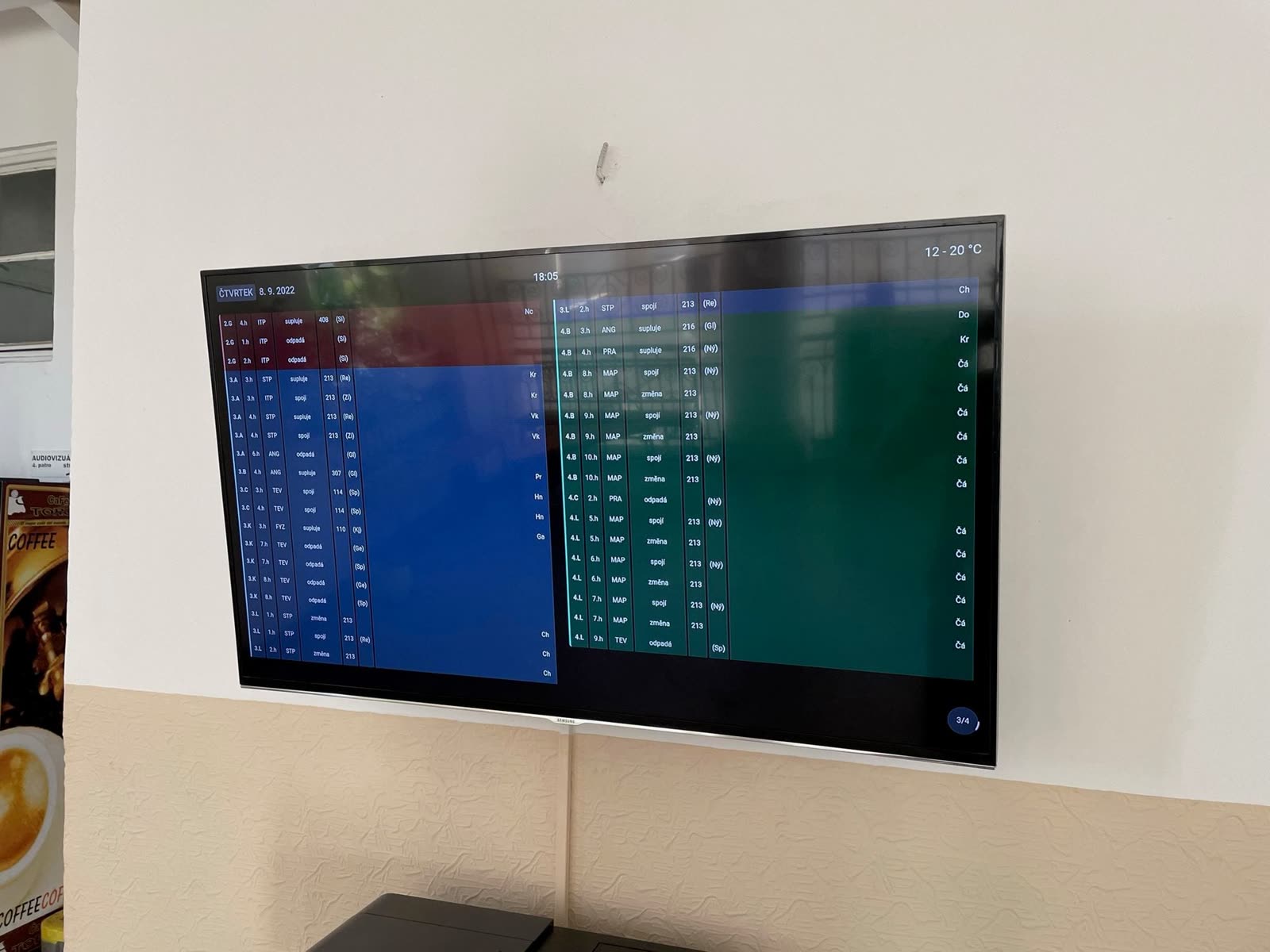
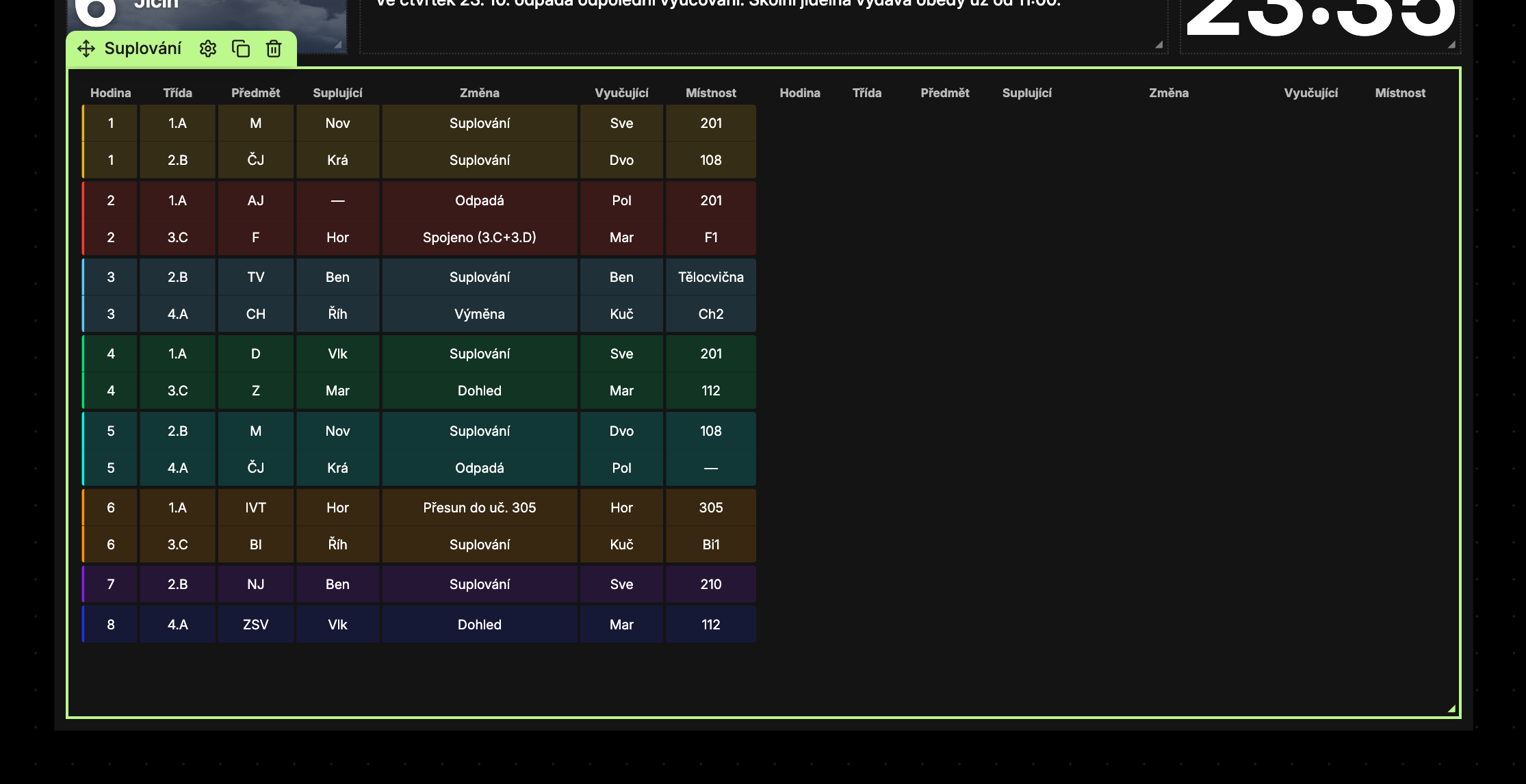
The Substitution widget displays a table of changes in the schedule. The data comes automatically from the school system. The table adapts itself to the widget size: in a wide widget, it splits into two columns, and if the rows do not fit, it paginates, with pages cycling automatically.
Content Tab
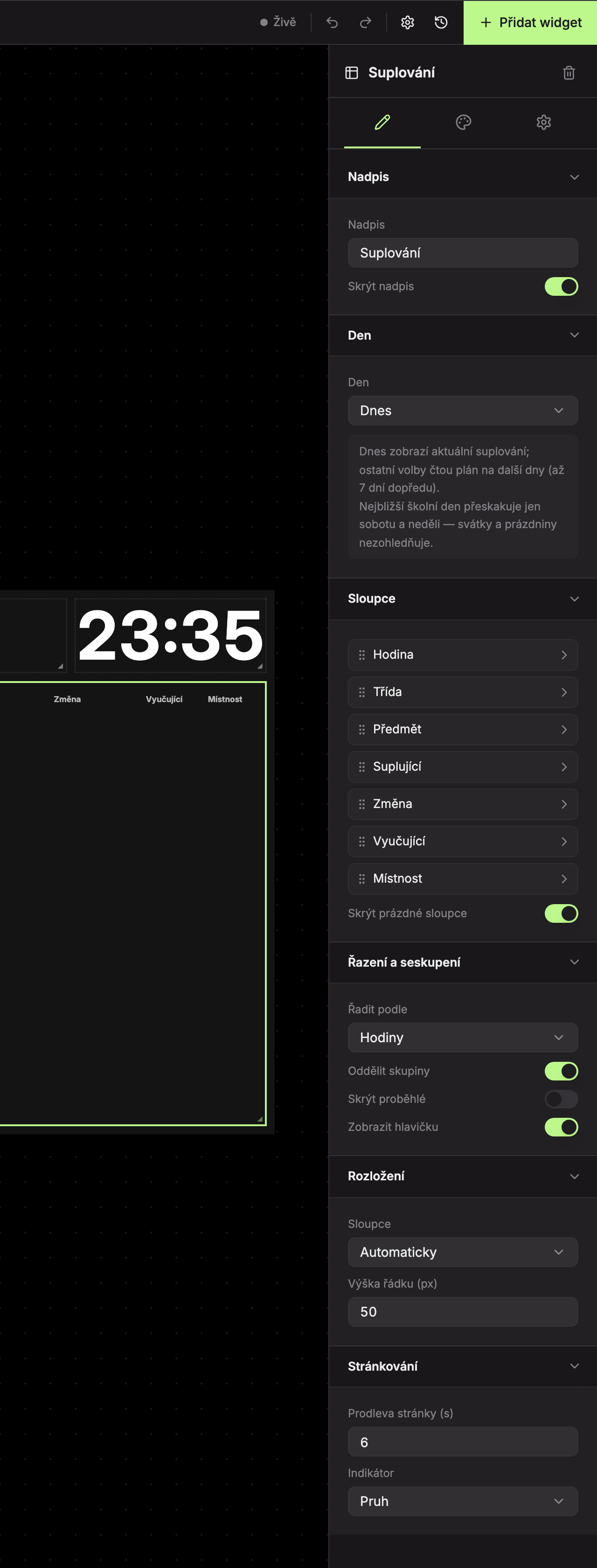
The tab has six sections: Title (1), Day (2), Columns (3), Sorting and grouping (4), Layout (5), and Pagination (6).
Title
| Field | What it does | Default |
|---|---|---|
| Title | Text of the title above the table. | Substitution |
| Hide title | The title will not be displayed. | enabled (title hidden) |
| Day in title | Appends the day and date to the title, for example “– tomorrow 20. 10.” or “– Wednesday 22. 10.”. This field appears only if the title is shown and Today is not selected in the Day section. | enabled |
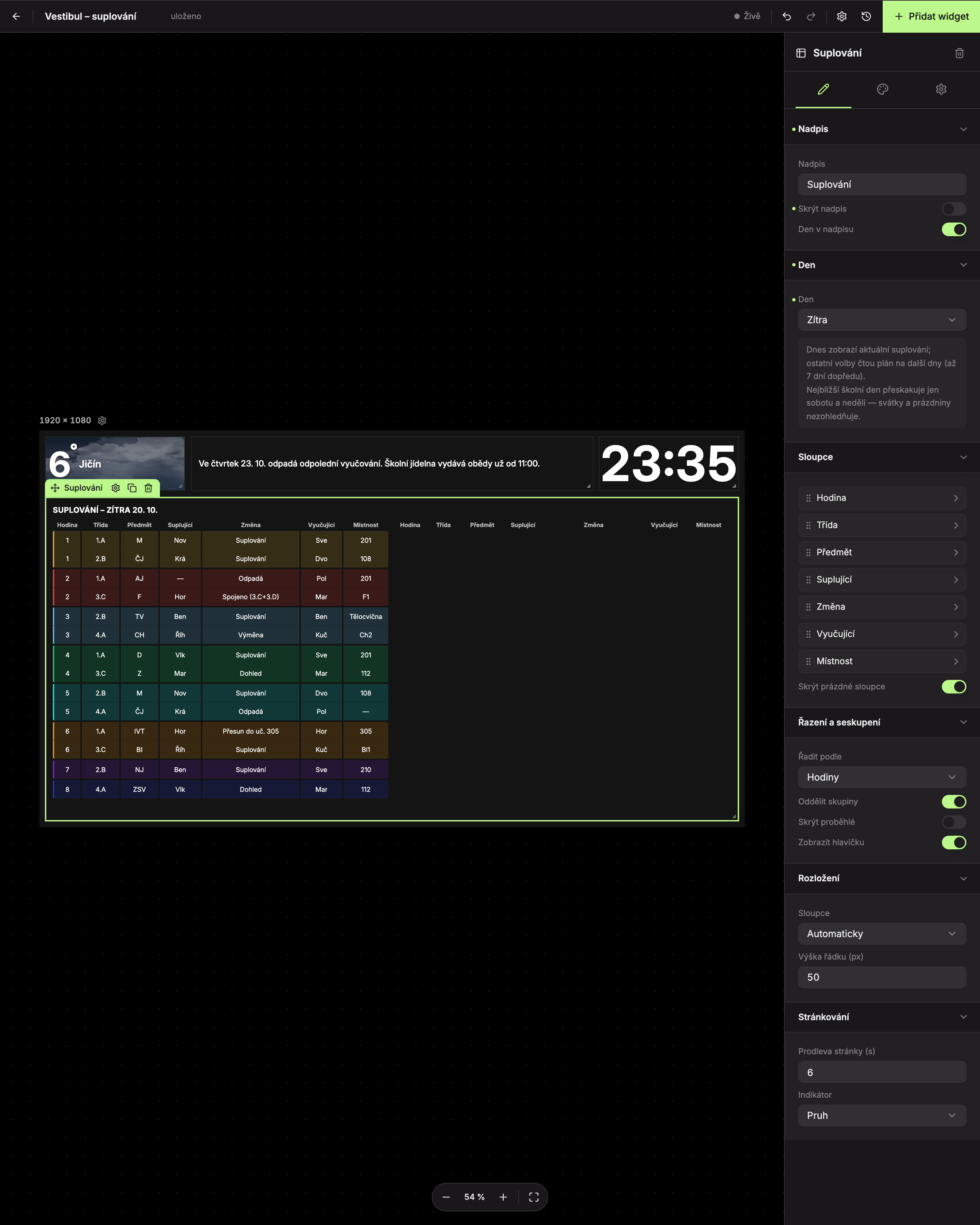
In the image, Hide title (1) is off, so the Day in title toggle (2) appears and the title with day and date is shown above the table (3).
Day
By selecting Day you specify for which day the substitution widget shows data.
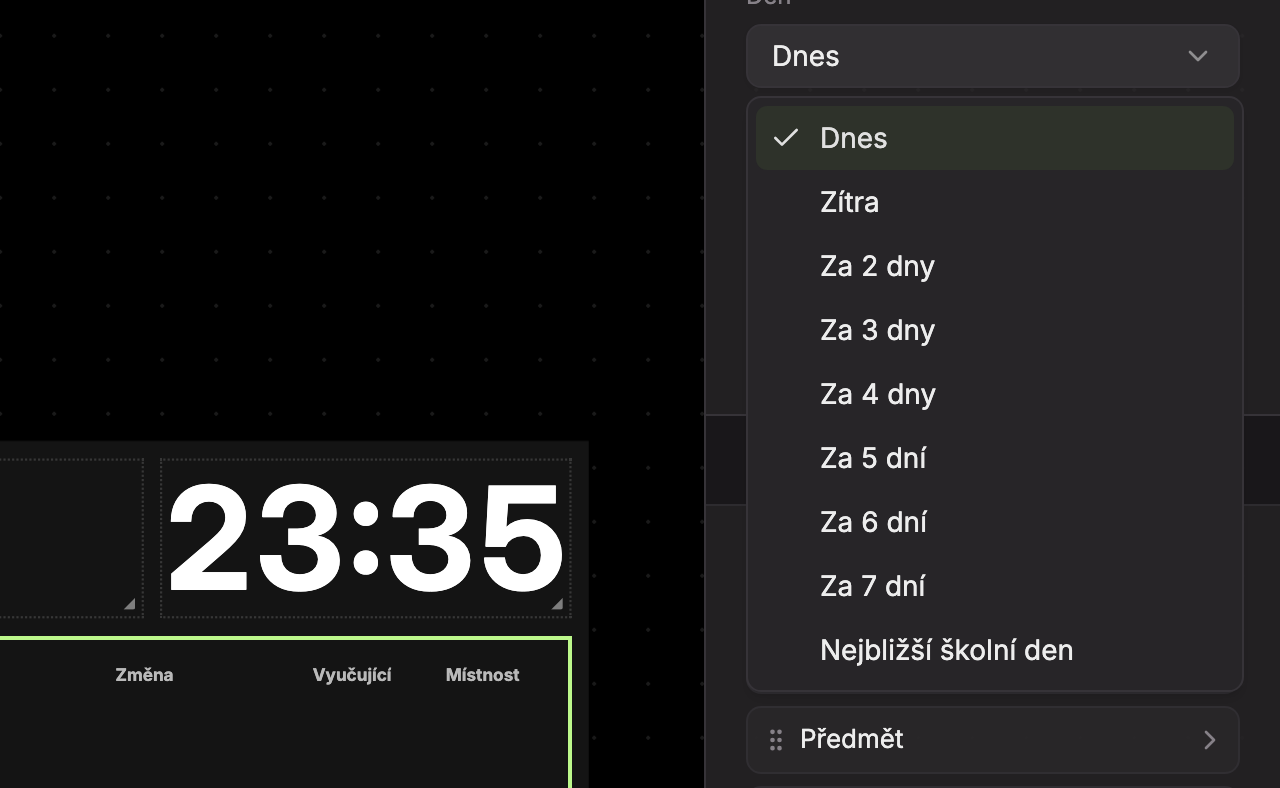
| Option | What the widget shows |
|---|---|
| Today (default) | Current substitutions for today. |
| Tomorrow, In 2 days … In 7 days | Planned substitutions for the selected day ahead. |
| Nearest school day | Plan for the nearest weekday. Skips only Saturday and Sunday, does not consider holidays or breaks. |
The day is calculated according to Czech time and the widget checks it every minute, so it switches automatically after midnight.
Columns
List of table columns: Lesson, Class, Subject, Substitute, Change, Teacher, and Room. Columns cannot be added or removed, only reordered (by dragging the handle) and configured.
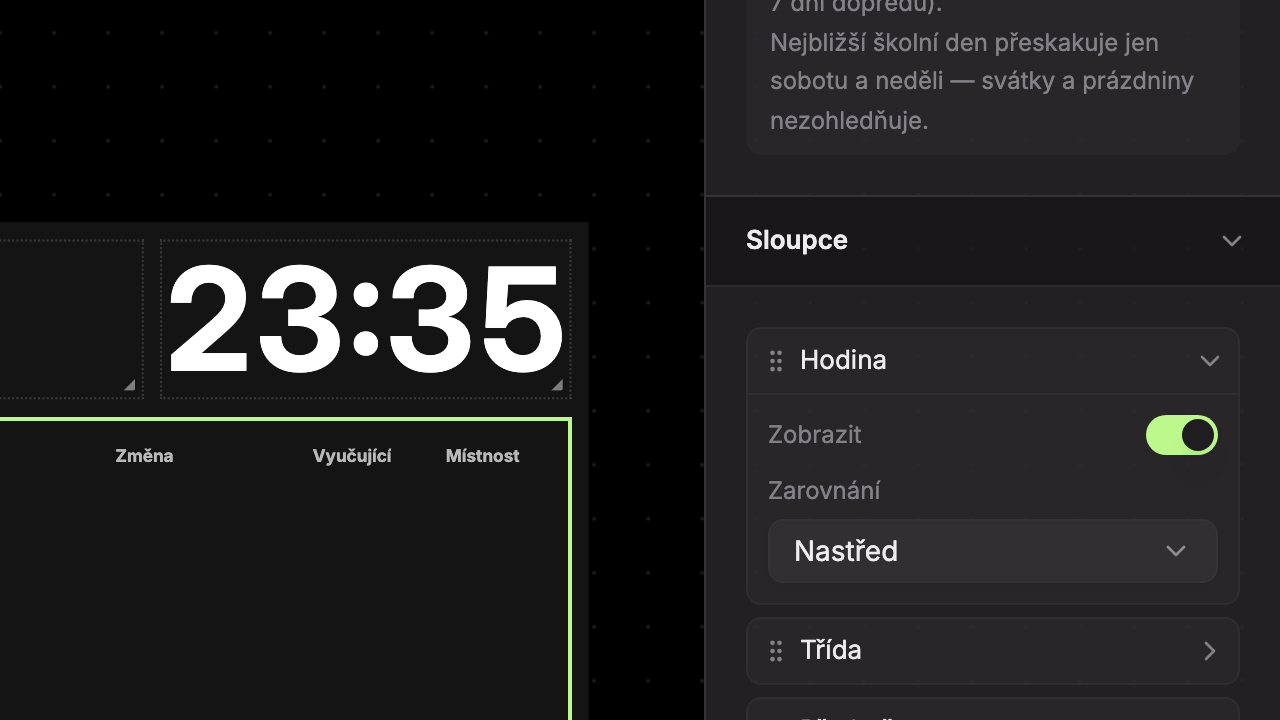
Click a column to expand it:
- Show – the column will be shown or hidden in the table.
- Alignment – Left, Center (default) or Right.
Below the list is the Hide empty columns toggle (enabled by default). A column that is empty for the entire day will not be shown and other columns will take its place.
Sorting and grouping
| Field | What it does | Default |
|---|---|---|
| Sort by | Hour – rows sorted by teaching hour, Class – by class. | Hour |
| Separate groups | Adds spacing between groups (hours or classes). | enabled |
| Hide past | Hides substitutions in hours that have already passed. | disabled |
| Show header | Shows a row with column names above the table. | enabled |
Layout
| Field | What it does | Default |
|---|---|---|
| Columns | Automatic – from widget width 1100 px (about 14 cells at default 24-column grid), the table splits into two columns. Always 1 or Always 2 fixes the number of columns. Rows fill the left column first, then the right. | Automatic |
| Row height (px) | Height of one table row, 30–100 px. Larger rows = larger font and fewer rows per page. | 50 |
Pagination
| Field | What it does | Default |
|---|---|---|
| Page delay (s) | How long one page stays visible, 1–60 seconds. | 6 |
| Indicator | Bar – a countdown bar runs at the bottom, Clock – a circle with the page number in the bottom right. | Bar |
The indicator is shown only when the table has multiple pages.
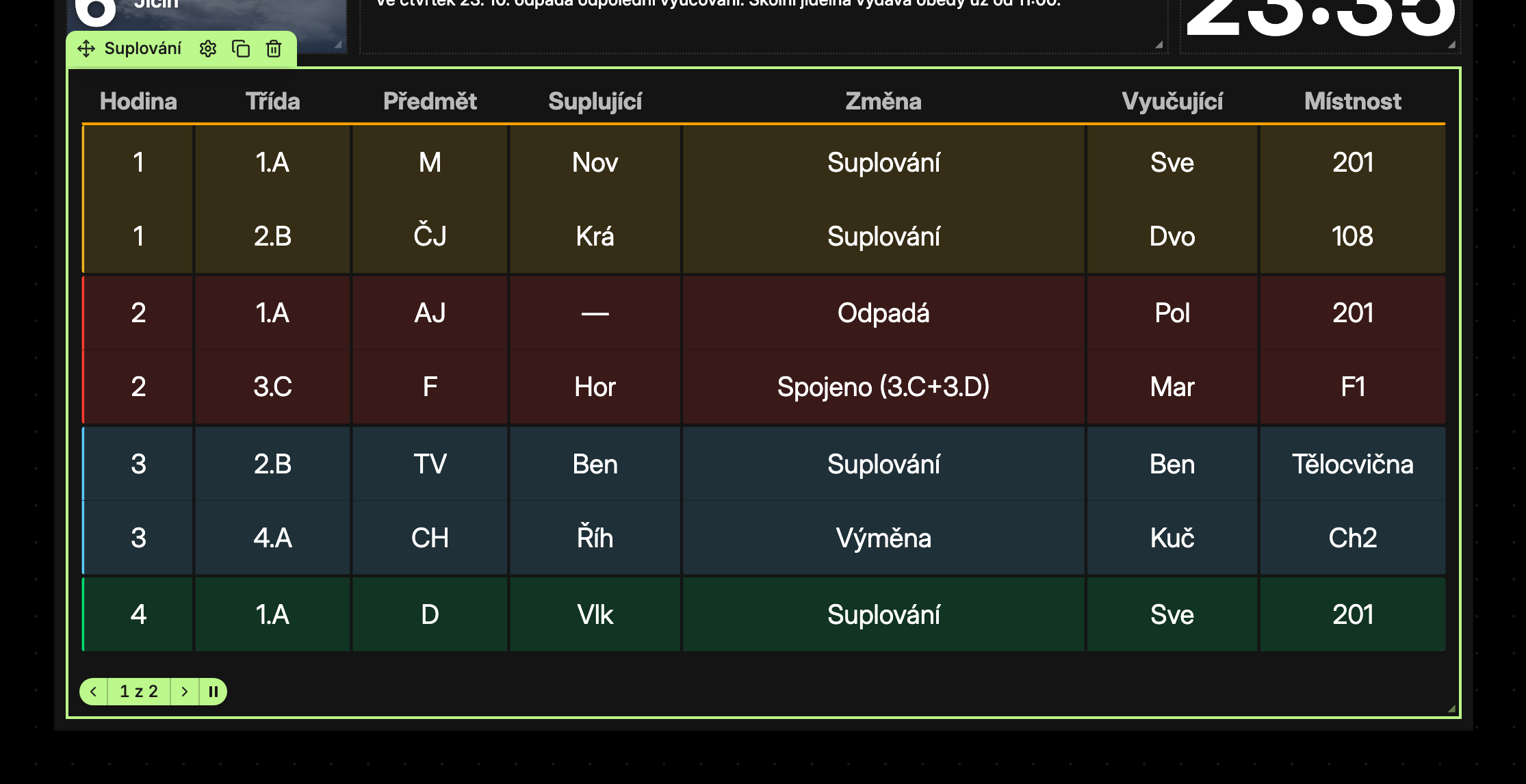
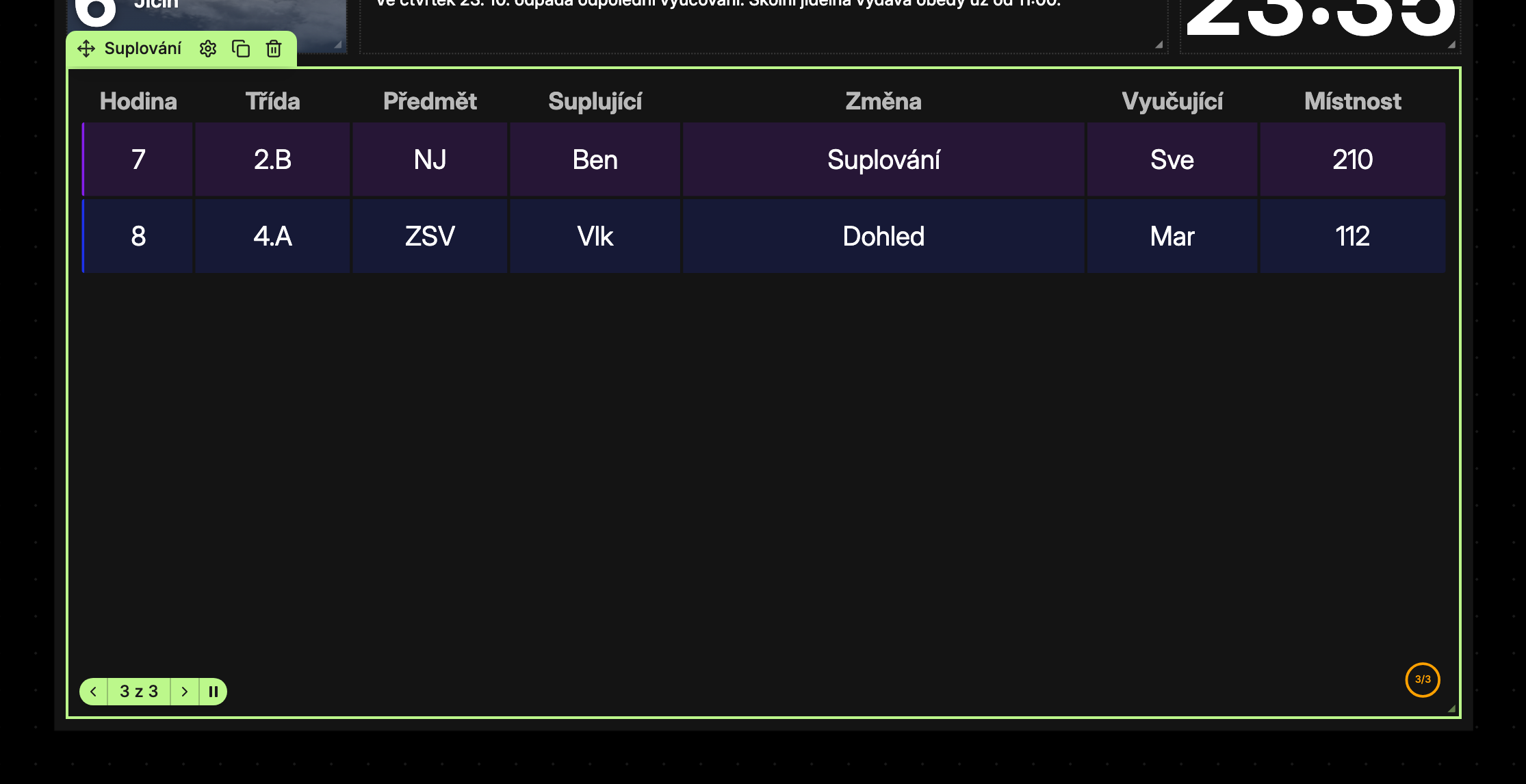 See details in the Pagination and transitions section.
Design tab
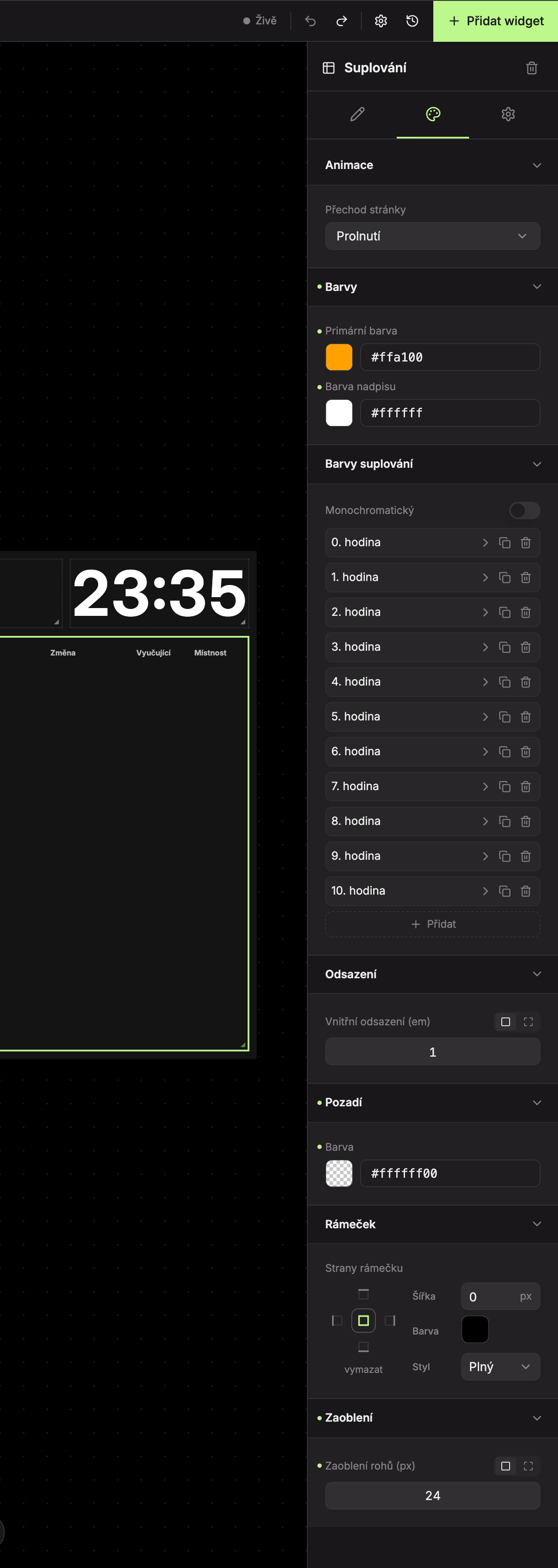
The tab has sections Animation (1), Colors (2), Substitution colors (3), Padding (4), Background (5), Border (6), and Rounding (7). Padding, background, border, and rounding are described in the widget overview.
- Animation – Page transition: effect when switching to the next page, default Fade (see Pagination and transitions).
- Colors – Primary color (color of the page indicator and page controls in the editor) and Title color (default = screen text color).
Substitution colors
Table rows have a colored stripe and background according to the hour. The Hour colors list contains items from 0th hour to 10th hour. Click an item to expand it and change the color in the Color field. Use the Add button to add a color for the next hour. Hours beyond the list get the color of the last item.
When sorting by classes, the color is based on the grade of the class (the digit at the start of the class name).
The Monochromatic toggle colors all rows with a single color. The list of hour colors is hidden and replaced by the Color (mono) field (default #346a65).
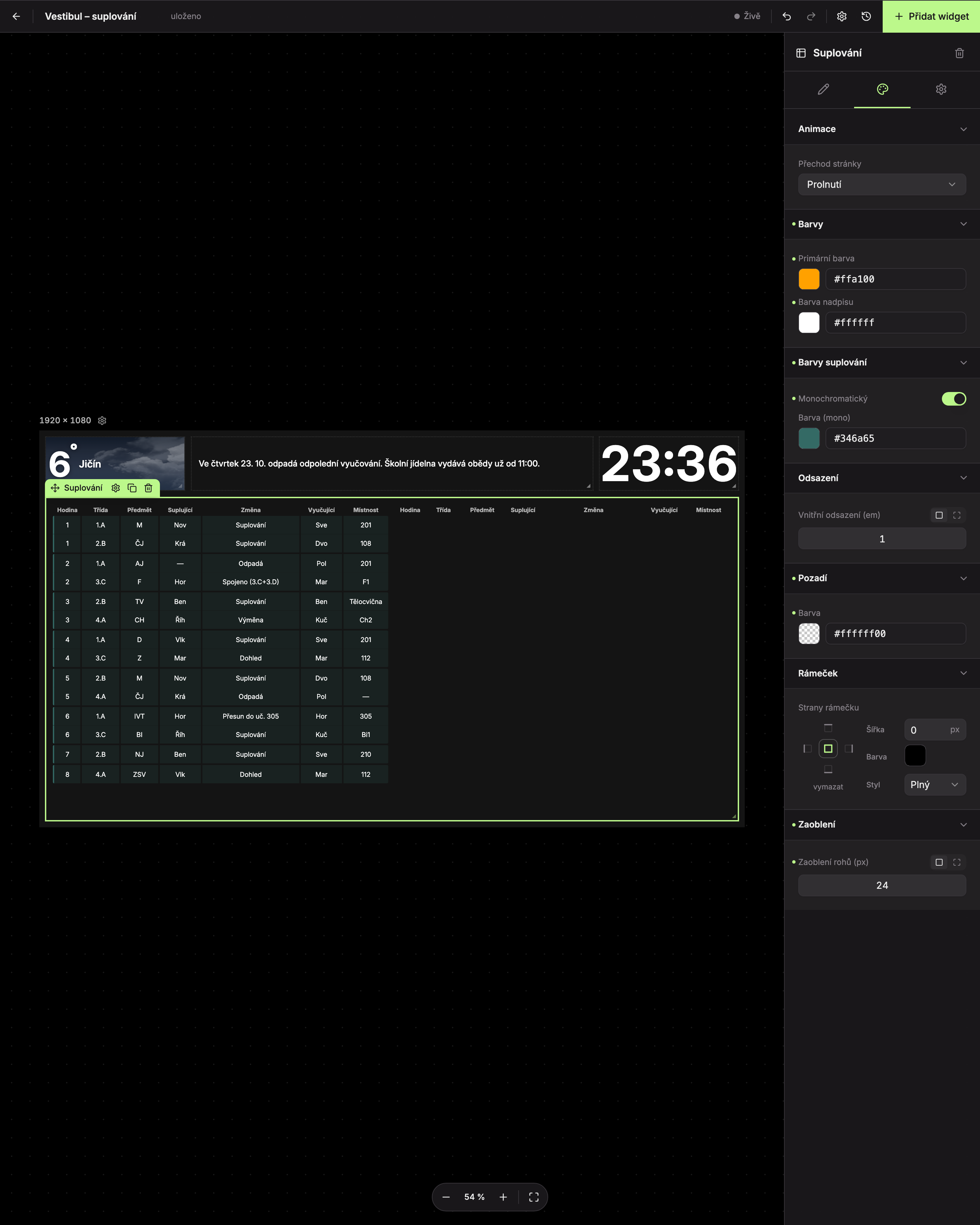
What the widget shows in special cases
| Message | When |
|---|---|
| No substitutions today | There are no substitutions for today. |
| No more substitutions today | All rows are hidden (for example, by the Hide past toggle). |
| No substitutions | There are no substitutions for the selected next day. |
| Plan for the next days is not available | A day other than Today is selected and the school does not have a plan for the next days. |
| Widget is too small — please enlarge it. | The widget is narrower than 360 px or shorter than 120 px. |
A row that does not relate to a specific hour has the abbreviation “c.d.” in the Hour cell. A row containing only free text has the text in the Change column aligned to the left.
Updated