
Scenarios
More options
 Discuss with Marie
 Conditions
How to add a condition based on time, date, or day of the week, where the Yes and Otherwise outputs lead, and how the condition is evaluated.
Condition splits the scenario into two paths. When the condition is true, playback continues through the Yes output; otherwise, through the Otherwise output. This allows one scenario to show something different in the morning than in the afternoon, something different during holidays than during the school year, or only one screen on weekends.
Example: poster only in the morning
Let’s show how to add a poster to the scenario “Lobby → Events and supervisors” that appears only between 7
and 8.Select the block after which the condition belongs
Click on the screen block after which the condition should be evaluated, here Events and supervisors.
Add a condition
Click Add and in the Others section click Condition.
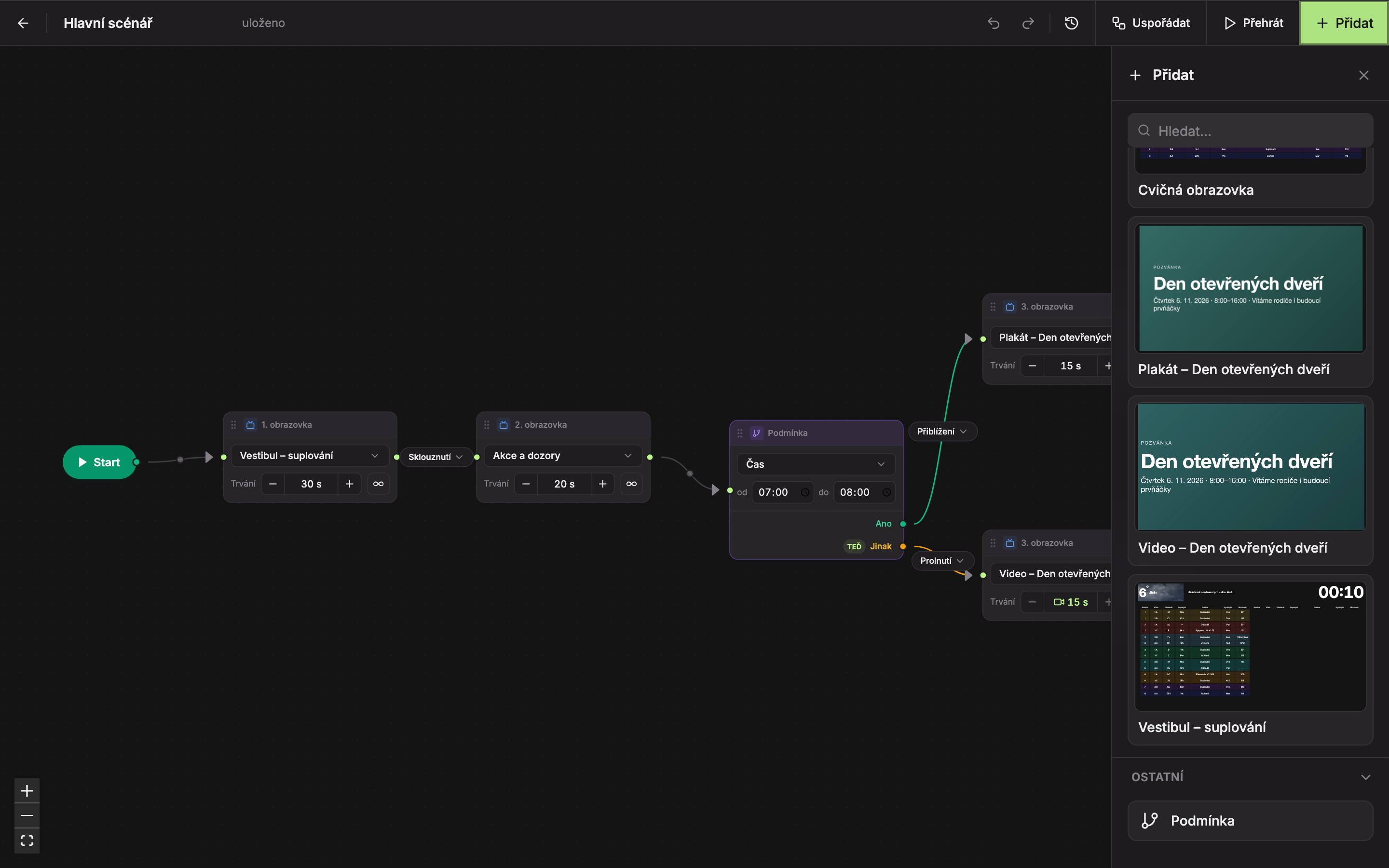
The condition is inserted immediately after the selected block. If no block is selected, it is inserted before End. Both its outputs, Yes (2) and Otherwise (3), currently lead where the line from the selected block led before. Playback therefore does not change yet.
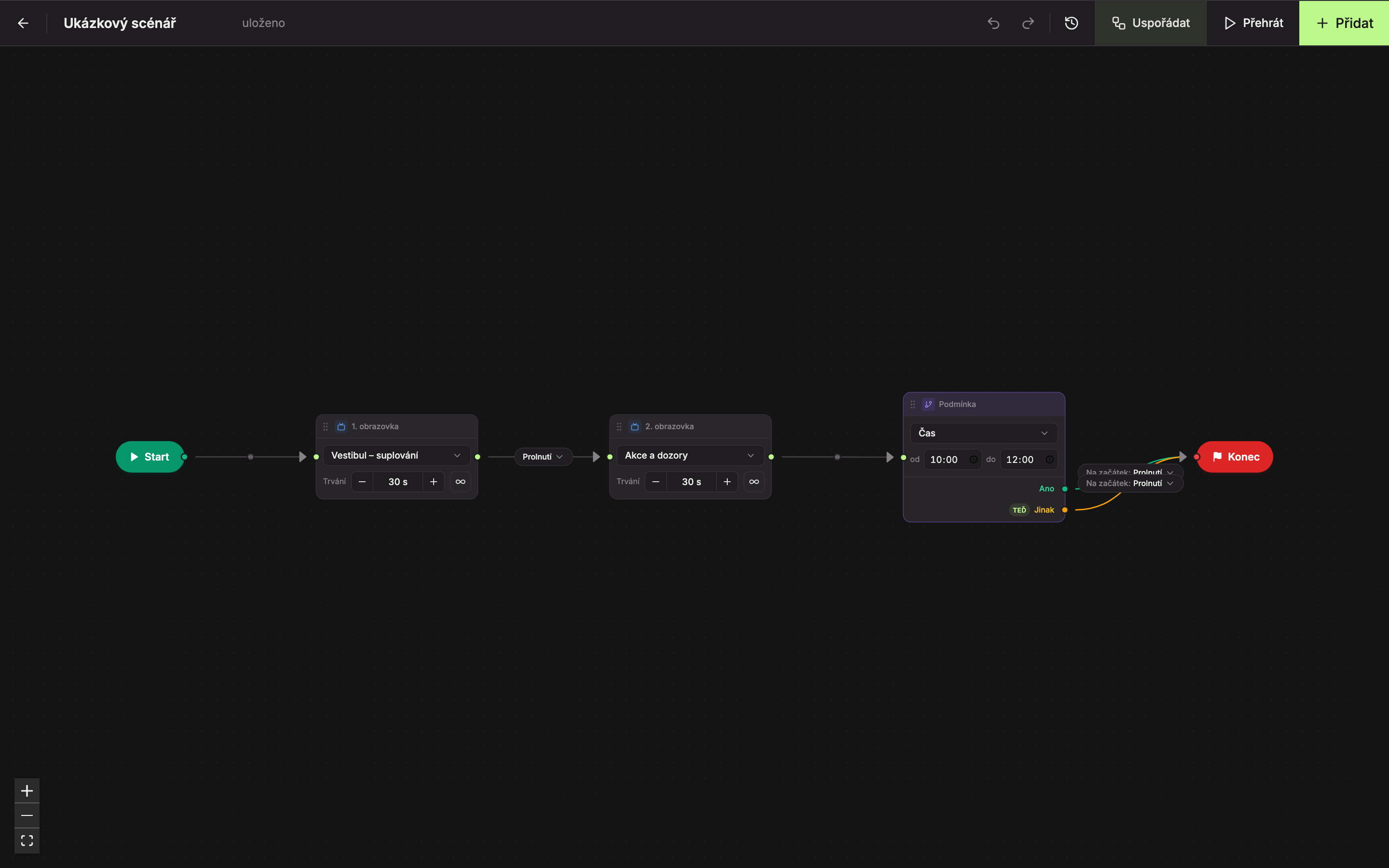
Set the time
The new condition is of type Time and is valid from 10
to 12. Click in the from field and type 07, in the to field type 08.Add the poster on the Yes path
Add a screen with the poster from the Add panel and check that a line leads to it from the Yes output and from it a line leads to End. If the line leads elsewhere, reconnect it (see Connecting blocks and transitions). Leave the Otherwise output leading directly to End.
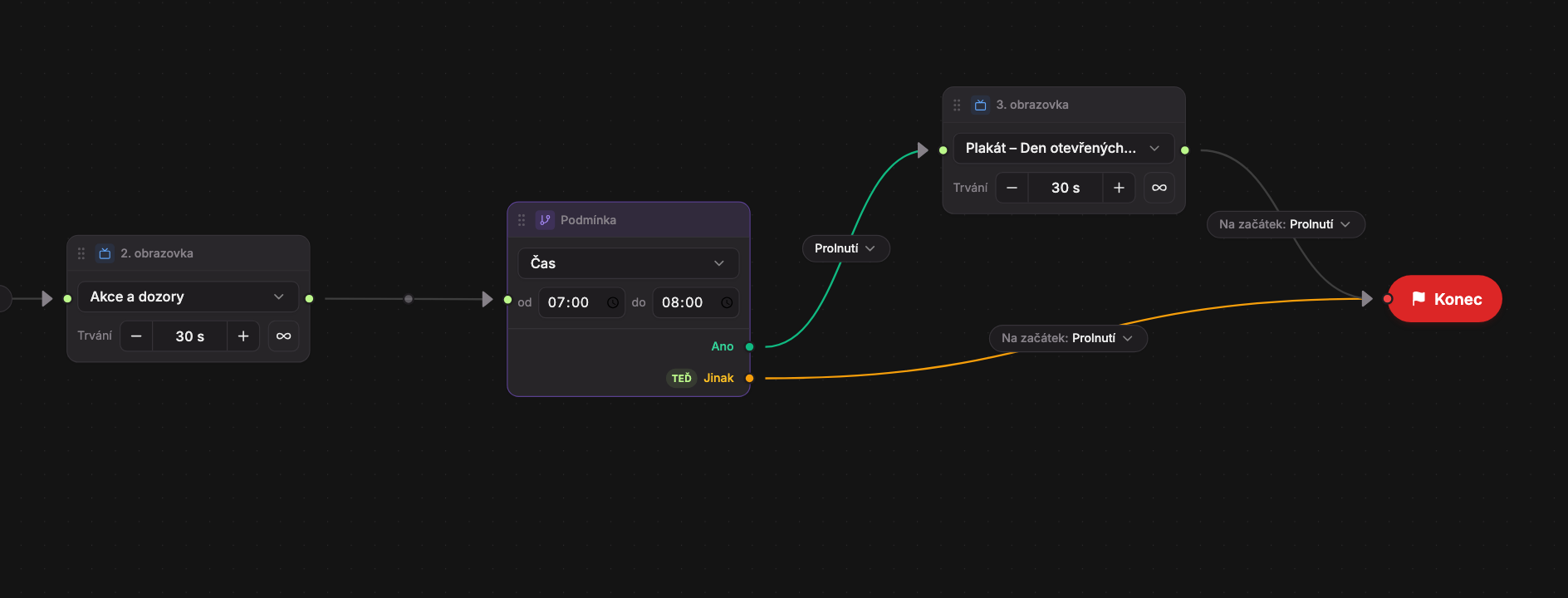
- and 2. The condition is valid from 7 to 8.
- The Yes path goes through the poster.
- The Otherwise path goes directly to End.
Verify the result
Click Play and set the time in the playback window clock, for example to 7
. The procedure is described on the page Playing scenarios and simulating time.Condition block
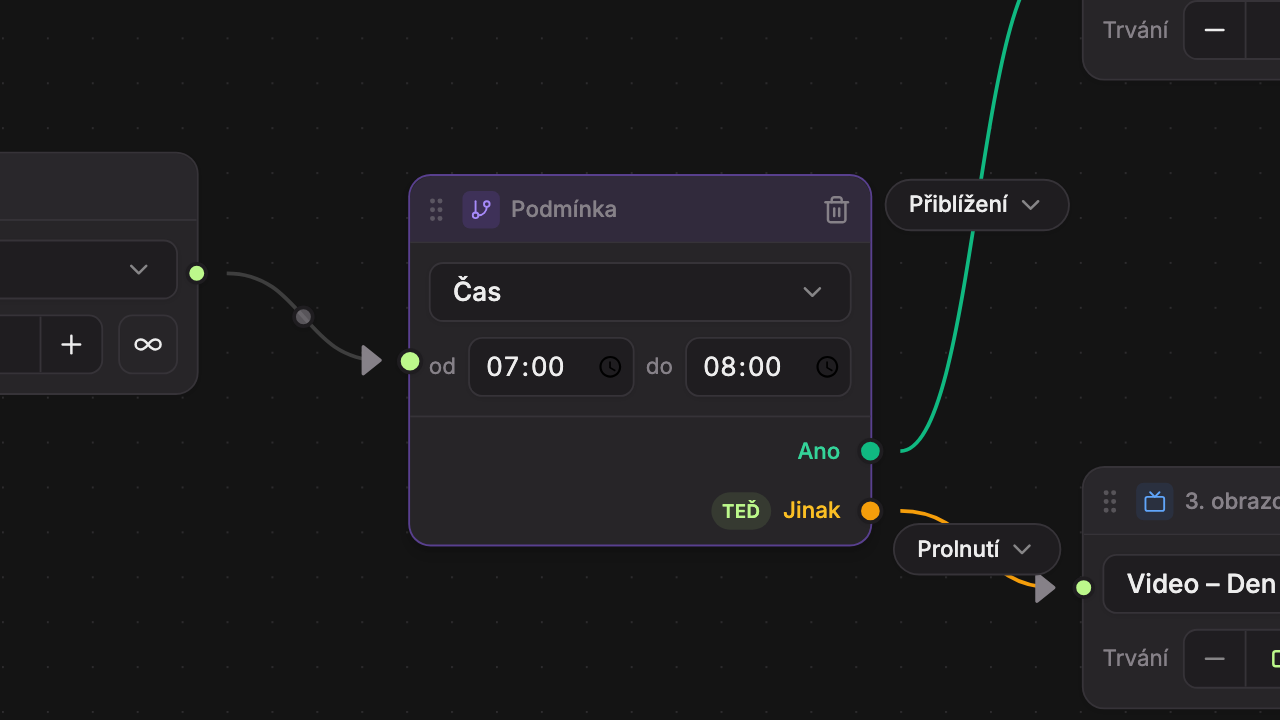
- Condition type – Time, Date, or Day of the week.
- and 3. Condition settings, here time from and to.
- Yes – where playback continues when the condition is true (green line).
- Otherwise – where playback continues when the condition is false (orange line).
The output through which playback would go right now is marked NOW. Hovering explains “Condition is true now — playback would go this way” or “Condition is false now — playback would go this way.” The label is shown only for the connected condition and refreshes every 15 seconds.
The block header shows Condition, for a disconnected condition it shows “Condition · disconnected.” You delete the condition with the trash icon in the header (Remove condition from scenario), which appears on mouse hover.
Condition types
Change the type by clicking the dropdown in the block.
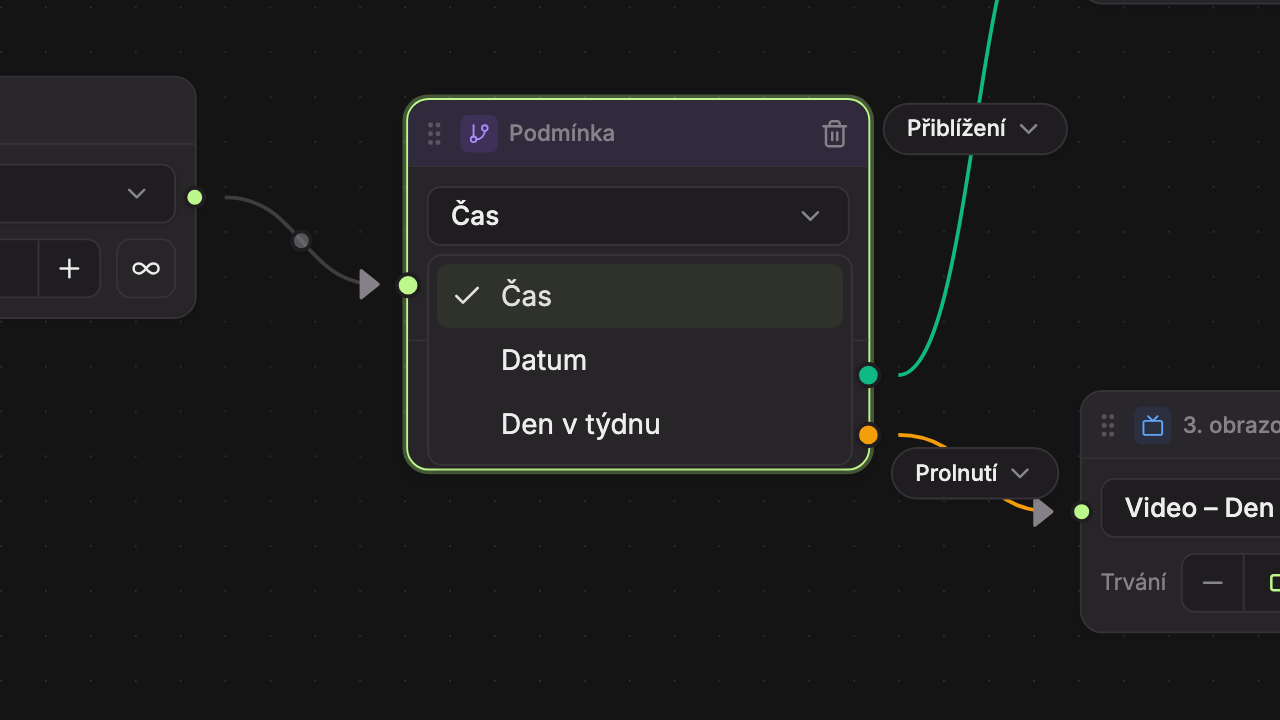
Time
The condition is true when the current time is between from and to. The default values are 10
and 12.- Start is inclusive, end is exclusive. The condition 10–12 is true at 10 but not at 12.
- If the from time is later than to, the condition is true overnight. For example, 22–06 is true in the evening and at night.
- The same time for from and to means the condition is true all day.
- If you clear the time field, nothing is saved and the condition remains valid according to the last entered time.
Date
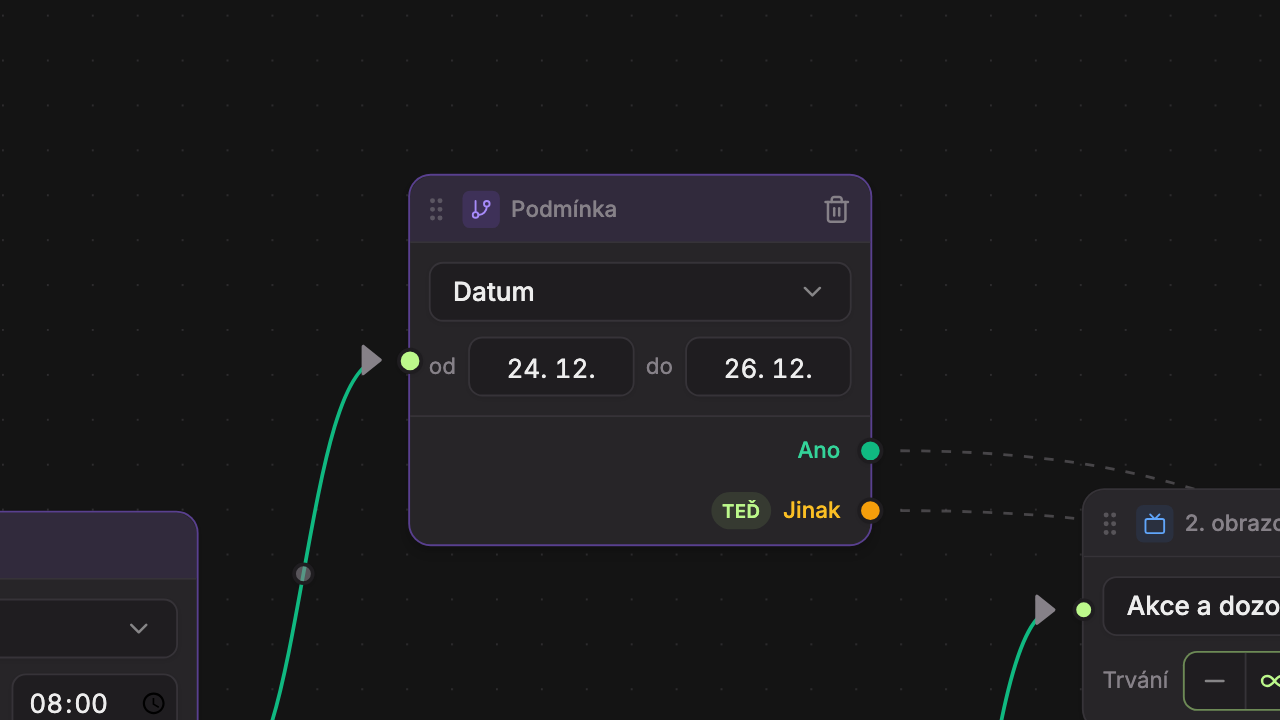
The condition applies during the specified period. Only the day and month are entered, so it applies every year. The default values are 24. 12. and 26. 12.
- Enter the date in the format
24. 12.(Studio also accepts24.12.,24/12or24-12). It is saved when you click outside the field or press Enter. - An invalid date (for example, 31. 4.) will get a red border and will not be saved. The date 29. 2. is accepted by Studio but only applies in a leap year.
- Both days are included. The condition 24. 12.–26. 12. applies for all three days.
- If the from date is later than the to date, the condition applies across the New Year. For example, 20. 12.–5. 1. applies from December 20 to January 5.
Day of the Week
The condition applies on the highlighted days. The default is Mon through Fri. Click a day to toggle it on or off.
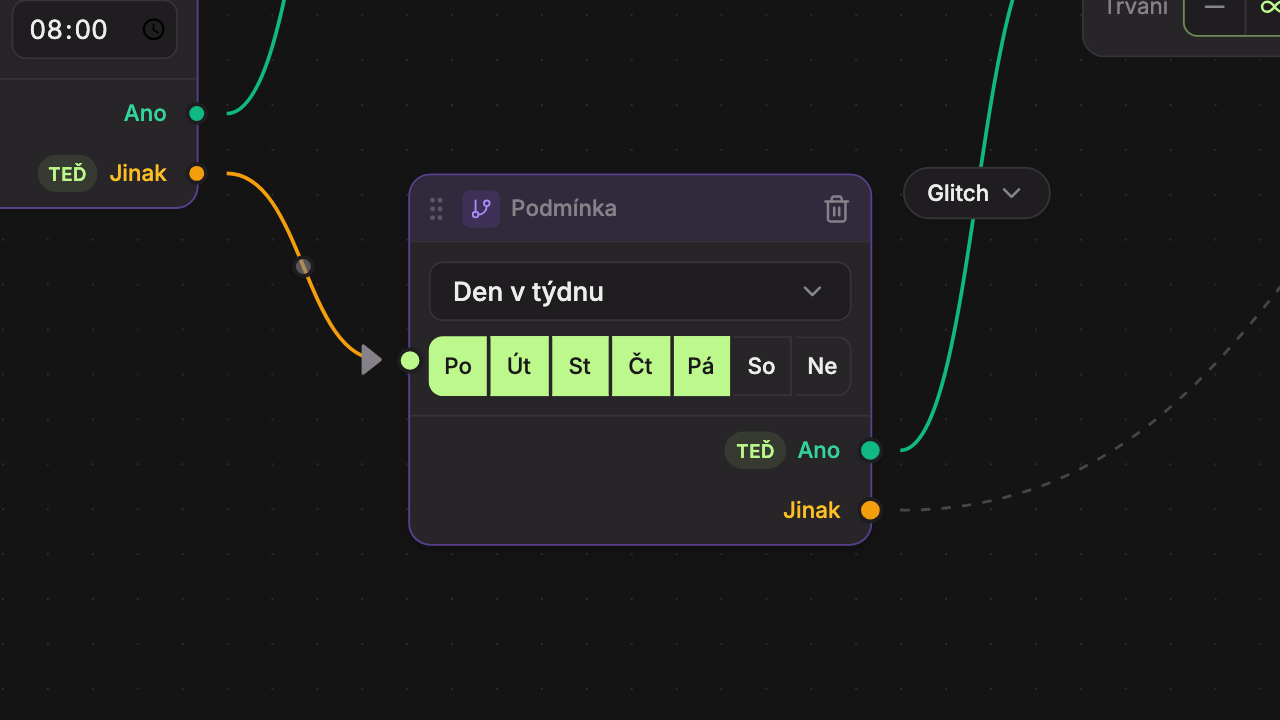
If you turn off all days, the condition never applies and playback will always go through the Else output.
How the condition is evaluated
- The condition is evaluated at the moment playback reaches it, i.e., once per each scenario loop.
- It always uses Czech time (Prague), regardless of the device’s clock settings.
- If there is no outgoing path from the true output, the loop ends and the scenario restarts from Start, just as if the path led to End.
- If no condition leads to any screen, the device will show a black screen.
Updated