
Screens
More options
 Discuss with Marie
 Searching and Deleting Screens
Searching for a screen by name, deleting one or more screens, and confirming with a verification code.
Searching for a Screen
On the Screens page, start typing in the Search screen… field. The list will show only screens whose name contains the searched text.
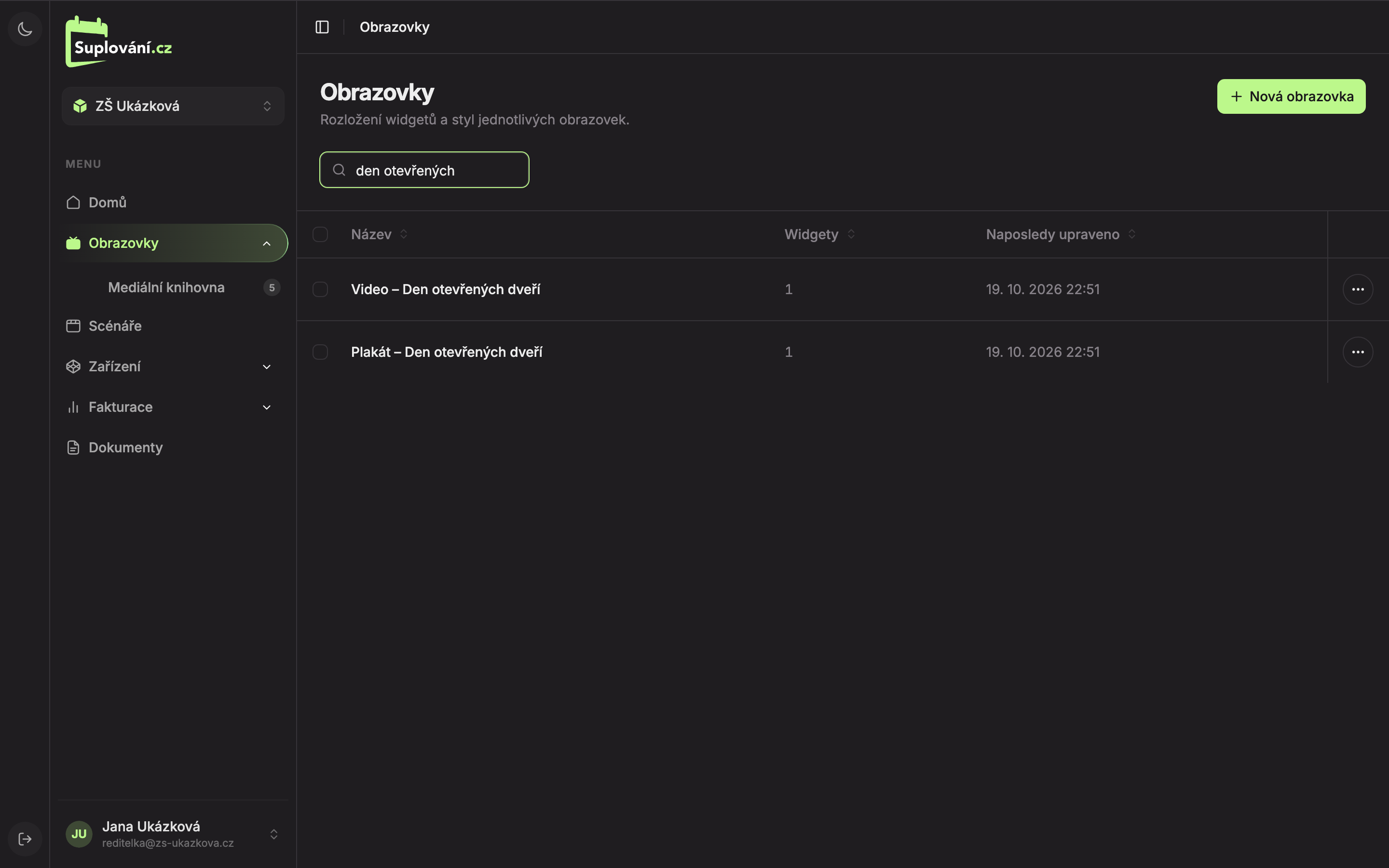
If nothing is found, you will see “No results” and “Try adjusting the search term.” Cancel the search by deleting the text from the field.
Deleting a Single Screen
Open the menu at the row
At the end of the screen’s row, click the button with three dots. The menu has items Open (1) and Delete (2).
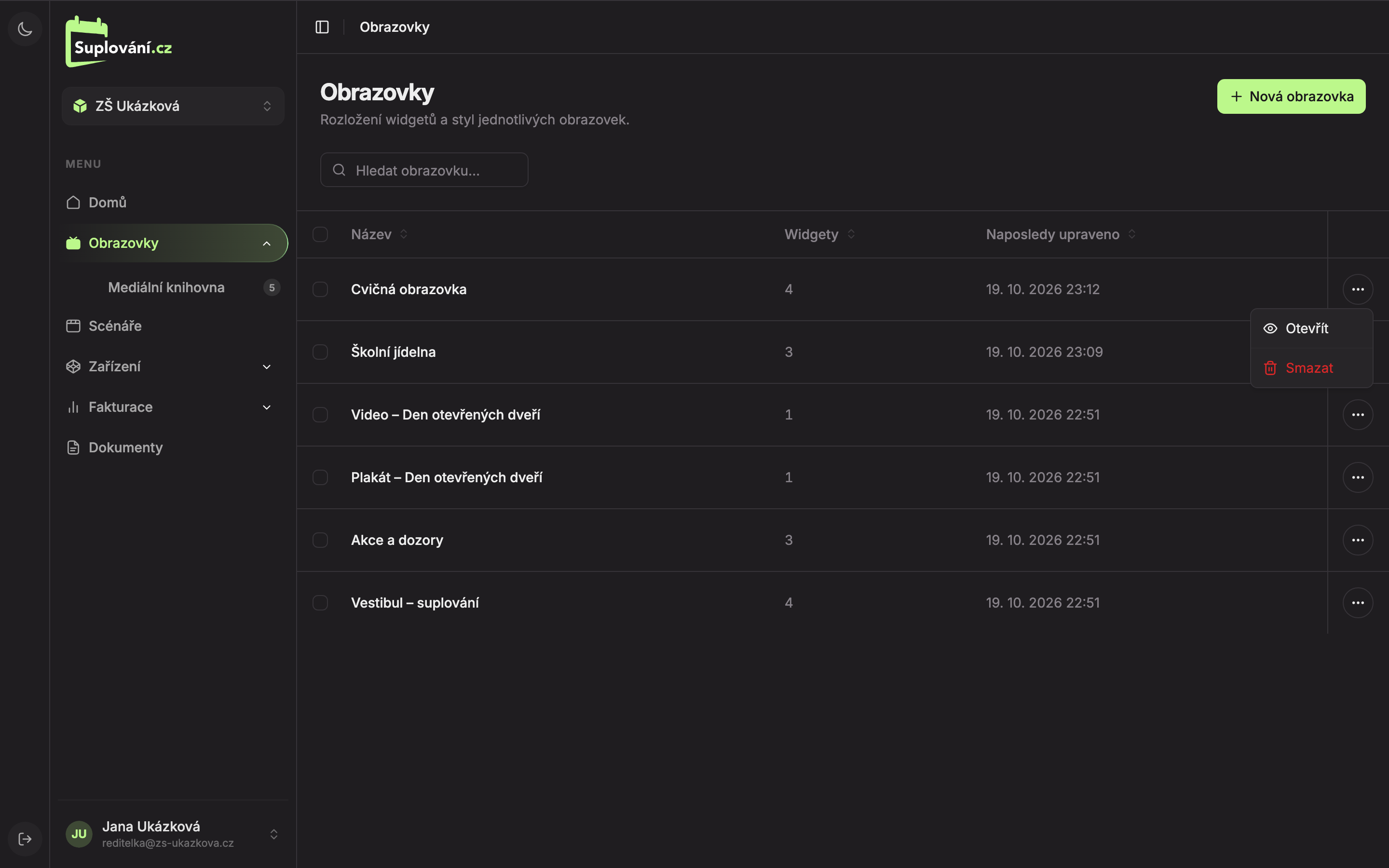
Click Delete
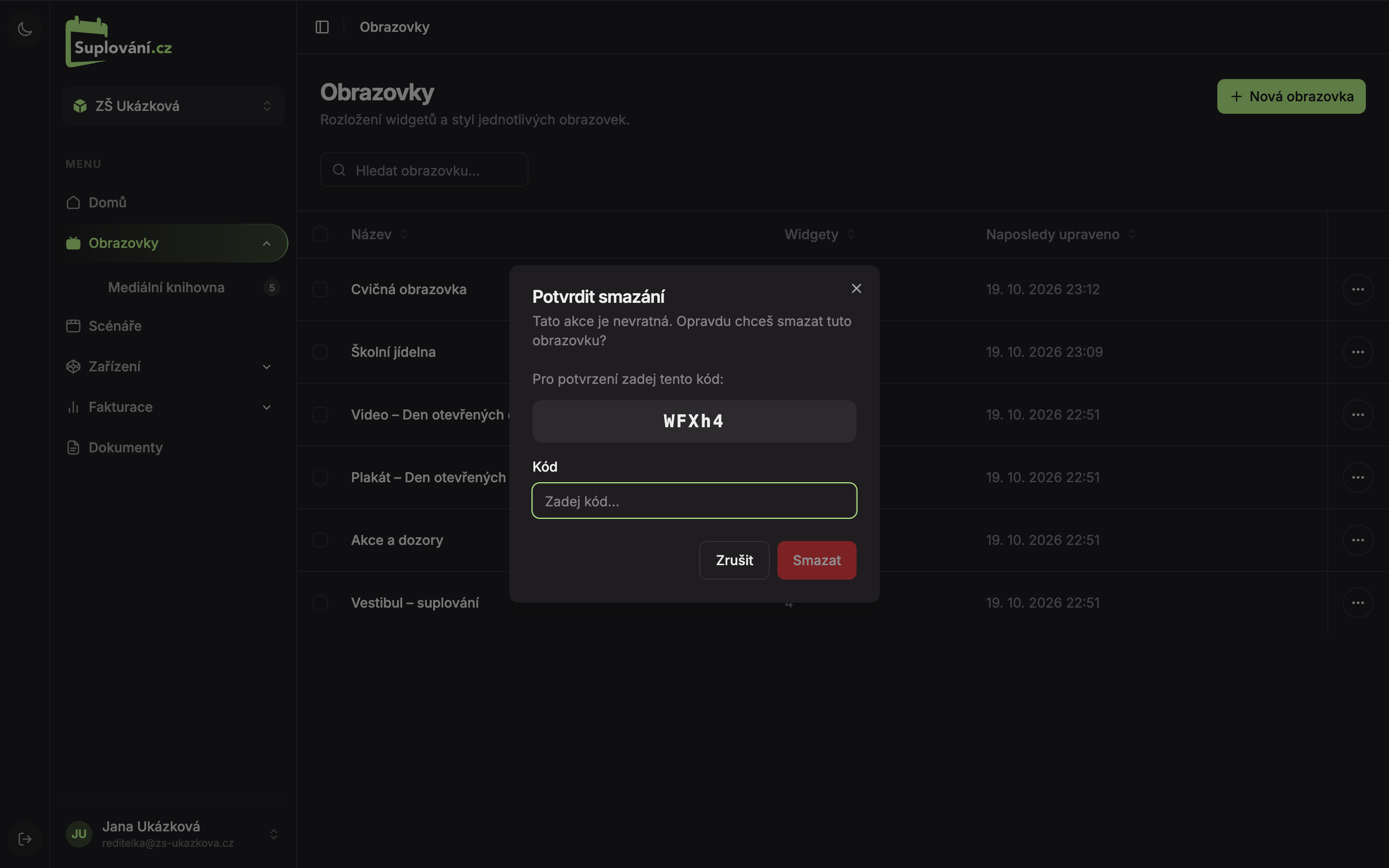
The Confirm Deletion window will open.
Enter the verification code
The window shows a five-character verification code (1). Enter it into the Code field (2) and click Delete (3), or press Enter. Click Cancel to close the window without deleting.
After deletion, “Screen deleted” will appear.
Deleting Multiple Screens at Once
-
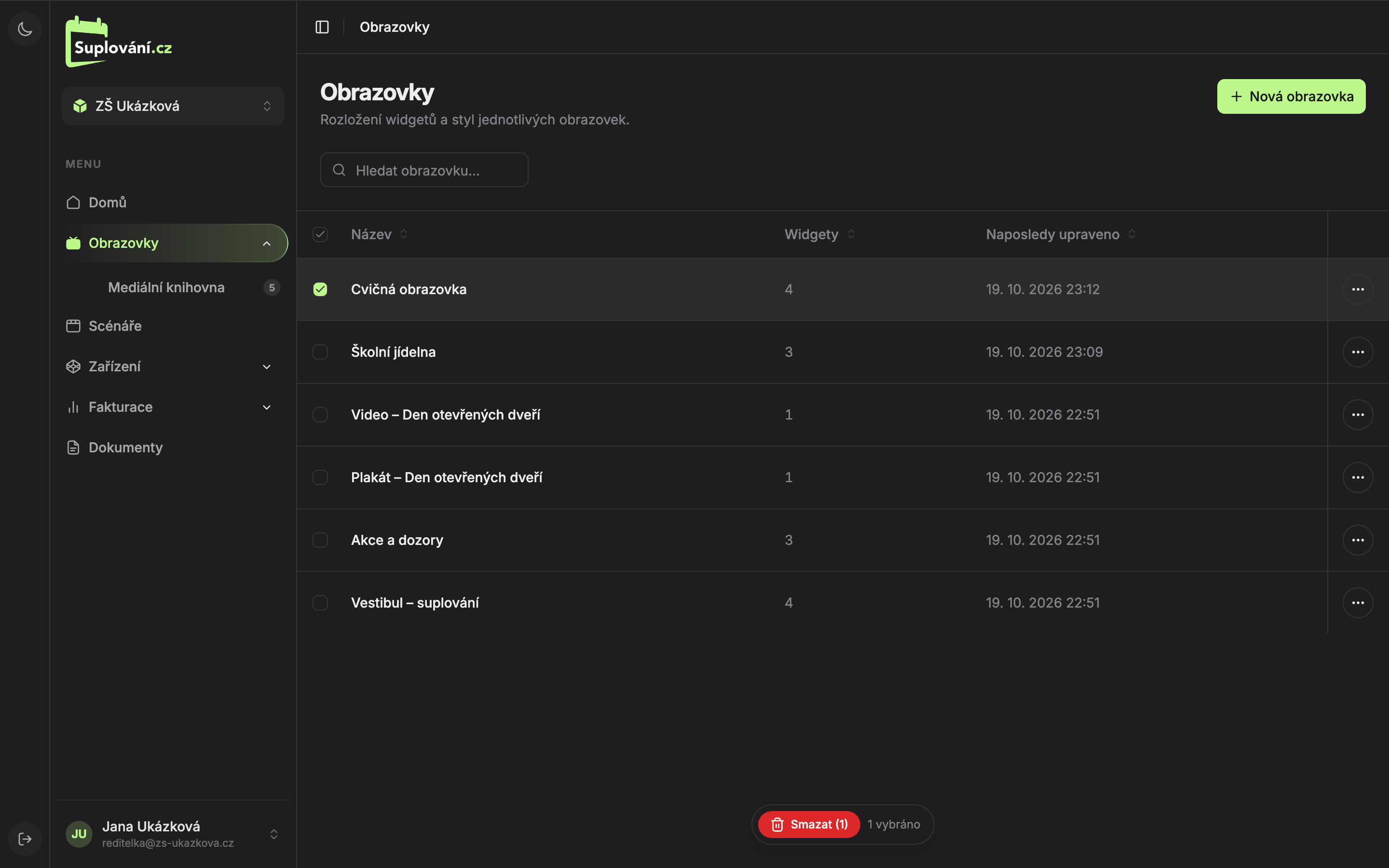
Check the boxes (1) next to the screen rows you want to delete. Use the checkbox in the table header to select all.
-
A bar with the Delete (N) button (2) and the number of selected screens (“N selected”) will appear at the bottom.
-
Click Delete (N), enter the verification code, and confirm with the Delete button. After deletion, “Deleted N screens” will appear.
Updated