
Scenarios
More options
 Discuss with Marie
 Scenarios
A scenario defines which screens alternate on the device, in what order, for how long, and under what conditions.
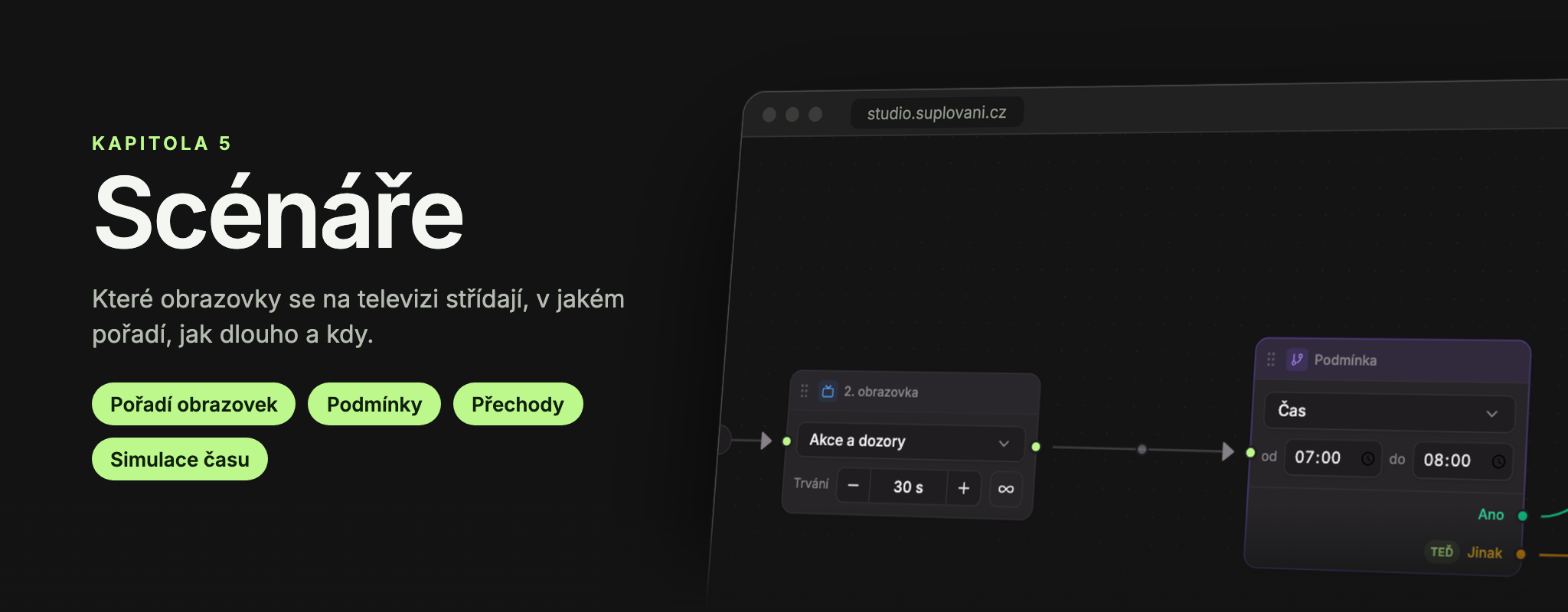
A screen by itself does not display anything on the device. What actually plays on the TV or monitor is determined by the scenario: the order of screens, how long each is shown, the transition between them, and when a screen should be shown only under certain conditions (for example, only in the morning, only at Christmas, or only on weekdays). The scenario plays repeatedly in a loop.
You open Scenarios from the left menu item Scenarios.
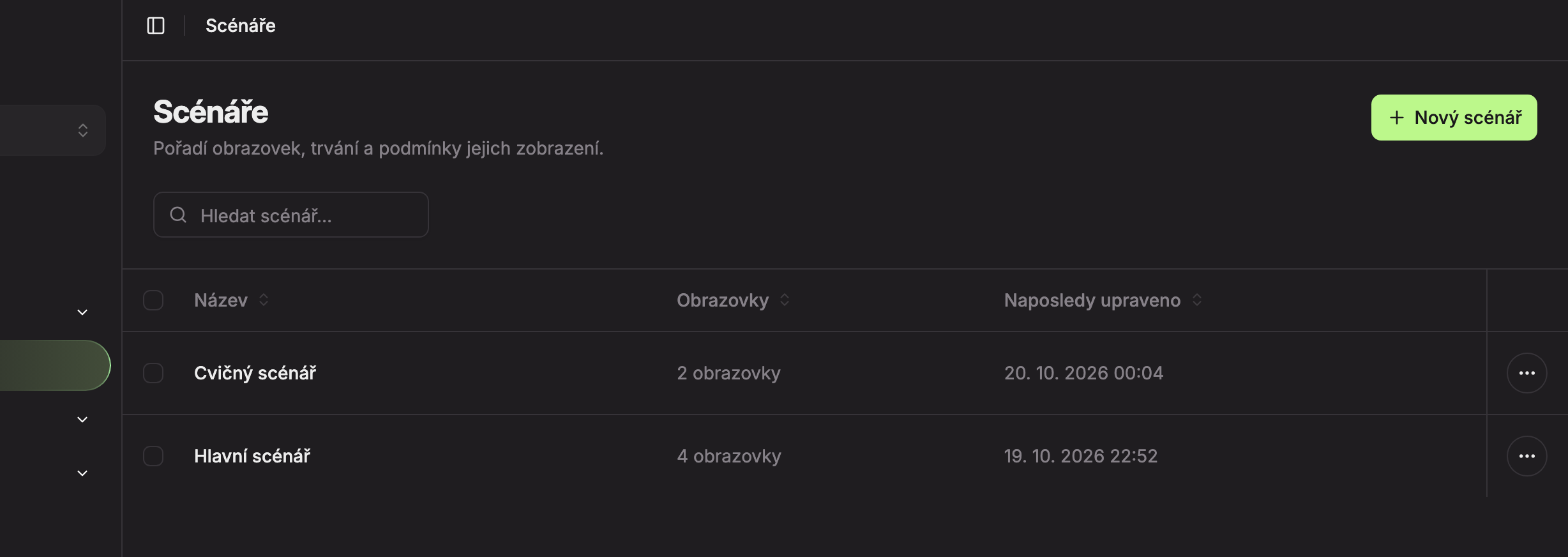
| Element | Purpose | |
|---|---|---|
| 1 | New Scenario | Creates a new scenario and immediately opens it in the editor. |
| 2 | Search scenario… | Search by name. |
| 3 | Scenario row | Click to open the scenario. Columns show Name, number of Screens, and when it was Last modified. |
| 4 | Action menu (three dots) | Options Open and Delete. |
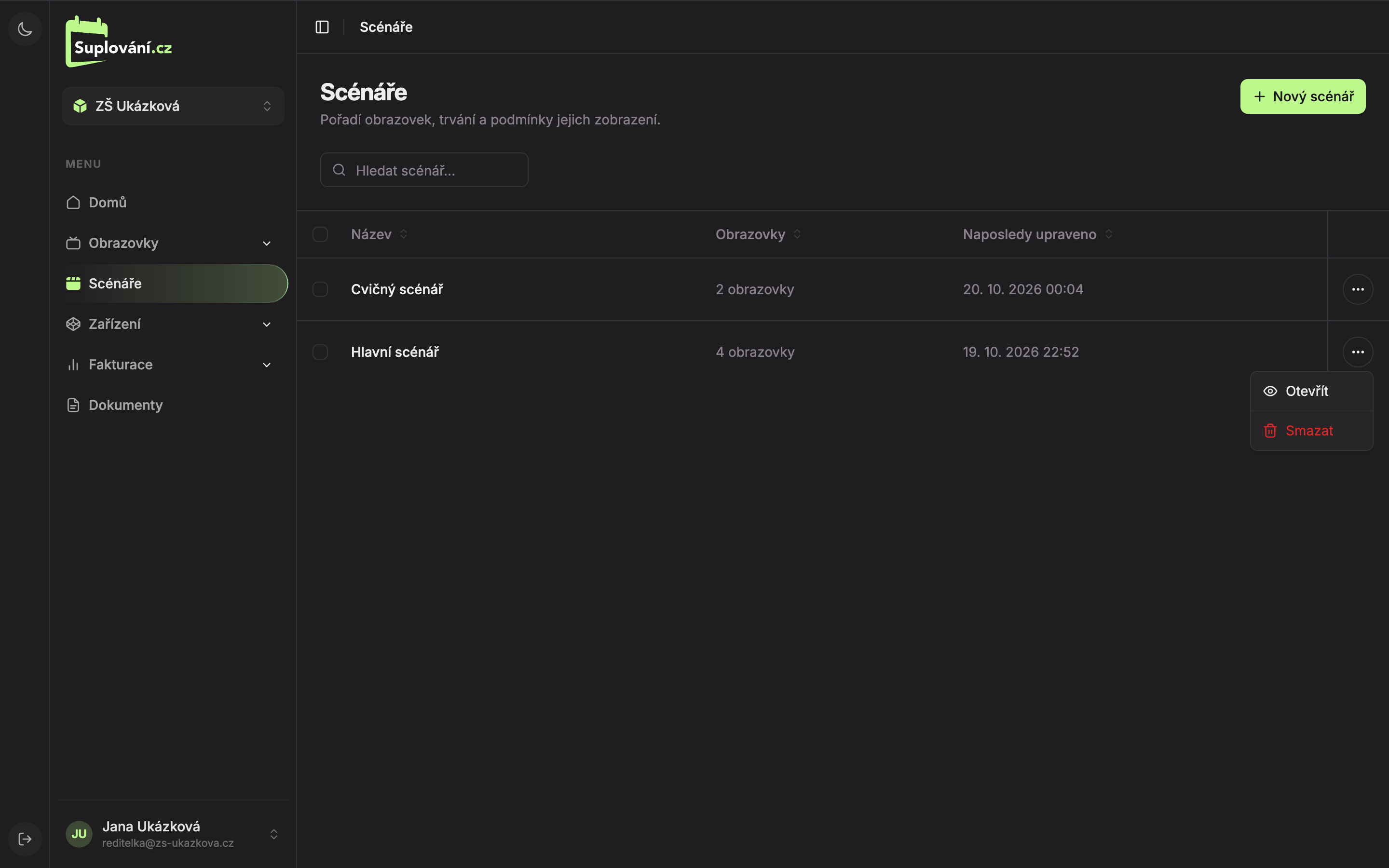
Clicking on the header of the Name, Screens, or Last modified column sorts the list ascending; clicking again sorts descending; clicking a third time clears the sorting. The Screens column counts only screens, not conditions. A new, not yet edited scenario shows “0 screens.”
If the school has no scenarios yet, you will see “No scenarios yet” and a New Scenario button.
In this section
Updated