
Screens
More options
 Discuss with Marie
 Widget Settings Panel
Tabs Content, Design, and Other, control of numeric and color fields, padding, rounding, border, and reset to default.
When you select a widget, its settings panel opens on the right. All changes are immediately reflected on the canvas and saved automatically.
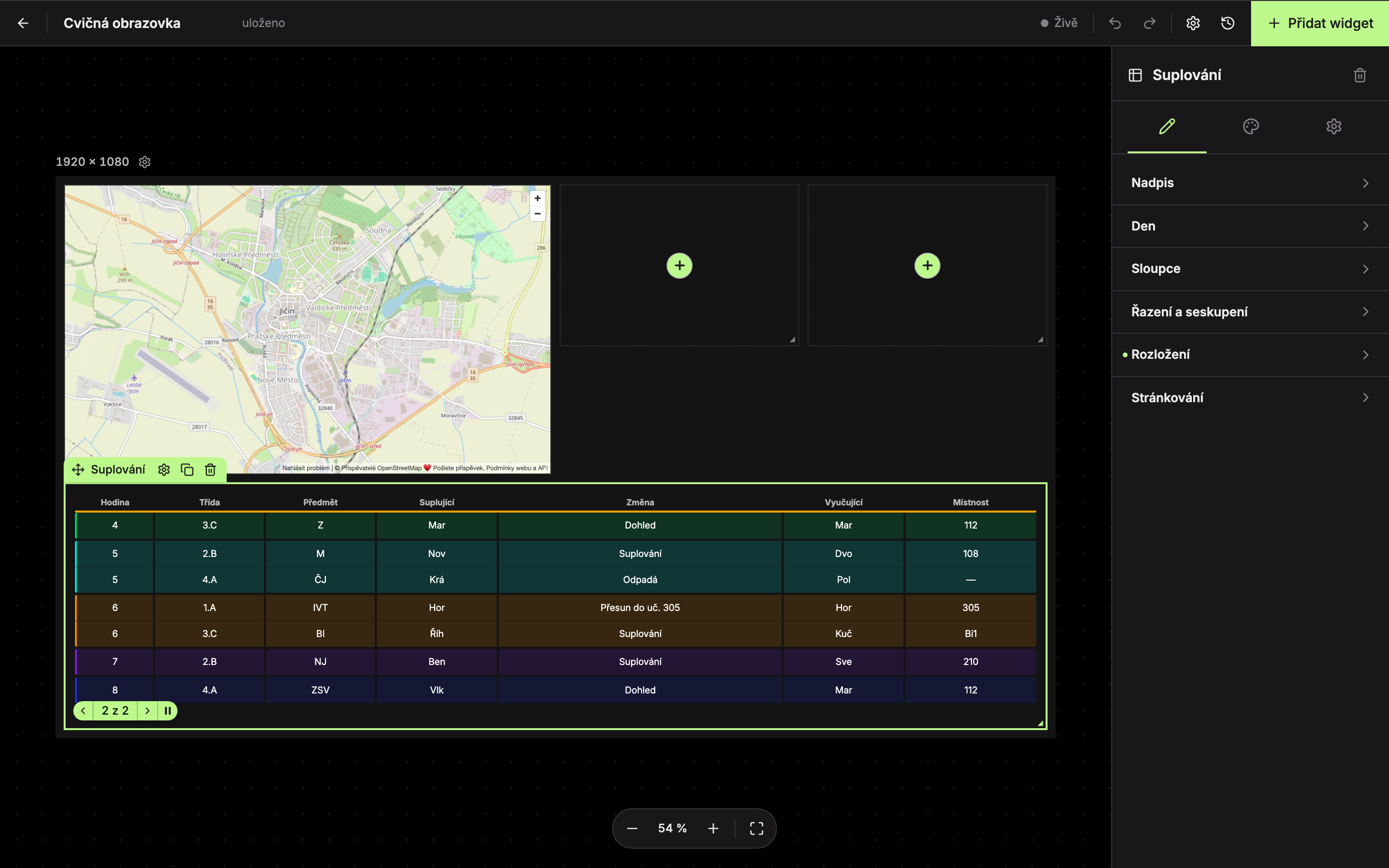
The header contains the widget icon and name, and the Delete widget button (4). Settings are divided into three tabs:
- Content – what the widget shows: data source, columns, texts, image, address, place for weather…
- Design – how the widget looks: colors, font, padding, background, border, rounding, animation.
- Other – widget position and size.
What exactly each tab contains for individual widgets is described in the Widgets section. A tab without settings shows “No settings in this category.”
Sections and Changed Values
Settings in tabs are grouped into sections. Sections are initially collapsed. You expand them by clicking on the section title.
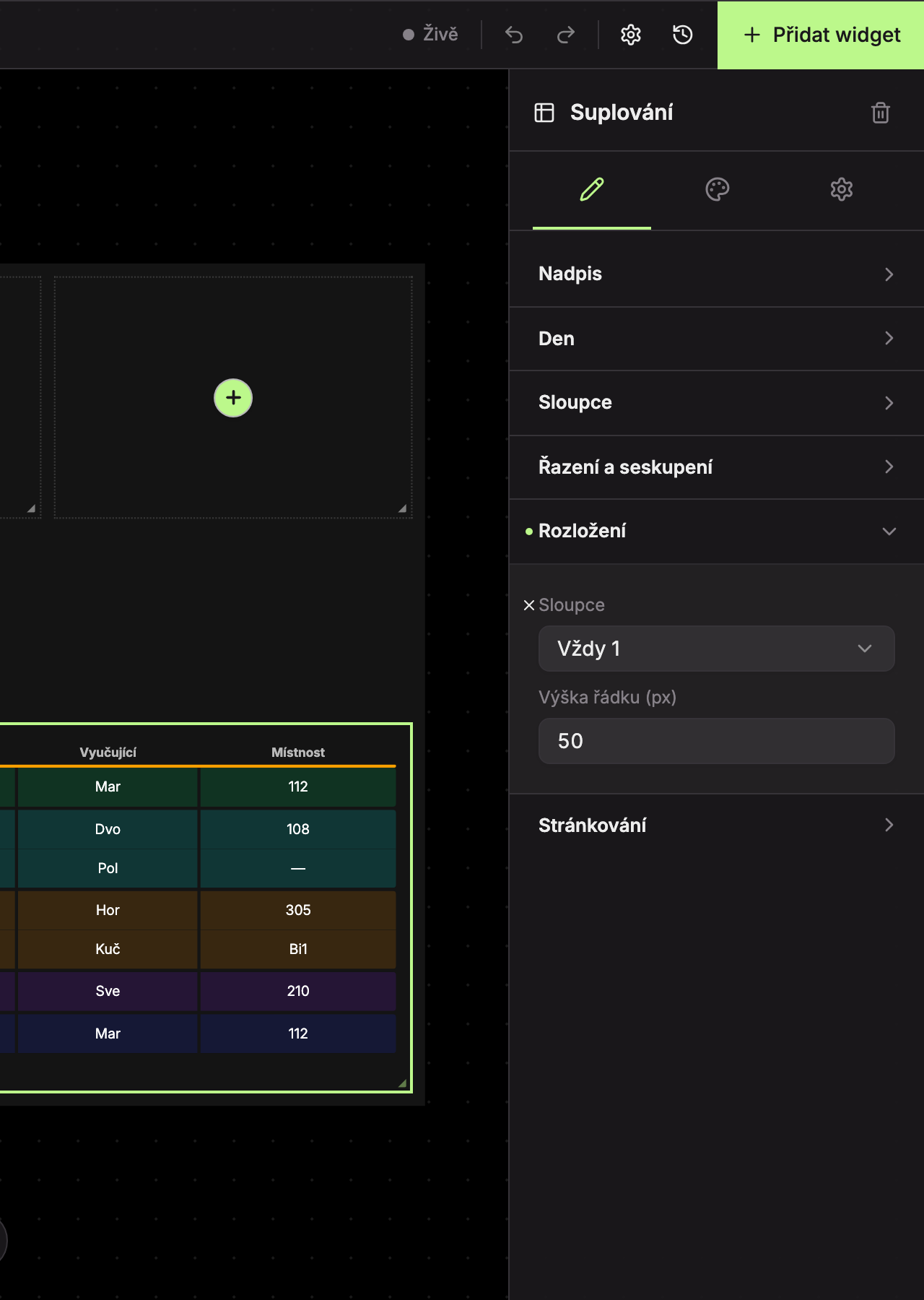
- When you change something in a section, a dot appears next to the section title and before the label of the changed field. This immediately shows what differs from the default settings.
- On mouse hover, the dot changes to a cross with the tooltip “Reset to default value.” Clicking it resets the field to its default value.
Numeric Fields
Numeric fields (size, padding, width, duration…) can be controlled in several ways:
- Type the value into the field. If it is outside the allowed range, it will be adjusted to the nearest allowed value.
- Use the up ↑ and down ↓ arrow keys to increase or decrease the value by one step.
- Drag the mouse left or right over the field to change the value smoothly. A bubble showing the current value appears near the cursor.
- Hold Shift while dragging to change the value ten times faster.
Colors
A color field has a square showing the color and next to it the color code (for example, #BBF98C).
- Click the square (Select color) to open the color picker. You can also set transparency.
- You can also directly overwrite the color code.
- The checkerboard behind the square means the color is partially or fully transparent.
- Some colors (for example, Primary color) are inherited from the screen settings. The inherited color is shown faded. If you change it, it applies only to this widget. Clicking the cross “Reset to inherit from monitor” reverts to the screen color.
Design Tab: padding, border, rounding
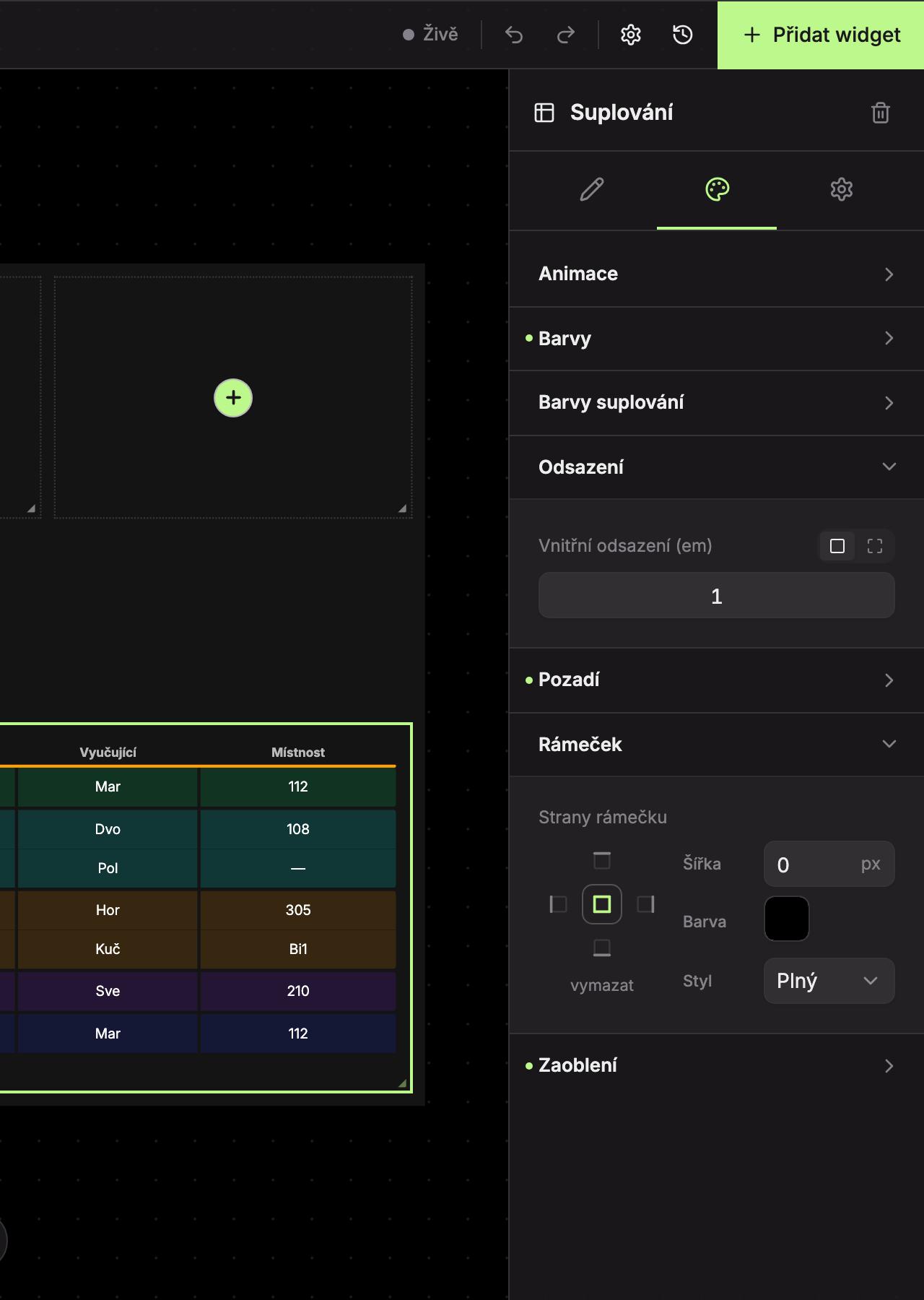
Padding (1) is the space between the widget’s edge and its content, measured in em units (1 em ≈ the widget’s font size).
- Uniformly (all the same) – one field All sides.
- By sides (each separately) – four fields: Top, Left, Right, Bottom.
Border is set separately for each side:
- Use the cross of buttons (2) to select the side: Top, Left, Right, Bottom, or All.
- Width (3) in pixels. A side with width 0 will not be drawn.
- Color (4) of the frame.
- Style (5): Solid, Dashed, or Dotted.
- Use the clear link to remove the frame.
Corner rounding in pixels can be set the same for all corners (All corners), or individually for each corner (top left, top right, bottom left, bottom right) using the By corners (each separately) toggle. A value of 0 means the widget will inherit the rounding set for the entire screen (see Appearance and resolution).
The background of the widget is transparent by default. You can set the background color in the Background section.
The Time widget also has a Typography section (alignment, boldness, font size). Description is in the Time widget page.
Other Tab: position and size
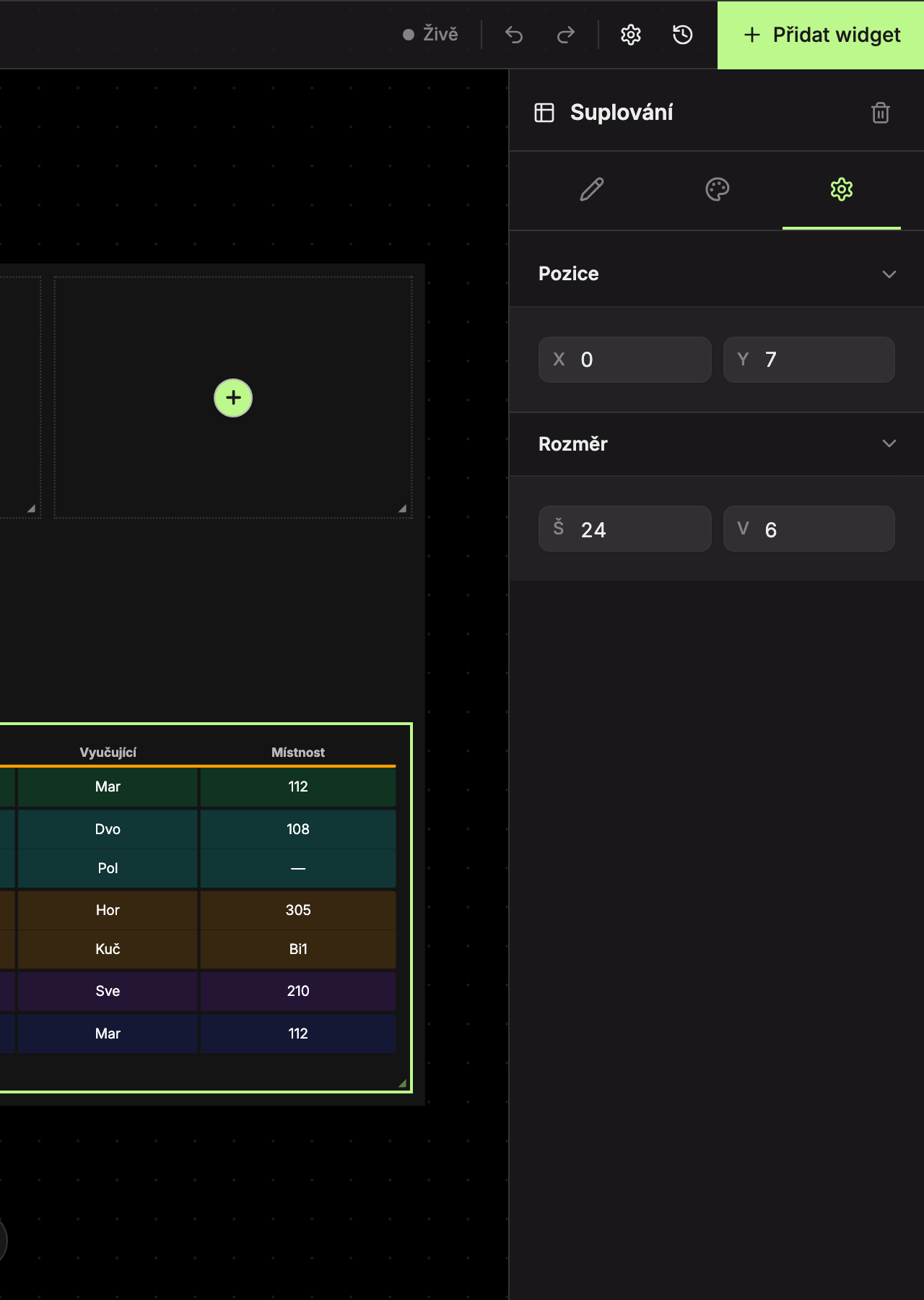
- Position (1): X (column) and Y (row) of the widget’s top-left corner, counted in grid cells starting from zero.
- Size (2): W (width) and H (height) in cells, at least 1.
Useful when you want to align widgets precisely or give them the same size.
Item lists
Some settings are lists, such as the columns of the substitution table or parts of the Time widget. For each item, there is:
- handle Drag to reorder,
- button Duplicate and Delete.
Below the list is the Add button. An item without its own name is called “Item 1,” “Item 2,” and so on.
Updated