
Widgets
More options
 Discuss with Marie
 Video Widget
Embedding video, playback with or without sound, loop, progress bar with duration, and holding the screen until the video ends.
The Video widget plays a single MP4 format video. You select the video from the media library, or upload it directly from your computer.
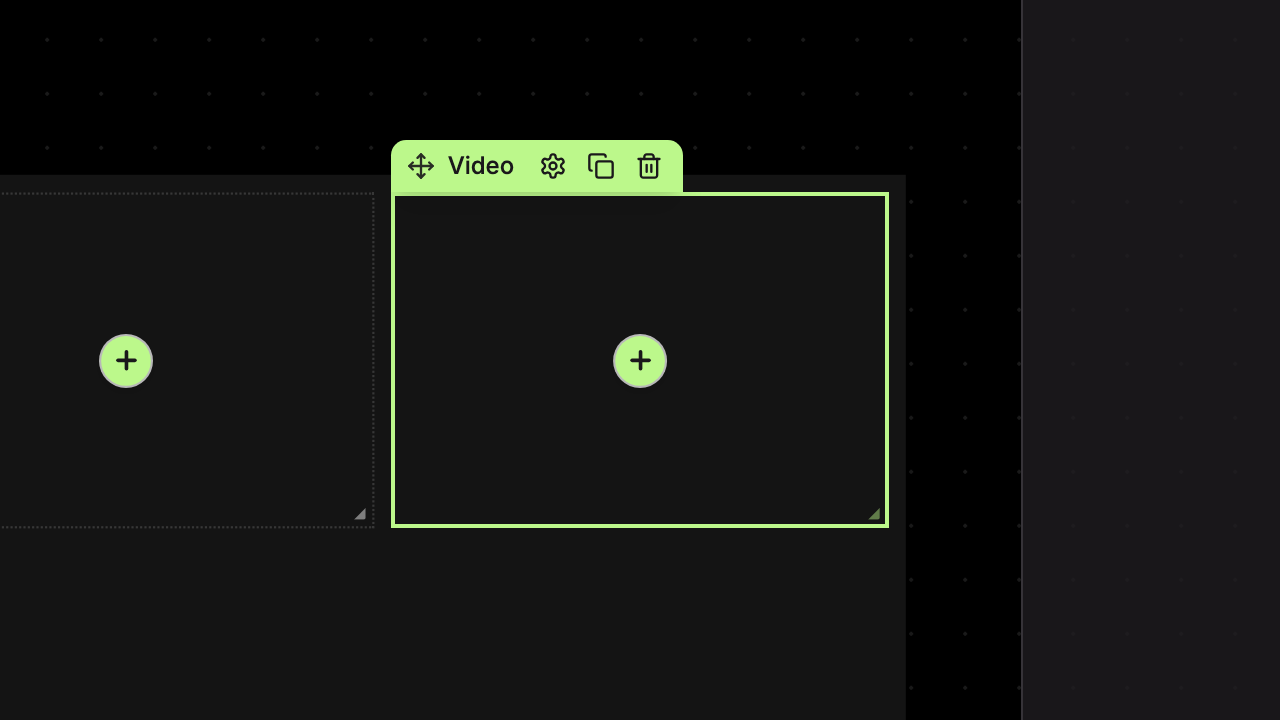
Embedding Video
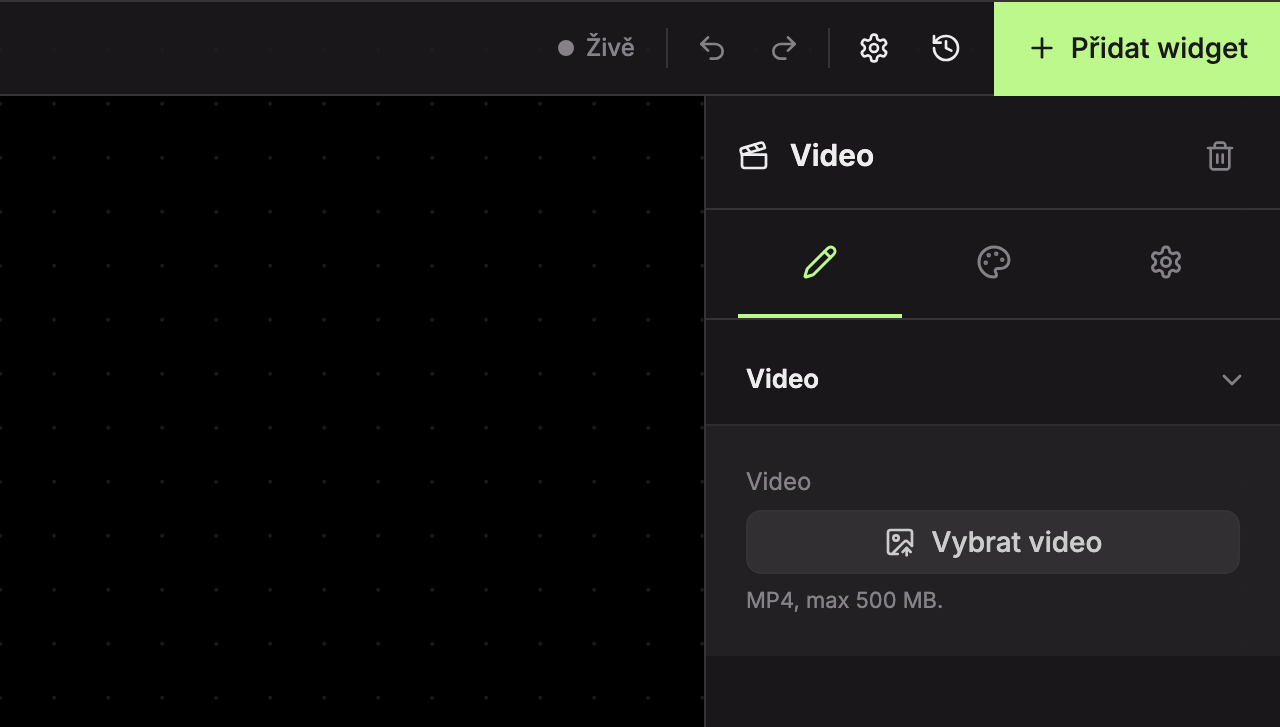
In an empty widget, on the Content tab in the Video section, there is a Select Video button and below it the allowed format: “MP4, max 500 MB.”
Embedding works the same way as with the Image widget: click Select Video, choose a video from the Media Library tab and click Select, or upload a video on the Upload Files tab.
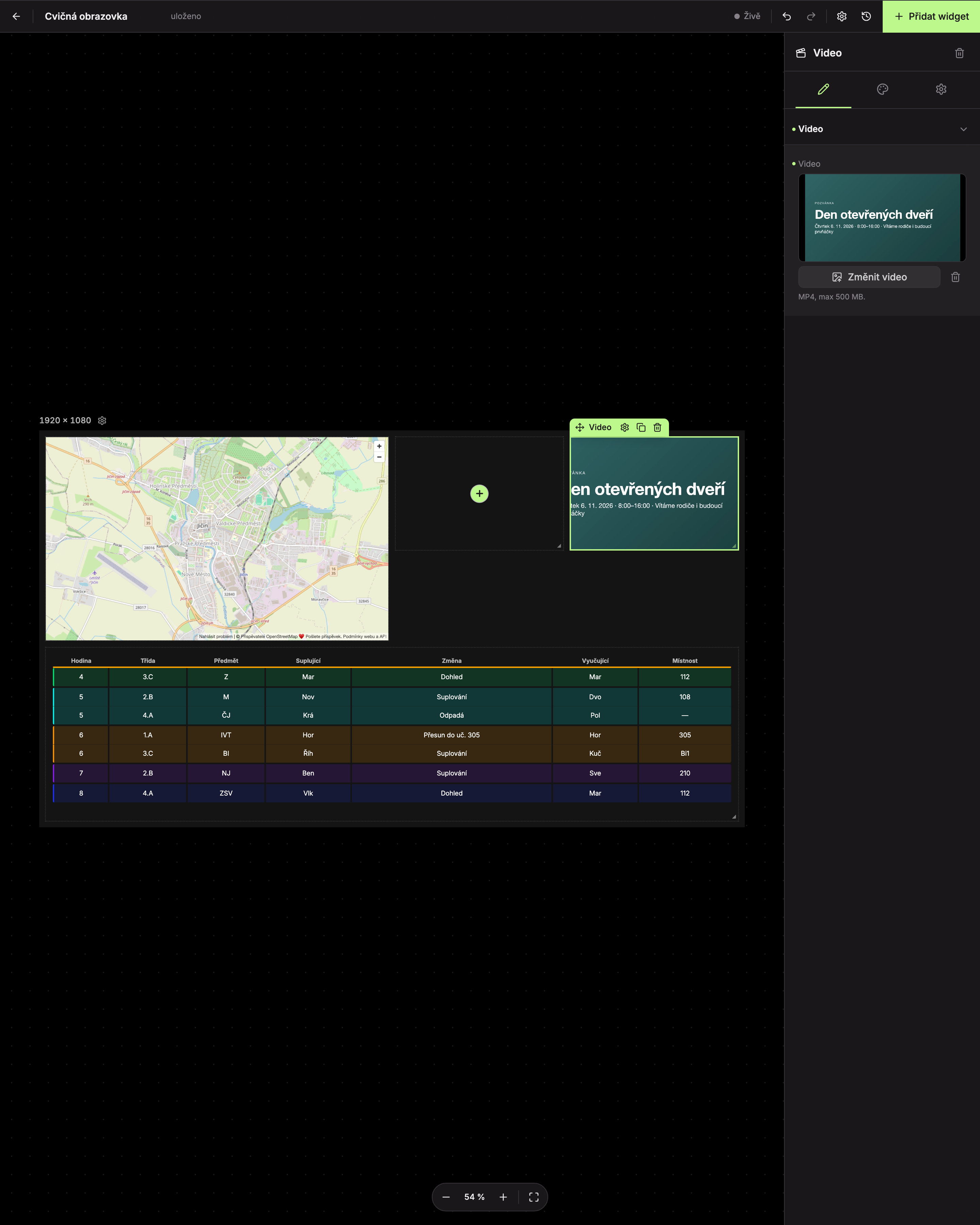
When the widget has a video, the Video section shows buttons Change Video (1) and Remove Video (2, trash icon). Removing the video does not delete it from the media library.
Design Tab
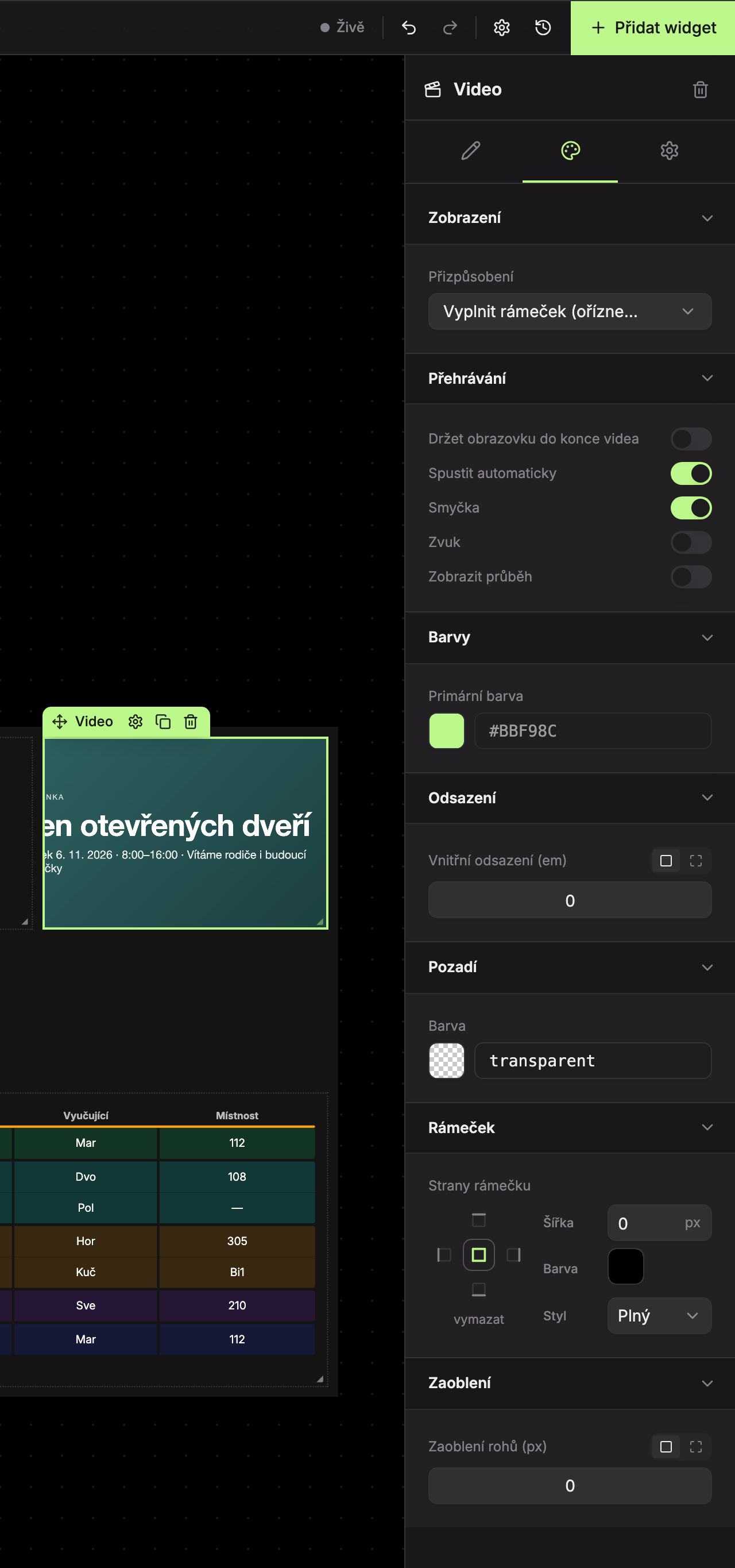
The tab contains sections Display (1), Playback (2), Colors (3), Spacing (4), Background (5), Border (6), and Rounding (7).
Display
The Fit field has the same options as for images: Show Entire (no cropping), Fill Frame (crop excess) (default), and Stretch (may distort). Descriptions of these options can be found in the Image widget.
Playback
| Field | What it does | Default |
|---|---|---|
| Hold screen until video ends | In the scenario, the screen stays until the video plays through once (see below). | off |
| Start automatically | The video starts playing automatically as soon as it appears. | on |
| Loop | When finished, the video plays again from the beginning. | on |
| Sound | The video plays with sound. Off = muted. | off |
| Show progress | A bar runs along the bottom of the video showing how much of the video has elapsed. | off |
| Show duration | Adds a bubble with the time in the format “0 / 1” (elapsed / total length) to the bar. This field only appears when Show progress is enabled. | off |
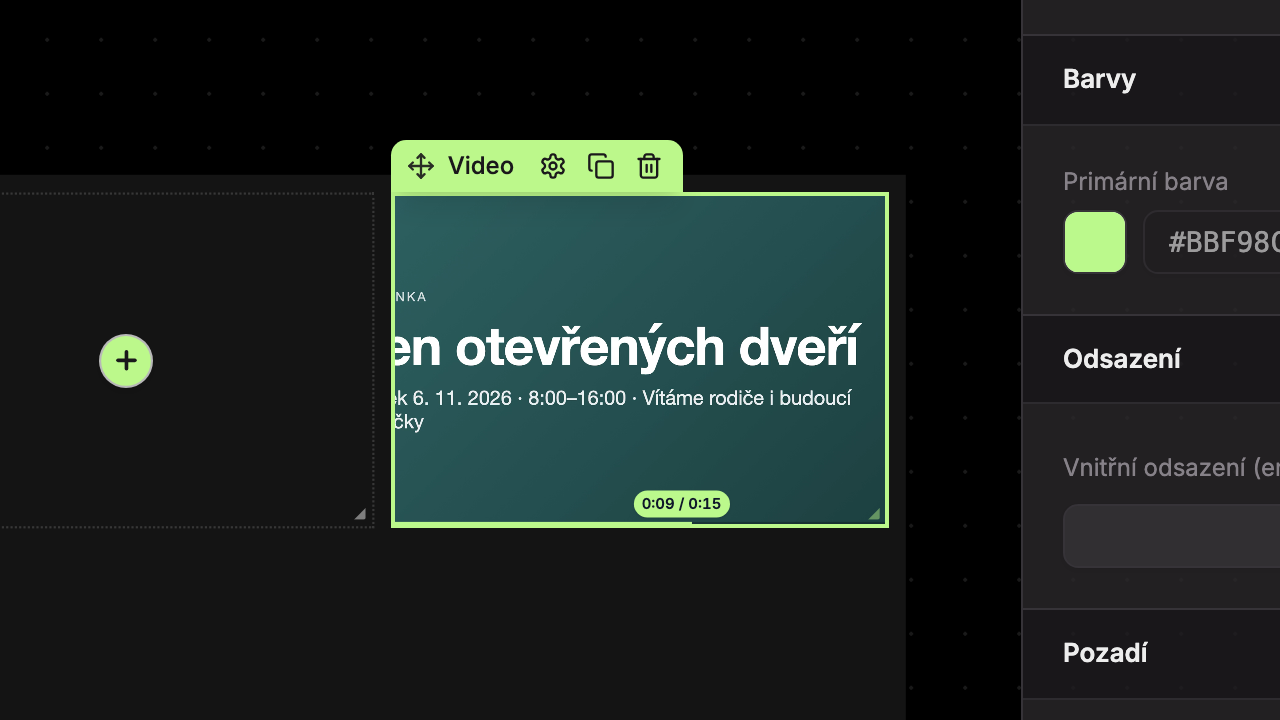 The progress bar and duration bubble use the widget’s primary color, which you set in the Colors section (see Primary Color).
Hold screen until video ends
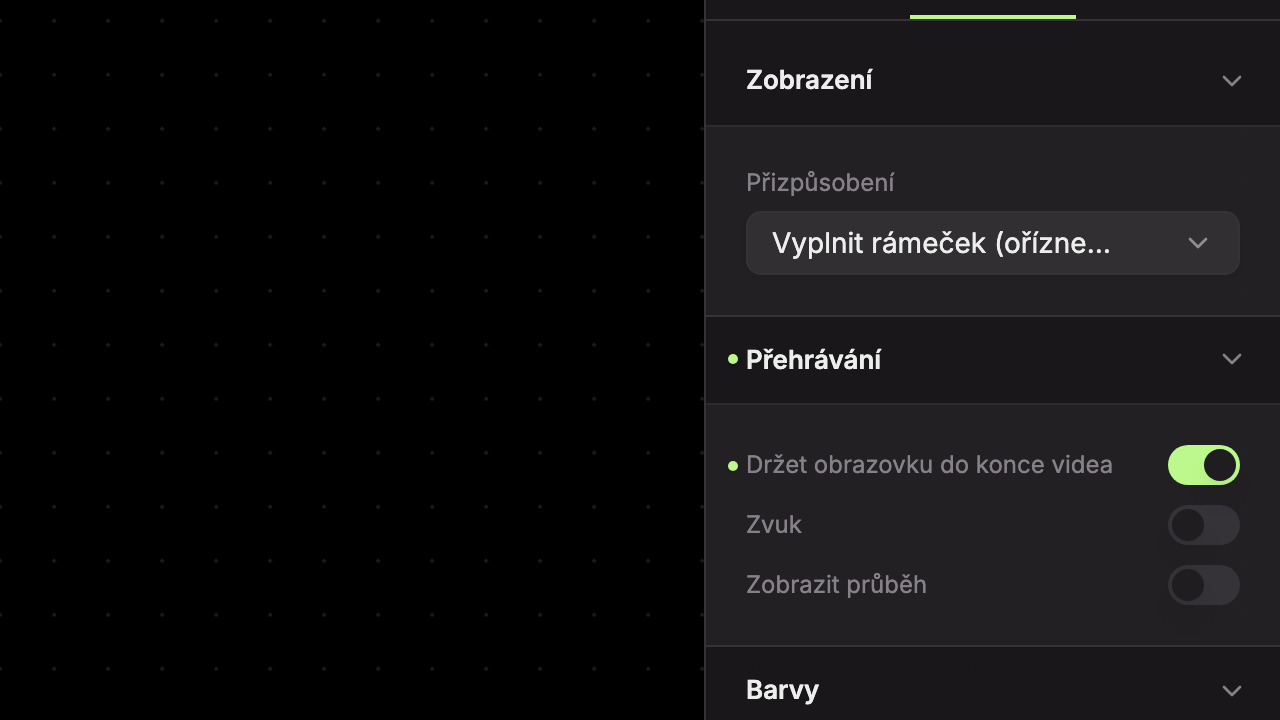
When you enable Hold screen until video ends (1), the Auto start and Loop toggles disappear. The video will then always start automatically and play once.
In the scenario the screen with this video will not disappear after the set time but will remain until the video finishes. Only then will the scenario proceed to the next screen.
What if the video fails to play?
To ensure the scenario never gets stuck, the player has two safeguards:
- If the video length cannot be determined within 30 seconds, the scenario proceeds. If the screen time in the scenario is longer than 30 seconds, it will wait the full duration.
- If playback freezes, the scenario proceeds no later than 15 seconds after the expected end of the video.
Updated