
Widgets
More options
 Discuss with Marie
 Widget Time
Clock and date composed of parts: day of the week, day, month, year, hours, minutes, seconds, and custom text.
The Time widget shows the current time, date, or both. You compose exactly what it shows from parts. The default composition is hours, colon, and minutes, for example “08
”. The text always scales up or down to fill the entire widget on one line.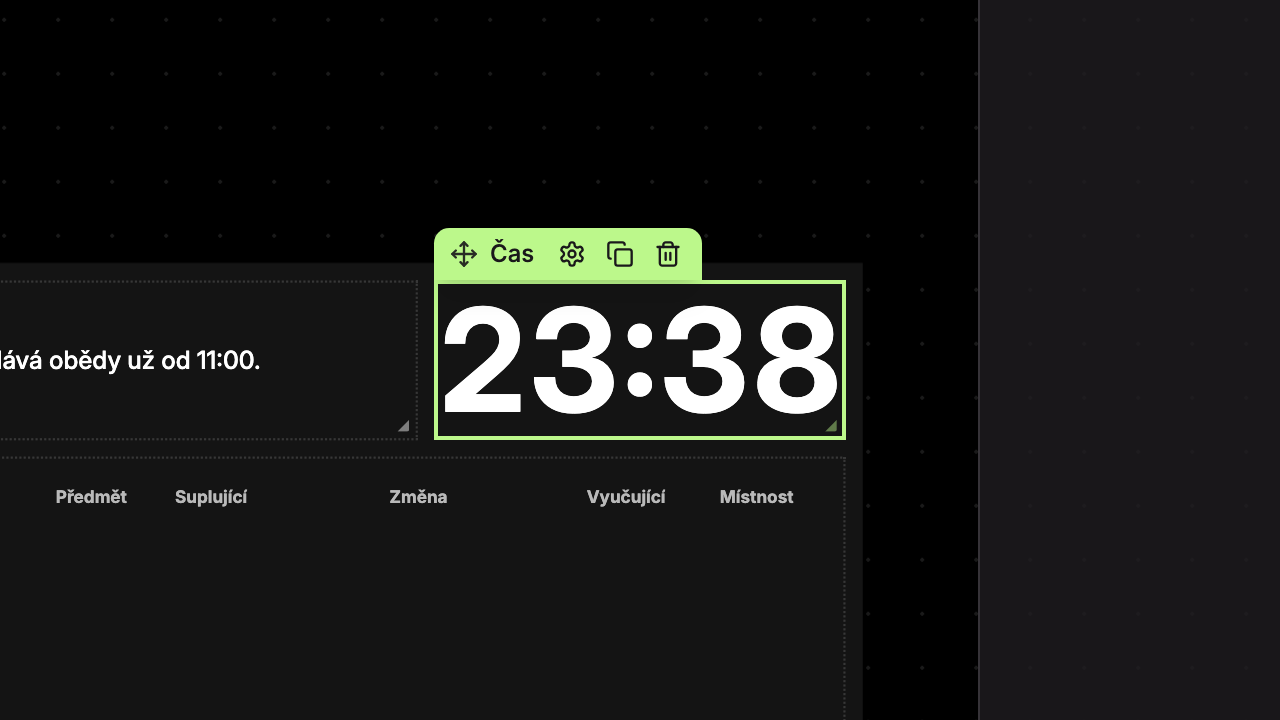
Content Tab: Composition
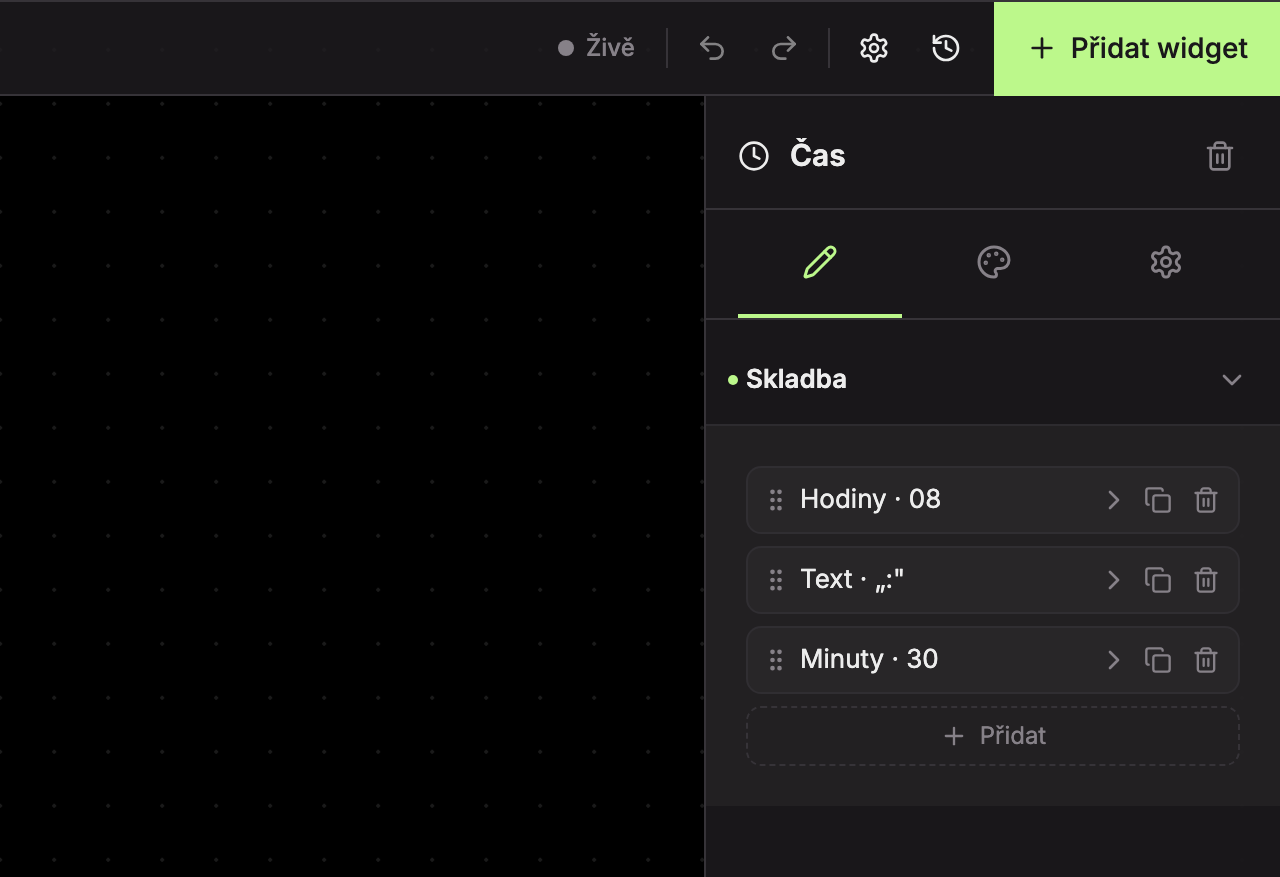
The Composition section is a list of parts. Each part has a name and a preview in the list, for example “Hours · 08”, “Text · ”:"" or “Minutes · 30”. The previews assume the date Saturday, June 6, 2026, 08:30
.- Click a part to expand and configure it.
- Drag the handle to reorder parts.
- Use the Duplicate icon to copy a part, the Delete icon to remove it.
- Use the Add button to add a new Text part with a space.
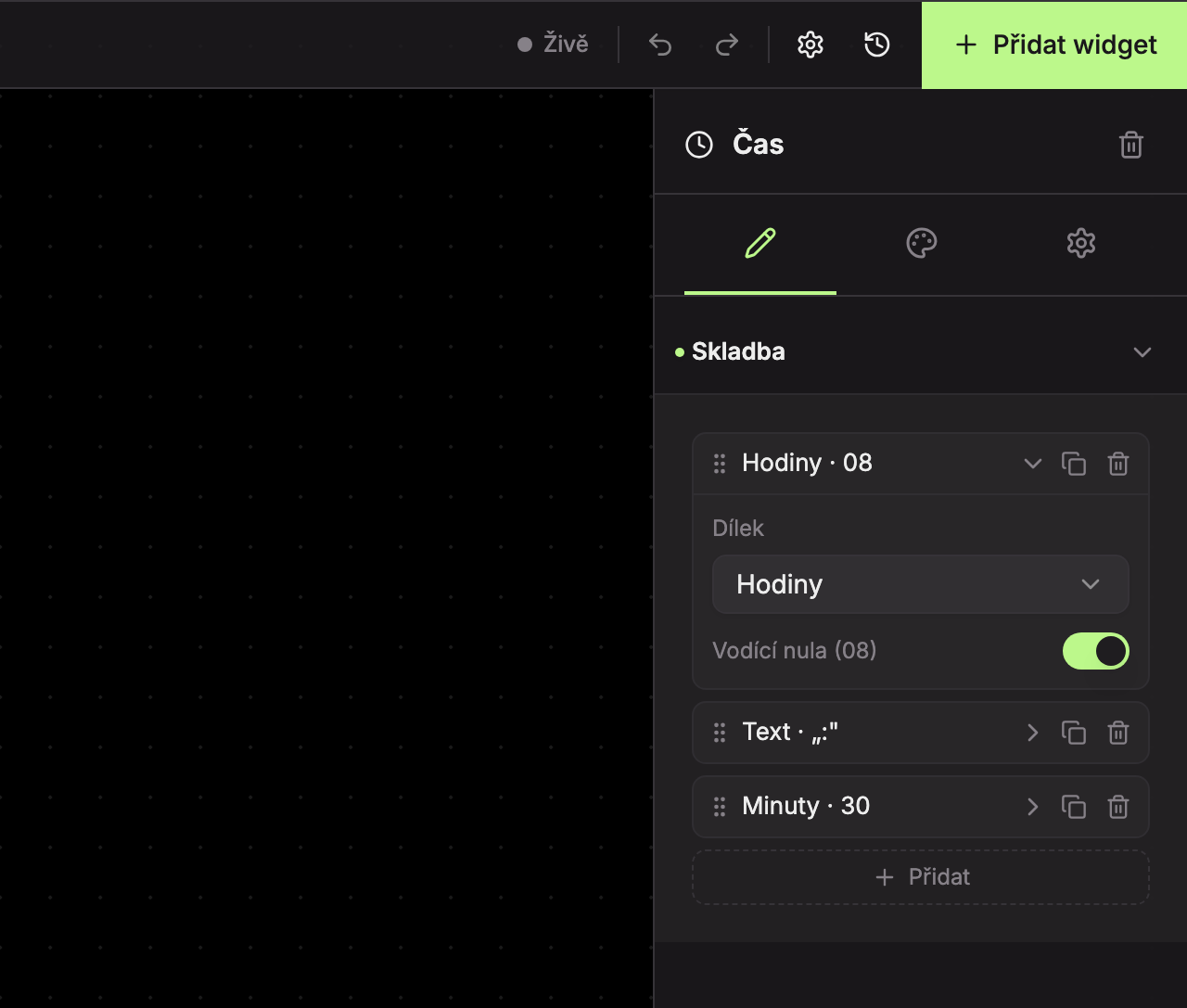
In the expanded part, select the type in the Part field (1). Depending on the type, additional options appear, for example for hours the Leading zero (08) toggle (2).
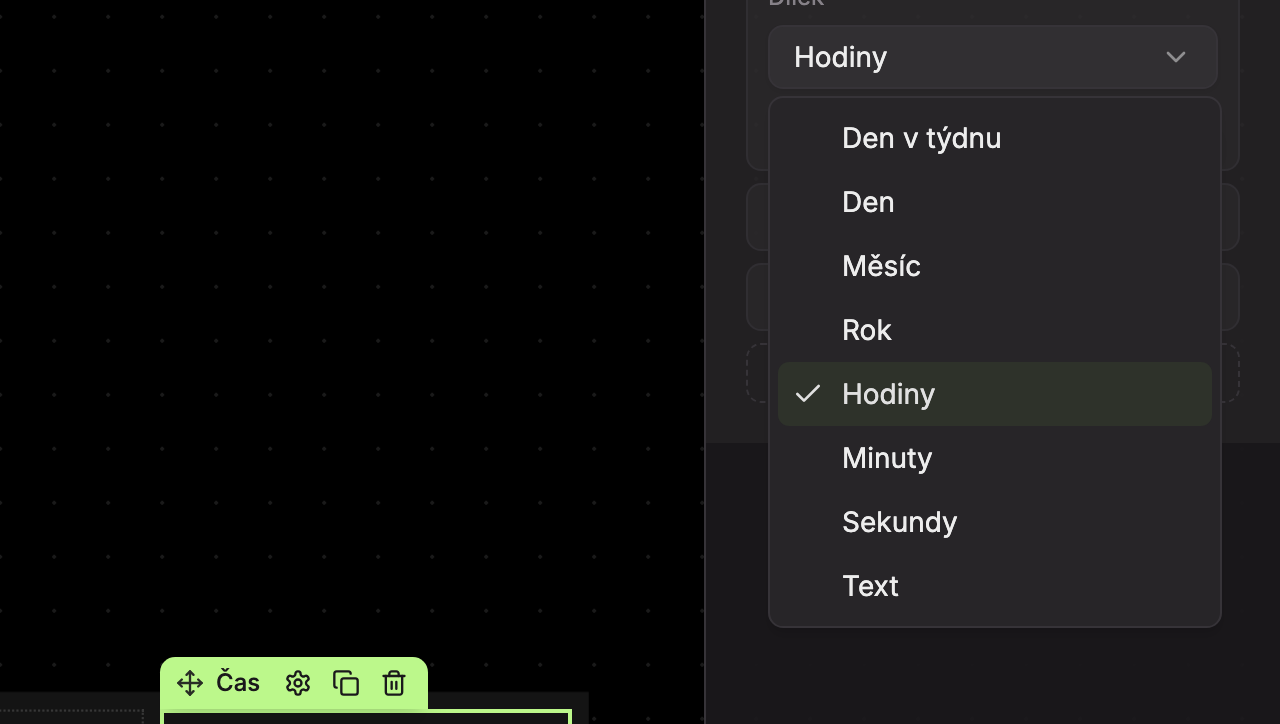
| Part | What it shows | Additional option |
|---|---|---|
| Day of week | Name of the day. | Format: Saturday (full name with capital letter, default) or SA (abbreviation in uppercase). |
| Day | Day of the month as a number, without a dot (6). | – |
| Month | Month. | Format: June (name in genitive case, default), 6 (number), or Jun (abbreviation). |
| Year | Year in four digits (2026). | – |
| Hours | Hours in 24-hour format. | Leading zero (08) – on: “08”, off: “8”. Default is on. |
| Minutes | Minutes, always two digits (05). | – |
| Seconds | Seconds, always two digits. | – |
| Text | Fixed text, for example colon, dot, or space. | Text – enter the text (hint “e.g. ”:” or space”). |
Month abbreviations are: Jan, Feb, Mar, Apr, May, Jun, Jul, Aug, Sep, Oct, Nov, Dec.
Design Tab
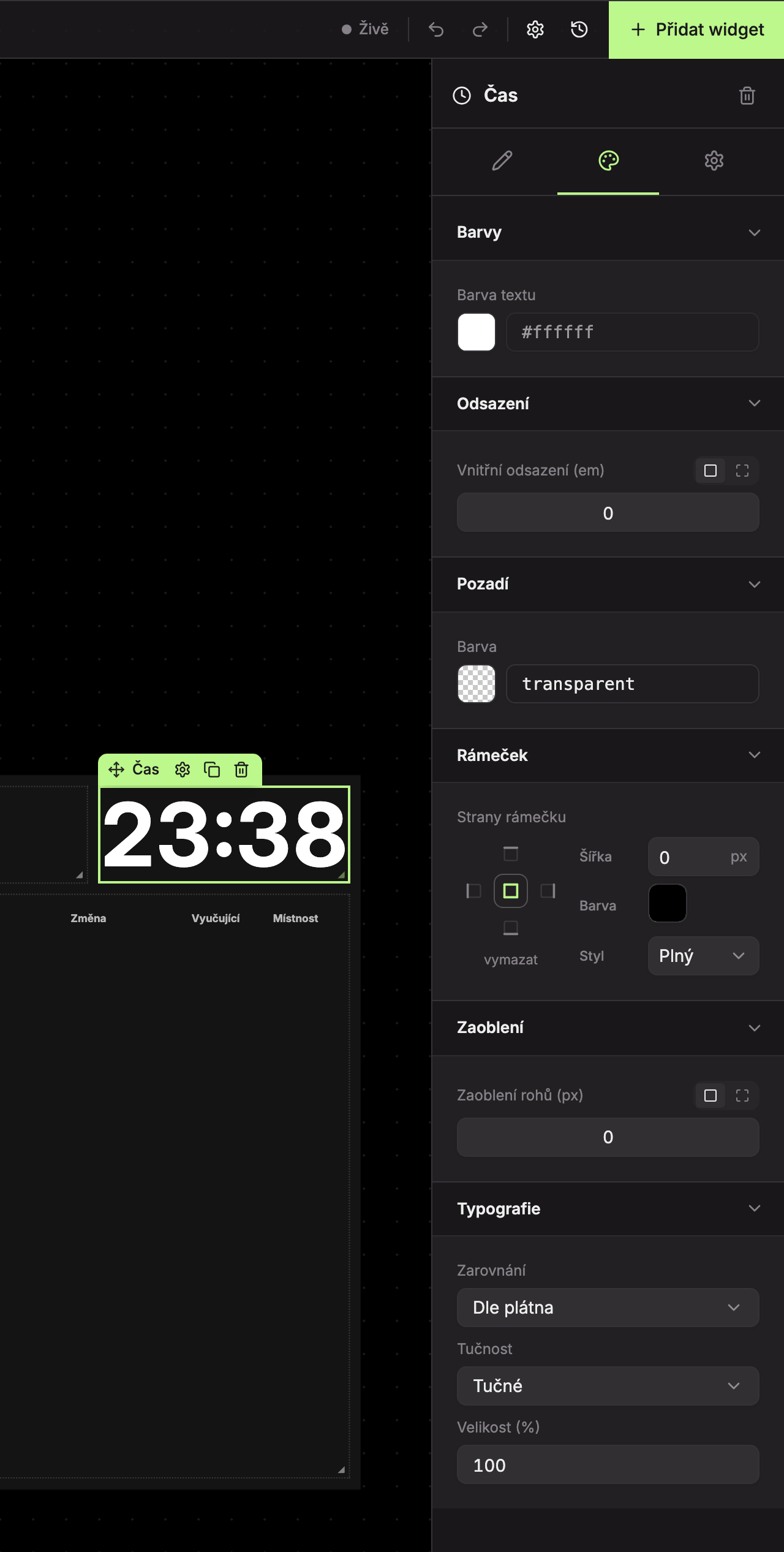
- Colors (1) – Text color, default is the screen text color.
- Padding (2), Background (3), Border (4), Rounding (5) – see common settings. Padding is 0 by default for the Time widget.
- Typography (6):
| Field | Options | Default |
|---|---|---|
| Alignment | Canvas, Left, Center, Right | Canvas |
| Weight | Normal, Medium, Bold | Bold |
| Size (%) | 25–400 %, step 5. 100 % = text exactly fills the widget, smaller value shrinks it. | 100 |
Updated