
Billing and Documents
More options
 Discuss with Marie
 Issued invoices
Overview of invoices issued to the school: amount, due date, payment status, summary of unpaid invoices, search and open PDF.
In the left menu, click Billing → Issued invoices. You will see all invoices we have issued to your school, starting with the most recent.
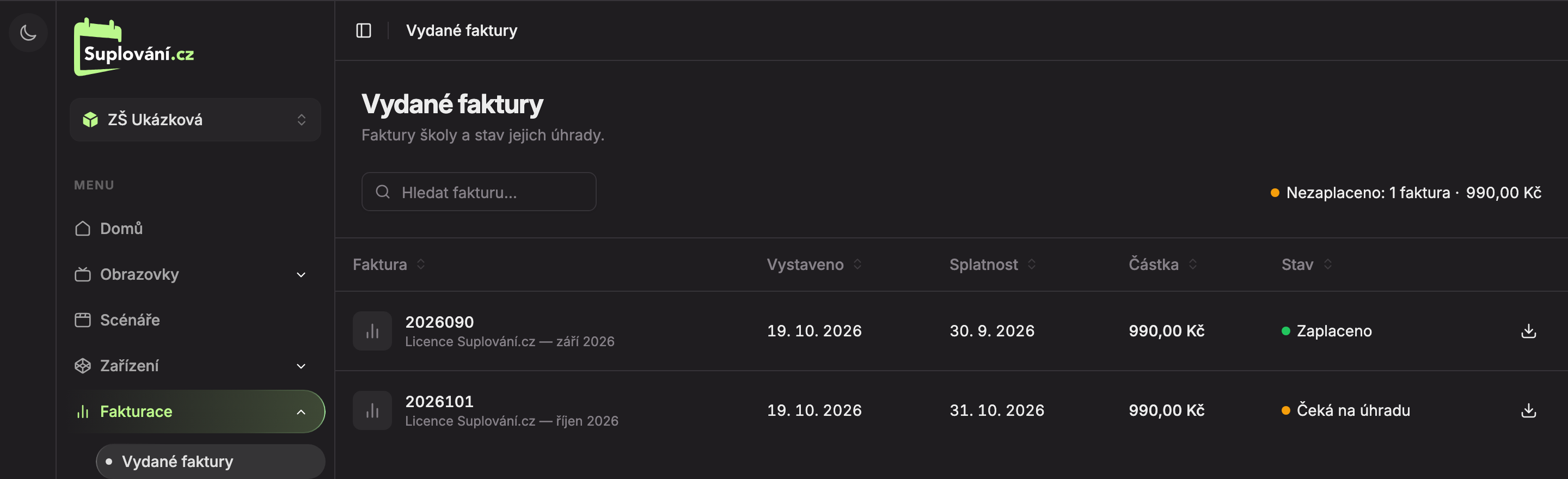
- Search invoice… – search by invoice number, its title, or status (for example, “overdue”).
- Summary – how many invoices are unpaid and the total amount, for example, “Unpaid: 1 invoice · 990.00 CZK”. If any are overdue, the summary is red. If everything is paid, it shows green “All paid”.
- Invoice – invoice number and below it, what it is for (for example, “Suplování.cz License — October 2026”).
- Payment status (see table below).
- Open invoice PDF – opens the invoice PDF in a new browser tab. Clicking anywhere on the row works the same.
Columns
| Column | What it shows |
|---|---|
| Invoice | Invoice number and title. |
| Issued | Issue date. |
| Due date | Date by which the invoice should be paid. |
| Amount | Total invoice amount in CZK. |
| Status | Payment status. |
Clicking on the invoice column header sorts by that column; clicking again reverses the order.
Payment status
| Status | Meaning |
|---|---|
| Paid (green) | We have received the payment. Hover to see the payment date. |
| Awaiting payment (orange) | The invoice is not yet paid, but the due date has not passed. |
| Overdue (red) | The invoice is unpaid and the due date has passed. |
For invoices without a PDF, a dash “—” appears instead of the icon (Invoice has no PDF). If the school has no invoices yet, the page shows “There are no invoices here yet.”
Updated