
Widgets
More options
 Discuss with Marie
 Widgets
Overview of all nine Studio widgets and common appearance settings shared by all widgets.
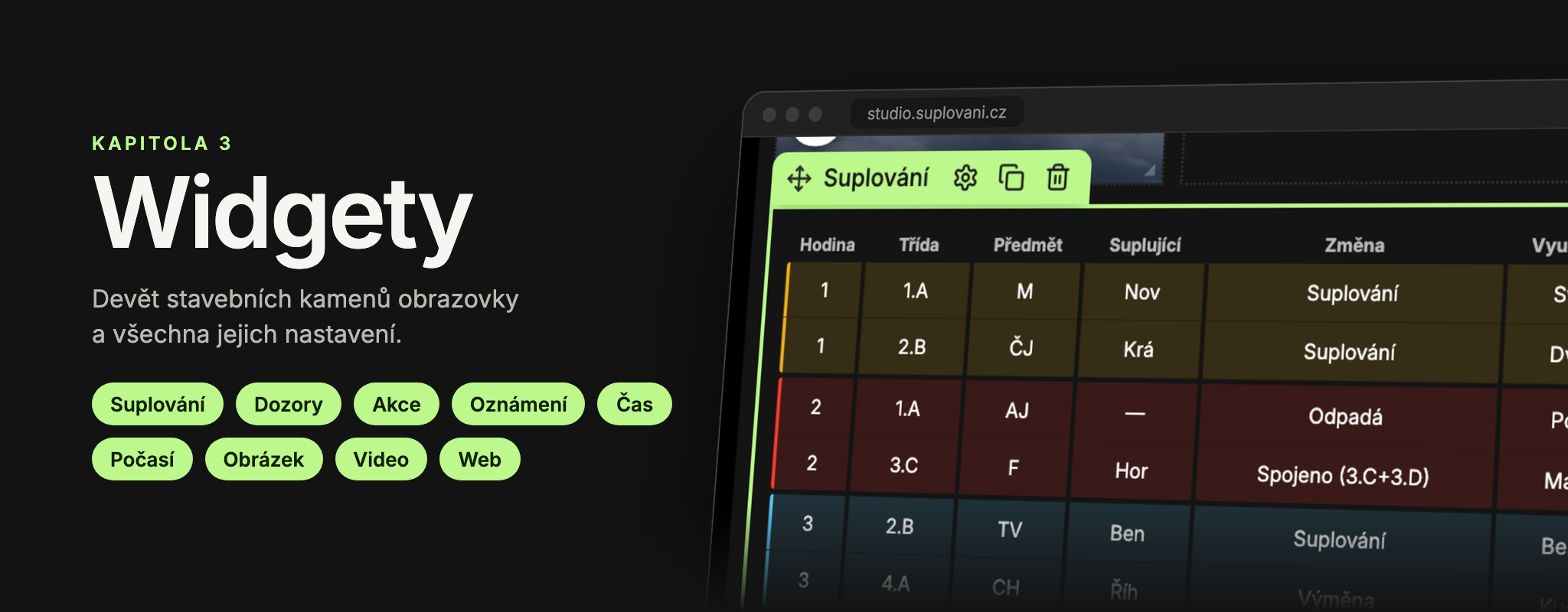
A widget is a content block on the screen. Each widget has its own settings in the panel on the right, divided into the tabs Content, Design, and Other (see Widget Settings Panel). In this section, you will find all settings for each widget, default values, and messages it may display.
Widget Overview
| Widget | Menu Group | What it shows |
|---|---|---|
| Substitutions | Data Connector | Substitution table for today or upcoming days. |
| Supervisions | Data Connector | Schedule of teacher supervisions. |
| Events | Data Connector | List of school events with dates. |
| Announcements | Informational | Announcements for the whole school from the Home page. |
| Time | Informational | Clock, date, or both, assembled from parts. |
| Weather | Informational | Current weather for the selected location. |
| Image | Decorative | Image from the media library. |
| Video | Decorative | Video from the media library. |
| Web | Decorative | Embedded web page. |
Widgets in the Data Connector group automatically take data from your school’s system, which Suplování.cz connects to. In Studio, you do not enter this data; you only set how it should be displayed. If the school has no data yet, the editor shows sample data so you can see how the widget will look.
Table widgets (Substitutions, Supervisions, Events) automatically paginate when the data does not fit. How pagination and page transitions work is described in Pagination and Transitions.
Common Appearance Settings
These settings on the Design tab are present in all widgets and work the same everywhere. A detailed description of the controls is in the Widget Settings Panel section.
| Section | Field | Default Value |
|---|---|---|
| Padding | Inner padding (em) | 1 em for Substitutions, Supervisions, Events, and Announcements; otherwise 0. |
| Background | Color | Transparent (transparent). |
| Border | Border sides (Width, Color, Style) | No border (width 0 px, style Solid, color black). |
| Rounding | Corner rounding (px) | 0 = inherits rounding set for the entire screen. |
The Colors section with the Primary Color field is present in the Substitutions, Supervisions, Events, and Video widgets. The primary color is inherited from the screen settings. It is used for highlighting elements of the widget, such as the page indicator or video progress bar.
On the Other tab, each widget has the Position and Size sections (see Widget Settings Panel).
Updated