
Devices
More options
 Discuss with Marie
 Device Detail
Device detail panel: scenario, screen control, status, version, uptime, disk usage, and temperature, CPU, and RAM graphs.
Open the device detail on the Devices page by clicking the card (in Grid view) or the row (in List view). The panel slides out from the right. Close it with the Close cross, the Esc key, or by clicking outside the panel.
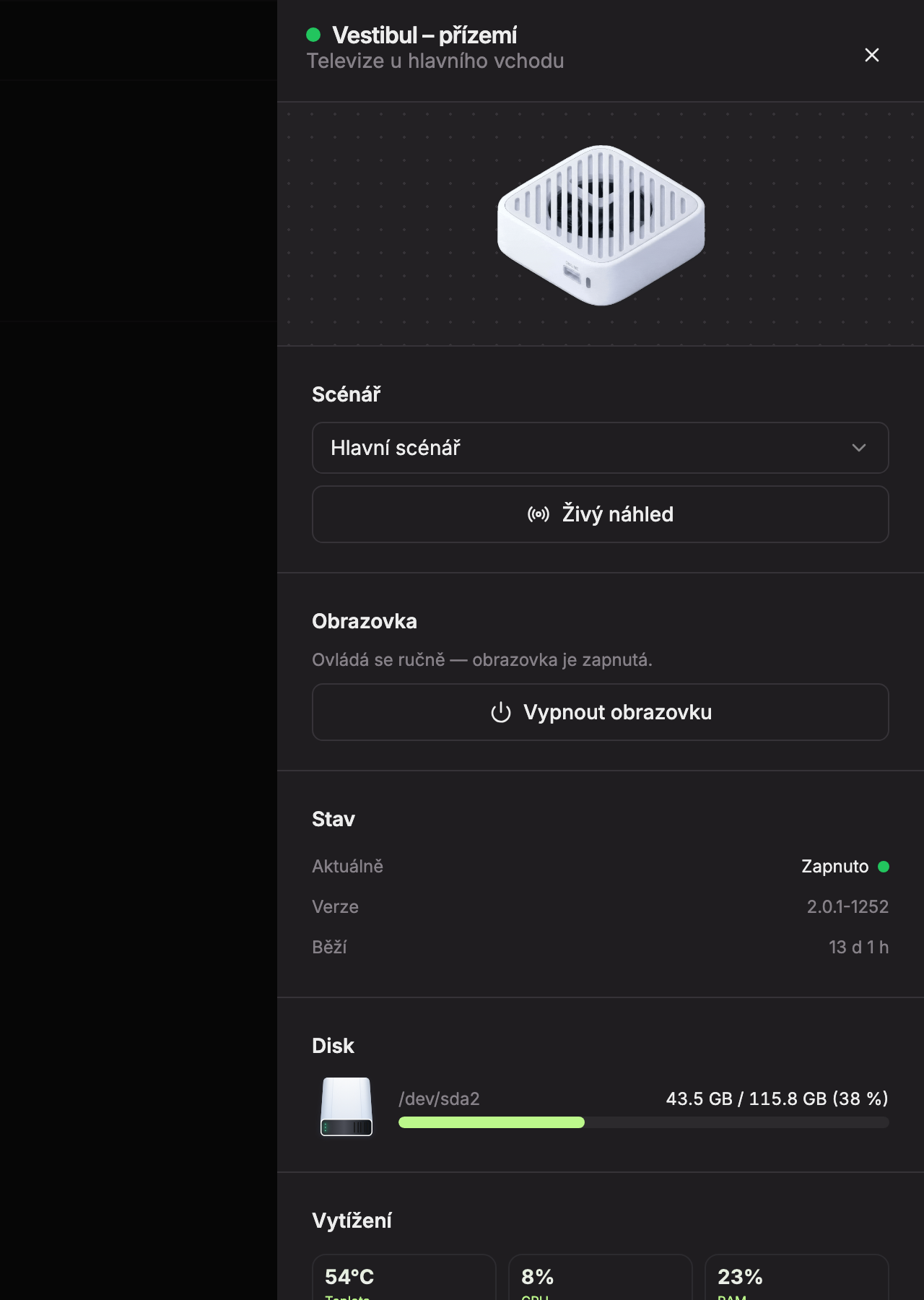
- Device name with a colored status dot and a note below (for example, where the device is located). Below the header is the device image. Depending on the status, it shows “Device running,” “Device not responding,” or “Device off.”
- Scenario – select the scenario the device is playing. See Assigning a device scenario.
- Live preview – opens the live monitor where you can watch what the device is currently playing.
- Screen – whether the screen is controlled by schedule or manually switched. See Turning the screen on and off.
- Turn off screen (or Turn on screen) – toggles the screen of this device once.
Status, disk, and load
Technical details are at the bottom of the panel. They are especially useful when you report issues to us.
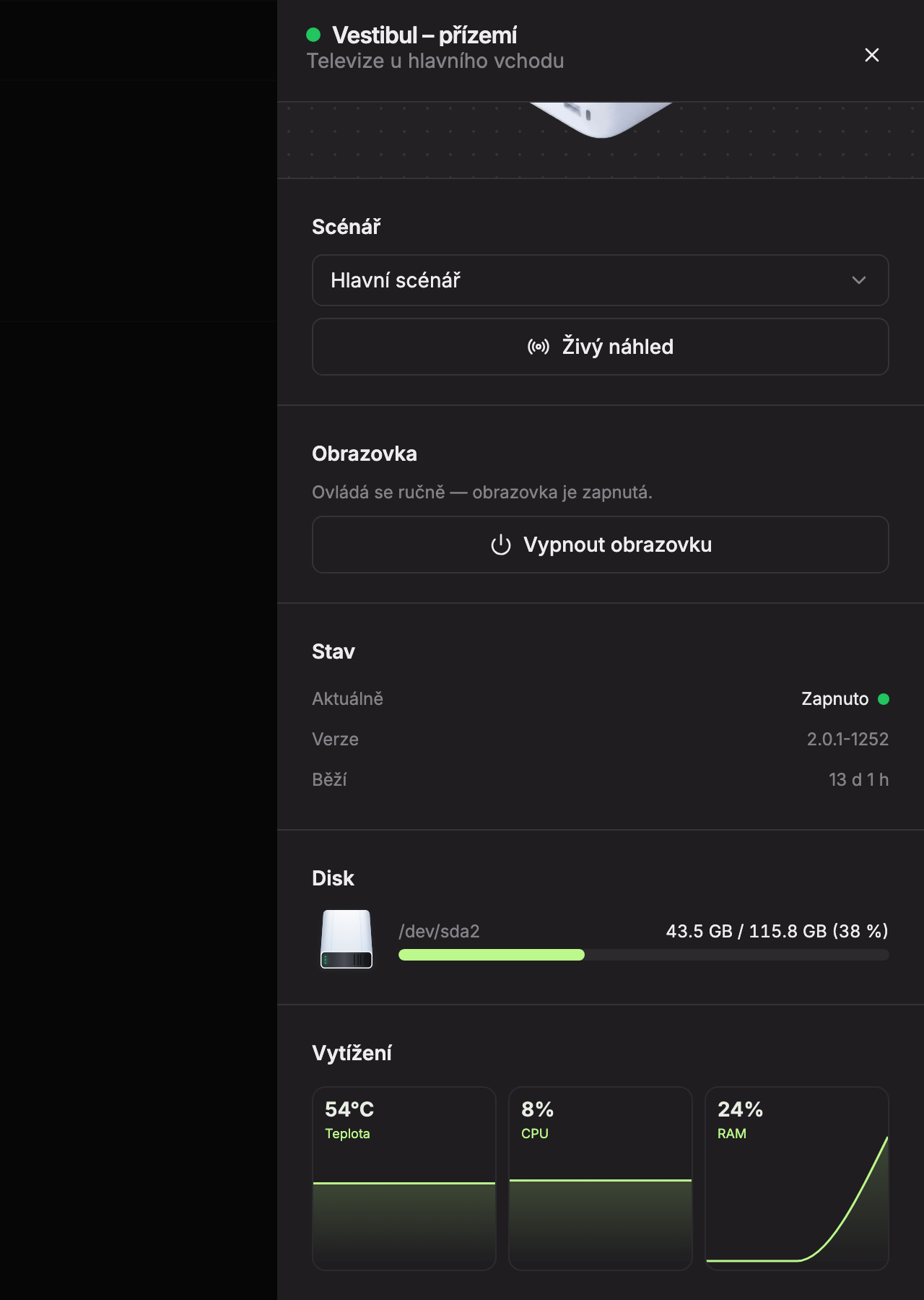
Status (1)
| Row | What it shows |
|---|---|
| Currently | On, Off, Offline, or Unknown status (see Status colored dot). |
| Last online | Only for Offline status: when the device last checked in, e.g., “12 min ago,” “3 h ago,” or “2 days ago.” |
| Version | The program version on the device. |
| Uptime | How long the device has been running since last start, e.g., “13 d 1 h,” “5 h 20 min,” or “8 min.” |
Disk (2) – disk name, how much space is used and total, e.g., “43.5 GB / 115.8 GB (38%).” The bar is green, orange from 85%, and red from 95%. If the device has not sent data yet, it shows “Disk data not available yet.”
Load (3) – three small graphs:
| Graph | What it shows | Orange from | Red from |
|---|---|---|---|
| Temperature | CPU temperature in °C | 75 °C | 90 °C |
| CPU | CPU load in % | 70 % | 90 % |
| RAM | memory usage in % | – | – |
The graphs fill only when you have Studio open. The device sends data about every 30 seconds, and the graph shows up to 60 recent values, about half an hour. When you open the page, the graph is initially flat until more values arrive. Until data arrives, it shows “Graphs will fill as soon as the device sends data.”
Updated