
Screens
More options
 Discuss with Marie
 Orientation in the editor
Top editor bar, canvas, zoom and pan, Live indicator and autosave.
The editor opens after clicking on a screen in the list. The left Studio menu hides during editing to provide more space. In the center is the canvas, the screen area as the TV will see it. On the right, a settings panel opens as needed.
Top bar
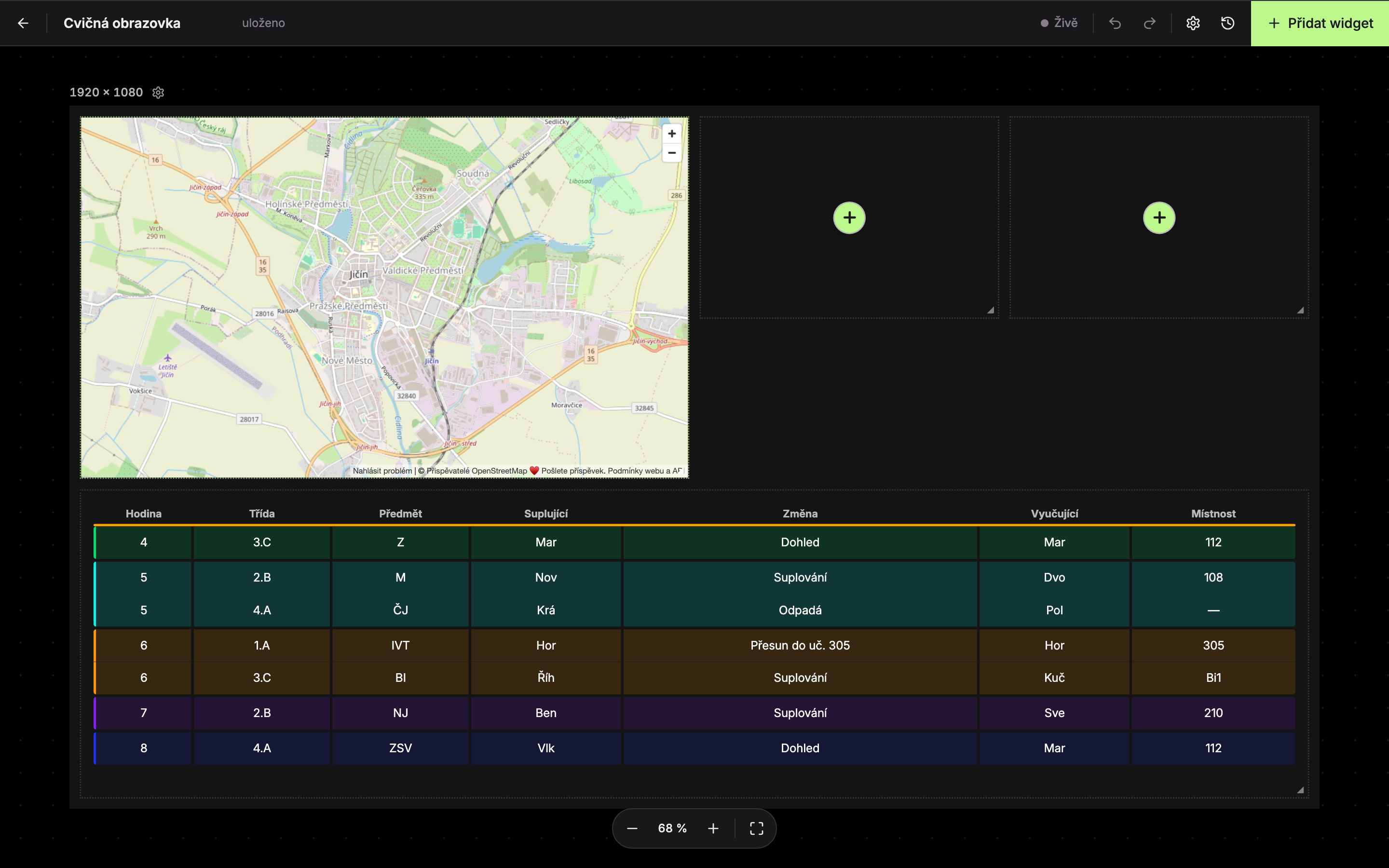
| Element | Purpose | |
|---|---|---|
| 1 | Back to screen overview | Closes the editor and returns you to the list. |
| 2 | Title | The screen’s title. Click to edit it. |
| 3 | Save status | “saving…” while saving, “saved” after saving. |
| 4 | Live | Shows how many devices are currently displaying this screen (see below). |
| 5 | Undo (left arrow) | Reverts the last change. Shortcut Ctrl + Z. |
| 6 | Redo (right arrow) | Restores the undone change. Shortcut Ctrl + Shift + Z or Ctrl + Y. |
| 7 | Canvas style (gear icon) | Opens the Monitor panel: resolution, grid, and screen colors. See Appearance and resolution. |
| 8 | History (clock icon) | List of all editing steps. See Undo and history. |
| 9 | Add widget | Opens the widget menu. See Adding a widget. |
On Mac, use ⌘ instead of Ctrl.
Live indicator
The editor sends your changes directly to devices currently showing this screen. When a device is connected, a green dot blinks next to the Live label and the number indicates how many devices are connected. Hovering shows “Connected devices” and their names.
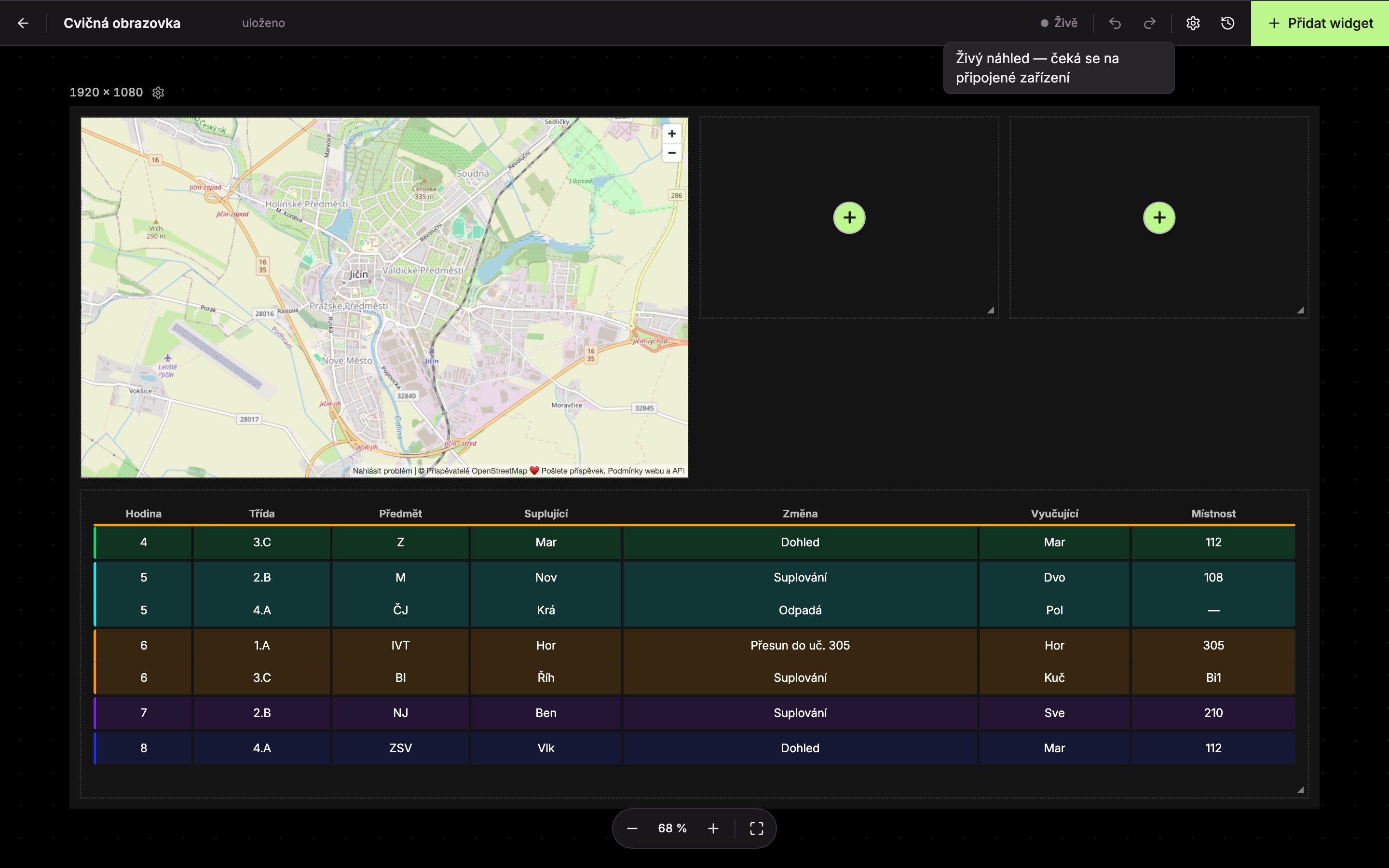
When no device is showing the screen, the tooltip says “Live preview — waiting for connected device.”
Canvas, zoom and pan
- Screen appearance and resolution (1): gear icon next to the resolution label (e.g. “1920 × 1080”) above the top-left corner of the canvas. Opens the Monitor panel.
- Zoom out (2) and Zoom in (4) change zoom in steps.
- Current zoom percentage (3). Click it to center the canvas.
- Center on screen (5) returns the entire canvas to the middle of the window.
Zoom ranges from 10% to 200%. You can also control it with the mouse:
| Action | How |
|---|---|
| Pan canvas | Mouse wheel or two-finger swipe on touchpad. Or drag the mouse on an empty area outside widgets. |
| Zoom in and out | Ctrl + mouse wheel or pinch/spread fingers on touchpad. Zooms toward the cursor position. |
| Deselect widget | Click on an empty spot on the canvas. |
The canvas centers automatically when you open a screen. The dotted background pattern is only for orientation and is not visible on the TV.
Right panel
On the right, only one panel is shown at a time: the Add widget menu, the settings of the selected widget, the Monitor, or the History. You open the panel with a button in the top bar and close it by clicking the same button again. The widget menu also has a Close panel cross. The widget settings close when you cancel the widget selection by clicking on an empty area of the canvas.
Updated