
Widgets
More options
 Discuss with Marie
 Image Widget
Inserting an image from the media library or from your computer, replacing and removing an image, and choosing how the image fills the widget.
The Image widget displays a single image, such as a school logo, poster, or photo. You select the image from the media library, or upload it directly from your computer.
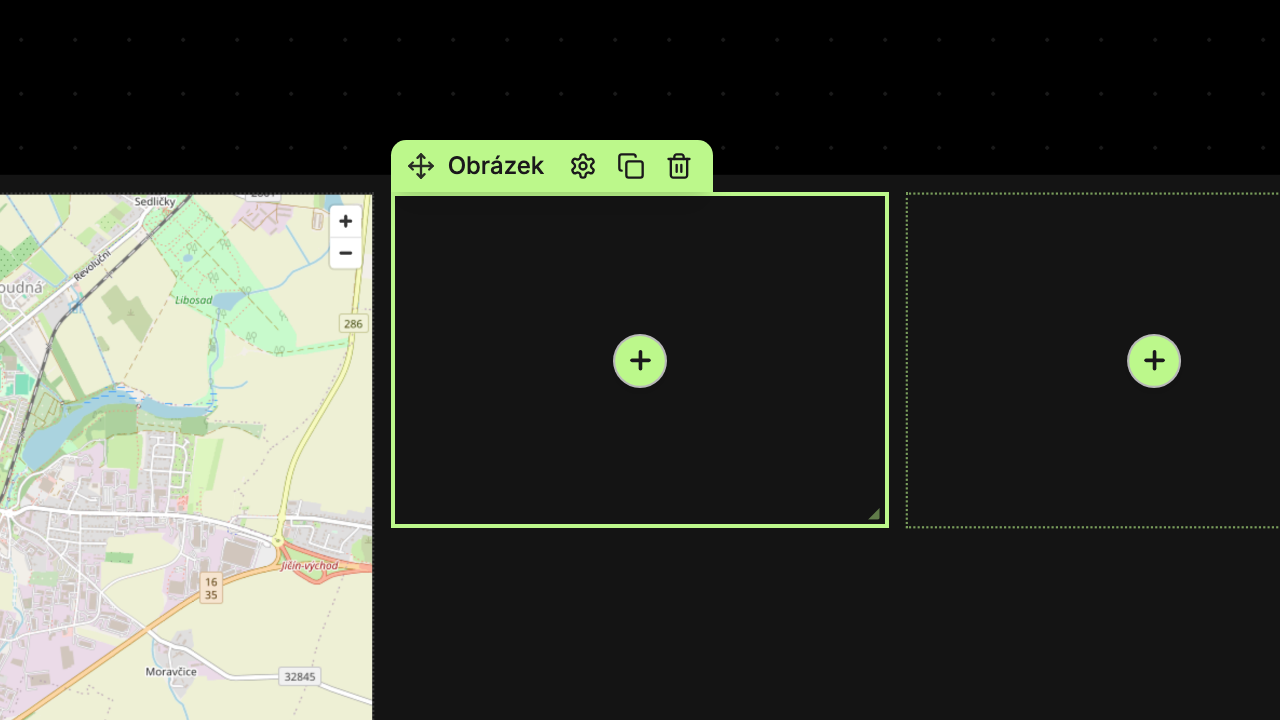
Inserting an Image
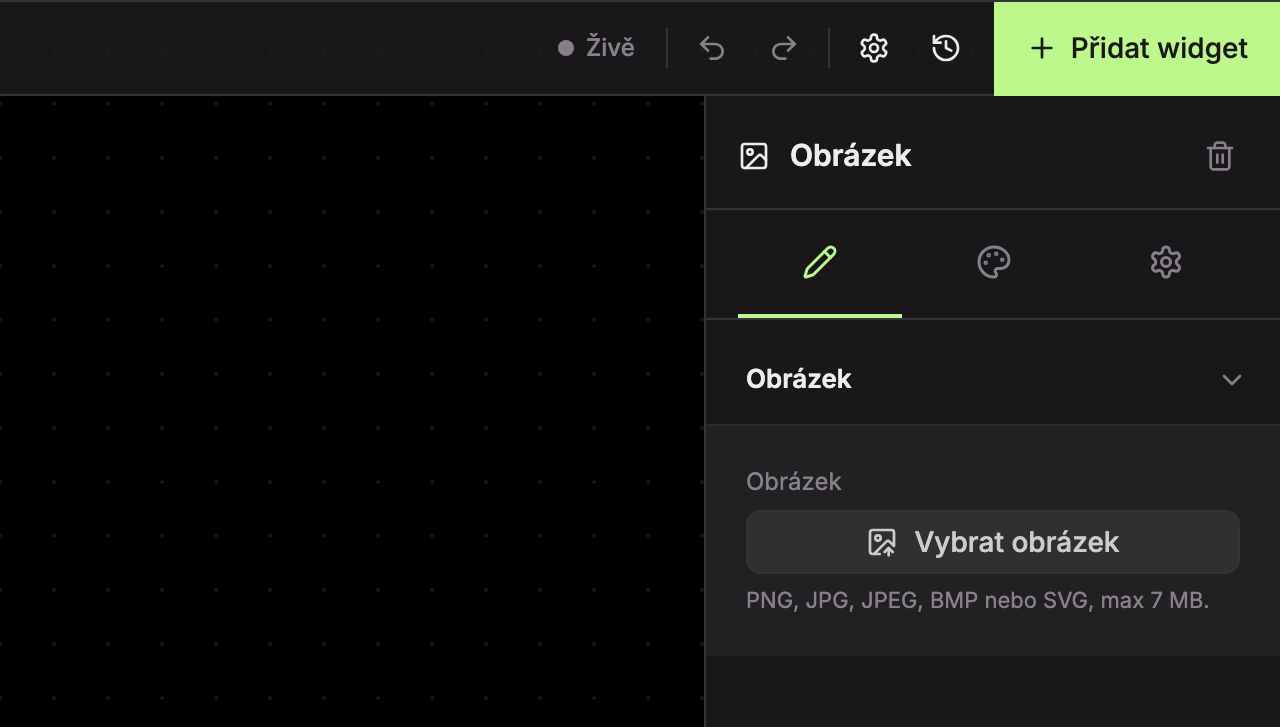
In an empty widget, on the Content tab in the Image section, there is a Select Image button and below it the allowed formats: “PNG, JPG, JPEG, BMP, or SVG, max 7 MB.”
Open the image selector
Click Select Image. The Select Image window opens on the Media Library tab showing all images you have in the library.
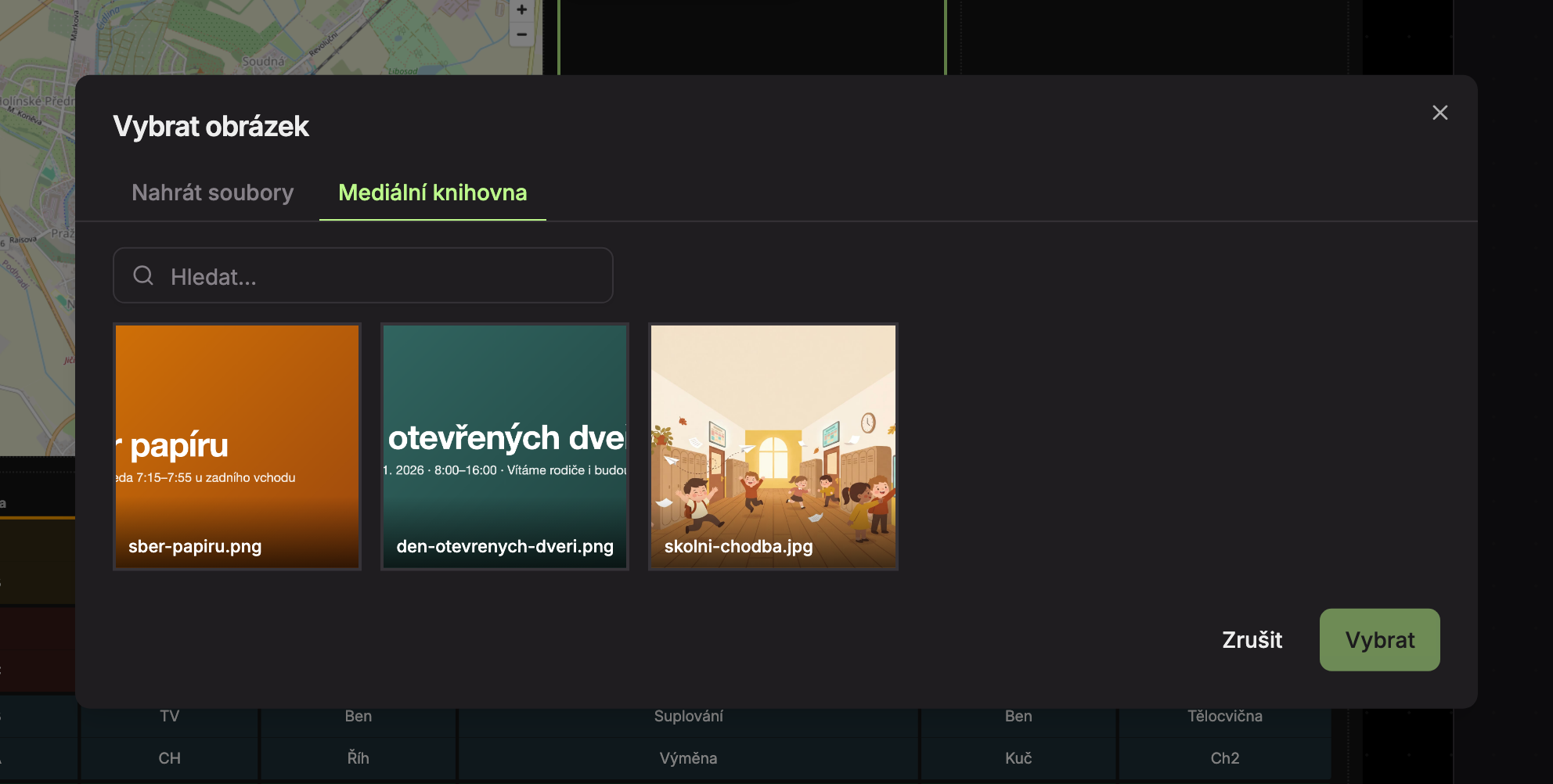
Select an image from the library
Find the image by name in the Search… field (2). Click it, then click Select (3). The Cancel button closes the window without changes.
Or upload a new image
If you don’t have the image in the library yet, switch to the Upload Files tab (1). Drag the file onto the area or select it from your computer.
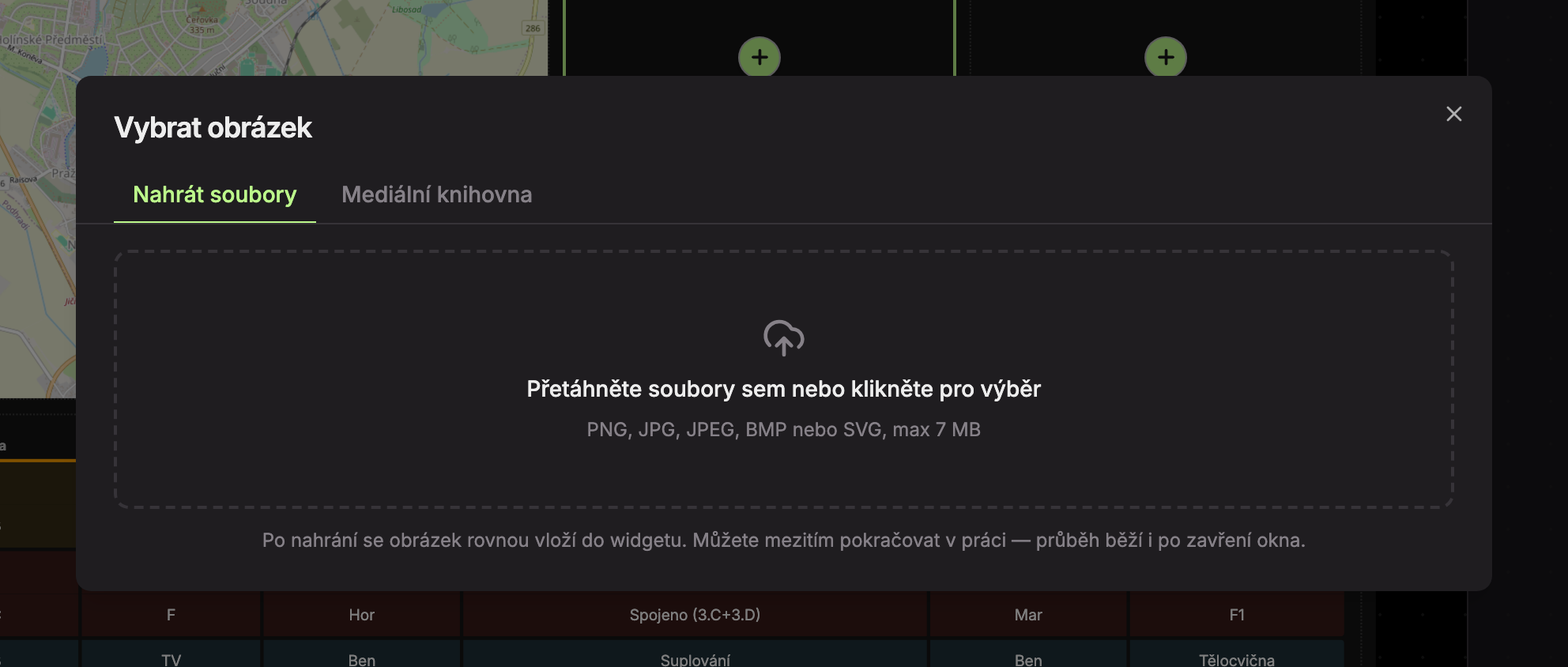 After uploading, the image is immediately inserted into the widget and saved in the media library. You can close the window and continue working. Uploading runs in the background; progress is shown in the upload window, and when finished, the image is inserted into the widget automatically.
Replacing and Removing an Image
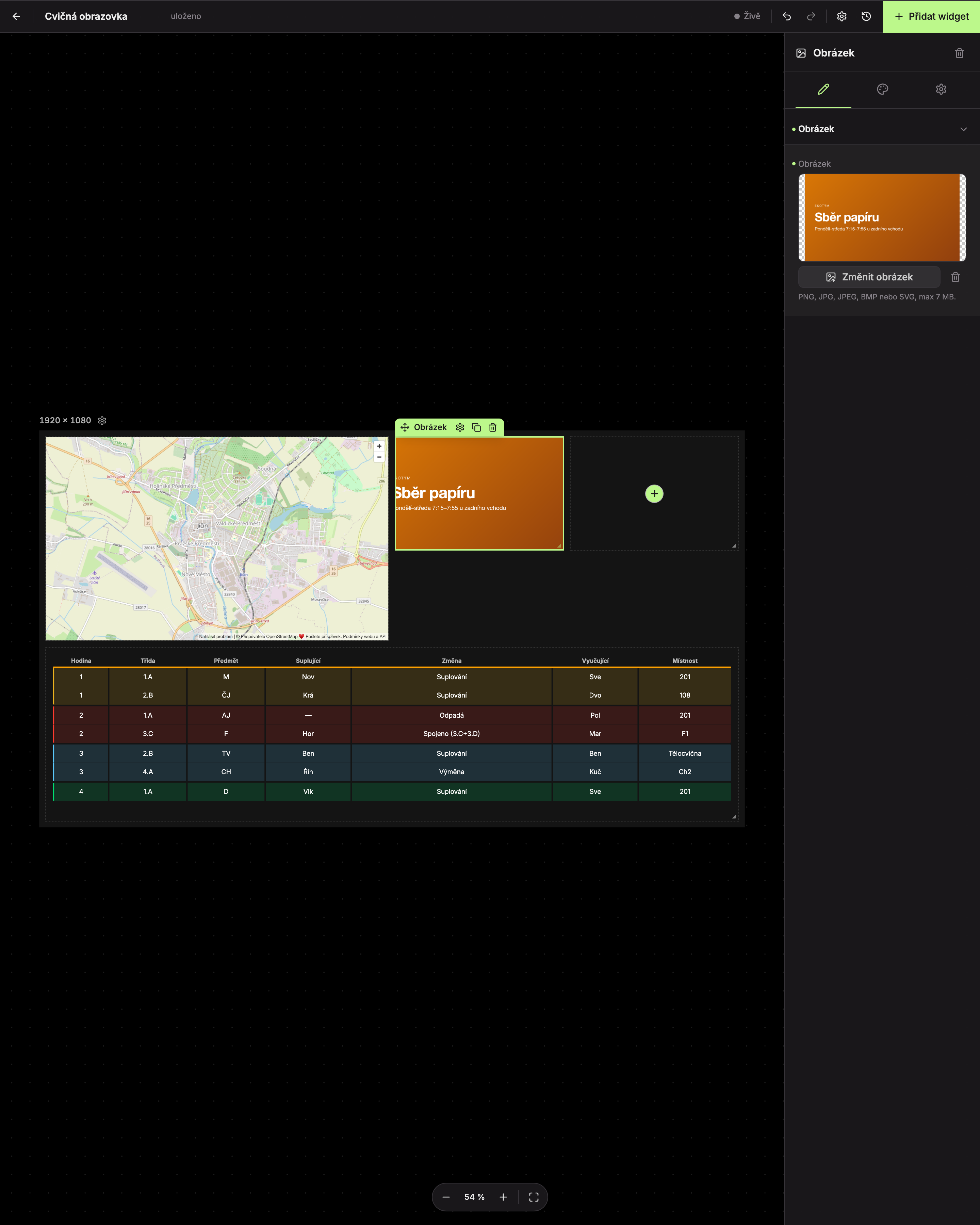
When the widget has an image, its preview and two buttons appear in the Image section:
- Change Image (1) opens the same Select Image window and replaces the original image with a new one.
- Remove Image (2), the trash icon, removes the image from the widget. This does not delete it from the media library.
Design Tab
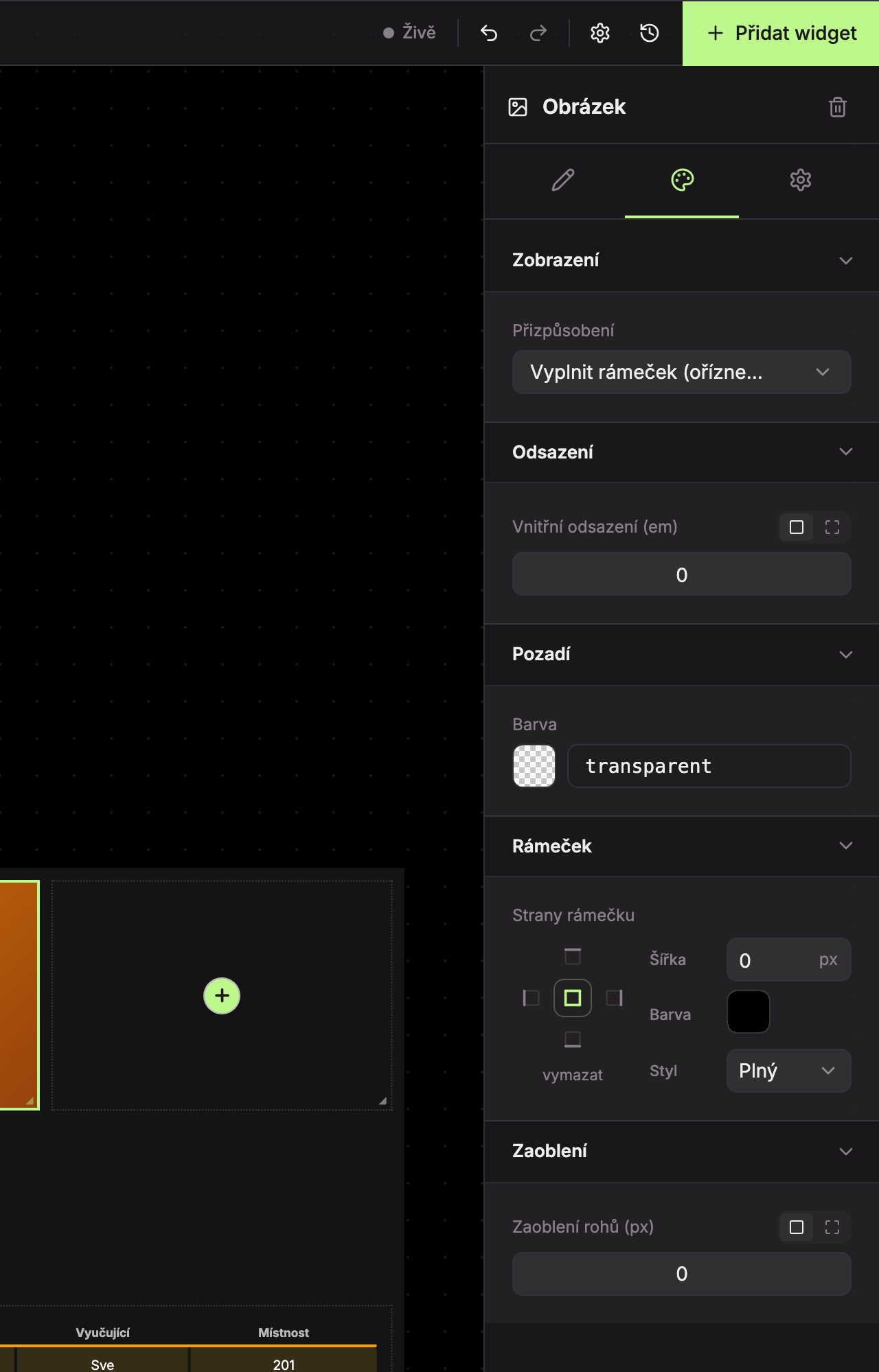
- Display (1) – the Fit field determines how the image fills the widget.
- Padding (2), Background (3), Border (4), Rounding (5) – see common settings.
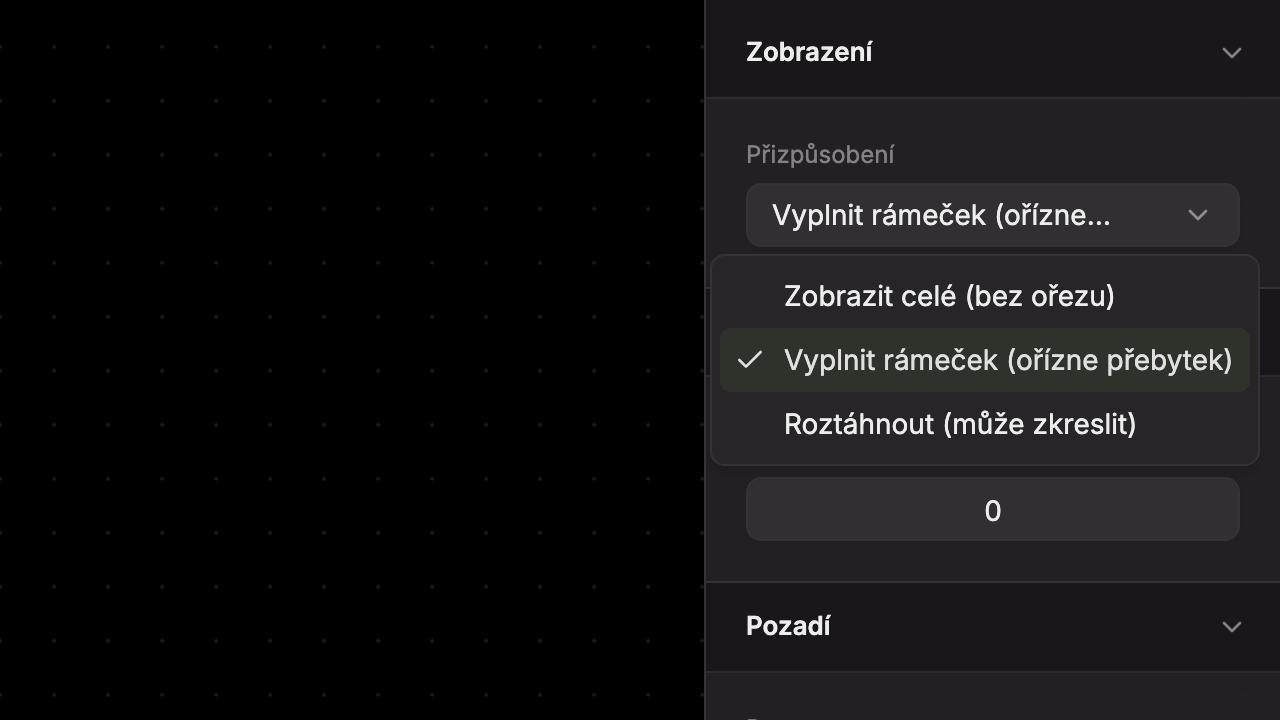
| Fit | What it does |
|---|---|
| Show all (no cropping) | Displays the entire image. If the aspect ratio differs from the widget, empty bars appear on the sides or top and bottom (showing the background). |
| Fill frame (crop excess) | The image fills the entire widget and any overflow is cropped. Default option. |
| Stretch (may distort) | The image is stretched exactly to the widget size. If the aspect ratio doesn’t match, the image will be distorted. |
Updated