
Screens
More options
 Discuss with Marie
 Reverting Changes and History
How to undo and restore screen edits and how to go back several steps in the History panel.
The editor remembers the last 100 screen edit steps. You can undo any change, even if it has already been saved.
Undo and Redo
| Action | Button | Shortcut |
|---|---|---|
| Undo last change | Undo (left arrow in the top bar) | Ctrl + Z |
| Redo undone change | Redo (right arrow) | Ctrl + Shift + Z or Ctrl + Y |
On Mac, use ⌘ instead of Ctrl. After using the shortcut, a message briefly appears in the top left, for example “Undone: Move widget” or “Redone: Move widget.”
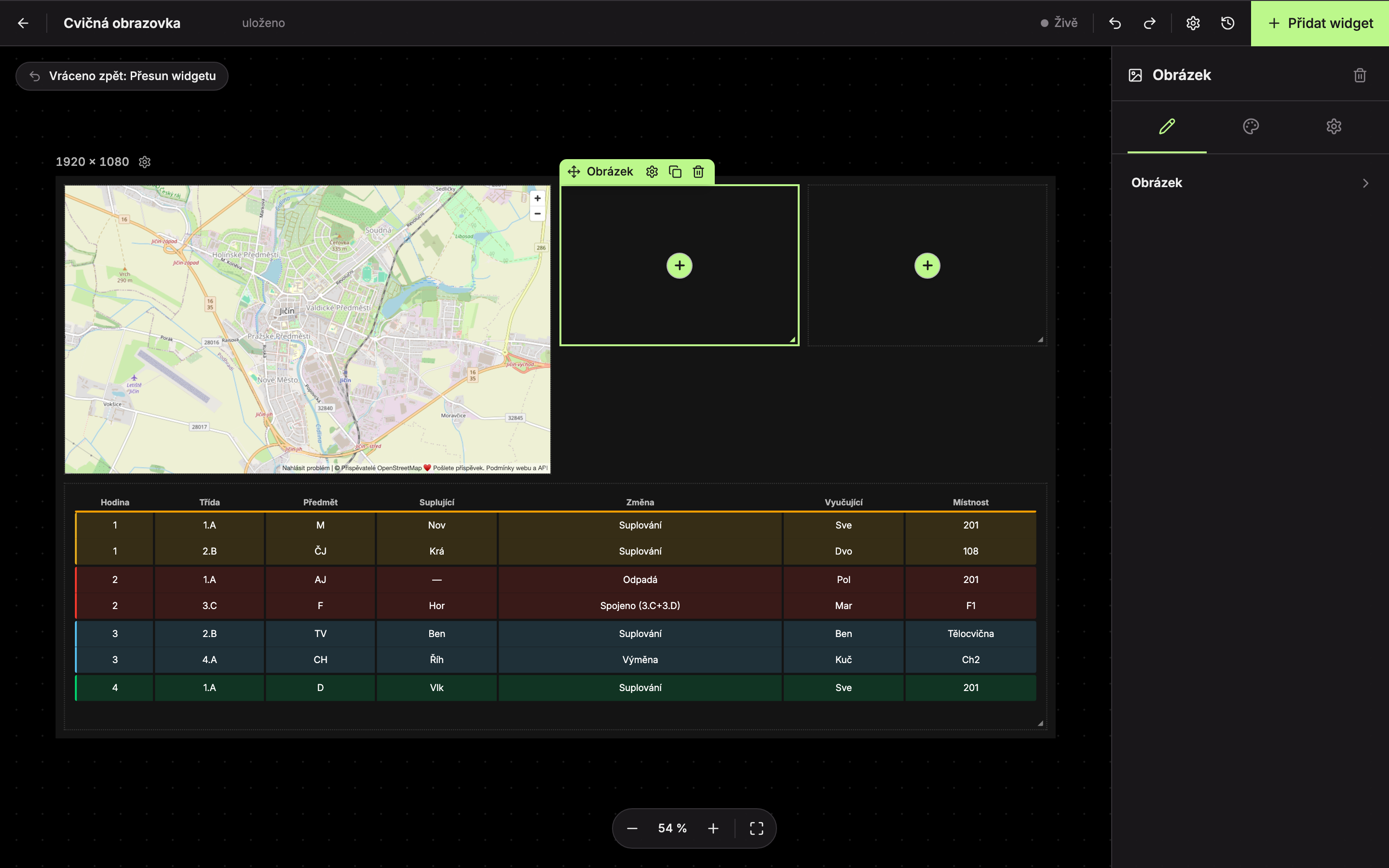
History Panel
Click History (clock icon) in the top bar. A list of steps opens on the right. The newest step is at the top, the oldest at the bottom.
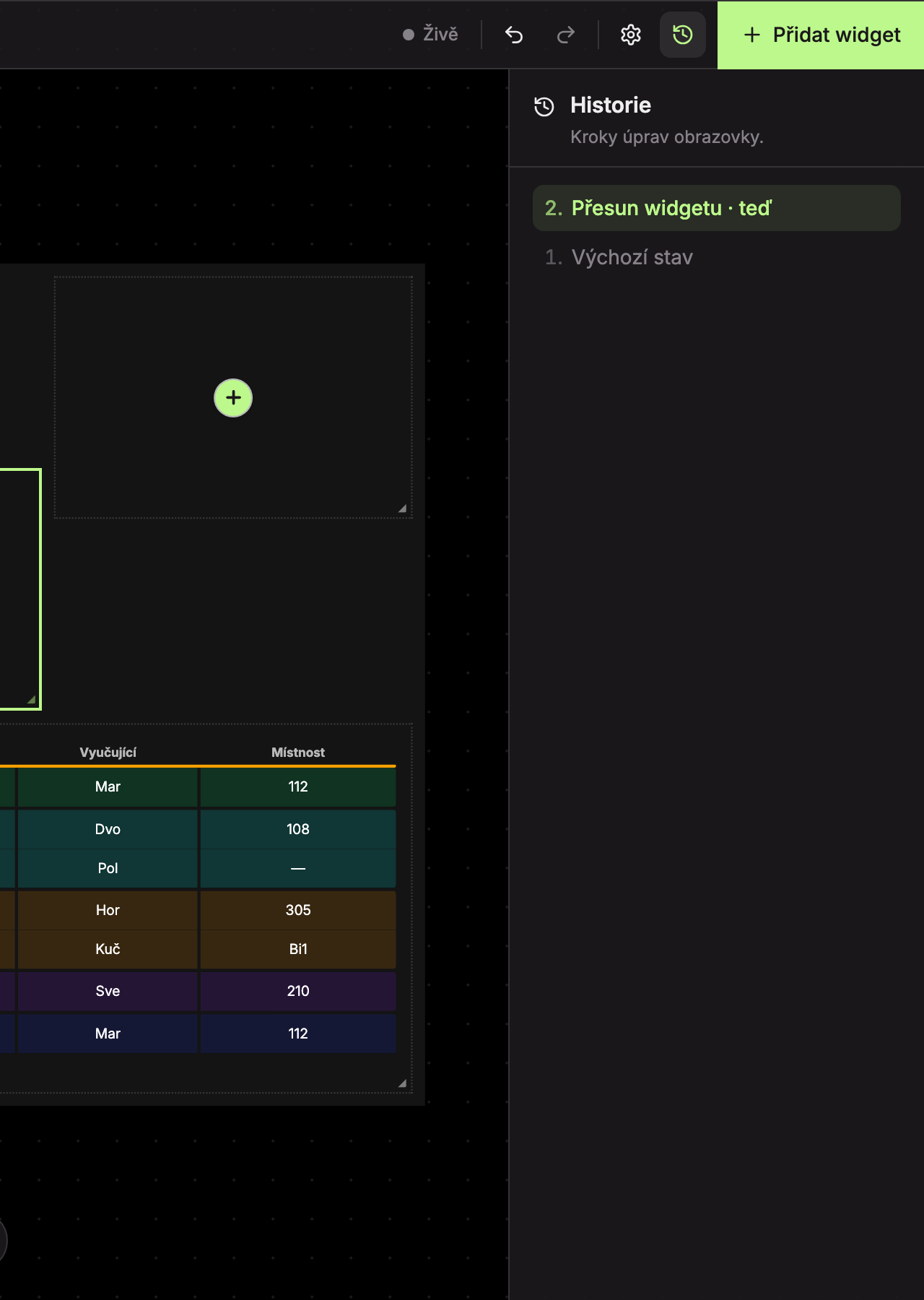
- Default state (at the very bottom) – the screen as it looked when the editor was opened.
- The current step is marked with “· now” after its name.
Clicking any step reverts the screen to the state after that step. Undone steps remain in the list above the current step, so you can click to return to them. However, once you make a new edit, undone steps disappear.
Steps are named according to what you did:
| Step name | What happened |
|---|---|
| Add widget … | You added a widget. |
| Duplicate widget … | You copied a widget. |
| Delete widget … | You deleted a widget. |
| Edit widget … | You changed widget settings in the right panel. |
| Move widget | You moved the widget with the mouse or changed Position in the Other tab. |
| Resize widget | You changed the size by handle or Dimension in the Other tab. |
| Edit layout | Another change in widget arrangement. |
| Change canvas style | You changed settings in the Monitor panel. |
Selecting a widget alone is not a step. If you have no changes yet, the panel shows “No changes yet.”
Updated