
Getting Started
More options
 Discuss with Marie
 Announcement for the Entire School
One text that appears in the Announcement widget on all school screens at once.
On the Home page, write a short announcement, for example about shortened lessons or a school event. The text will appear in the Announcement widget on all screens of your school where this widget is present. The school always has only one announcement, shared across all screens.
Open the Home Page
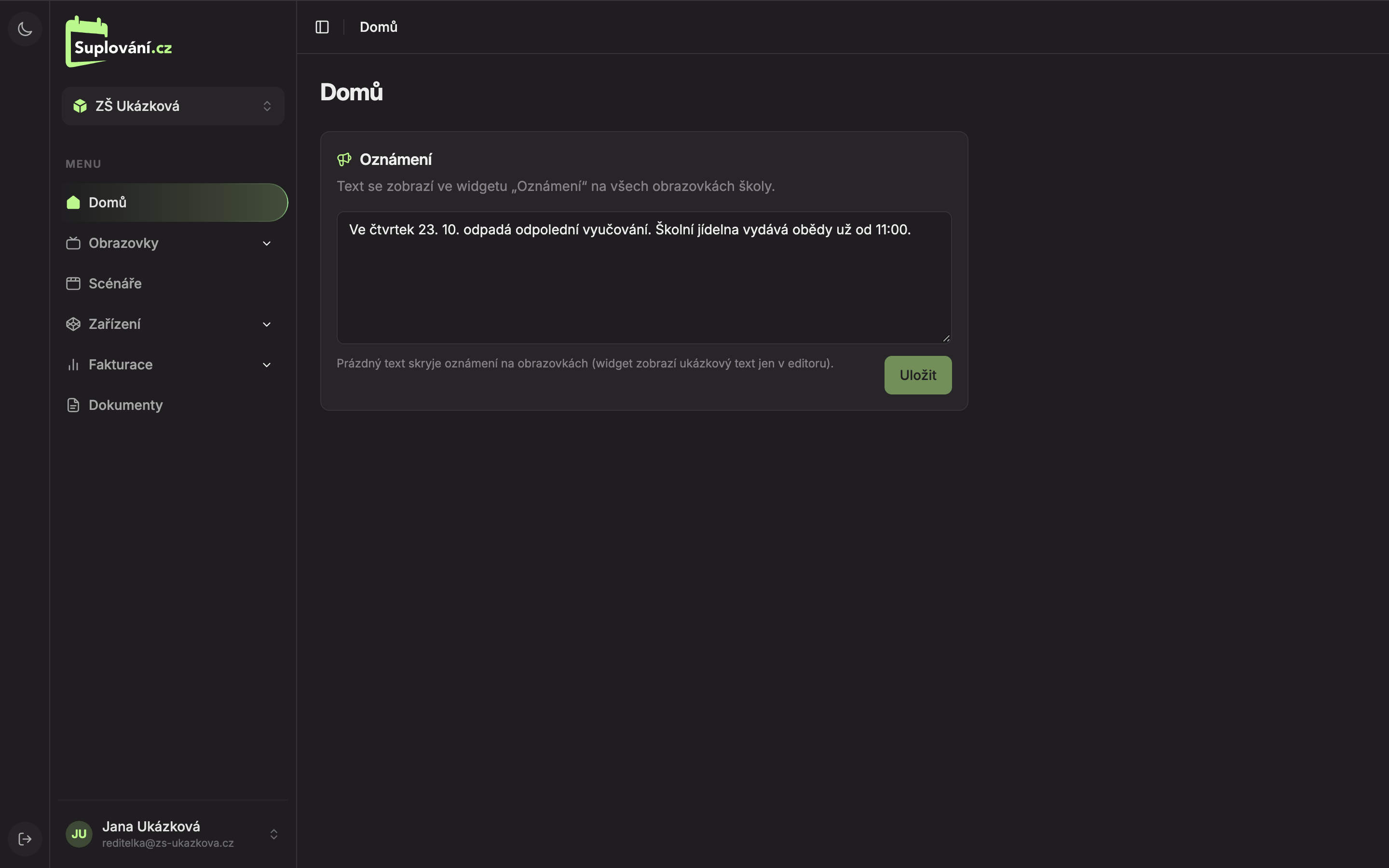
In the left menu, click on Home. You will see the Announcement card.
Write the Text
In the text field (1), write the announcement. You can stretch the field by its bottom right corner if the text is longer.
Save
Click Save (2). The button is active only when the text differs from the saved one. After saving, “Announcement saved” will appear at the bottom left, and the screens will load the new text automatically, usually within a few seconds.
If You Have No Announcement
Delete all text from the field and click Save. The Announcement widget will then show the text No important announcements today on the screens. If you don’t want it to be visible at all, remove the widget from the screen (see Adding and Editing Widgets ).
Updated