
Devices
More options
 Discuss with Marie
 Device Overview
Devices page: live screen previews, List view, search, and meaning of device states and labels on cards.
In the left menu, click Devices. You will see all the devices in your school and what is currently playing on them.
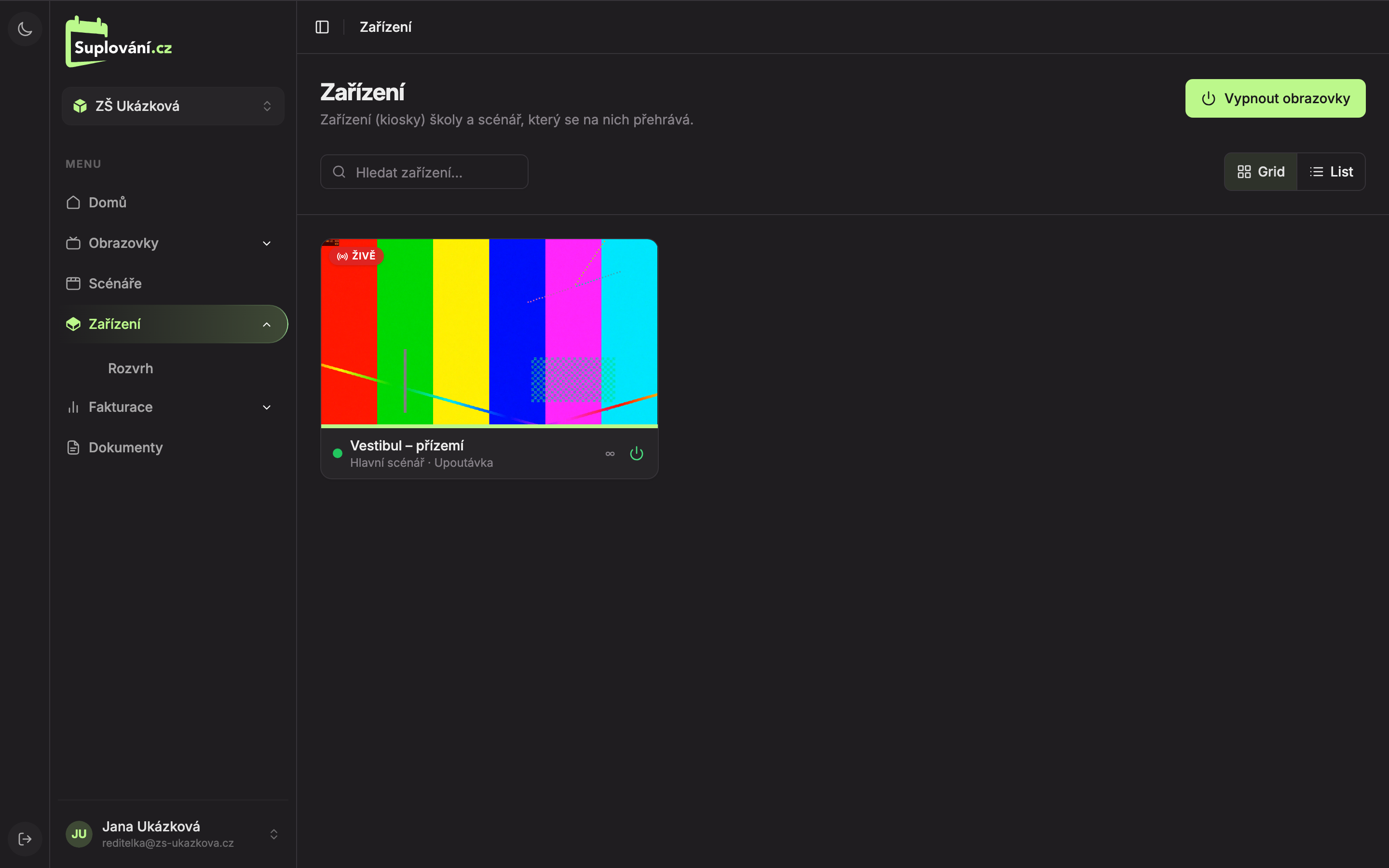
- Search devices… – search by device name.
- View toggle – Grid (live preview grid) or List (table). The browser will remember your choice.
- Device card – live preview of what the device is currently showing. Click the card to open the device detail.
- Turn screens off (or Turn screens on) – toggles all school devices’ screens at once. See Turning screens on and off.
Device Card
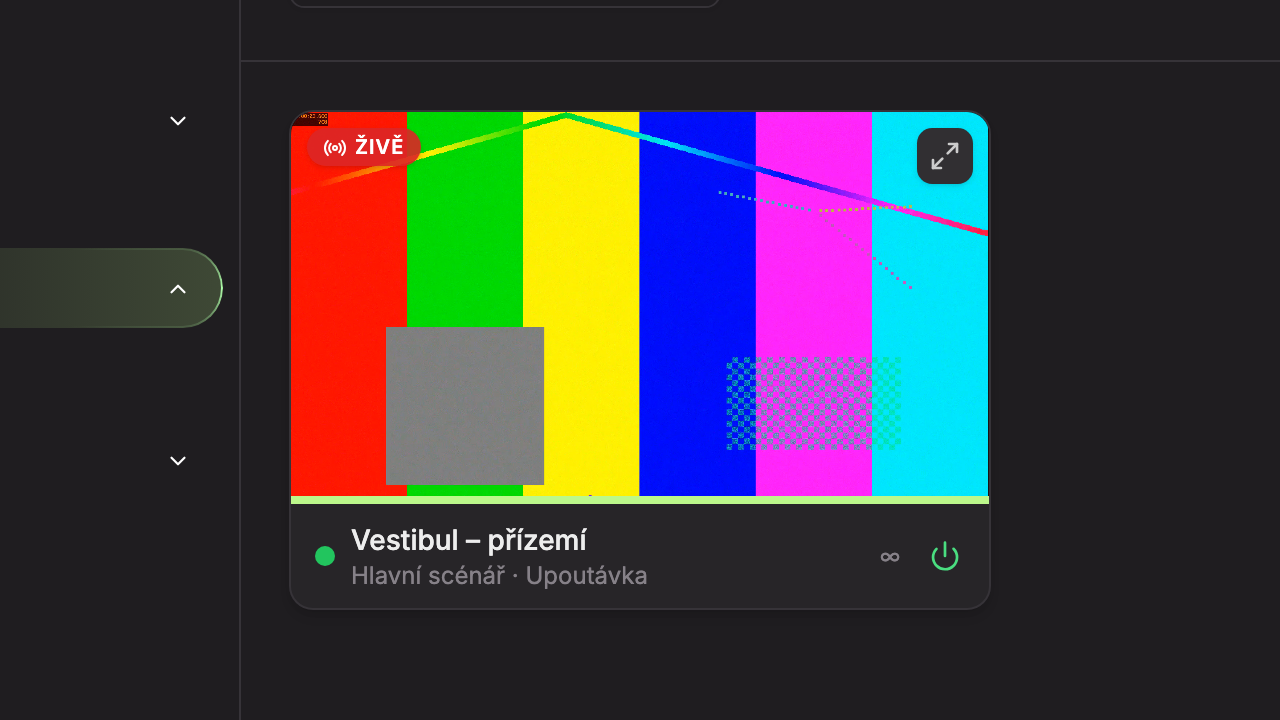
- Live – the device is currently playing and the preview updates continuously along with the school screen, including transitions. The thin line below the preview shows how much longer the current screen will run.
- Open live monitor – button appears when you hover over the preview. Opens the live monitor.
- Device name with a colored status dot and below it the scenario · screen currently showing. If the device has no scenario, it says “No assigned scenario.” If the screen was manually switched, an orange note appears below, e.g. “Manually off until 16.”
- Counter – which screen of the scenario is currently running and how many there are (e.g. “3 / 7”). For screens with infinite duration, it shows “∞.”
- Screen toggle – one click turns the screen off or on, without further confirmation. Green means the screen should be on. See Turning screens on and off.
Instead of a preview, one of these labels may appear:
| Label | Meaning |
|---|---|
| Off | The screen is off according to schedule or manually. |
| Not responding | The device has not sent what it’s playing for over 30 seconds. |
| No scenario | The device has no assigned scenario. See Assigning device scenarios. |
| Offline | The device was previously online but is now unreachable. |
| Waiting for device… | No message has yet arrived from the device. |
| Screen not available | The device is playing a screen unknown to Studio (e.g. deleted in the meantime). |
List View
Use the List toggle to display devices as a table. Useful when the school has many devices and you want to quickly change scenarios.
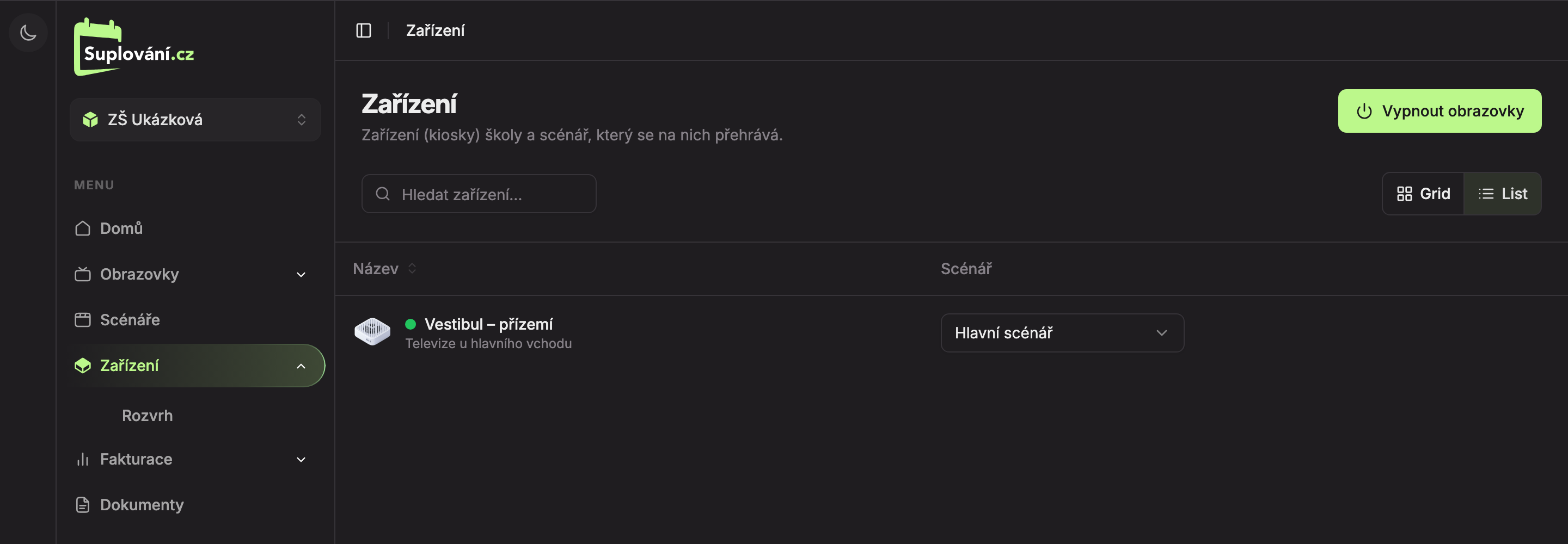
- Name – device status icon, colored dot, name, and a note below. Click a row to open device detail. Click the Name column header to sort the list.
- Scenario – select scenario directly in the table. Changes save immediately (see Assigning device scenarios).
The screen toggle is not available in List view. You can find it on the card in Grid view and in device detail.
Status Colored Dot
| Dot | Status | Meaning |
|---|---|---|
| green, blinking | On | The device has reported in the last 5 minutes and the screen is on. |
| gray | Off | The device has reported, screen is off. |
| red | Offline | The device last reported more than 5 minutes ago. |
| gray | Unknown status | No message has yet arrived from the device. |
The status is determined only when you open the page. Devices report approximately every 30 seconds, and Studio immediately prompts them to report when the page is opened.
If the school has no devices, you will see “This school has no devices yet.”
Updated