
Devices
More options
 Discuss with Marie
 Live Monitor
Tracking which screen of the device scenario is currently playing: scenario graph, Live Preview window, and the states Live, Not Responding, and Waiting for Device.
The Live Monitor displays the device scenario as a graph and continuously highlights the block currently playing on the TV. It is useful when you want to verify that the scenario is running as expected, for example, that a condition triggered the correct screen.
Open the Live Monitor:
- on the device tab with the Open Live Monitor button (appears when hovering over the preview), or
- in the device detail with the Live Preview button.
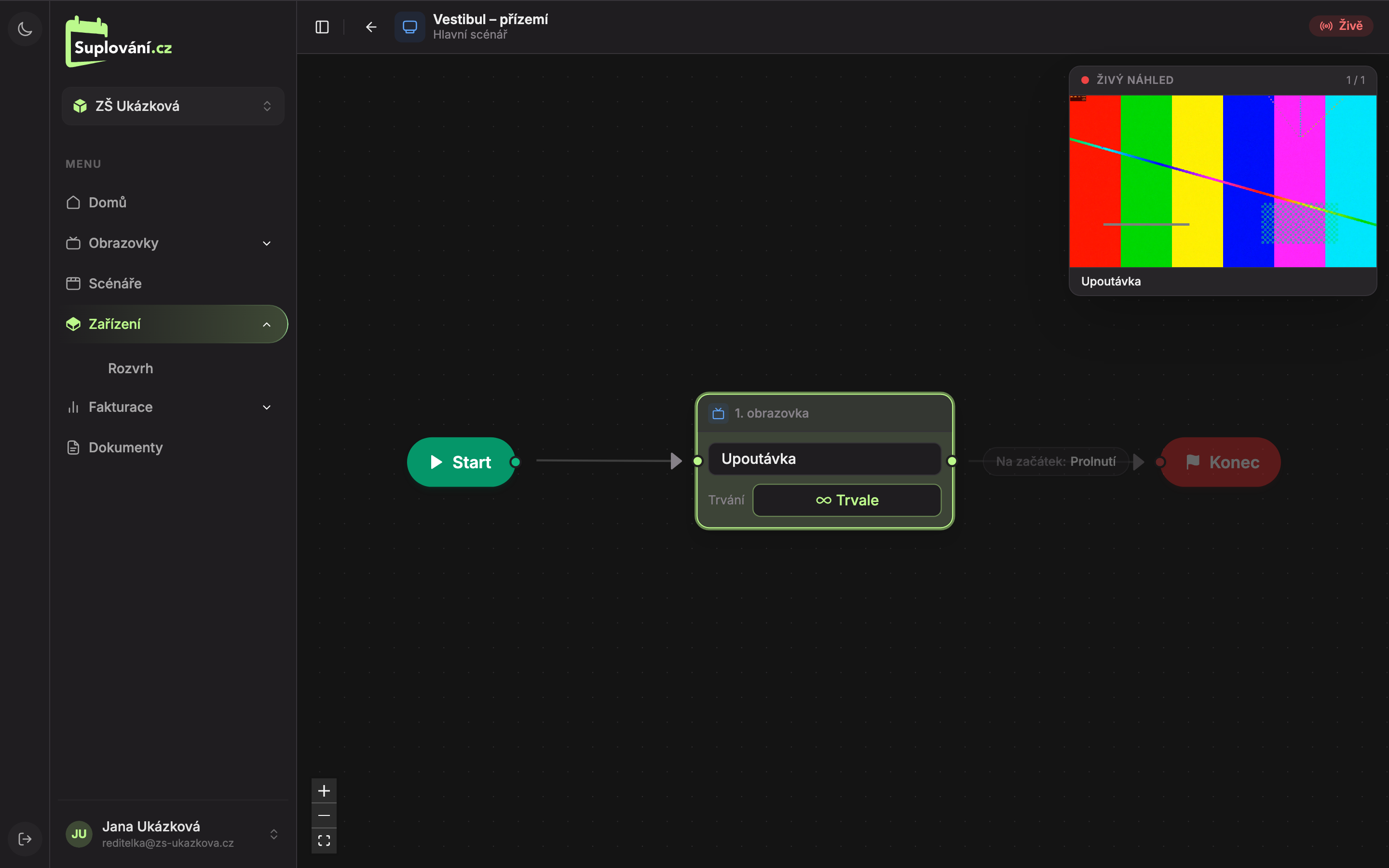
- Back to Device – returns to the Devices page.
- Device Name and below it the name of the assigned scenario, or “No assigned scenario.”
- Connection Status – see the table below.
- Live Preview Window – a reduced-size screen currently playing, with a counter (e.g., “1 / 1”) and the screen name at the bottom.
- Currently Playing Block – highlighted and gradually filled according to how much longer it will run. When switching to the next screen, a connecting line lights up briefly.
- Zoom Controls – zoom in, zoom out, and show the entire scenario. You can also pan the graph by dragging with the mouse.
The Live Monitor is for viewing only; you cannot make changes here. Edit the scenario in the scenario editor.
Connection Status
| Label | Meaning |
|---|---|
| Live (red) | The device is sending what it is playing. |
| Not Responding (orange) | No message has been received from the device for over 30 seconds. |
| Waiting for Device… | No message has yet been received from the device. |
If the device has not sent anything yet, the Live Preview window shows “Waiting for live playback from device…”. A device without a scenario shows “No scenario.” in the window and “Device has no assigned scenario.” on the canvas. A scenario without screens shows “Scenario has no screens.”
What You See in the Graph
The graph looks the same as in the scenario editor. Additionally, you can see:
| Label | Meaning |
|---|---|
| Disconnected | The block is not connected to the rest of the scenario and will never play. |
| N. screen · will not play | A previous screen has infinite duration, so playback never reaches here. |
| Condition · disconnected / Condition · will not play | The same for a condition. |
| NOW | For a condition: the Yes or Else output that playback would follow right now. |
| — deleted screen — | The screen in the block was deleted. |
Conditions in the monitor are recalculated every 30 seconds. How conditions work is described in Conditions in the Scenario.
Updated