
Getting Started
More options
 Discuss with Marie
 Profile Editing
Change your first name, last name, and profile picture that others see in the Studio menu.
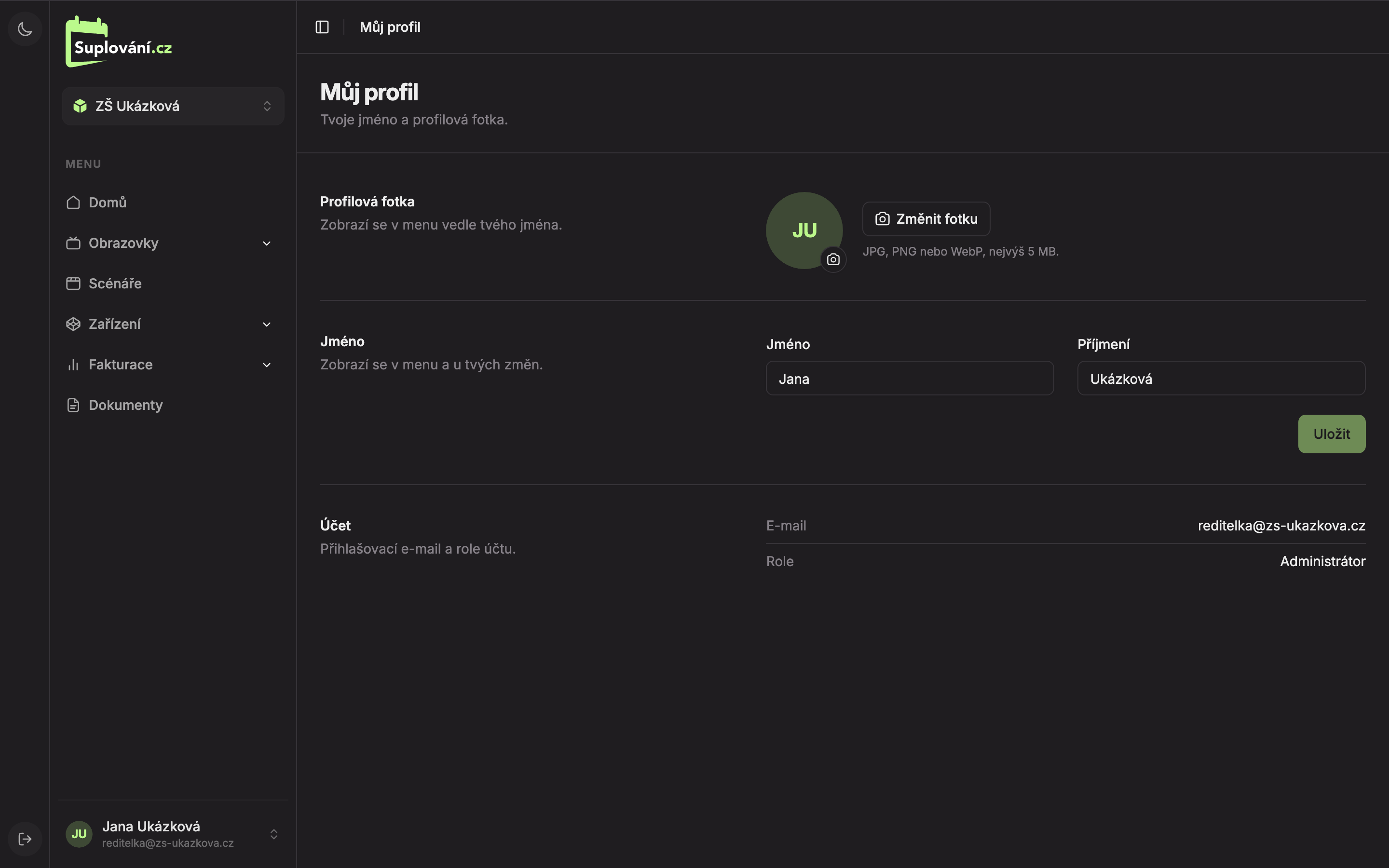
On the My Profile page, you set your name and profile picture. The name appears in the menu at the bottom left and next to changes you make in Studio. Open it by clicking your name at the bottom left and selecting My Profile.
Changing Your Name
Edit your name
In the First Name (2) and Last Name (3) fields, enter your name. Together they can have a maximum of 36 characters. If the name is longer, the message “First and last name together can have a maximum of 36 characters.” will appear and you won’t be able to save.
Save
Click Save. A confirmation “Name saved.” will appear. If you change your mind, the Cancel button (shown after the first change) will revert to the original name.
Changing Your Profile Picture
Select a photo
Click Change photo (1) and choose an image from your computer. You can upload JPG, PNG, or WebP files up to 5 MB. Larger files will be rejected by Studio with the message “Photo can be up to 5 MB.”
Crop the selection
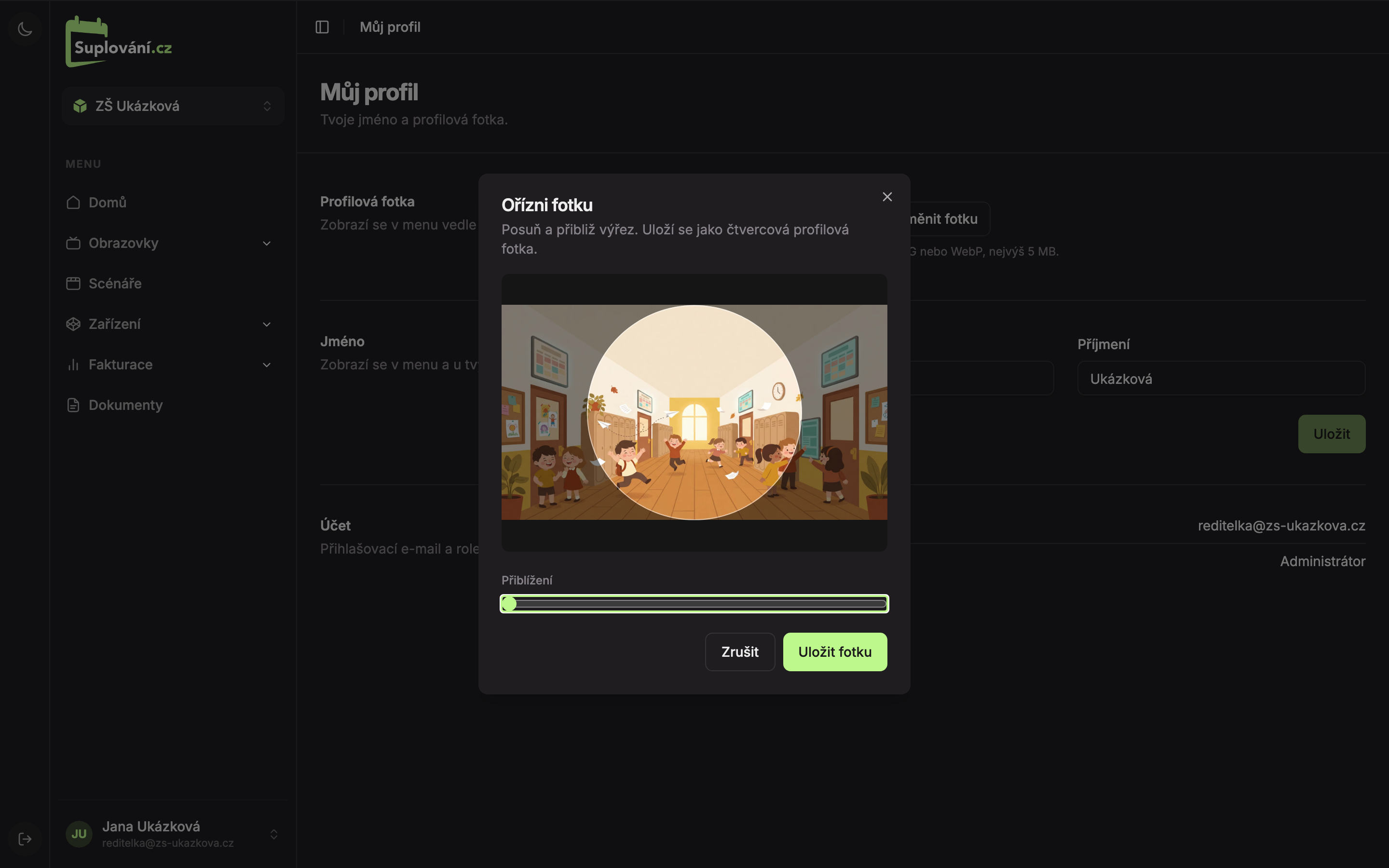
The Crop Photo window will open. Drag the photo to position your face inside the circle. Use the Zoom slider (1) to enlarge it up to three times.
Save the photo
Click Save Photo (2). After saving, you will see “Profile photo saved.” and the photo will immediately appear in the menu. The Cancel button closes the window without changes.
Account
At the bottom of the page, you see your login Email and account Role (for example, School or Administrator). You cannot change these details yourself. If you need a different login email, contact support.
Updated