
Screens
More options
 Discuss with Marie
 Adding, moving, and editing widgets
How to add, select, move, resize, copy, and delete a widget, and how widget guides and pages work.
Widgets are content blocks on the canvas. They lie in a grid: they move and resize always by whole cells and cannot overlap.
Adding a widget
Open the widget menu
Click Add widget in the top bar. A panel with all widgets will open on the right.
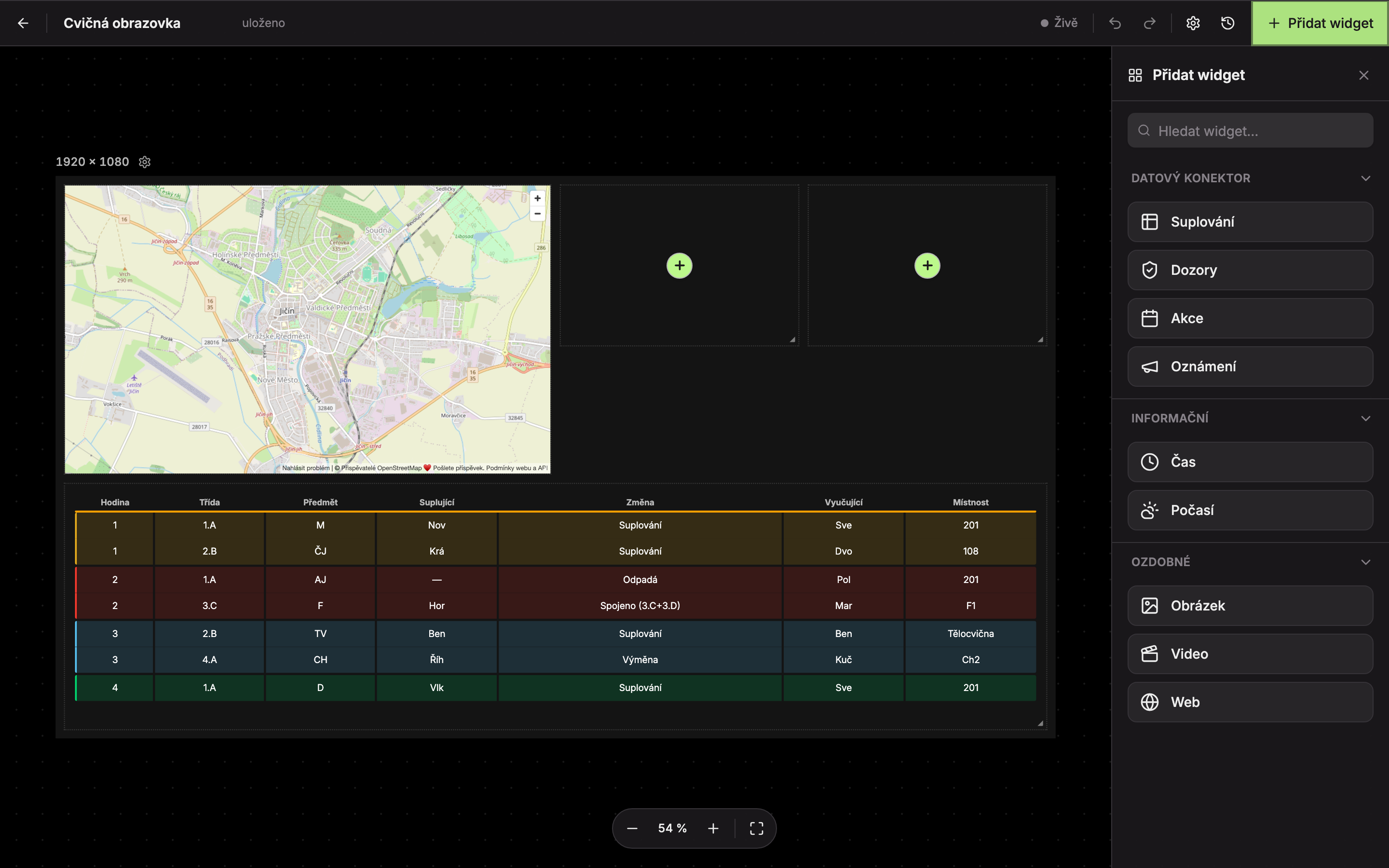
Widgets are divided into three groups:
| Group | Widgets |
|---|---|
| Data connector | Substitutions, Supervisors, Events, Announcements – content fills automatically from school data. |
| Information | Time, Weather. |
| Decorative | Image, Video, Web. |
In the Search widget… field (1) you can type part of the name. Hovering over a widget shows a short description. Groups can be collapsed by clicking their name.
Click the widget
Click the widget you want to add, for example Time (2). Studio will place it in the first free spot on the canvas (searching from the top left corner) and select it immediately.
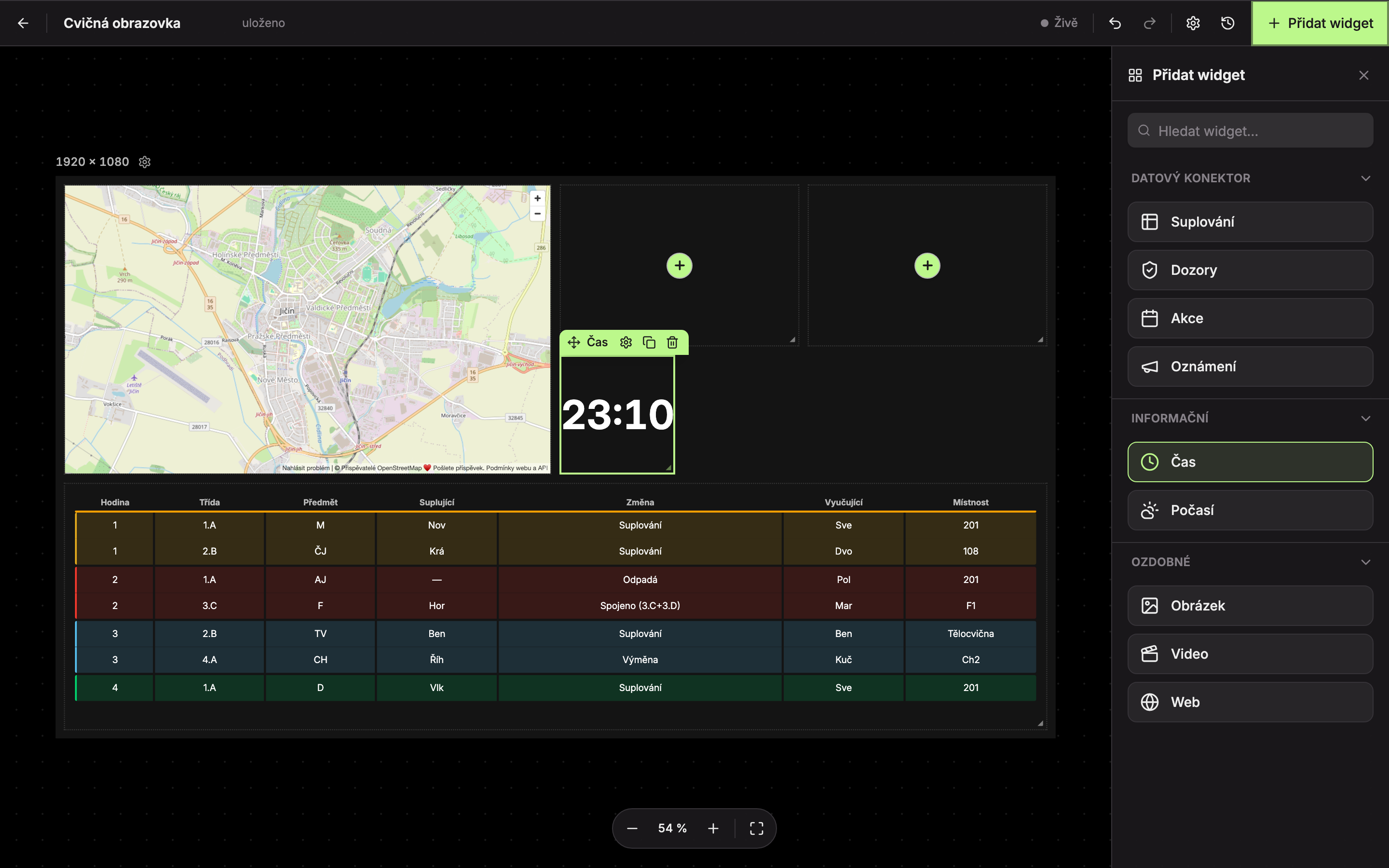
The menu remains open so you can add more widgets in a row.
Default size of a newly added widget (in grid cells, width × height):
| Widget | Size | Widget | Size |
|---|---|---|---|
| Substitutions | 12 × 8 | Weather | 3 × 4 |
| Supervisors | 6 × 6 | Image | 4 × 4 |
| Events | 12 × 6 | Video | 6 × 4 |
| Announcements | 12 × 3 | Web | 6 × 4 |
| Time | 3 × 3 |
Selecting a widget
Click a widget to select it. A frame appears around the widget, the settings panel opens on the right, and a control bar appears at the top left corner:
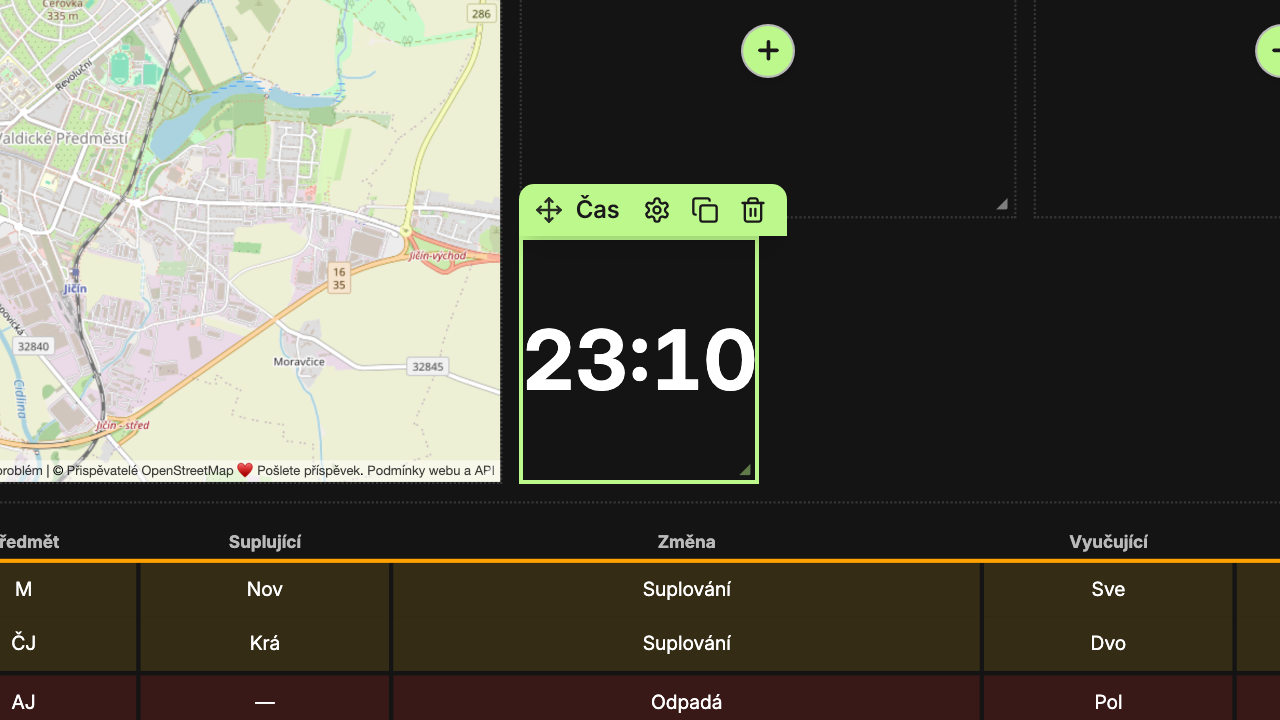
- Widget settings – opens the settings panel if you have closed it meanwhile.
- Duplicate widget – creates a copy with the same settings and places it in the first free spot.
- Delete widget – removes the widget from the screen. The image or video inside the widget remains in the Media Library. Undo deletion with Ctrl + Z.
- Resize handle in the bottom right corner.
Deselect by clicking on an empty spot on the canvas.
Moving a widget
Grab the widget with the mouse and drag it to a new place. While dragging, helper lines appear:
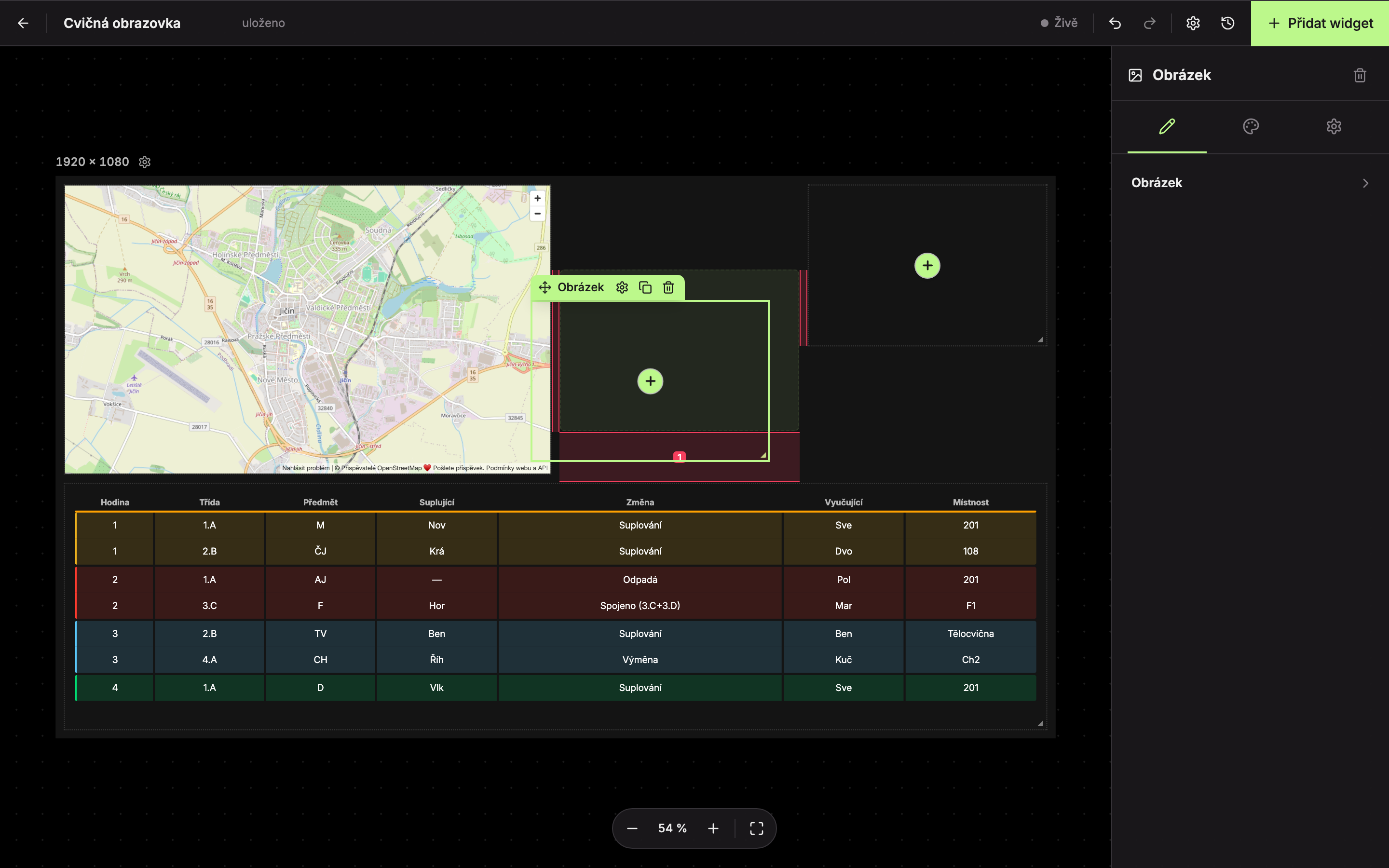
- Thin pink lines appear when the edge or center of the widget aligns with the edge of the canvas or another widget.
- A stronger pink line shows the widget is exactly centered on the canvas.
- A number in a translucent bar indicates the gap to the neighboring widget in grid cells. It shows for gaps up to three cells.
Guides are for reference only. The widget does not “snap” to them; it always places on whole grid cells. You cannot place it where another widget already lies.
Resizing
Select the widget and drag the handle in its bottom right corner (4 in the image above). The size changes in whole cells. You can also enter exact dimensions and position numerically in the Other tab of the settings panel (see Widget Settings Panel).
Widget outside the canvas
You can drag a widget partially or completely outside the canvas. Such a widget will be colored red to indicate that it will not be fully visible on the TV.
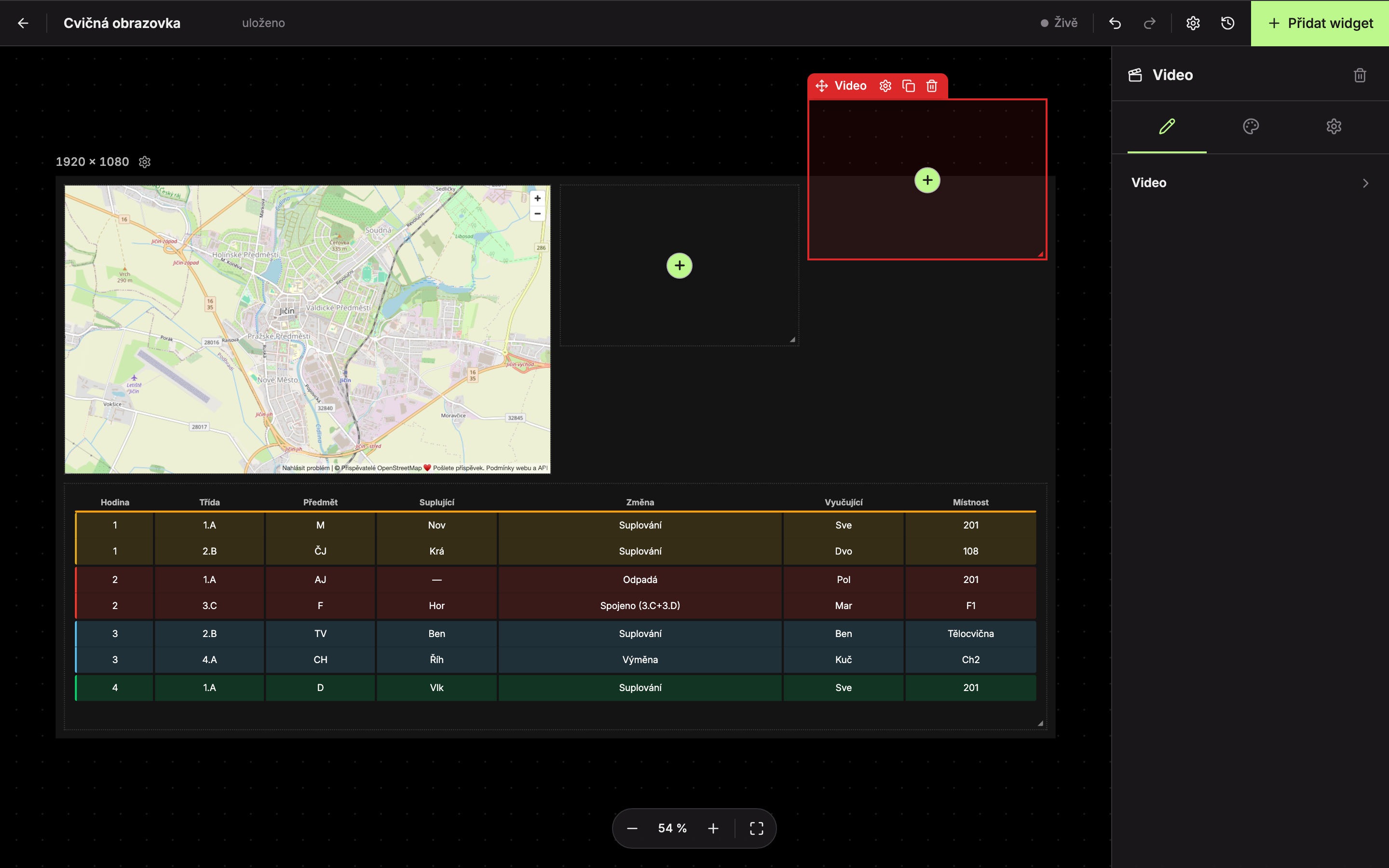
Drag it back onto the canvas, or undo the change with the shortcut Ctrl + Z.
Undo last action
Every move, resize, addition, or deletion counts as one step that can be undone. After pressing Ctrl + Z, a message briefly appears in the top left showing what was undone, for example, “Undo: Move widget”.
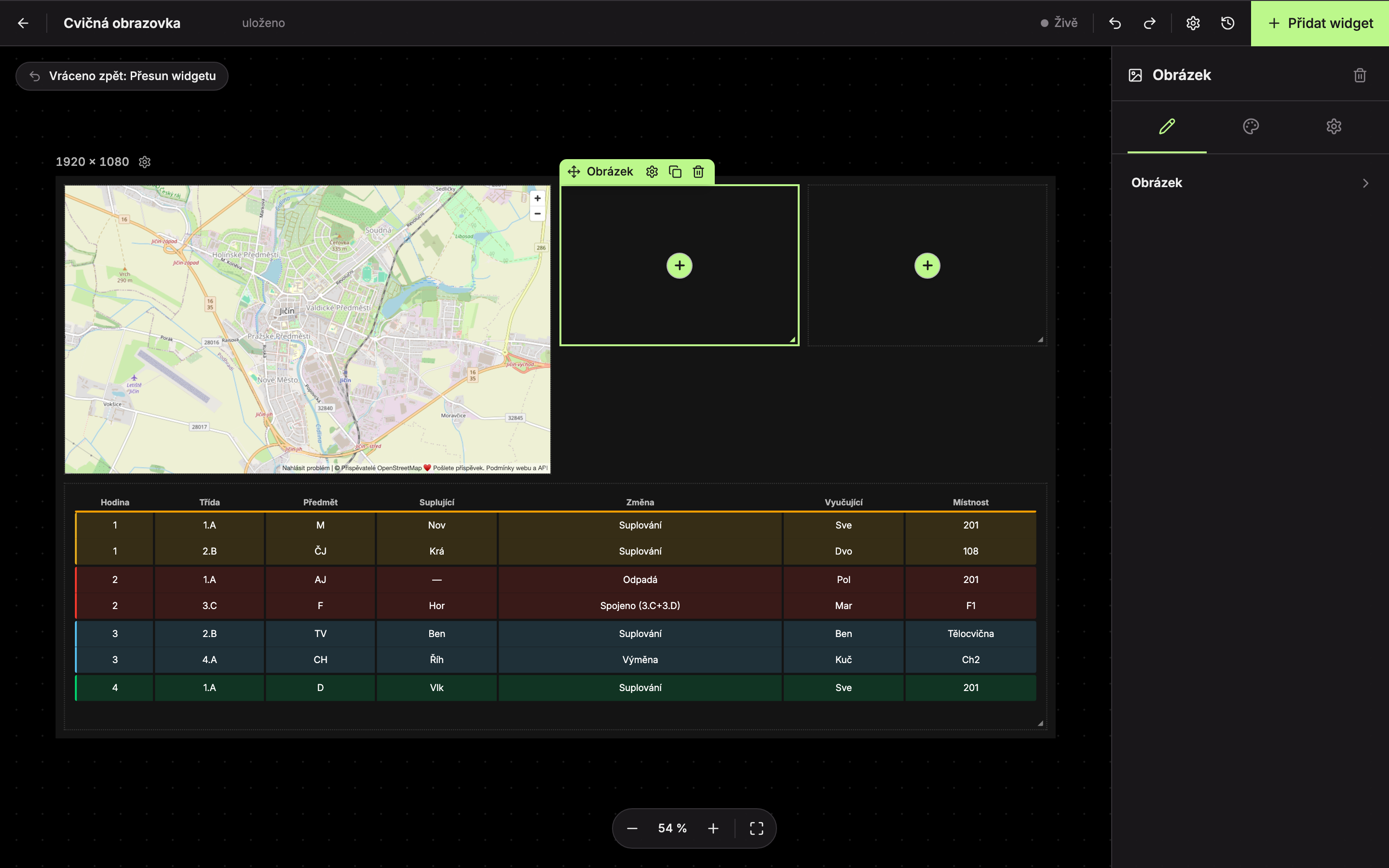
More in the chapter Undoing Changes and History.
Widgets with multiple pages
When the content does not fit into a widget (typically a long substitution table), the widget splits it into pages and automatically cycles through them on the TV. In the editor, page controls appear on the selected multi-page widget:
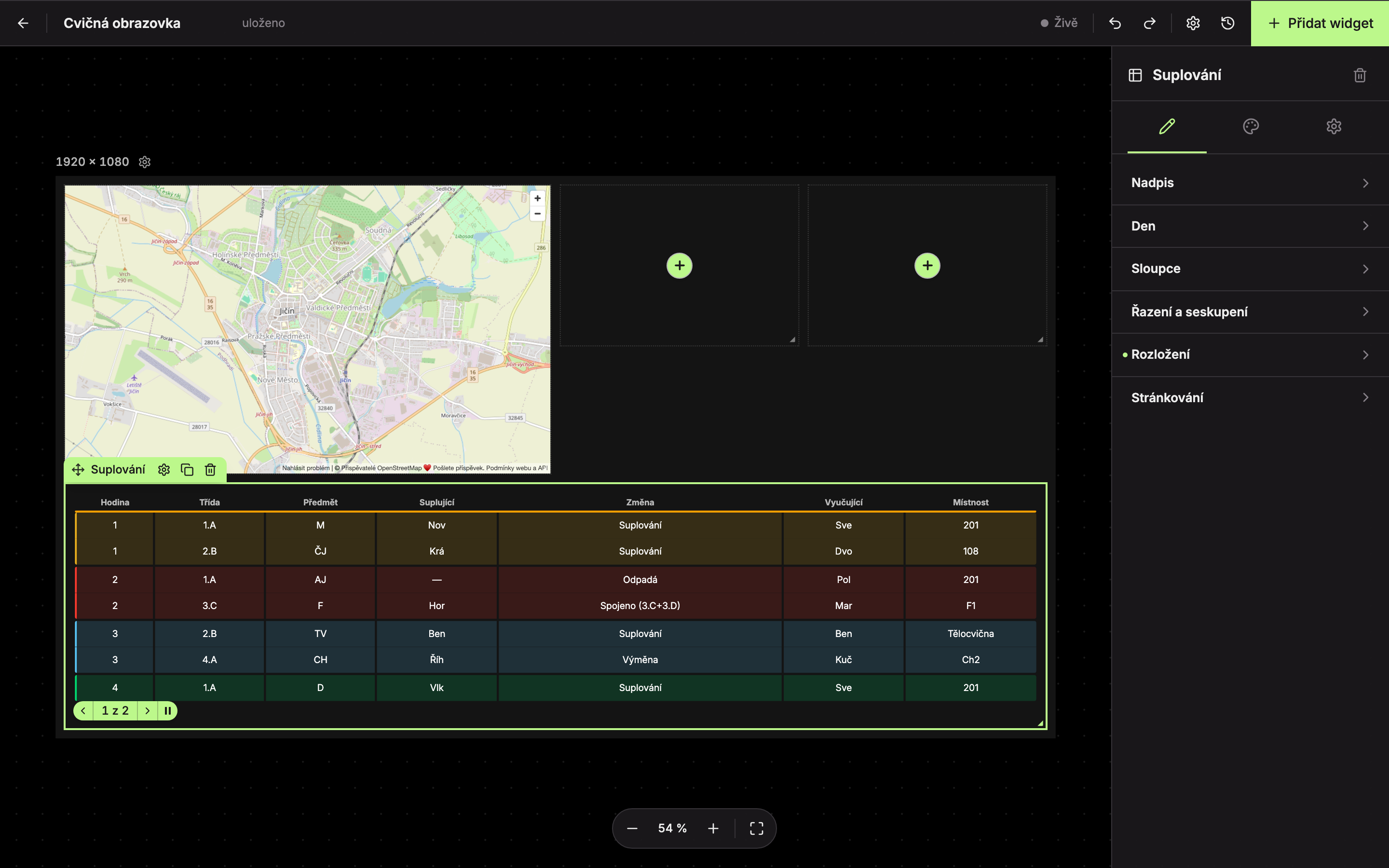
- Previous page
- Next page – the page number is shown between the arrows, for example, “1 of 2”.
- Stop scrolling / Start scrolling – stops or restarts automatic page cycling in the editor so you can comfortably view a page. This does not affect the TV.
You can set how long a page is shown and the transition effect in the widget settings panel. See Paging and Transitions.
Updated