
Scenarios
More options
 Discuss with Marie
 Screens in the scenario and their duration
Adding screens from the Add panel, replacing a screen in a block, setting duration, infinite duration, and screens with video.
Each screen in the scenario is one block. In the block, you select which screen will be shown and for how long.
Adding a screen
Open the Add panel
In the top editor bar, click Add. A panel will open on the right with previews of all the screens in your school (section Screens) and with conditions (section Others). You can type part of the screen name into the Search… field (1).
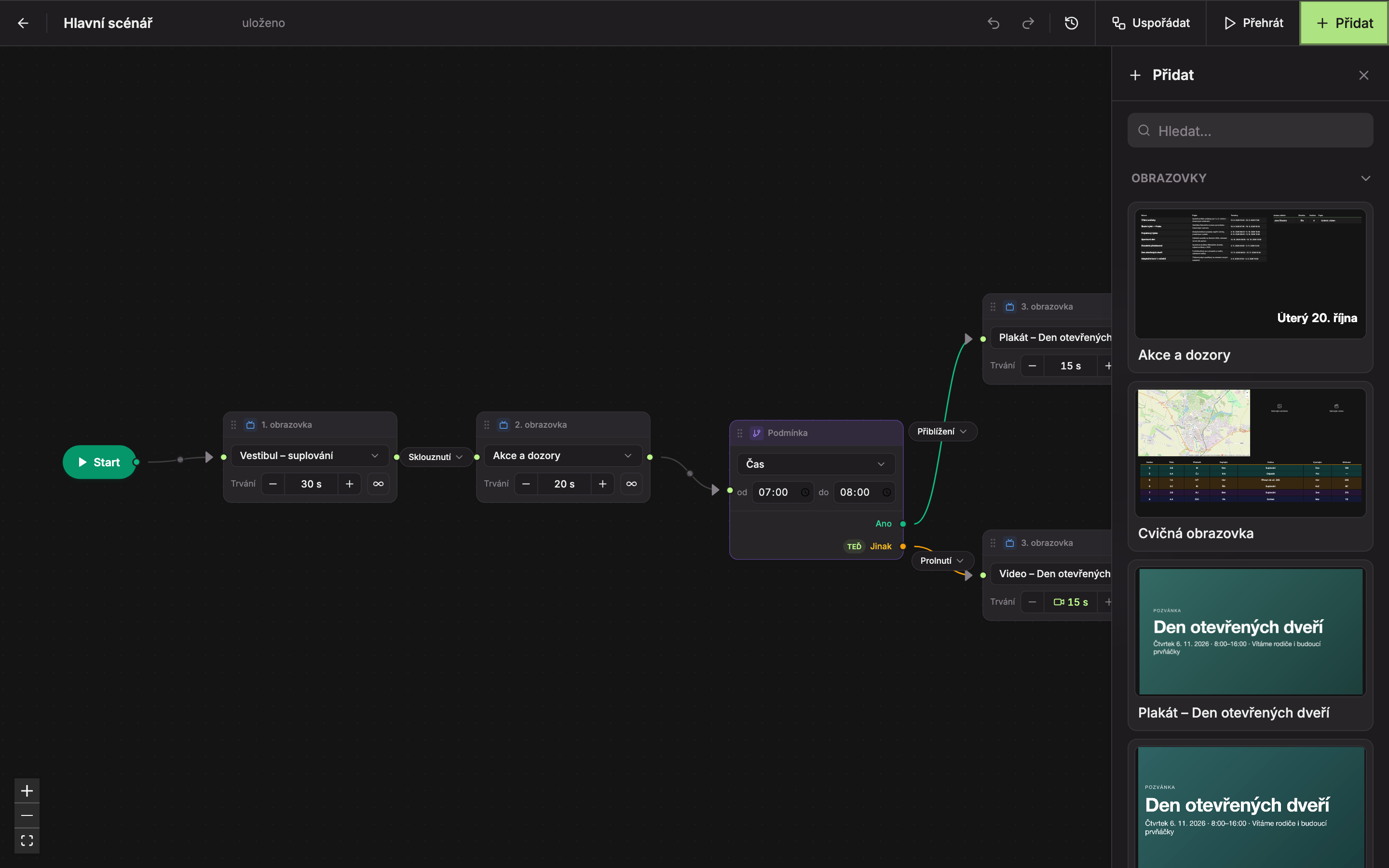
Click on the screen preview
Clicking on the preview (2) adds the screen to the scenario. It is placed at the end, just before the End block, and the lines connect automatically. The panel stays open so you can add another screen immediately.
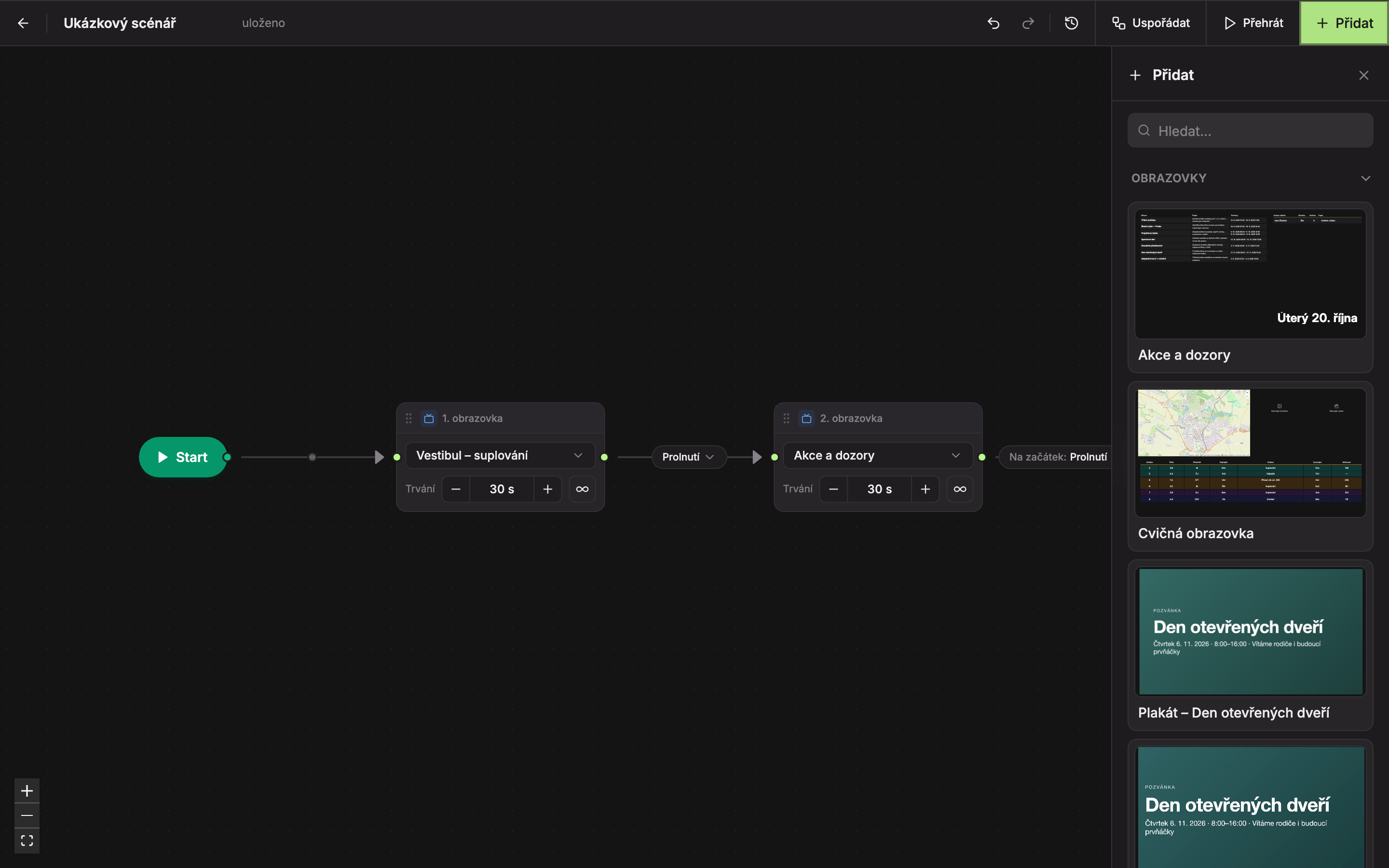
Screens are lined up in the order you clicked them: first (1), second (2), and so on. You cannot drag previews onto the canvas; they are added only by clicking.
Close the panel
Close the panel by clicking the cross in the top right or by clicking the Add button again.
The panel shows only screens belonging to the school of the scenario. If the school has no screens yet, the panel will say “There are no screens here yet — create them in the Screens section.” and above the canvas you will see the notice “Create at least one screen first in the Screens section.” How to create a screen is described in Creating a screen.
Screen block
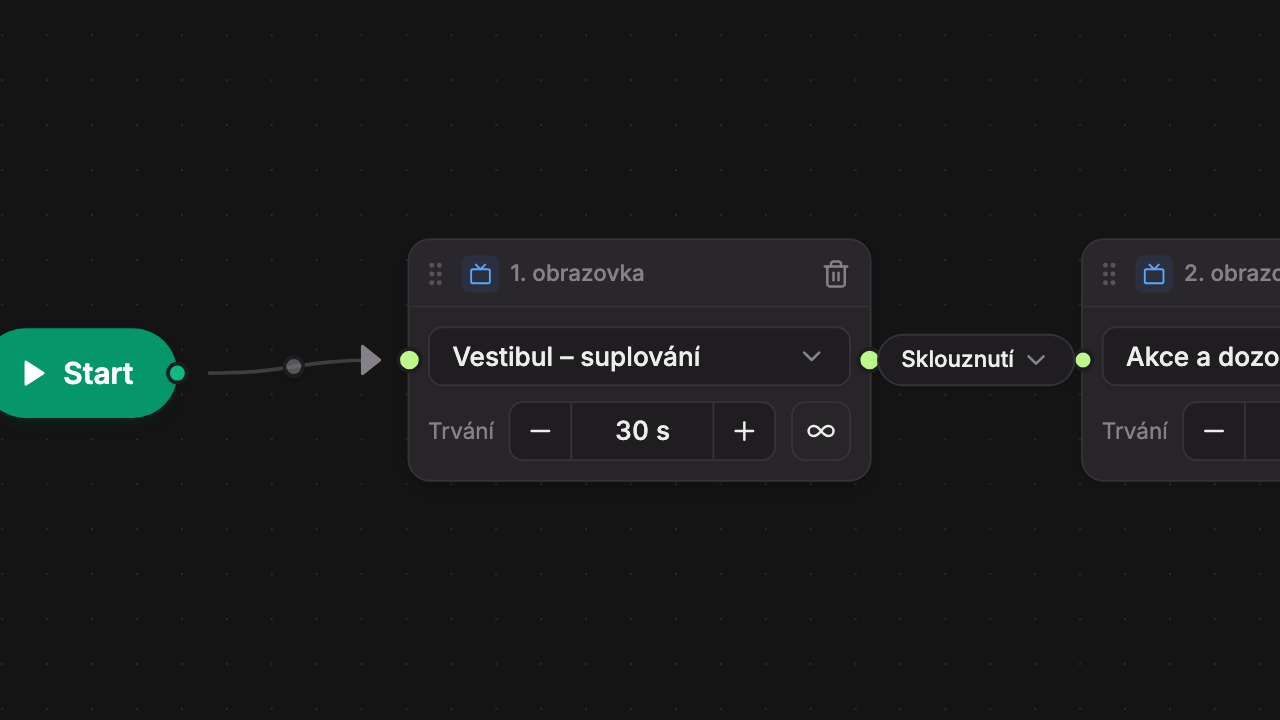
- Order – “1st screen”, “2nd screen”… is the screen’s order from Start. Screens on two different paths after a condition can have the same number.
- Remove from scenario (trash) – appears when you hover over the block. Deletes the block from the scenario. The screen itself remains in the Screens section.
- Screen – select which screen is shown in the block.
- Shorten by 5 s (−)
- Extend by 5 s (+)
- Infinite duration (∞)
Replacing a screen in a block
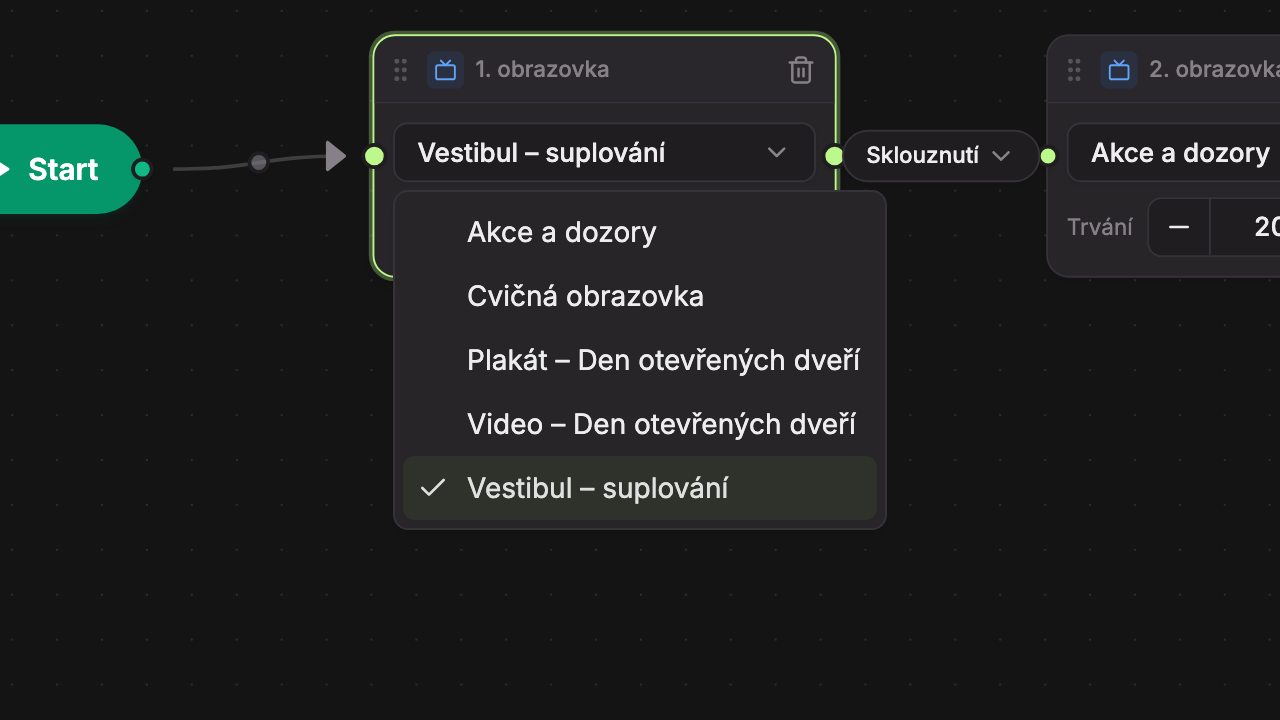
Click the screen name in the block (3) and select another. Duration, transitions, and lines remain the same.
If you delete a screen that is in the scenario from the Screens section, the block will get a red border and show “— deleted screen —” instead of the name. Such a block will be skipped on the device. Select another screen in it or remove the block.
Duration
Duration indicates how long the screen will be shown before the next one replaces it. A new block has 30 s.
- Use the − and + buttons to change the duration in 5-second increments. Holding the button changes the value continuously.
- The shortest duration is 5 s, the longest is 3600 s (1 hour).
- Longer times are shown in minutes, for example “2 min” or “1 min”.
- You cannot type a number into the field; it changes only with the buttons.
Infinite duration
The ∞ (Infinite duration) button sets the screen to remain on the device permanently and no further screens will play. Instead of duration, it shows “∞ Permanent” and the − and + buttons are disabled. This is useful when the device should display only one screen.
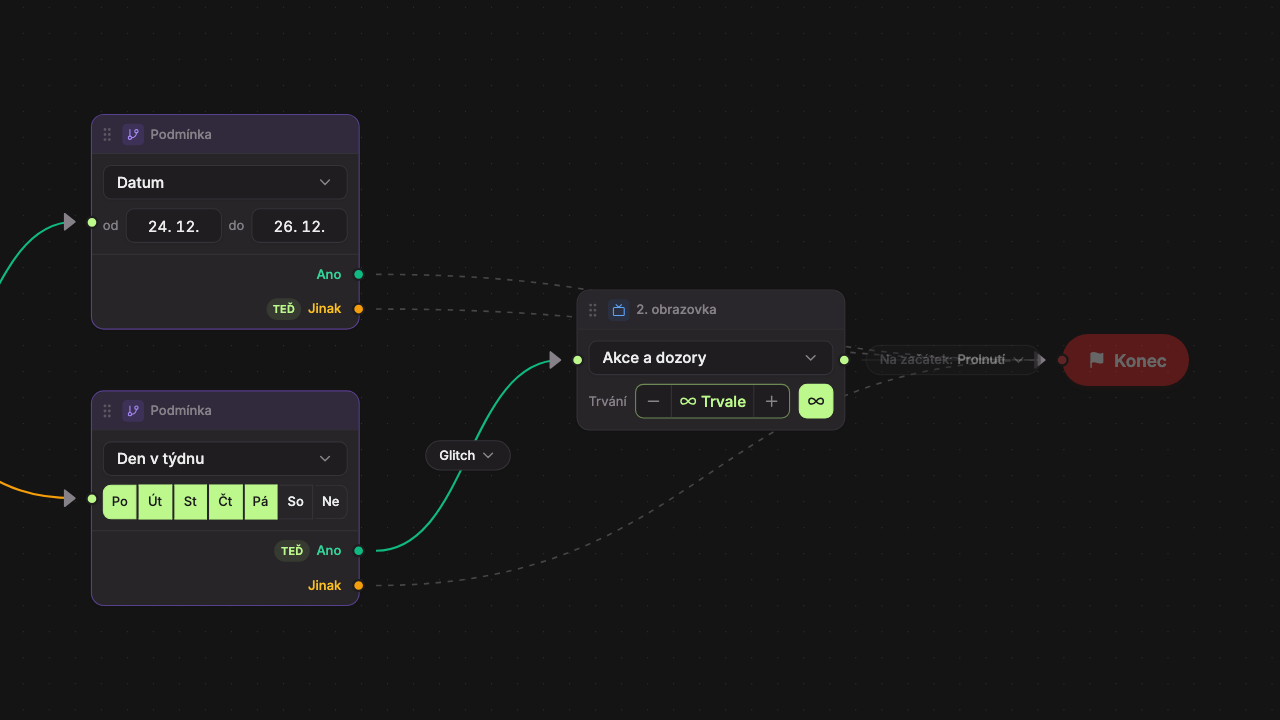
- The Infinite duration button is enabled.
- Instead of duration, it shows “∞ Permanent”.
- The End block is grayed out because playback never reaches it.
Blocks that come after a screen with infinite duration will never be played. They are grayed out and have an orange “will not play” label in the header. Hovering over them shows the explanation: “A previous screen has infinite duration, playback will not reach here.”
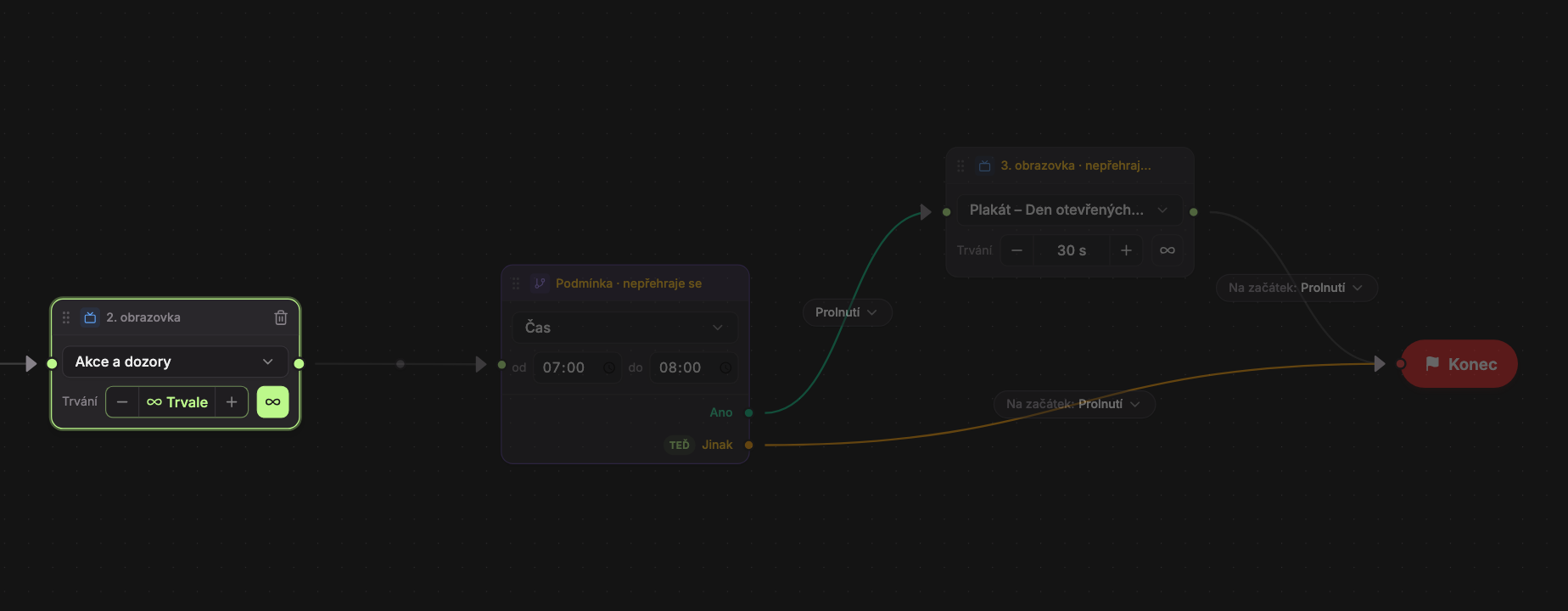
- Screen with infinite duration.
- Condition after it – “Condition · will not play”.
- Next screen – “3rd screen · will not play”.
Clicking ∞ again restores the original duration you had set before.
Screen with video
If a screen contains a Video widget with the Hold screen until video ends setting enabled (see Video Widget), the block’s duration is determined by the video. The block shows a video icon and its length, rounded up to whole seconds, instead of duration. The − and + buttons are disabled. Hovering over it shows “Screen holds until video ends — length determined by video (Video widget setting).”
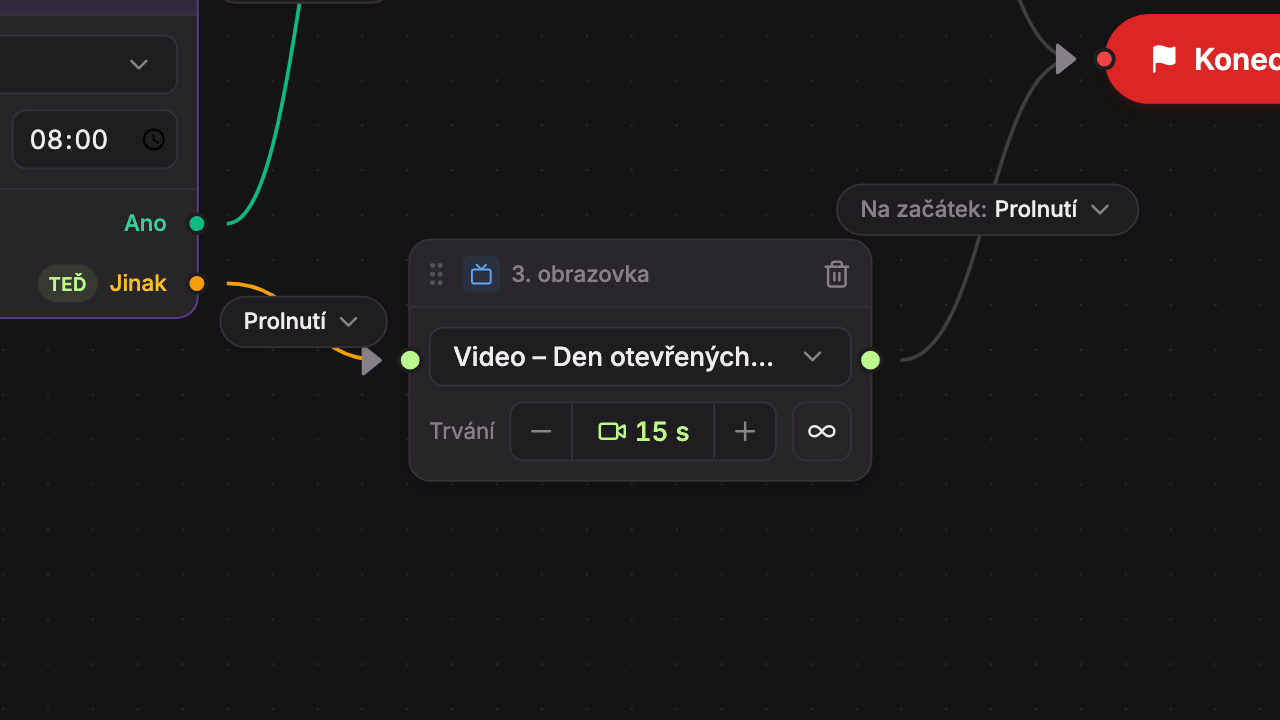
- If there are multiple videos on the screen, the longest duration applies.
- Until Studio detects the video length, the block shows the stored duration.
- The device waits for the actual end of the video. If the video fails to play, the block’s set duration is used.
- Enabled Infinite duration takes precedence: the screen then remains permanently even after the video ends.
Updated