
Scenarios
More options
 Discuss with Marie
 Creating a Scenario and Editor
How to create a new scenario, name it, and navigate the top bar and the scenario editor canvas.
You create a new scenario with one click and start building it immediately in the editor. All changes are saved automatically.
Create a Scenario
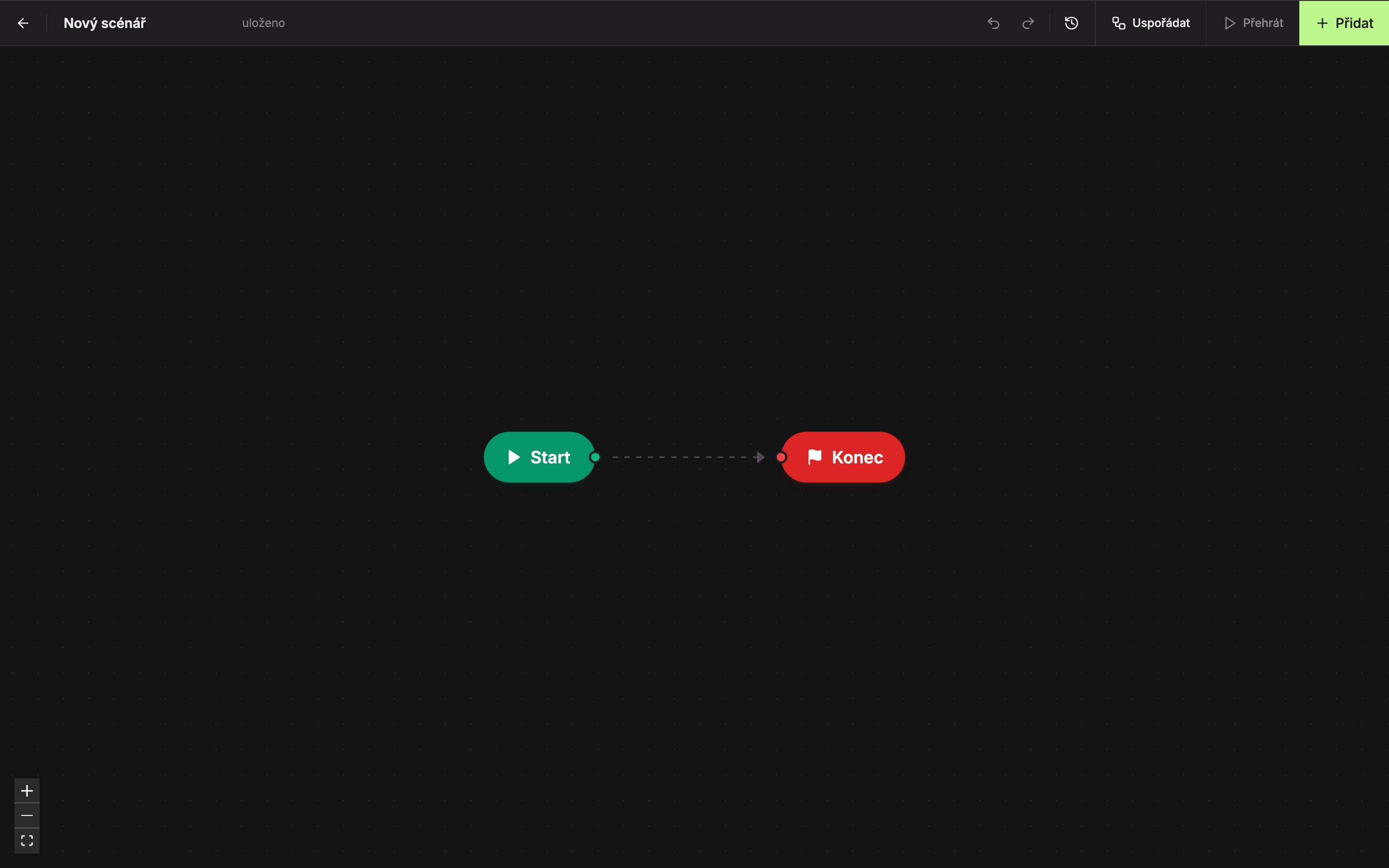
On the Scenarios page, click New Scenario. Studio will create a scenario named “New Scenario” and open it right away in the editor.
Name It
Click the name at the top left (1) and rename it, for example to “Lobby – a typical day.” The name should indicate where and when the scenario plays so you can easily find it later in the list.
Add Screens
The new scenario contains only the Start (3) and End (4) blocks. You add screens to it using the Add button (2). The process is described on the Screens in a Scenario and Their Duration page.
Saving
Studio saves every change automatically about half a second after you stop editing. Next to the name, you see the status: “saving…” while saving and “saved” when done.
Editor Top Bar
When the scenario editor is open, the left menu hides to maximize the canvas area.
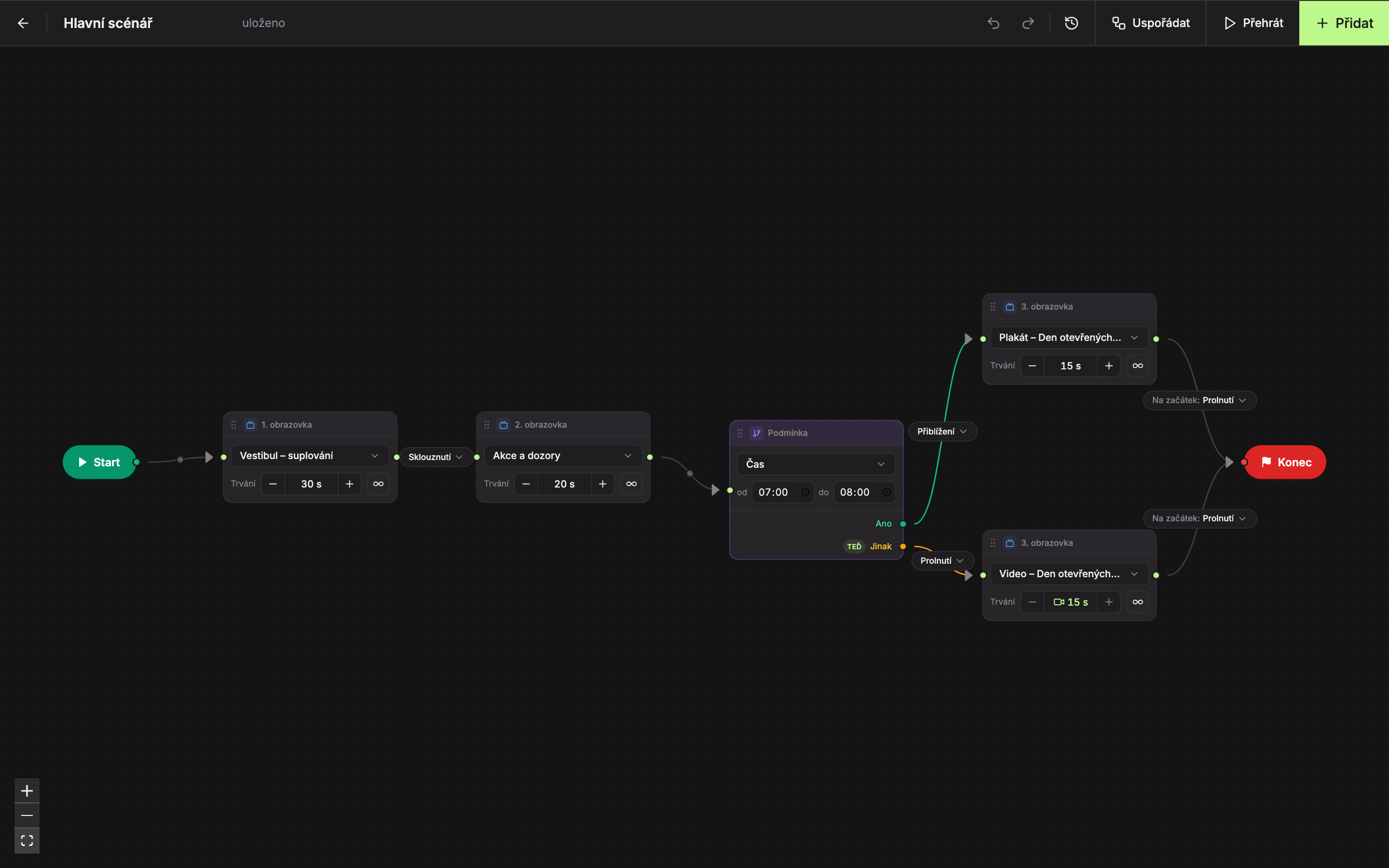
| Element | Purpose | |
|---|---|---|
| 1 | Back Arrow | Returns to the scenario list (“Back to scenario overview”). |
| 2 | Name | Scenario name, editable right here. |
| 3 | Saving Status | “saving…” or “saved.” |
| 4 | Undo | Reverts the last change (Ctrl + Z). |
| 5 | Redo | Restores the reverted change (Ctrl + Shift + Z). |
| 6 | History | List of edit steps. |
| 7 | Arrange | Aligns blocks from left to right in playback order. |
| 8 | Play | Plays the scenario as it will run on the device. |
| 9 | Add | Panel to add a screen or condition. |
| 10 | Canvas Controls | Zoom in, zoom out, and fit entire scenario on screen. |
Buttons 4–7 are described on the Arrange, History, and Deletion page, and the Play button on the Playing a Scenario and Time Simulation page.
Blocks on the Canvas
A scenario consists of blocks connected by lines. Playback starts at the Start block, follows the lines, and at the End block restarts from the beginning.
- Start – the beginning of the scenario. Cannot be deleted, only moved.
- Screen – one screen and the duration it is shown.
- Transition – animation that switches between screens. It is on the line between two blocks.
- Condition – splits playback into two paths, Yes and Otherwise, based on time, date, or day of the week.
- Transition to Start – animation that switches the last screen to the first when the scenario loops from End back to Start.
- End – end of one cycle. Cannot be deleted.
Moving Around the Canvas
- Move the canvas: drag with the mouse on an empty area of the canvas.
- Zoom in and out: mouse wheel, touchpad gesture, or the + and − buttons at the bottom left.
- Fit entire scenario on screen: button with a square at the bottom left below + and −.
- Move a block: grab the block by its top bar with the mouse and drag it. Blocks snap to a fine grid.
When opening a scenario, the canvas automatically adjusts to show the entire scenario.
Updated