
Scenarios
More options
 Discuss with Marie
 Connecting Blocks and Transitions
How to connect blocks with a line, reconnect or delete a connection, what dashed lines mean, and how to select a transition animation.
Lines between blocks determine the order in which screens play. The line leading to a screen also represents a transition, the animation used to switch between screens.
Connecting Two Blocks
Each block has an input on the left and an output on the right (small circle). A condition block has two outputs, Yes and Otherwise.
Grab the output
Hover your mouse over the circle on the right side of the block. The circle will enlarge. Press and hold the mouse button.
Drag to the input of another block
A line will follow your mouse. Drag it to the circle on the left side of the block where playback should continue. The line will snap to the input when close.
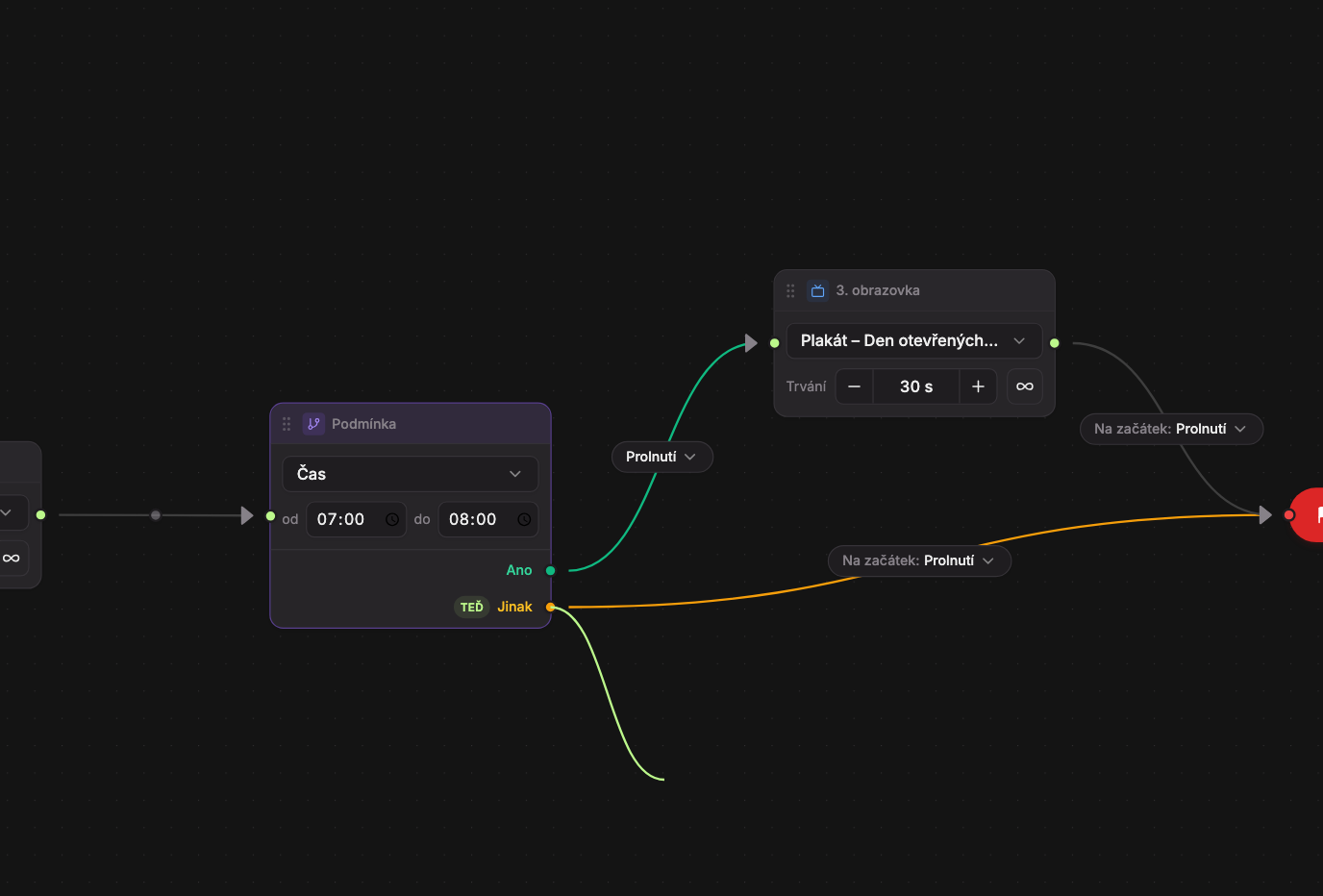
Release the button
The line will be created and assigned the Fade transition. If you release the button on an empty area of the canvas, nothing will happen.
Connection Rules:
- Only one line can lead from each output. If you drag a new line from an output that already has one, the old line will be replaced.
- Multiple lines can lead into a single block, for example from both outputs of a condition.
- A block cannot be connected to itself.
- A line can lead back to an earlier block. Studio will not warn you about such loops, so verify them before saving using the Play button.
Reconnecting a Line
Click on a line to select it. Then grab its start or end and drag it to another block. The transition on the line will remain the same.
Deleting a Line
Click on a line to select it. Above the transition label, a round × button (Delete connection) will appear. Click it to delete the line. You can also delete the selected line using the Delete or Backspace keys.
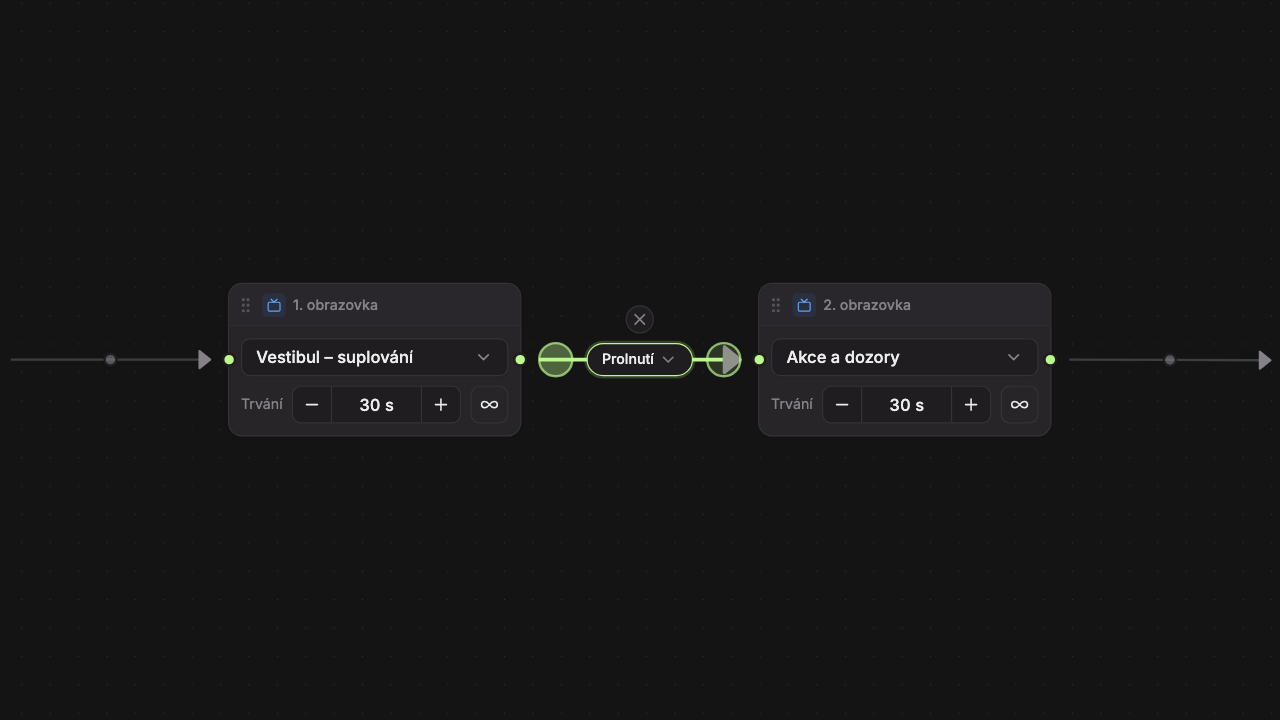
Dashed Lines: Unconnected Outputs
When no line leads from a block’s output, Studio draws a faint dashed line to the End block. This shows what happens: playback ends the current round here and restarts from Start, just as if a line led to End.
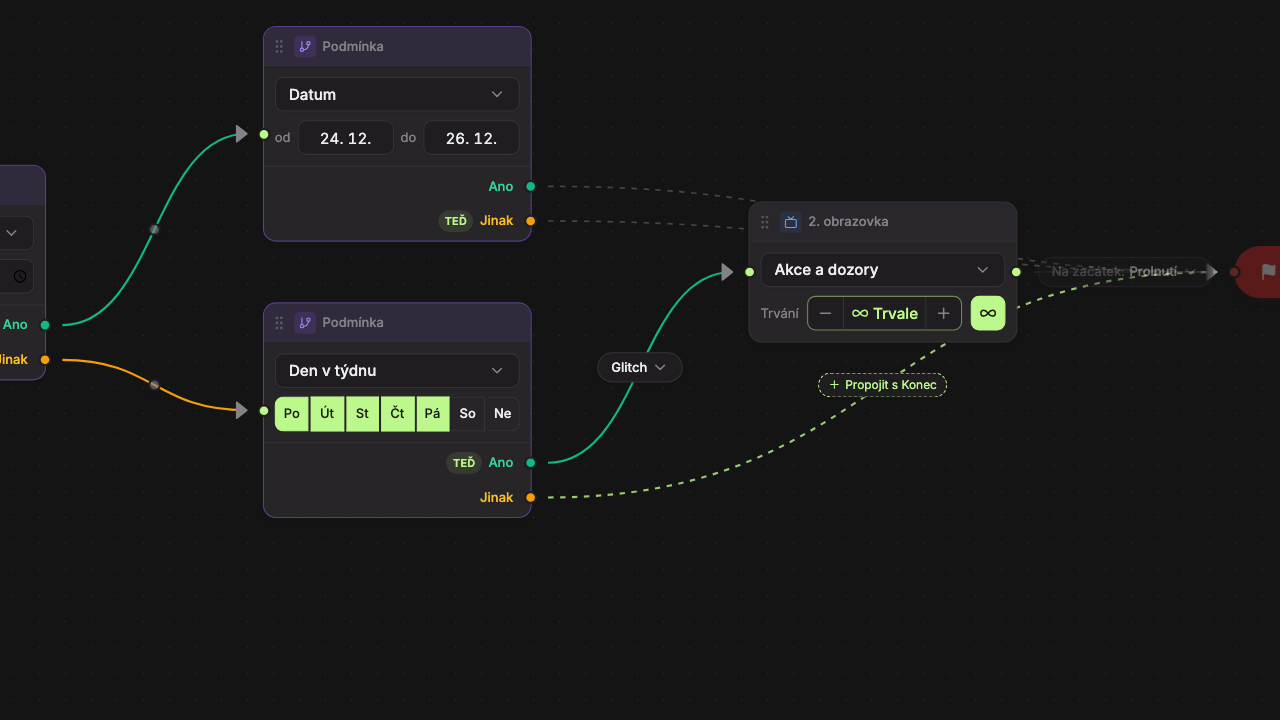
- An output with no line leading from it (here the Otherwise output of a condition).
- Hovering over the dashed line reveals the Connect to End button. Clicking it (or the line itself) converts it into a real line to End.
Dashed lines are not saved and cannot be selected or deleted. They are not drawn after screens with infinite duration.
A Block That Is Not Connected
A block that cannot be reached from Start by following lines has a dashed border and the label “Not connected” in its header (for a condition, “Condition · not connected”). Such a block will never play on the device. Connect it to others or delete it.
Transitions
On each line leading to a screen, there is a label with the name of the transition, for example Fade. Clicking on the label opens a list of transitions where you can select a different one.
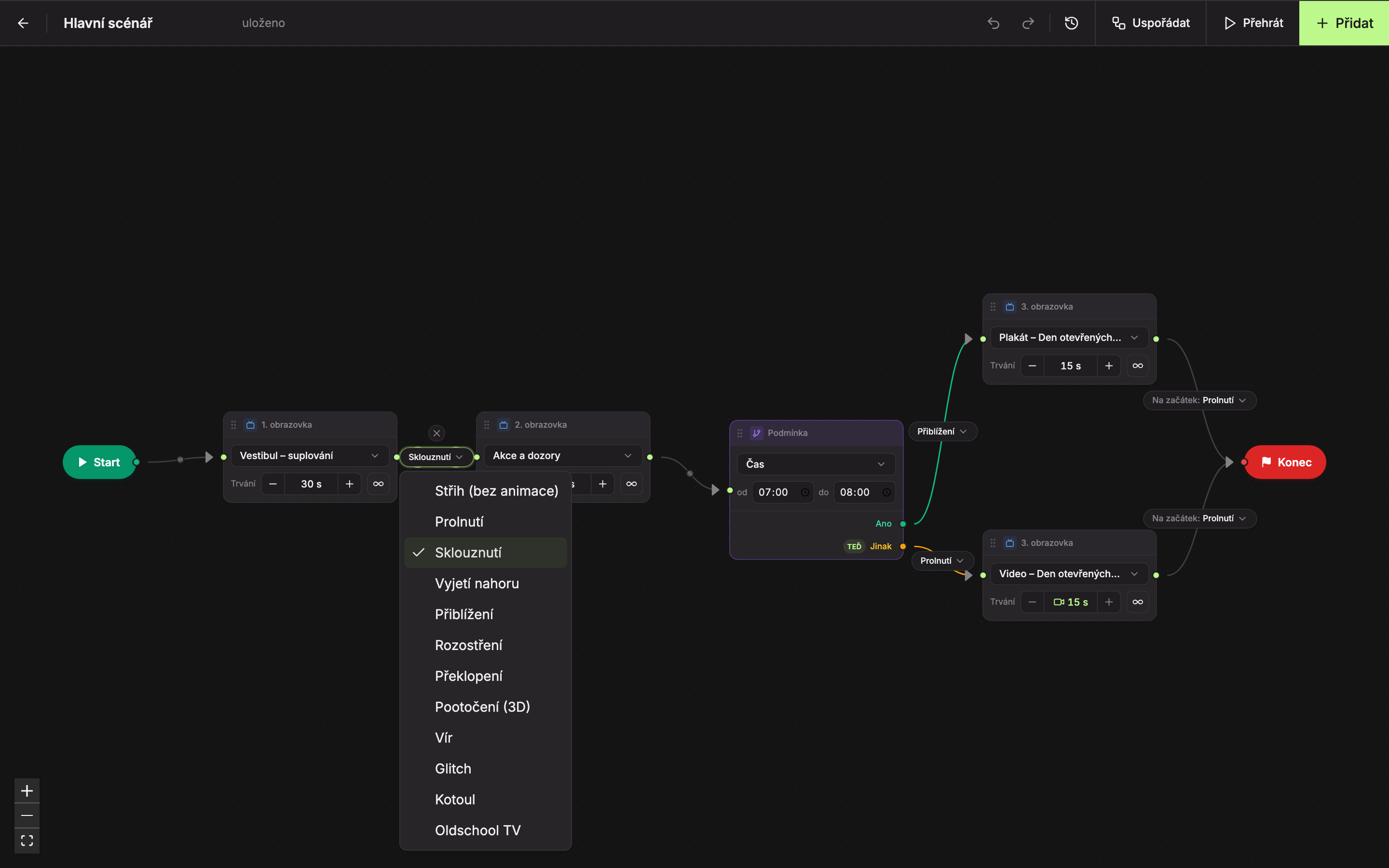
With each transition (except cut), the new screen appears over the previous one, which remains visible underneath until the animation finishes.
| Transition | How the new screen appears | Duration |
|---|---|---|
| Cut (no animation) | Appears immediately. The label is shortened to “Cut”. | – |
| Fade | Appears smoothly. The default transition for every new line. | 0.7 s |
| Slide | Appears while sliding a bit from the right into place. | 0.8 s |
| Slide Up | Appears while sliding a bit from below upwards. | 0.8 s |
| Zoom In | Appears from a slightly smaller size. | 0.8 s |
| Blur | Appears blurred and then sharpens. | 0.9 s |
| Flip | Flips flat, as if lifting off the table. | 0.95 s |
| 3D Rotate | Rotates around the left edge like an opening door. | 1 s |
| Whirl | Spins and grows from a smaller size. | 1 s |
| Glitch | Shakes sideways several times like a disturbed image. | 0.8 s |
| Roll | Rolls in from the left with a rotation. | 1 s |
| Oldschool TV | Expands from a thin horizontal line like turning on an old TV. | 0.9 s |
The same animations (except cut) are also offered by widgets with pagination, see Pagination and Transitions. To see how a transition looks in a scenario, use the Play button (see Playing a Scenario and Time Simulation).
Transition to Start
On the line leading to the End block, there is a label To Start: with a transition, for example “To Start: Fade”. This transition is used when the scenario returns from the last screen back to the first screen.
Updated