
Scenarios
More options
 Discuss with Marie
 Arrangement, History, and Deletion
Automatic block alignment, undoing edits, script editor keyboard shortcuts, deleting blocks, and deleting the entire script.
Arrange Blocks
When your blocks get scattered on the canvas, click Arrange in the top bar (tooltip: “Align blocks left to right in playback order”).
- Blocks are arranged into columns from left to right in the order they play. Start is on the left, End on the right.
- Both condition paths (Yes and Else) are stacked vertically in the same columns.
- Unconnected blocks are moved to a row below the script.
- The view then automatically adjusts to show the entire script.
Arrangement counts as a single step in history, so you can undo it with one Ctrl + Z.
Undoing Edits and History
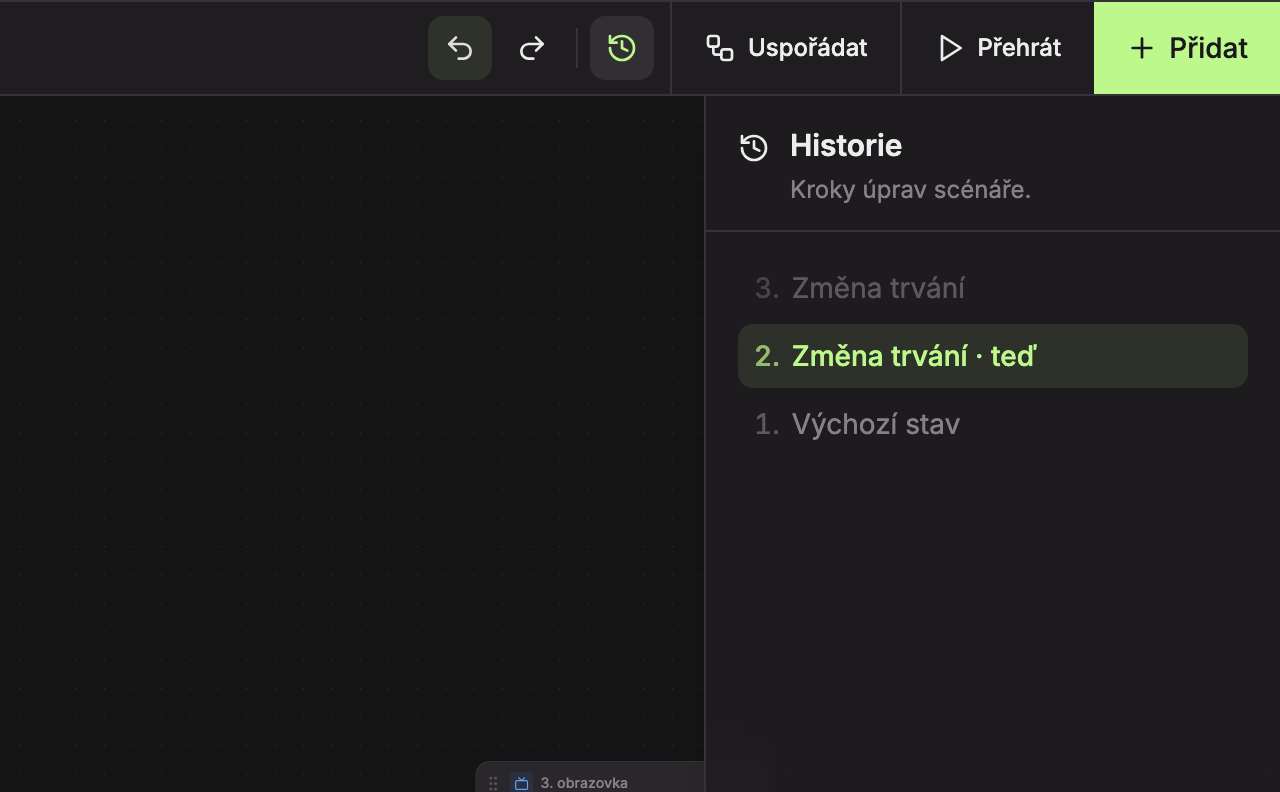
- Undo (Ctrl + Z) reverts the last edit. When there is nothing to undo, the button is inactive.
- Redo (Ctrl + Shift + Z, or Ctrl + Y) reapplies an edit you just undid.
- History opens a panel on the right showing all edit steps (“Script edit steps.”). Click again to close it.
- Current state is highlighted in the panel and marked “· now”. The newest steps are at the top. Gray steps above it are edits you have undone and can redo with the Forward button. Clicking any row returns you directly to that state.
On Mac, use Cmd instead of Ctrl.
Steps have these names in history:
| History Step | What You Did |
|---|---|
| Initial state | script state when the editor was opened |
| Added screen | you added a screen |
| Added condition | you added a condition |
| Changed condition | you changed the type or settings of a condition |
| Moved block | you moved a block on the canvas |
| Connected blocks | you connected two blocks with a line |
| Reconnected link | you dragged the end of a line to another block |
| Changed transition | you selected a different transition |
| Changed duration | you changed how long the screen shows |
| Infinite duration / Finite duration | you turned ∞ on or off |
| Changed screen | you selected a different screen in a block |
| Deleted block | you deleted a block |
| Deleted link | you deleted a line |
| Changed name | you renamed the script |
| Edit | other change |
- History remembers the last 100 steps.
- Selecting blocks and panning or zooming the canvas are not recorded in history.
- Each letter typed in the script name is a separate Changed name step. You can undo the renamed title letter by letter, or click the step before the first name change in the History panel.
- An undone edit is saved just like any other change.
Keyboard Shortcuts in the Script Editor
| Keys | What They Do |
|---|---|
| Ctrl + Z | undo last edit |
| Ctrl + Shift + Z, Ctrl + Y | redo undone edit |
| Delete, Backspace | delete selected blocks and lines (Start and End cannot be deleted) |
| Esc | stop playback |
| Shift + drag on canvas | select multiple blocks with a box |
| Ctrl + click | add block to selection |
| Enter in date field | apply entered date in condition |
Shortcuts do not work when your cursor is in a text field (for example, in the script name). Click first on an empty spot on the canvas. The editor has no shortcuts for copying, pasting, or duplicating blocks. On Mac, use Cmd instead of Ctrl.
Deleting Blocks and Lines
- Delete a block by clicking the trash button in its header, or select it and press Delete. You cannot delete Start and End blocks.
- Deleting a block also deletes all lines leading to and from it. Neighboring blocks do not automatically reconnect. A dashed line leads from the previous block, which you can reconnect manually (see Connections and Transitions).
- Delete a line by clicking it and then clicking the round × above the transition label (Delete connection), or press Delete.
- Multiple blocks at once: select them with a box while holding Shift, or click individual blocks with Ctrl pressed, then press Delete.
You can undo a deleted block or line with the Undo button (Ctrl + Z) until you close the editor. Deleting a block does not delete the screen itself; it remains in the Screens section.
Deleting an Entire Scenario
Enter the confirmation code
A Confirm Deletion window will open with the message “This action is irreversible. Are you sure you want to delete this scenario?”. Copy the confirmation code (1) into the Code field (2) and click Delete (3). The button is enabled only when the code is entered exactly. Click Cancel to close the window without deleting.
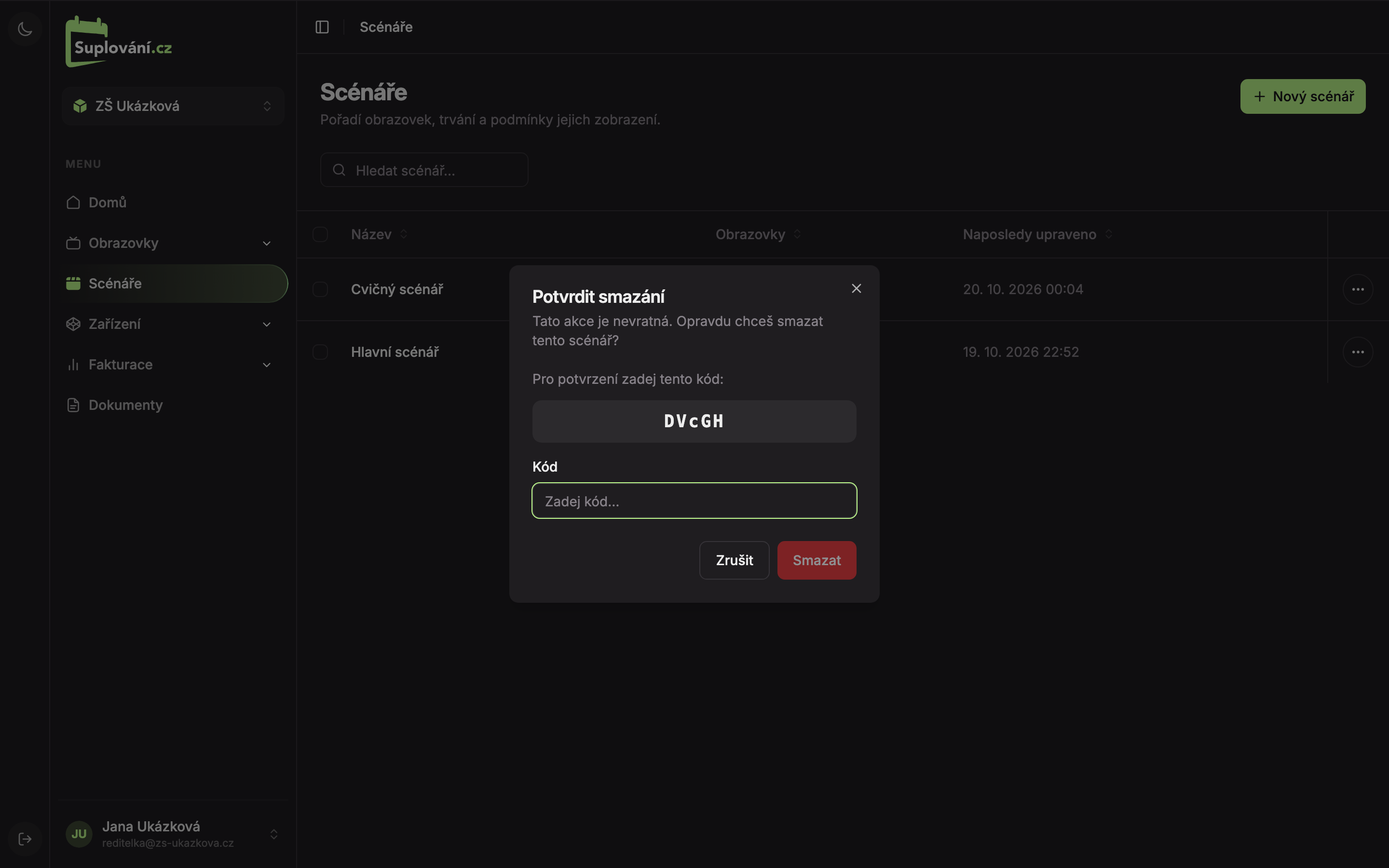
After deletion, “Scenario deleted” will appear.
You can delete multiple scenarios at once the same way as screens: check their rows, click Delete (N) at the bottom, and confirm with the confirmation code. After deletion, “Deleted N scenarios” will appear. The detailed procedure is described in deleting screens.
Updated