
Getting Started
More options
 Discuss with Marie
 Orientation in Studio
Main menu, school selection, account menu, light and dark mode, and menu collapse.
After logging in, the Home page opens. On the left is the main menu, on the right the content of the selected page.
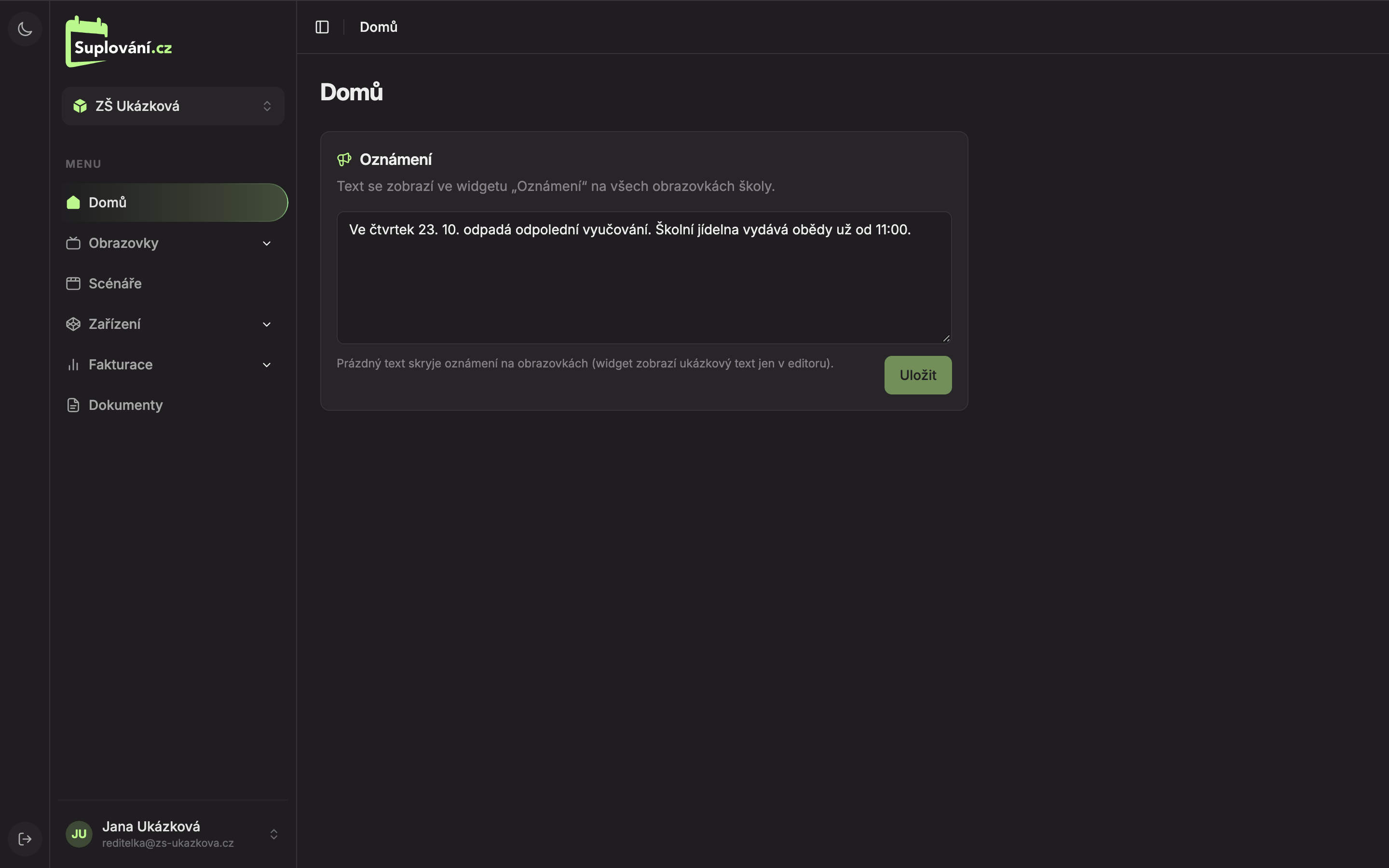
| Element | Purpose | |
|---|---|---|
| 1 | School selection | Visible only to Suplování.cz administrators managing multiple schools (see below). |
| 2 | Menu | Navigation to different parts of Studio. |
| 3 | Your account | Name, email, and menu with profile and logout options. |
| 4 | Light / dark mode | Switches Studio’s appearance. The choice is remembered in the browser. |
| 5 | Collapse menu | Hides or shows the left menu again. |
How screens, scenarios, and devices relate
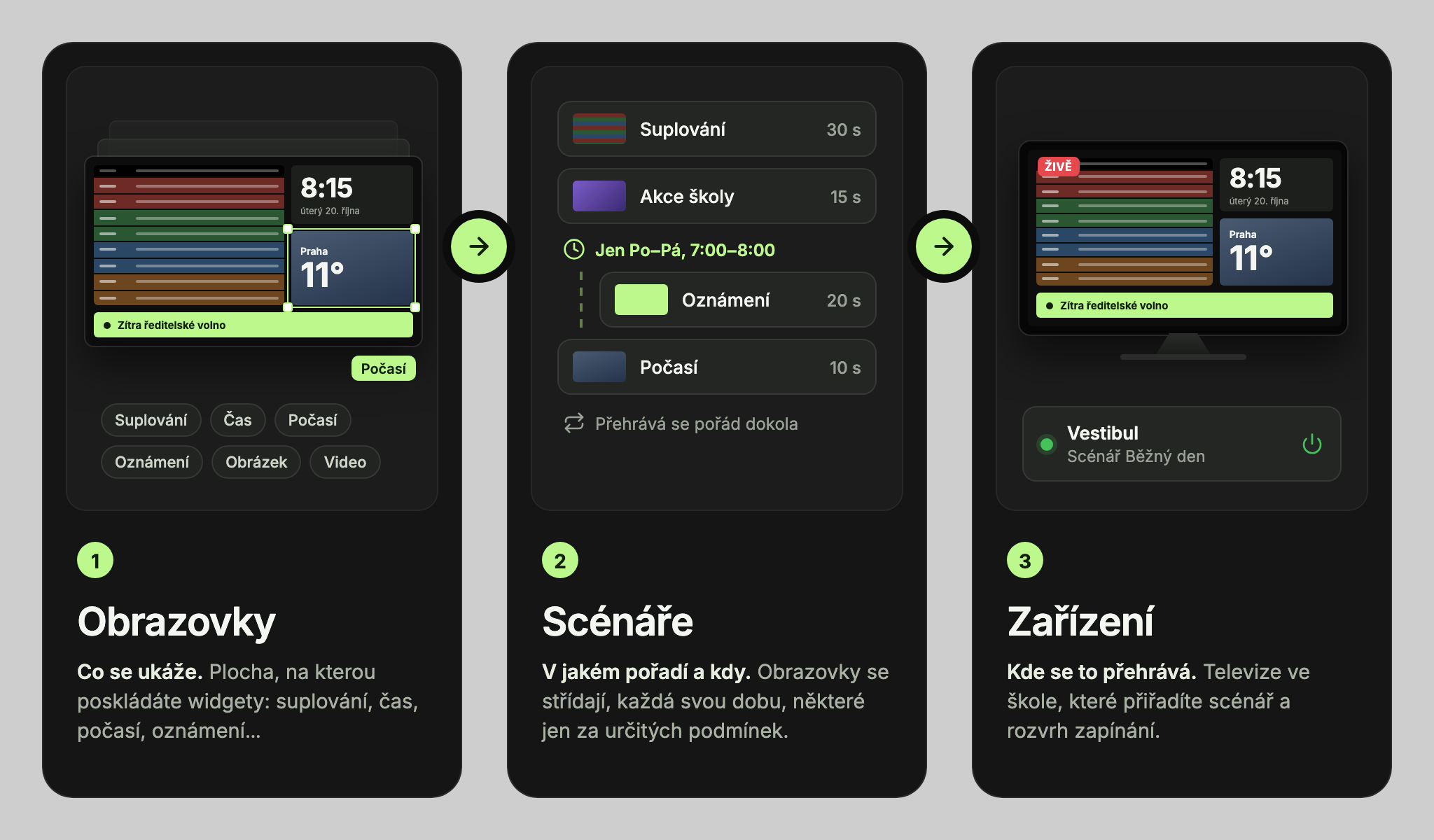
- A screen is a single page with widgets, such as substitution, time, and weather.
- A scenario defines which screens alternate in what order and for how long.
- A device at the TV plays the scenario assigned to it.
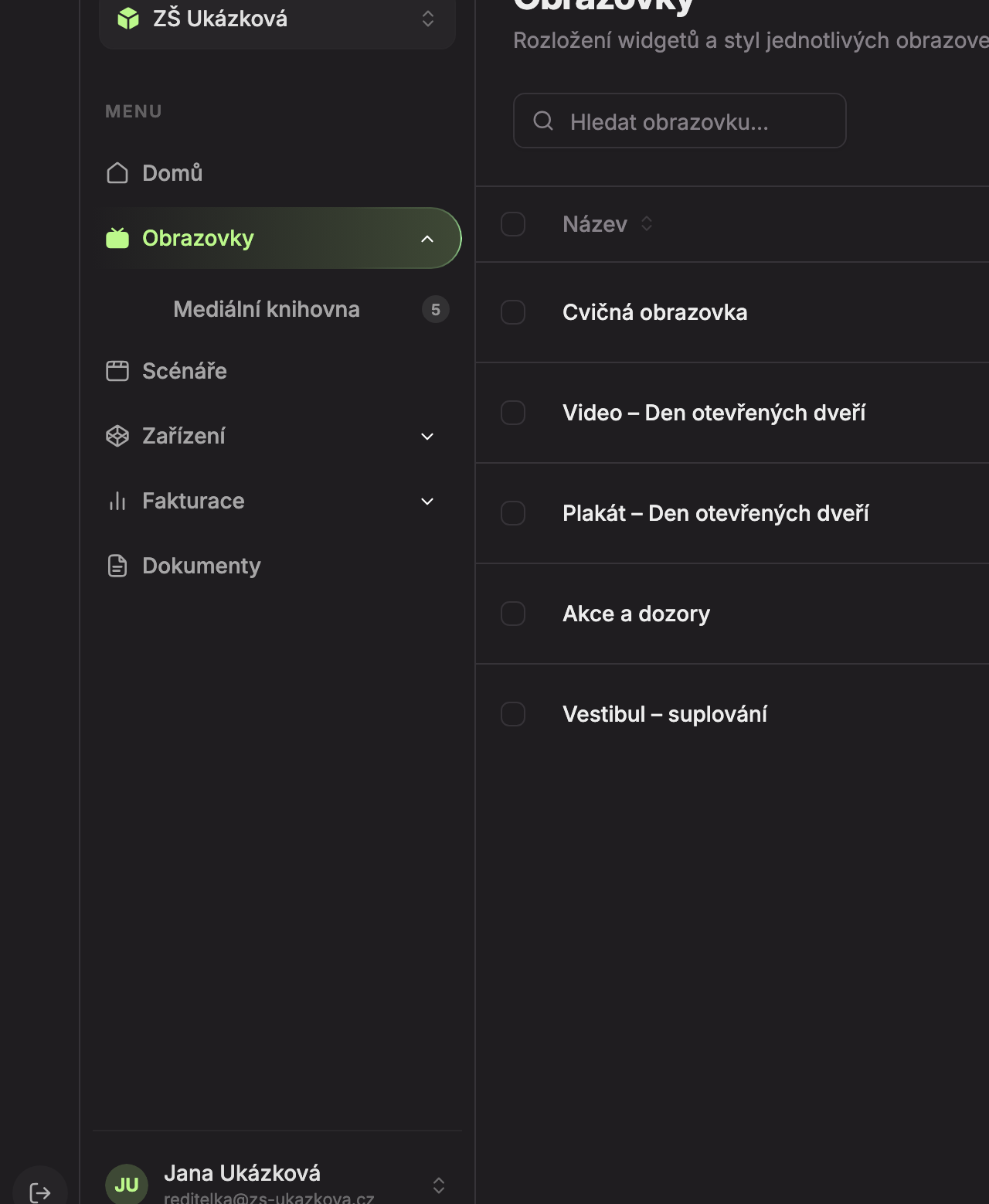
Menu items
- Home – announcements for the whole school.
- Screens – list of screens and screen editor.
- Media library – school images and videos. The number next to the item shows how many files you have in the library.
- Scenarios – order and rotation of screens.
- Devices – overview of devices at TVs.
- Schedule – when screens turn on and off.
- Billing
- Issued invoices and Billing details – billing.
- Documents – contracts and other school documents.
Items with an arrow (Screens, Devices, Billing) have subitems. They expand when you are in that section.
Account menu
Click your name at the bottom left to open the menu:
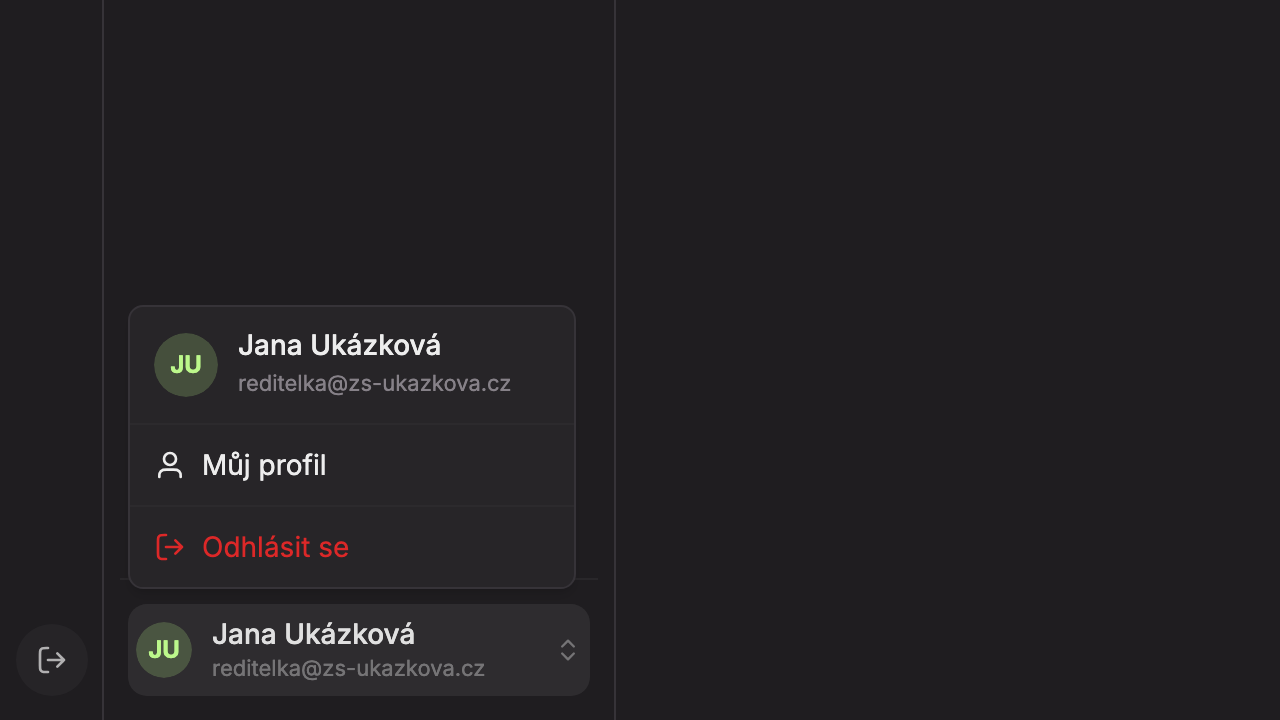
- My profile – edit name and photo.
- Logout – log out of Studio. You can also log out using the arrow icon in the narrow bar at the very bottom left.
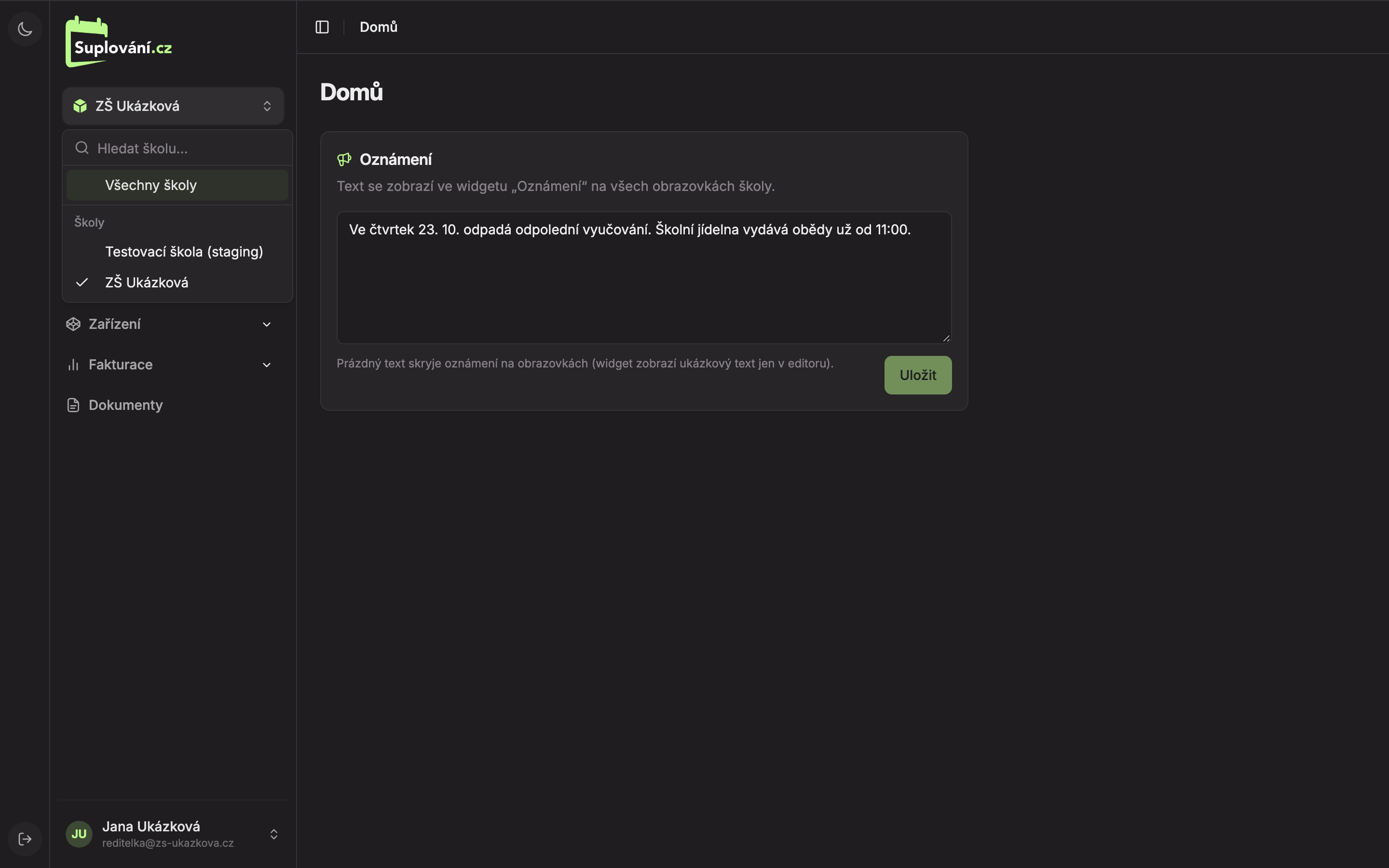
School selection (administrators only)
School users always work with their own school and do not have a school selection in the menu. Suplování.cz administrators managing multiple schools have a button with the school name under the logo. Clicking it lets them search for a school in the Search school… field and select it from the list, or choose All schools.
Collapsing the menu
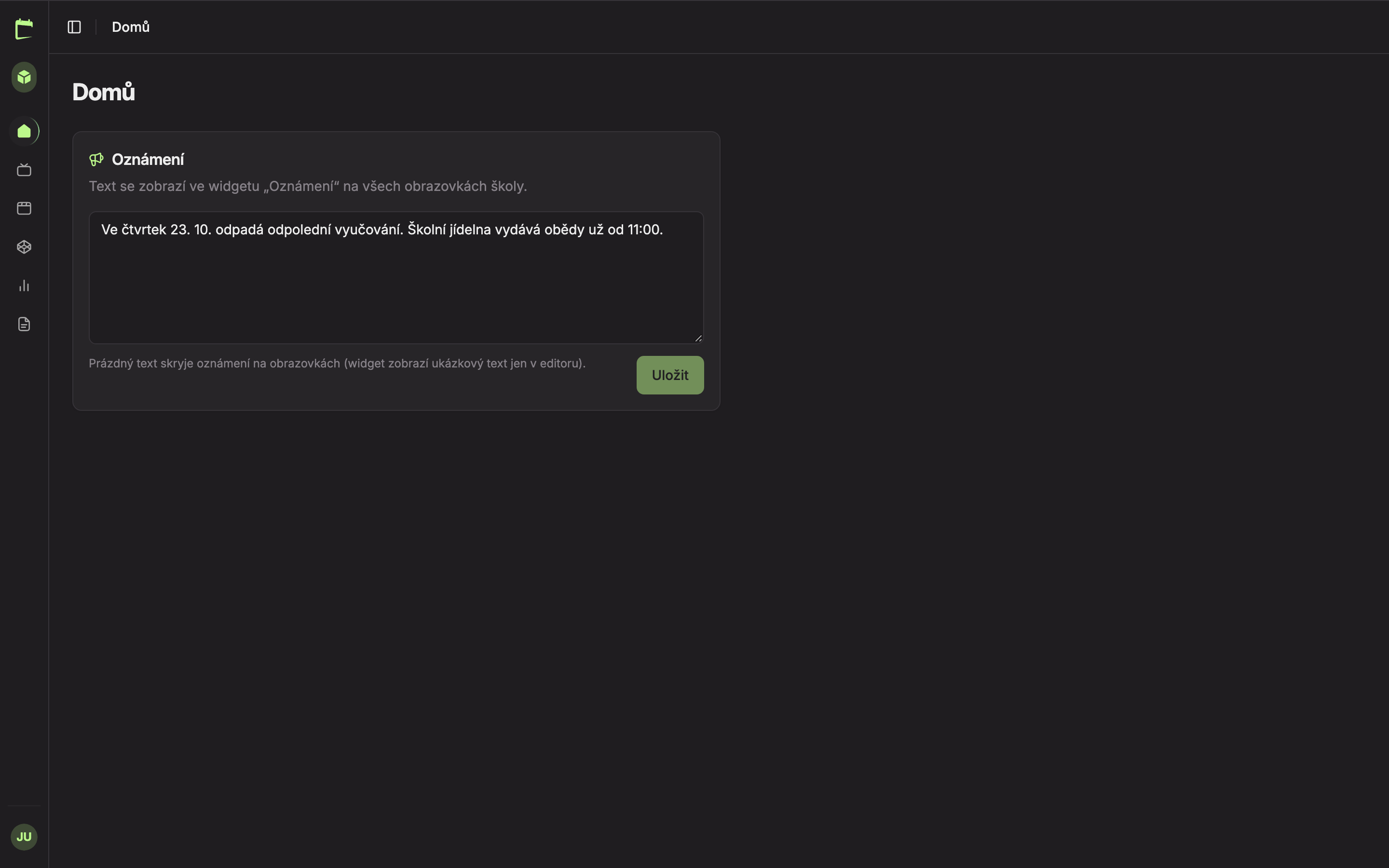
Click the button at the top left (5) or use the shortcut Ctrl + B (on Mac ⌘ + B) to collapse the menu. This gives you more space, for example for the editor. Use the same button to expand it again.
Notifications and errors
Confirmations (like “Notification saved”) and error messages appear at the bottom left. Error messages stay until you close them with the cross. If something unexpectedly goes wrong in any part of Studio, you will see the Something went wrong page with buttons Try again and Reload page.
Updated