
Screens
More options
 Discuss with Marie
 Creating a Screen
Creating a new screen, default layout, and naming.
You can create a new screen with a single click. Studio will create it with a default layout, which you can then customize.
Click New Screen
On the Screens page, click New Screen in the top right corner. The editor will open with a new screen named “New Screen.”
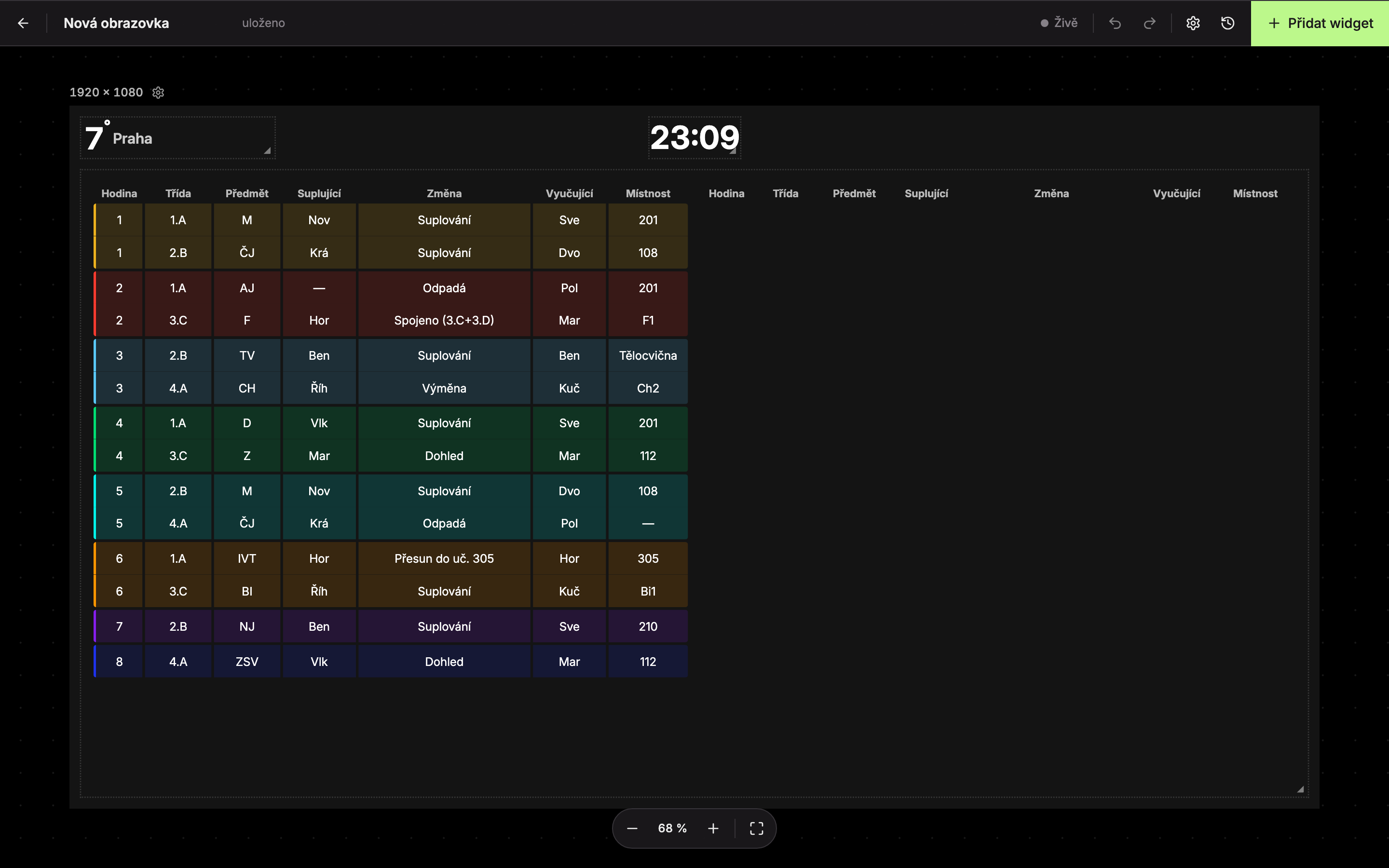
The new screen already contains three widgets: Weather in the top left, Time at the top center, and a large Substitution table filling the rest of the space. You can keep, modify, or delete them.
Name the Screen
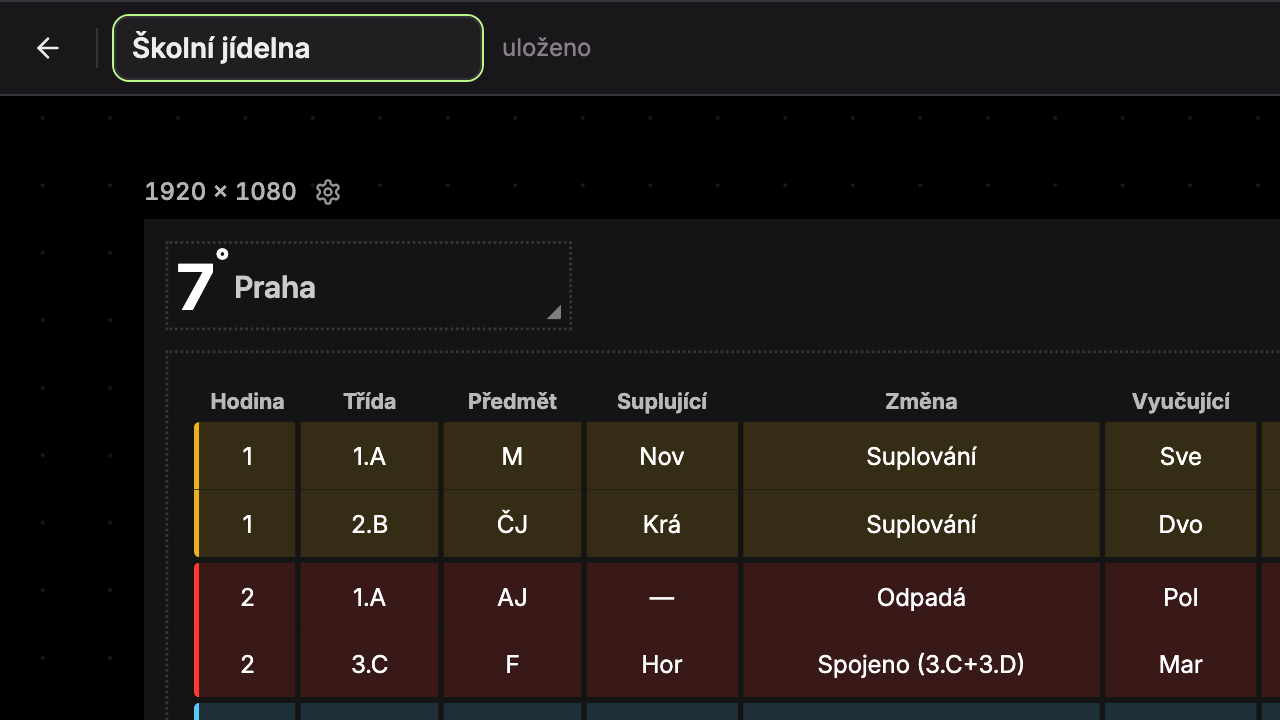
Click the name field in the top left, delete “New Screen,” and type your own name, for example, “School Cafeteria.” The field automatically expands as you type.
Wait for Saved
The name (1) saves automatically shortly after you stop typing. Next to it, “saving…” briefly appears, then “saved” (2).
What’s next: Editor Orientation and Adding, Moving, and Editing Widgets.
Updated