
Screens
More options
 Discuss with Marie
 Appearance and Screen Resolution
Monitor Panel: landscape or portrait resolution, grid gaps and margins, rounding, light and dark theme, and screen colors.
You set the overall screen appearance in the Monitor panel. Open it with the Canvas Style button (gear icon) in the editor’s top bar, or the gear icon next to the resolution label above the top-left corner of the canvas. The settings apply to all widgets on the screen unless a widget specifies its own value.
Resolution and Grid
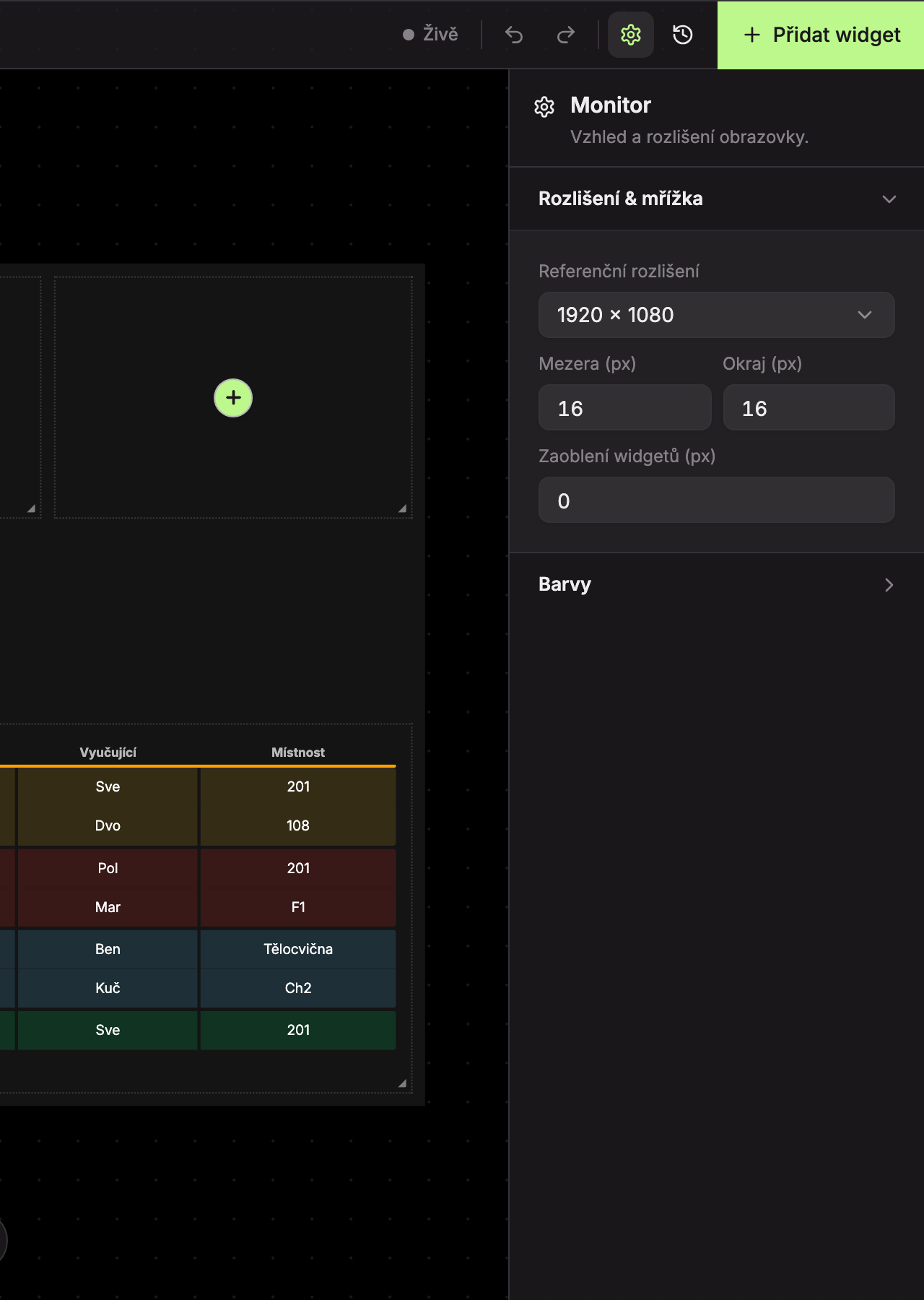
| Field | What it sets | Range | |
|---|---|---|---|
| 1 | Reference Resolution | 1920 × 1080 for landscape TV, 1080 × 1920 for portrait-oriented TV. | – |
| 2 | Gap (px) | Gap between adjacent widgets. | 0–64 |
| 3 | Margin (px) | Margin between the screen edge and widgets. | 0–128 |
| 4 | Widget Rounding (px) | Corner rounding of all widgets. A widget can have its own rounding (see Widget Settings Panel). | 0–64 |
The number of grid columns depends on the width: a landscape screen has 24 columns, a portrait screen has 14. Rows are roughly as tall as columns are wide, so cells are approximately square.
Colors
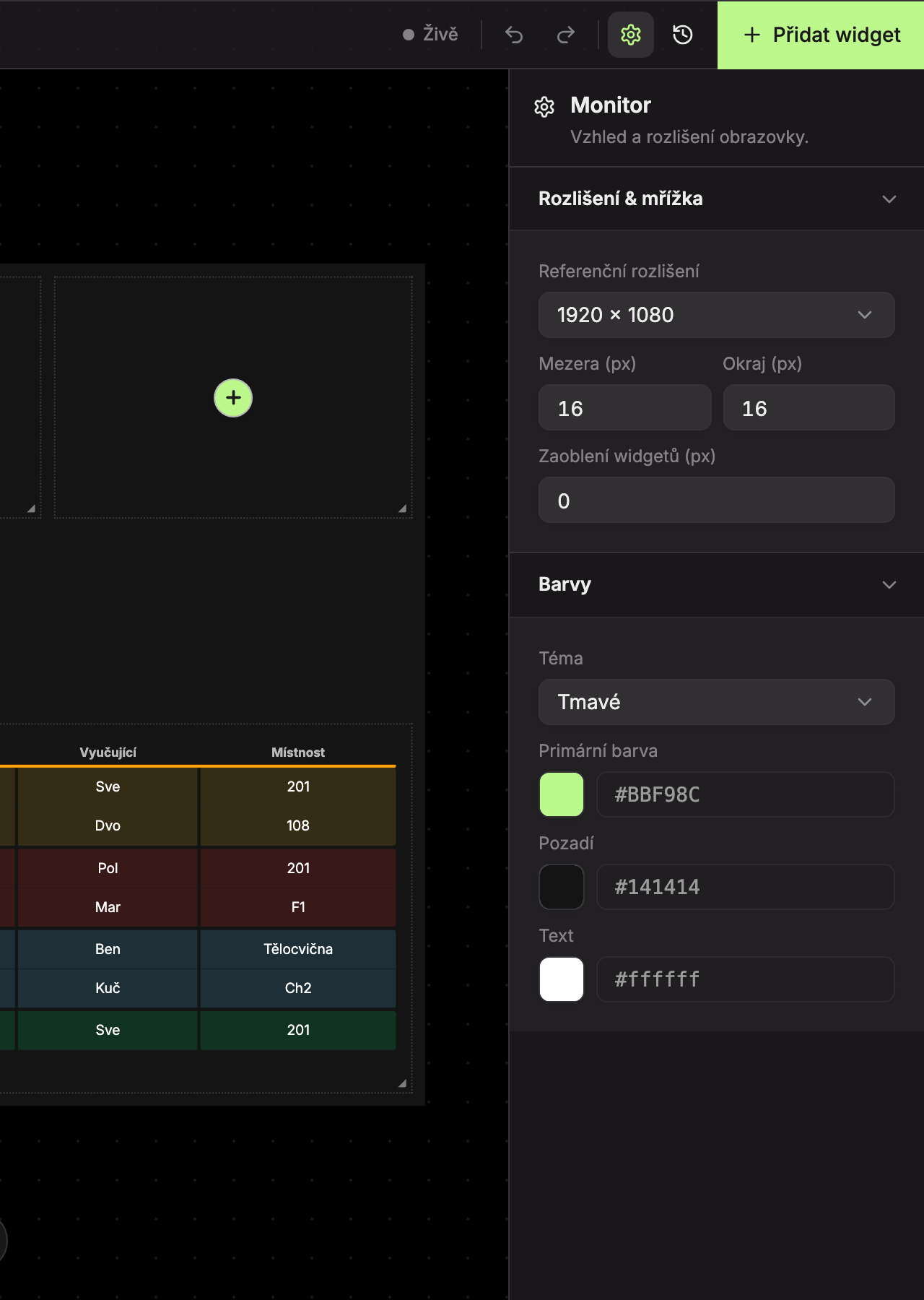
- Theme – Dark (dark background, white text) or Light (white background, dark text). Switching the theme changes the default background and text colors. The editor’s appearance also switches according to the screen theme.
- Primary Color – accent color: inherited by widgets (e.g., page indicator or Time widget) until they set their own. The cross “Reset to default color” restores the default Suplování.cz color.
- Background – background color of the entire screen.
- Text – default font color.
For the Background and Text fields, the cross “Reset to theme color” restores the color according to the selected theme.
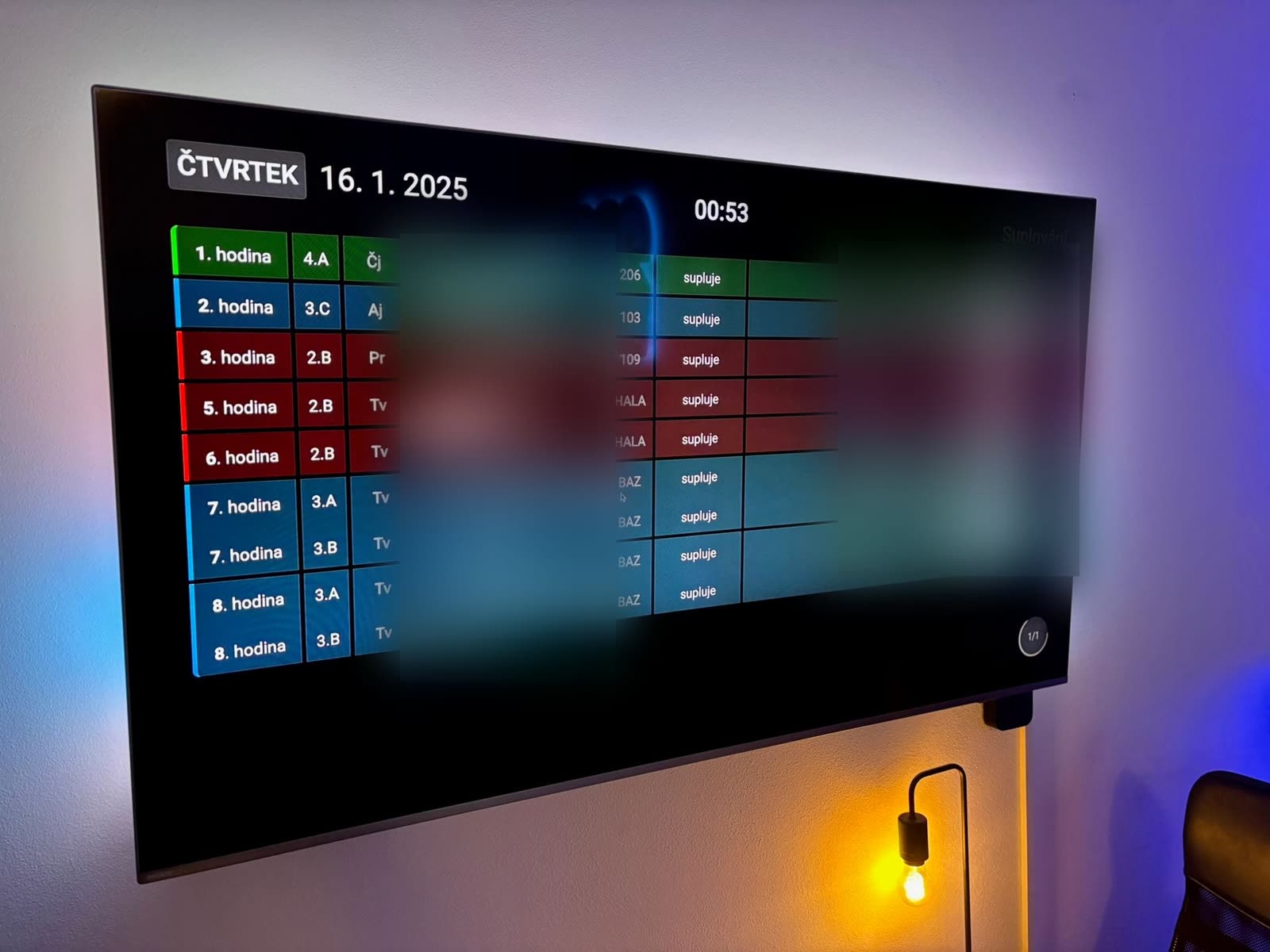
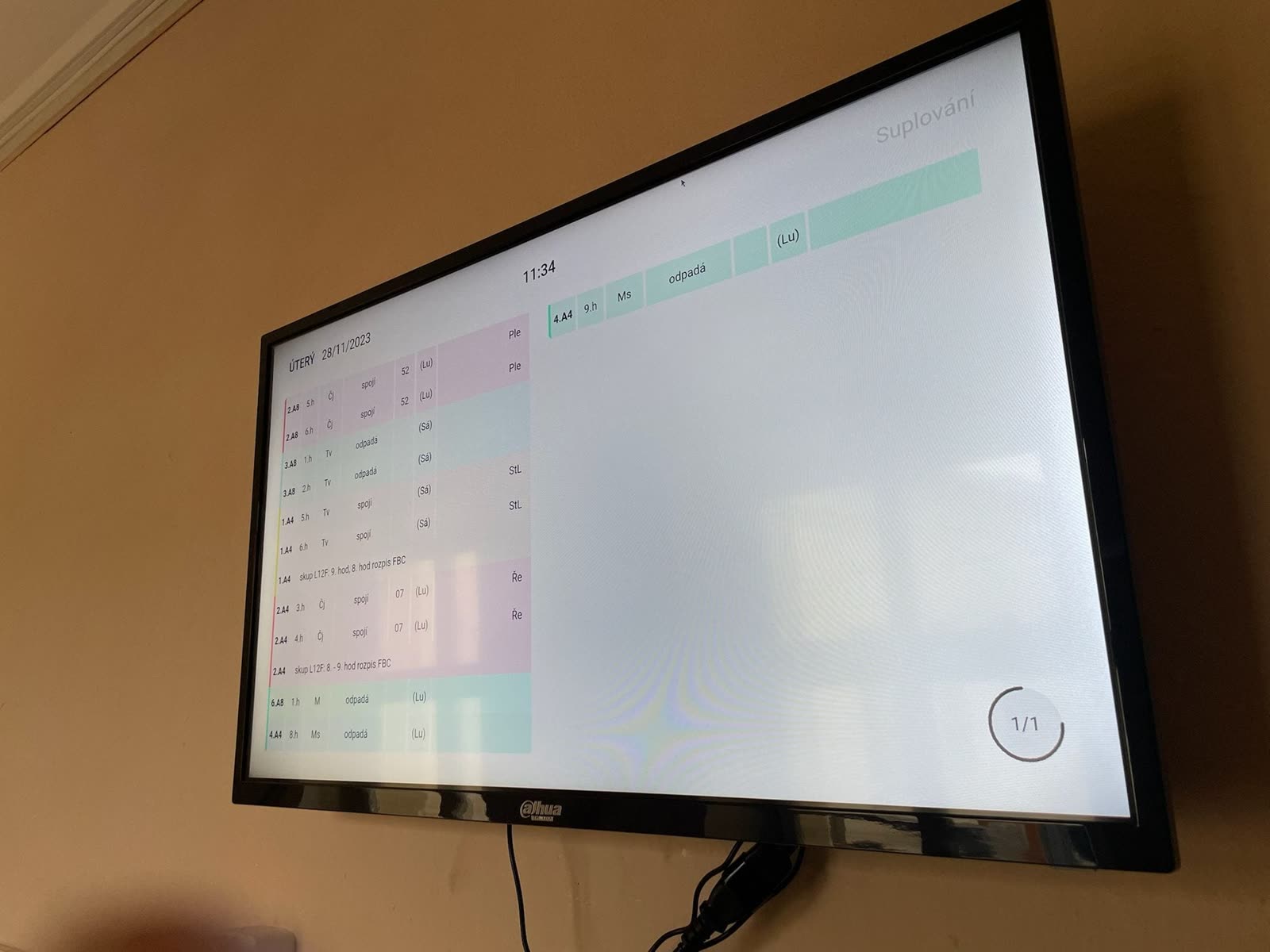
Color field controls are described in the chapter Widget Settings Panel.
Updated