
Devices
More options
 Discuss with Marie
 Screen Schedule
When the screens of individual devices turn on and off automatically, what the data on the Schedule page means, and how to request a schedule change.
The Schedule page (in the left menu under Devices) shows when the screens of individual devices turn on and off automatically. The page is for viewing only; the schedule cannot be changed in Studio.
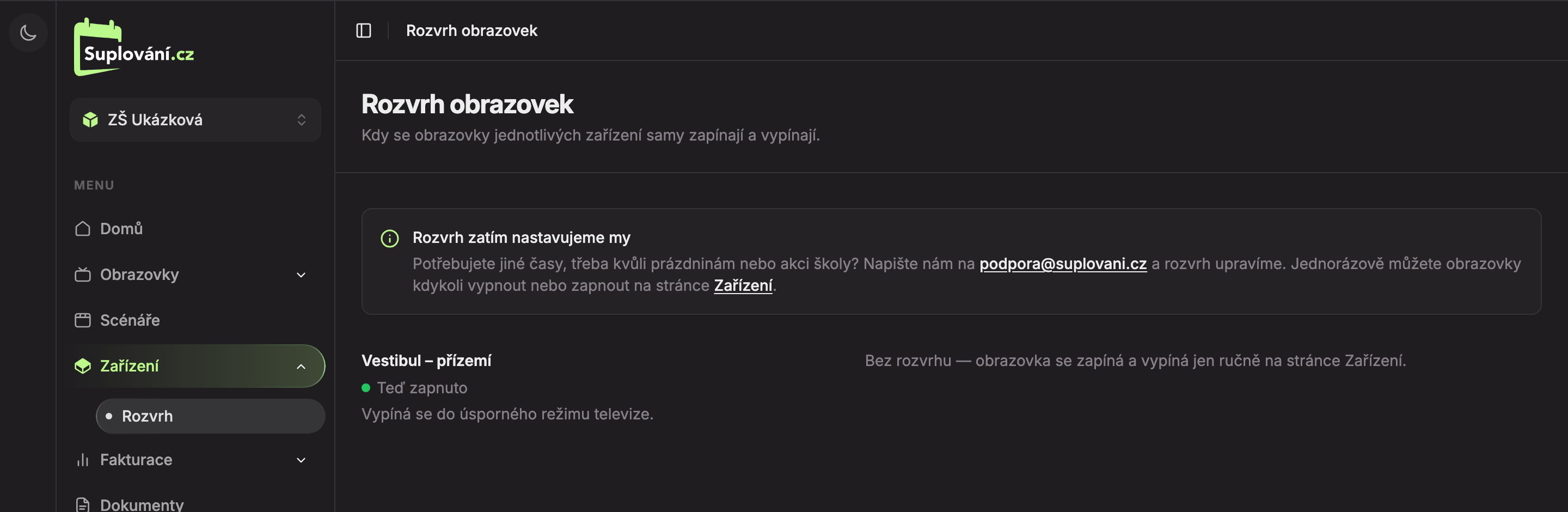
- We set the schedule for now – we will adjust the schedule upon request (see below). The Devices link leads to the page where you can switch screens manually once.
- Device – the device name and below it:
- current screen status: “On now” (in green) or “Off now”,
- any manual override in orange, for example, “Manually off until 16, then back to schedule.”,
- how the screen turns off (see below).
- Device schedule – when the screen turns on and off. For the device in the image, it says “No schedule — the screen is turned on and off only manually on the Devices page.”
Weekly Schedule
For devices with a schedule, part 3 shows a table by days, from Monday to Sunday:
- The horizontal bar represents the day from 0 to 24 hours. Green segments are periods when the screen is on. Below the bars is a time axis with 0, 6, 12, 18, and 24.
- On the right are the on times, for example, “7–16”. If the screen turns on multiple times a day, there are multiple times listed. Overlapping times are merged.
- A day without any on time is marked “off”. If the screen remains on outside the schedule, the day is marked “all day”.
Below the table there may be:
- rows Manually turned on once – future one-time turn-ons, for example, “after 3. 11. 7–15”,
- the sentence “The screen remains on outside the schedule.” – the screen does not turn off outside the green segments, so it stays on all day.
Other Device States
Instead of a table, one of these texts may appear for a device:
| Text | What it means |
|---|---|
| “No schedule — the screen is turned on and off only manually on the Devices page.” | The device has no schedule. You switch the screen only manually (see Turning the screen on and off). |
| “Screen turning on is not set for this device.” | The device does not turn the TV on or off. |
| “The screen is permanently off.” | The screen is permanently turned off from our side. |
| “Failed to load the schedule.” | The schedule did not load. Refresh the page (F5). |
Screen Status
| Text at device | What it means |
|---|---|
| “On now” / “Off now” | The device responded and the screen is in this state. |
| “Device not responding · should be on” (or “… off”) | The device did not respond. Hover to see when it last responded. |
| “Checking status…” | Studio is waiting for the device’s response (up to 15 seconds). |
How the screen turns off:
- “Turns off to TV power-saving mode.” – the TV goes to sleep as if by remote control.
- “Turns off to a black screen (TV stays on).” – the TV stays on and shows a black screen.
Changing the schedule, holidays, and school events
We set the schedule. Need different times, for example due to holidays, principal’s leave, or a school event? Write to podpora@suplovani.cz, specifying which device and from when to when. We will adjust the schedule for you (see Contact support).
Updated