
Screens
More options
 Discuss with Marie
 Screens
What a screen is, what the list of screens looks like, and everything you can do in the screen editor.
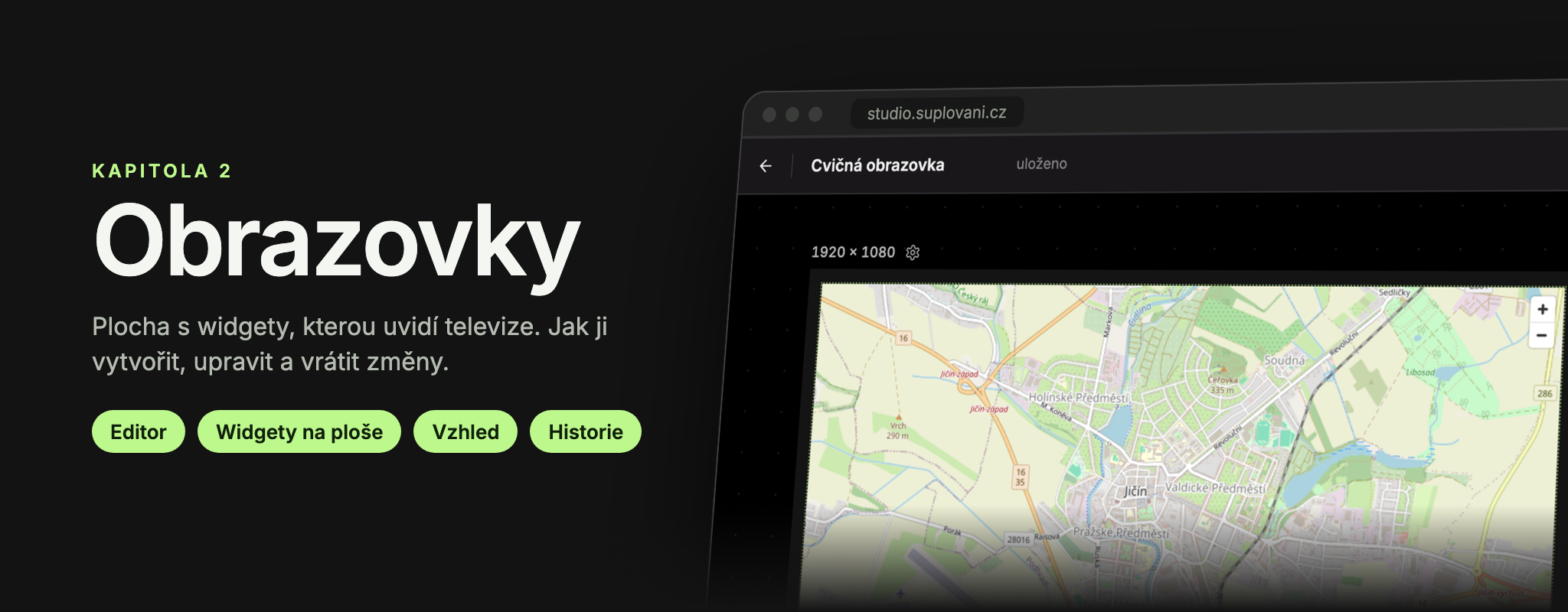
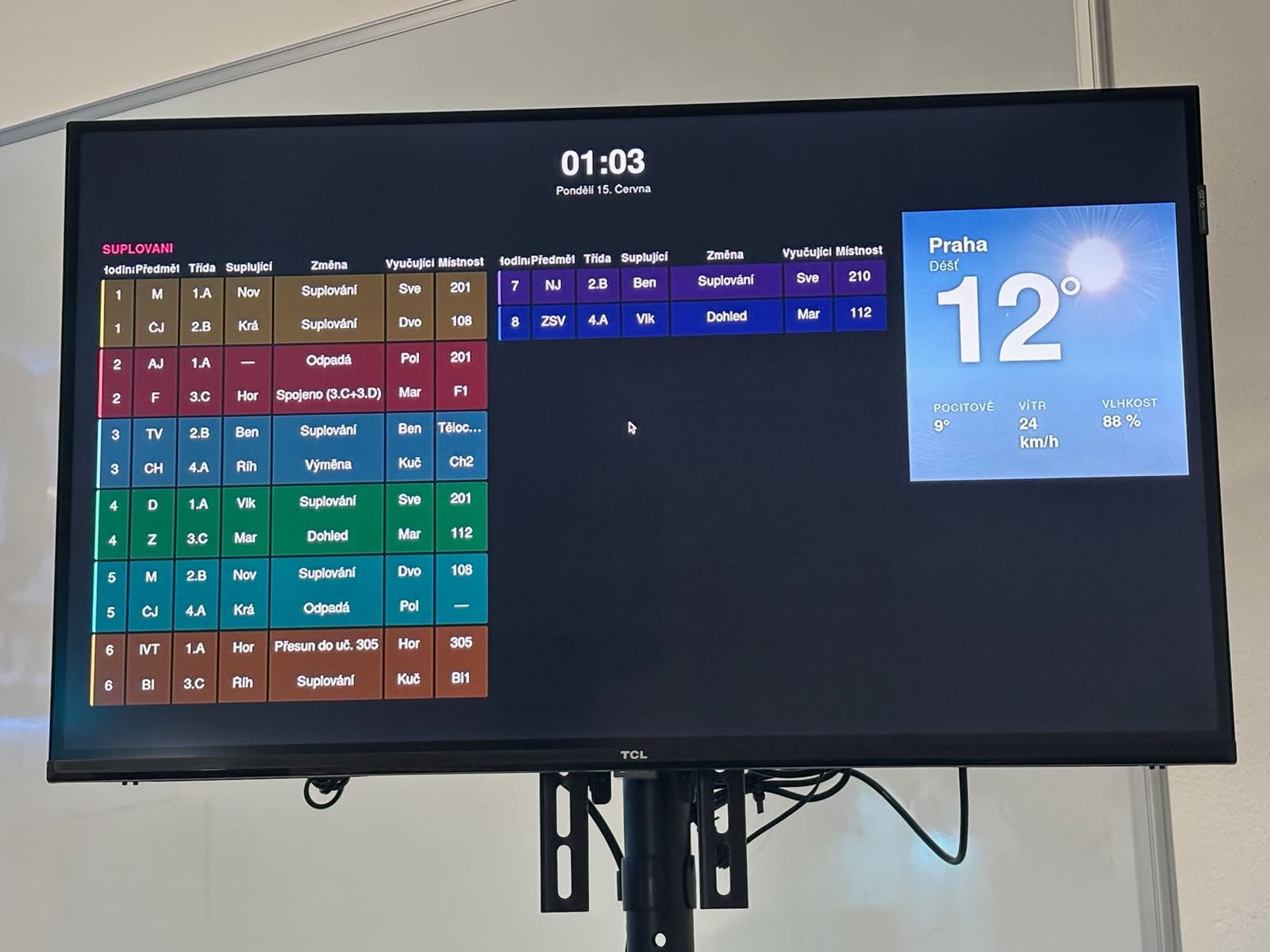
A screen is a single “page” for the TV. It consists of widgets, i.e. blocks with content: substitutions, supervisors, events, announcements, time, weather, image, video, or a web page. You arrange widgets on the surface in a grid. Finished screens are then assembled into a scenario, which the device at the TV plays.
List of screens
In the left menu, click Screens. You will see all the screens of your school.
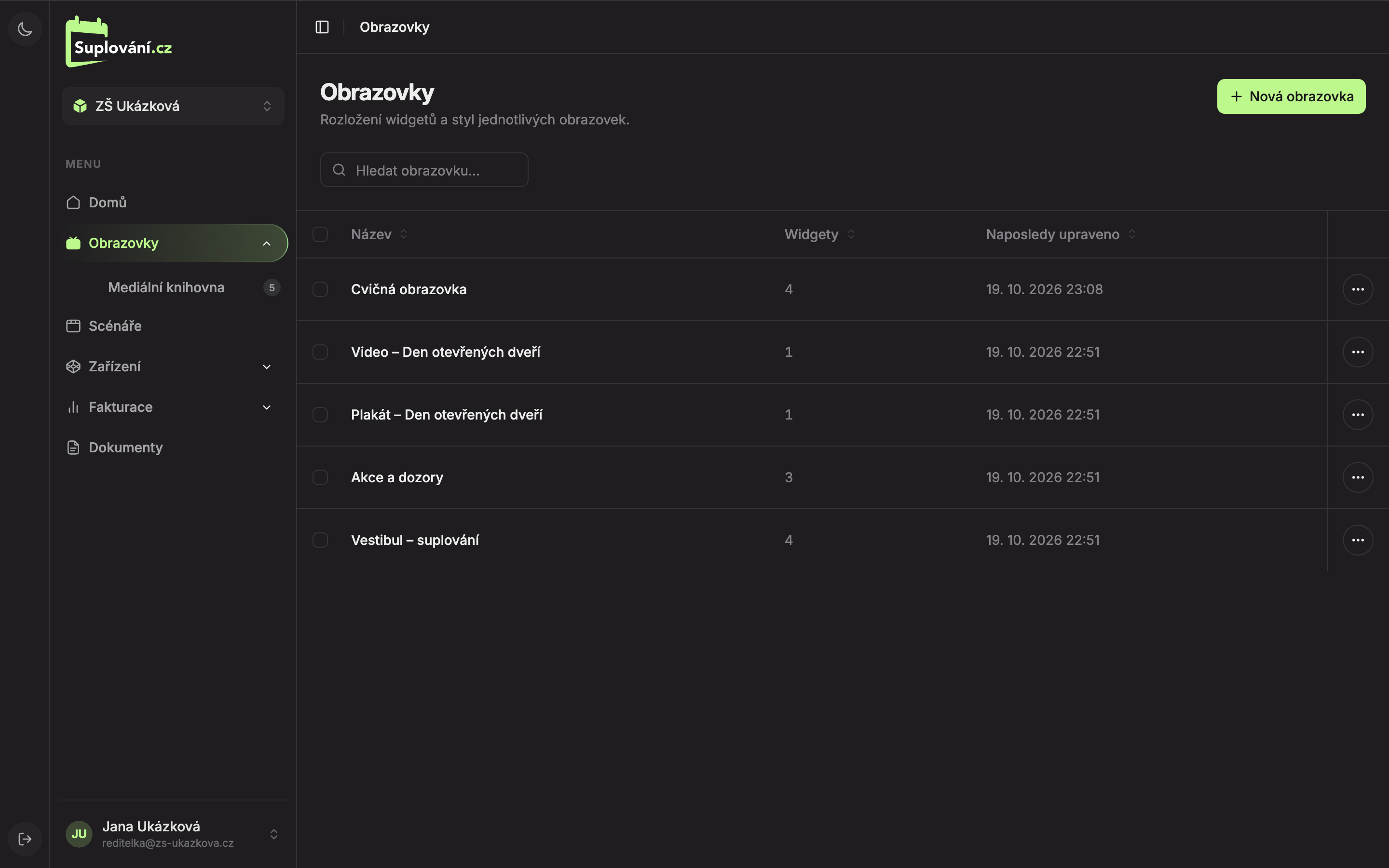
- New screen (1) creates a new screen and opens it immediately in the editor.
- Search screen… (2) filters the list by name.
- Click on a row (3) to open the screen in the editor.
The table has columns Name, Widgets (how many widgets the screen contains), and Last modified. Click a column header to sort the list by that column.
If the school has no screens yet, you will see “No screens yet” and a button to create the first one.
In this section
- Creating a screen
- Orientation in the editor
- Adding, moving, and editing widgets
- Widget settings panel
- Screen appearance and resolution
- Undoing changes and history
- Searching and deleting screens
Descriptions of individual widgets and all their settings can be found in the Widgets section.
Updated