
Devices
More options
 Discuss with Marie
 Assigning a Device Scenario
How to determine which scenario is playing on the screen: selection in the device detail or in the list, immediate saving, and what happens without a scenario.
What is shown on the TV is determined by the scenario assigned to the device. Each device can have at most one scenario. However, one scenario can be played by multiple devices simultaneously. How to create a scenario is described in the Scenarios section.
Open the device
In the left menu, click on Devices and then on the device tab. Its detail will open on the right.
Expand the scenario selection
In the Scenario section, click on the field with the scenario name.
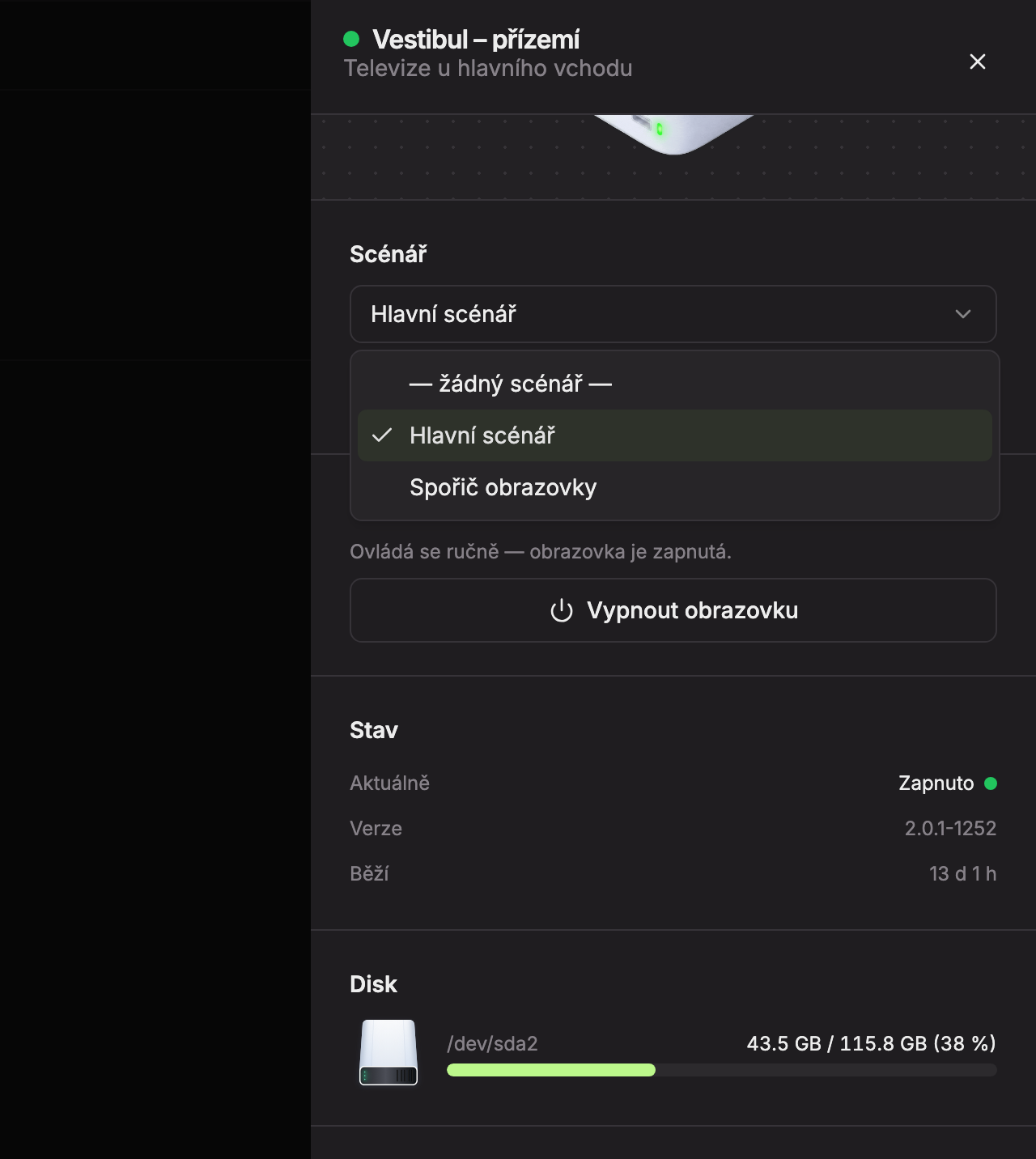
- — no scenario — – the device loses its scenario (see below).
- Other scenarios of your school. The current scenario is checked.
Select a scenario
Click on a scenario. The change is saved immediately, without further confirmation. While saving, a spinner appears next to the field, then a green checkmark.
Check the screen
The device will start playing the new scenario within a few seconds. You can verify this on the device tab or in the live monitor.
Assignment in List view
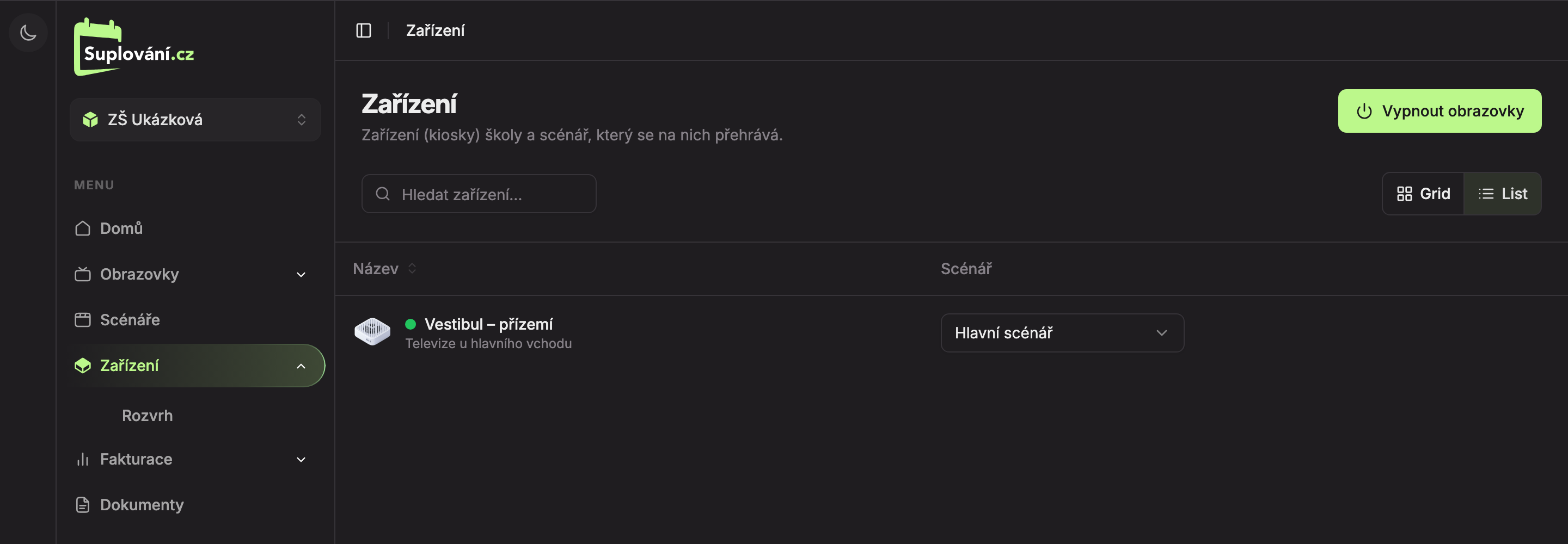
If you want to change the scenario for several devices, the List view is faster. The scenario selection is directly in the Scenario column and works the same as in the device detail. Clicking on the selection does not open the device detail.
Which scenarios can be selected
- The menu contains only scenarios of the school to which the device belongs.
- If the device is assigned a scenario from another school, it will appear in the menu as “(name) (scenario of another school)”. It cannot be selected again.
- Devices that do not belong to any school will show an empty list and the message “Device has no school”. In such a case, please contact us.
Devices without a scenario
If you select — no scenario —, the TV will show a neutral screen with the message “Device has no assigned scenario”, the device name and number, and the school number instead of content. In Studio, the device tab will show the label No scenario and under the name “No assigned scenario”.
When saving fails
If the scenario fails to save, an error message appears in the bottom left, for example “Saving failed” or “Device does not belong to this school”. The message remains until you close it. The device continues to play the original scenario. Try again, and if the error persists, contact us (see Support contact).
Updated