
Media Library
More options
 Discuss with Marie
 Media Library
A place where the school manages all images and videos for the Image and Video widgets.
Media Library is the place for all images and videos of your school. From here, you insert them into the Image and Video widgets. Open it from the left menu under Screens by selecting Media Library. The number next to the item shows how many files are in the library.
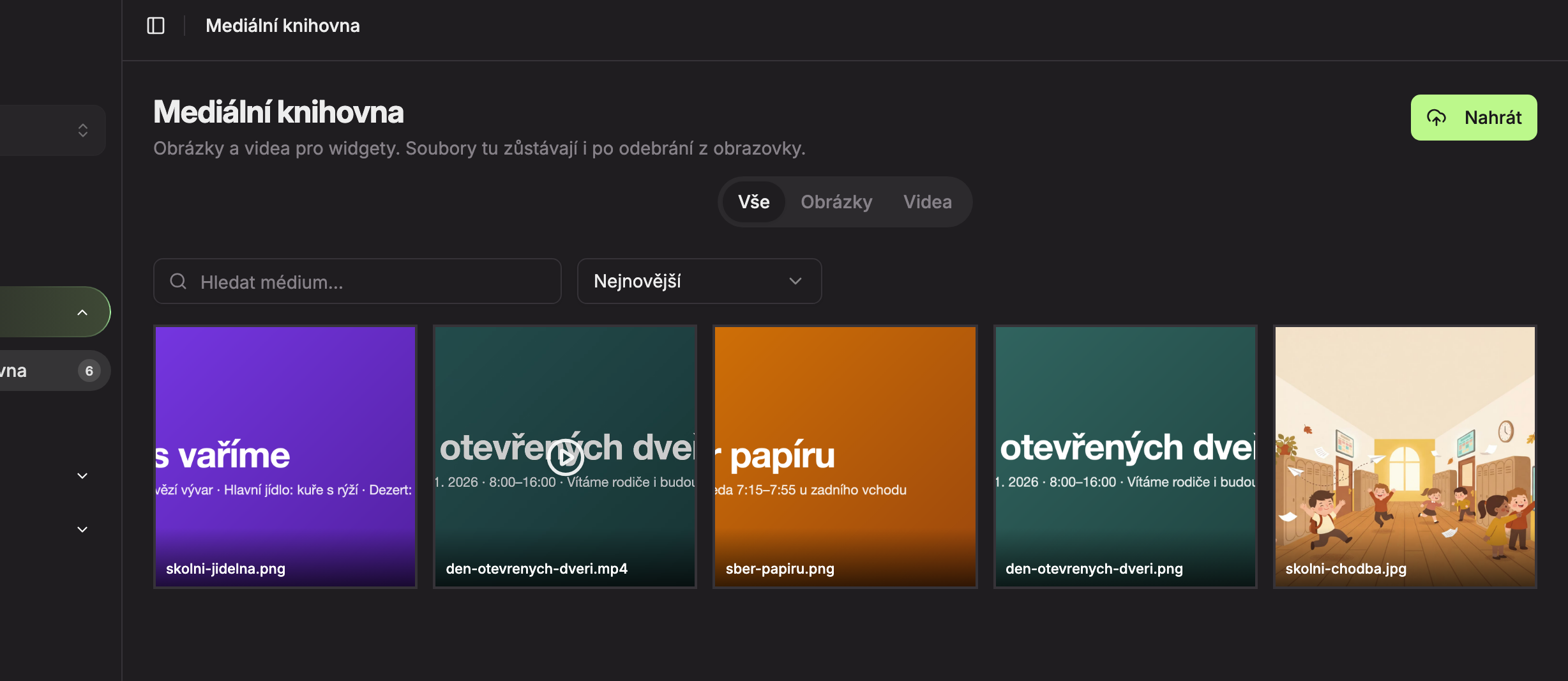
| Element | Purpose | |
|---|---|---|
| 1 | Upload | Opens the interface to upload files from your computer. |
| 2 | All / Images / Videos | Shows all files, or only images, or only videos. |
| 3 | Search media… | Search by file name. |
| 4 | Sorting | Newest (default), Oldest, or By name. |
| 5 | File preview | Click to open the file details. The preview shows the name below; videos have a play icon in the center. |
What file types the library accepts
| Type | Formats | Maximum size |
|---|---|---|
| Image | PNG, JPG, JPEG, BMP, SVG | 7 MB |
| Video | MP4 | 500 MB |
Shared files
In addition to your school’s files, you can also see files prepared by Suplování.cz for all schools in the library. You can use them just like your own, but you cannot rename or delete them. Studio will then show the error “Media does not belong to this school.”
If the school has no files in the library yet, you will see “No media yet.” and “Upload images or videos.”
In this section
Updated